Manage accelerator resources
Olares uses accelerator resources to run workloads such as AI inference, image and video generation, transcoding, and gaming. An accelerator can be a GPU, an integrated accelerator chip, or a CPU-based fallback resource.
This guide helps you understand how Olares allocates accelerator resources, then walks through common tasks such as changing a GPU mode, resuming a stopped app with GPU resources, and removing an app from a GPU.
Understand accelerator resources
How allocation works
Olares treats GPUs and other acceleration devices as shared resources in the cluster. Instead of asking each app to manage hardware directly, Olares checks the app's accelerator requirement, finds matching resources, and binds the app to a resource that has enough available capacity.
For GPU-dependent apps, Olares considers several factors during allocation:
- Resource type, such as NVIDIA GPU.
- GPU mode, such as Time slicing, Memory slicing, or Exclusive.
- Total and free VRAM.
- Whether the app can bind to one GPU or multiple GPUs.
- Apps already assigned to the same resource.
When you install a new app that requires GPU resources, Olares automatically binds it to a suitable GPU if enough matching capacity is available. If the app is stopped later, or if you want to choose a different GPU or mode, you can resume the app and assign resources manually.
Supported resource types
Olares can display the following accelerator resource types:
| Resource type | Description |
|---|---|
| NVIDIA | General NVIDIA GPUs. |
| NVIDIA GB10 | NVIDIA GB10 SoC devices. |
| Apple M-series | Apple M-series chips. |
| AMD Strix Halo | AMD Strix Halo devices. |
| CPU | Fallback resource used when no accelerator device is available. |
INFO
AMD GPU and AMD APU devices are not covered in this version.
GPU modes
For supported GPU resources, the mode controls how apps share the GPU. Not every accelerator supports all three modes. The mode dropdown only shows the modes available for that specific resource.
| Mode | Description | Usage & notes |
|---|---|---|
| Time slicing | Multiple apps share one GPU by taking turns using compute and VRAM. Each app can see the full GPU, but workloads run in slices. |
|
| Memory slicing | Multiple apps share one GPU with fixed VRAM allocations. |
|
| Exclusive | One app gets full access to the GPU. |
|
How node memory is calculated in Time slicing
In Time slicing mode, Olares currently checks node memory using these calculations:
- Required memory:
App memory requirement + GPU dedicated VRAM - Memory available below the scheduling threshold:
Total node memory × 90% - Used node memory - Memory shortfall:
Required memory - Available memory
For example, suppose an app requires 20 GiB of memory and the GPU has 16 GiB of dedicated VRAM:
- Required memory:
20 GiB + 16 GiB = 36 GiB - Available memory on a node with 46.89 GiB total and 7.41 GiB used:
46.89 GiB × 90% - 7.41 GiB = 34.79 GiB - Memory shortfall:
36 GiB - 34.79 GiB = 1.21 GiB
Because the shortfall is greater than zero, Olares cannot schedule the app on that node.
View accelerator resources
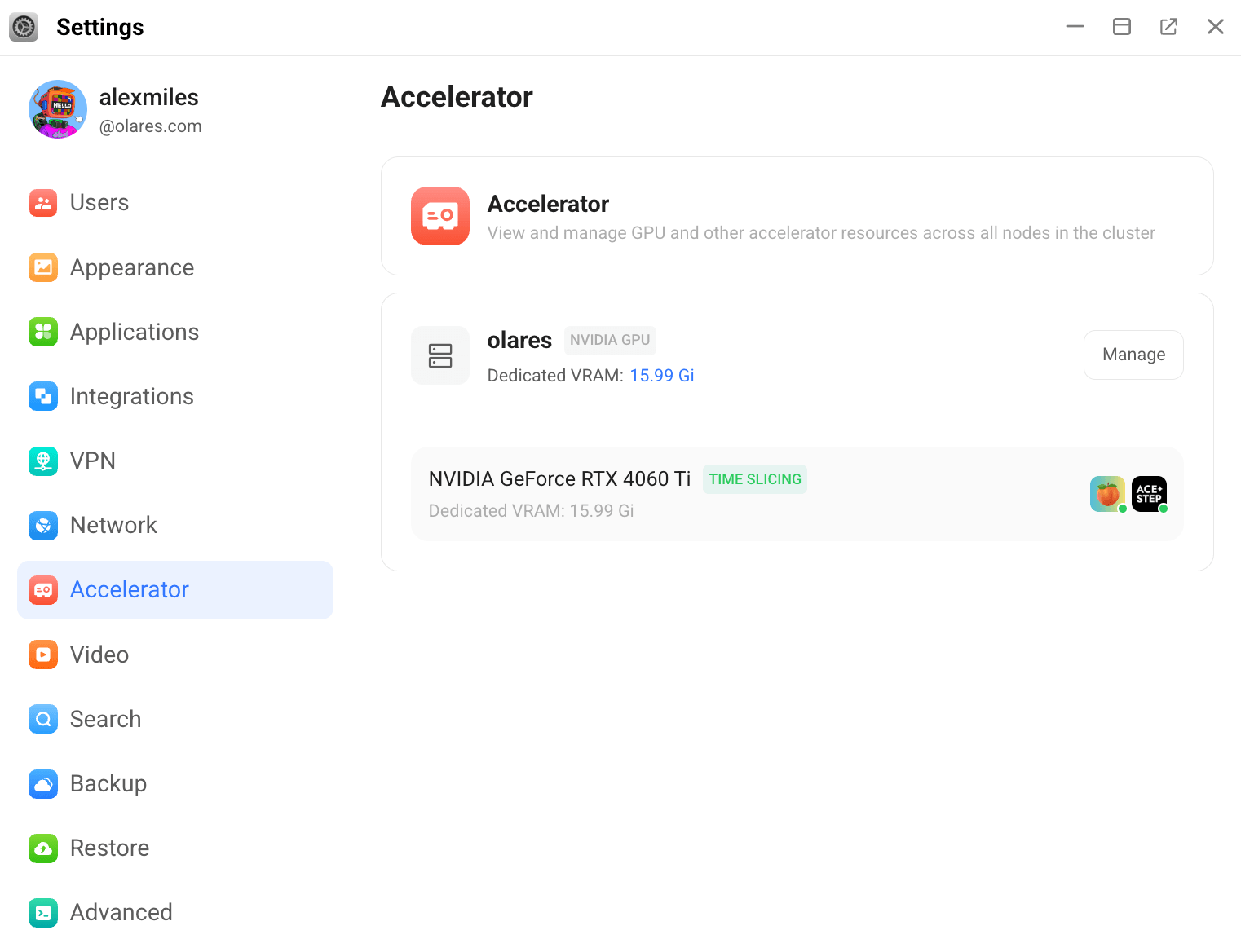
Go to Settings > Accelerator to view GPU and other accelerator resources across all nodes in the cluster.
The page shows each available resource with:
- Node name.
- Resource type, such as NVIDIA GPU.
- Dedicated VRAM on the node.
- GPU model, such as NVIDIA GeForce RTX 4060 Ti.
- Current sharing mode, such as Time slicing, Memory slicing, or Exclusive.
- Apps currently assigned to the resource.
Change a GPU mode
WARNING
Switching modes stops all apps currently using this GPU and removes their assigned GPU resources. To use these apps again, reassign resources and launch them.
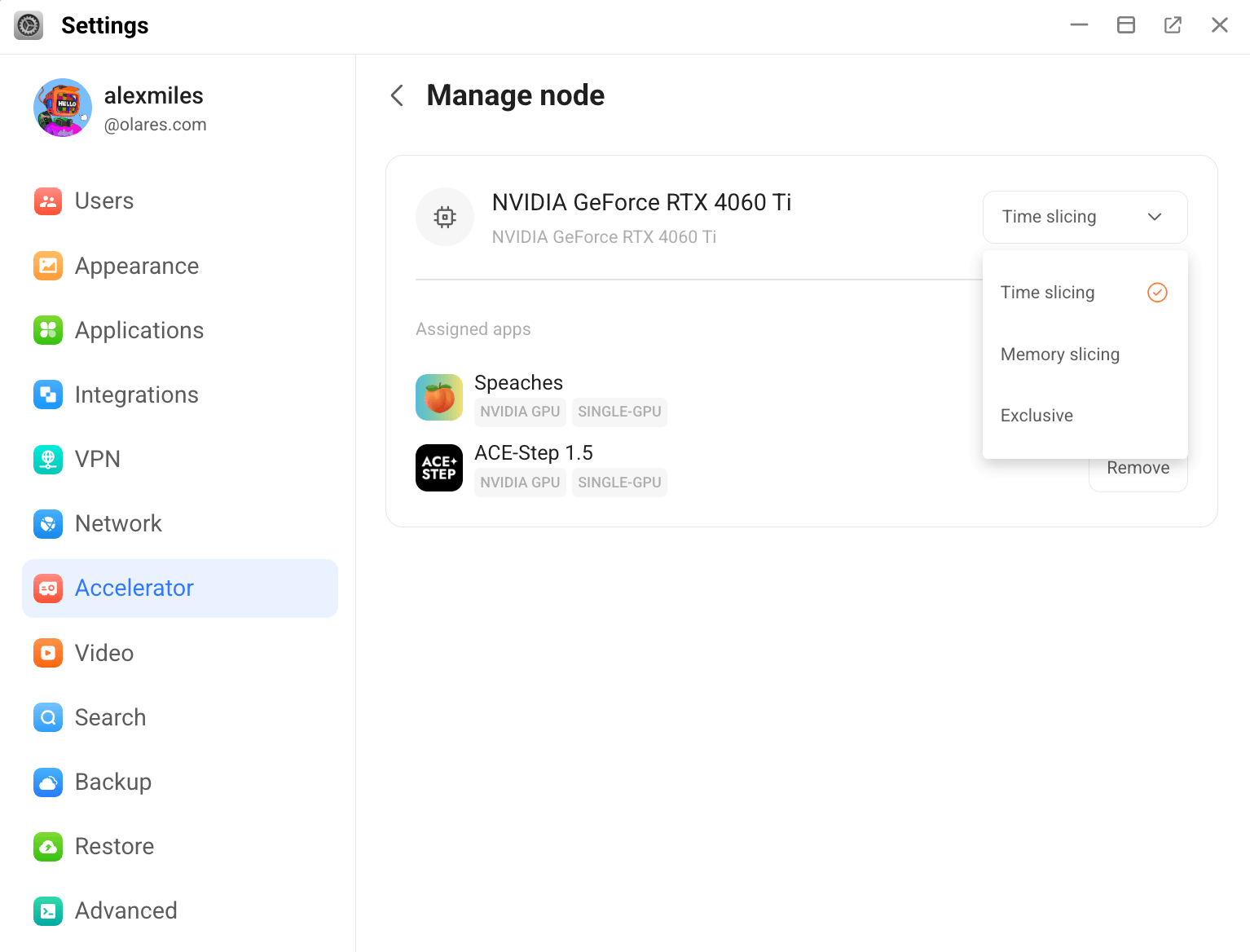
Go to Settings > Accelerator, then click Manage on the resource card.
On the Manage node page, find the target GPU, open its mode dropdown, and select Time slicing, Memory slicing, or Exclusive.
Resume an app and assign resources
You can resume a stopped app and manually assign resources from either Settings or Market.
Open one of the following locations:
- Settings > Applications.
- Market > My Olares.
Find the target app and click Resume.
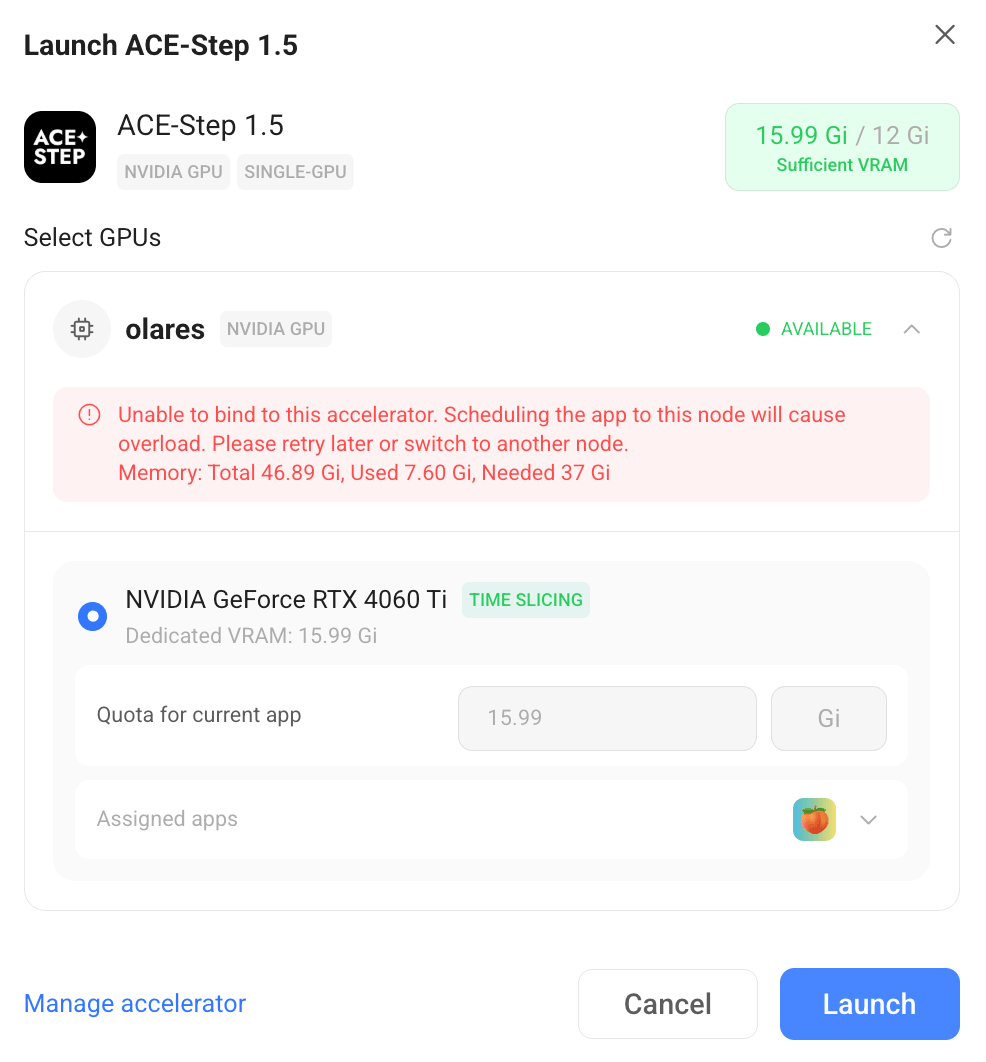
Review the app's requirements at the top of the launch dialog, including resource type, GPU binding capability, and VRAM requirement.
Under Select GPUs, choose a resource. The dialog shows its dedicated VRAM, sharing mode, quota for the current app, and assigned apps. If the app cannot be launched, follow the inline message:
- If the available quota is below the app's minimum requirement, expand Assigned apps and click Remove for an app to free resources, or select another GPU.
- If the GPU's total dedicated VRAM is below the app's minimum requirement, removing apps will not help. Select another GPU.
- In Time slicing mode, launch can also be blocked by the node memory check described above. The message shows the node's total, used, and required memory. Retry later or select another node.
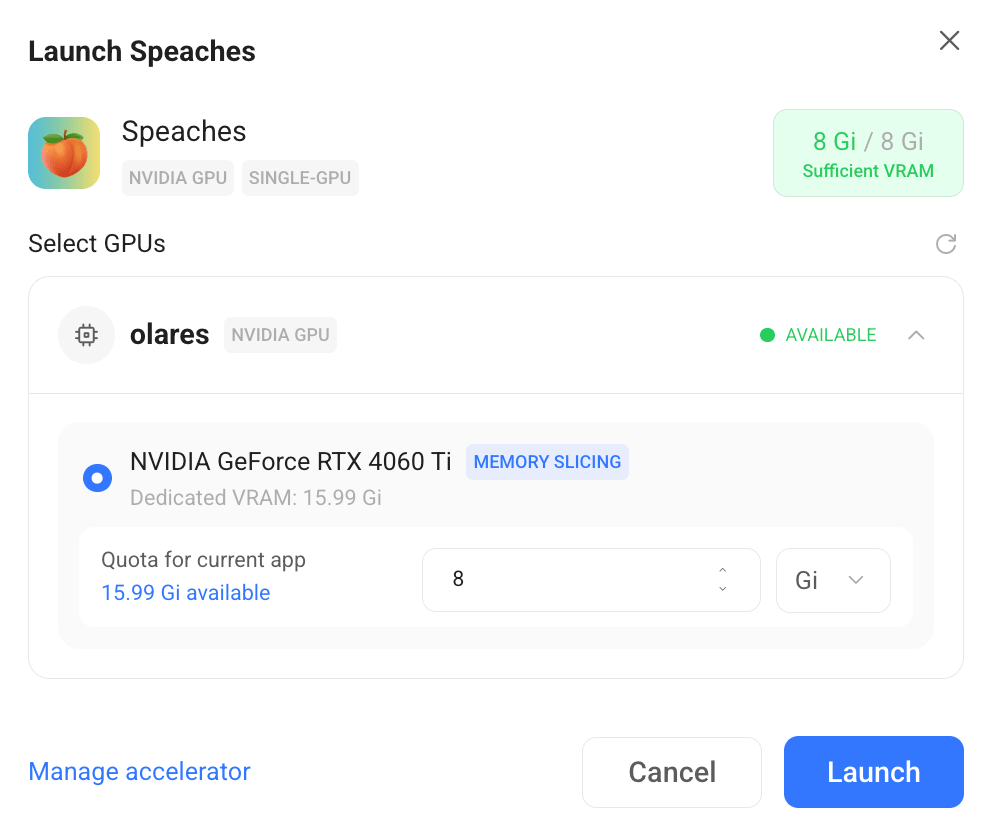
For Memory slicing mode, Quota for current app defaults to the app's minimum VRAM requirement. To adjust it, enter a new amount directly in the quota field. The value cannot exceed the available quota.
Reallocate VRAM
You cannot adjust VRAM after the app is assigned. To change it later, you must remove the app from the GPU and resume it again.
Click Launch.
Remove an app from a GPU
Removing an app from a GPU stops the app and releases its hardware resources. Use this workflow when you want to actively free up resources from Settings, even if you are not launching another app right now.
To use the app again later, you must assign resources and launch it again.
WARNING
If an app is bound to multiple GPUs or GPUs across multiple nodes, removing the app from one GPU releases all GPU resources assigned to that app and stops the app.
Go to Settings > Accelerator, then click Manage on the resource card.
Under Assigned apps, find the target app, then click Remove.
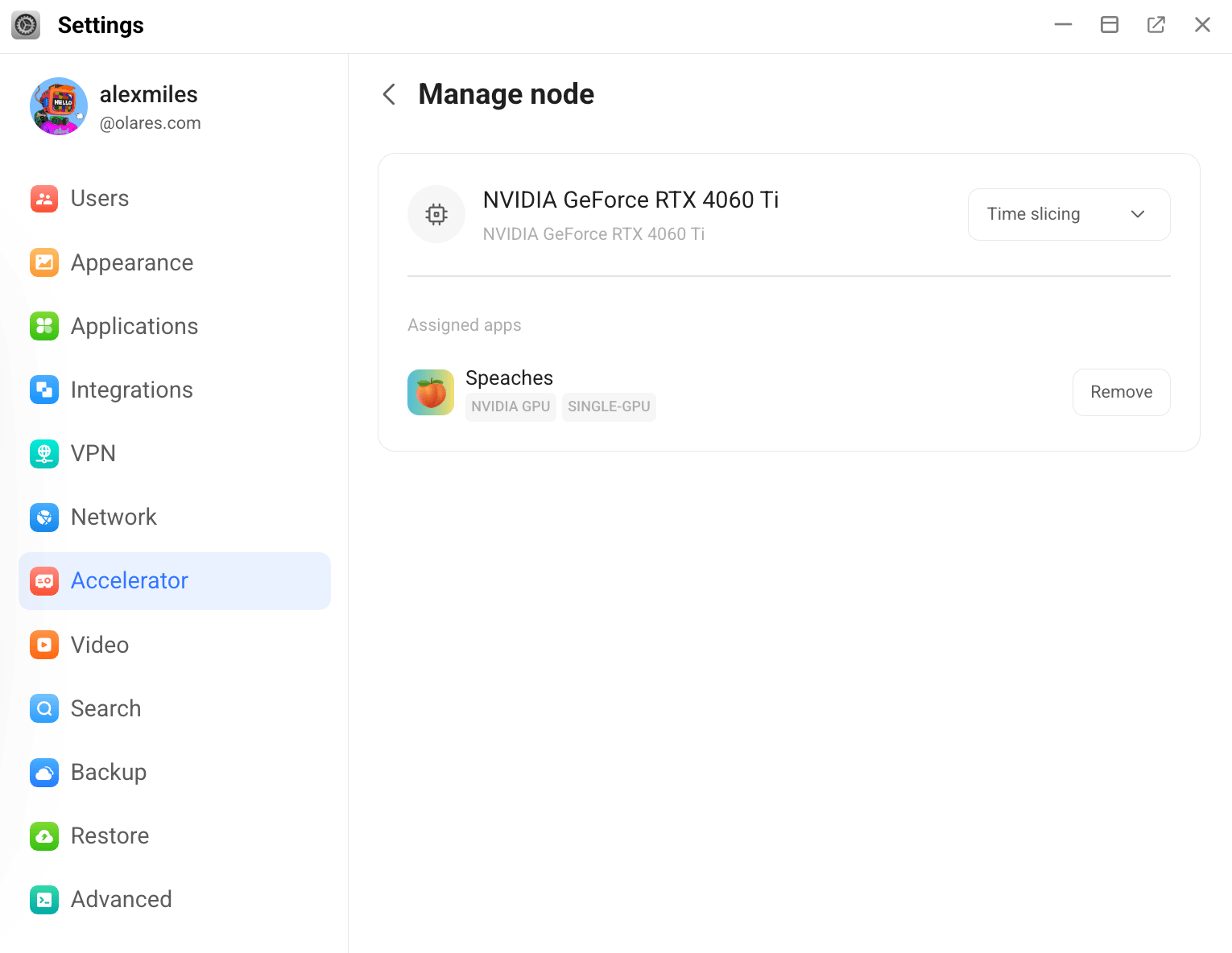
In the confirmation dialog, click Remove.
INFO
Resource release may take a short time. If no resource can be assigned to the app immediately after removal, refresh the resource list and check again.
Resources
- Monitor resource usage: Track GPU and system usage in the Dashboard.