My Olares overview
The My Olares page in Settings serves as your central hub for managing your Olares account, connected devices, security settings, and access policies.
To access My Olares, open Settings and click your avatar in the top-left corner.
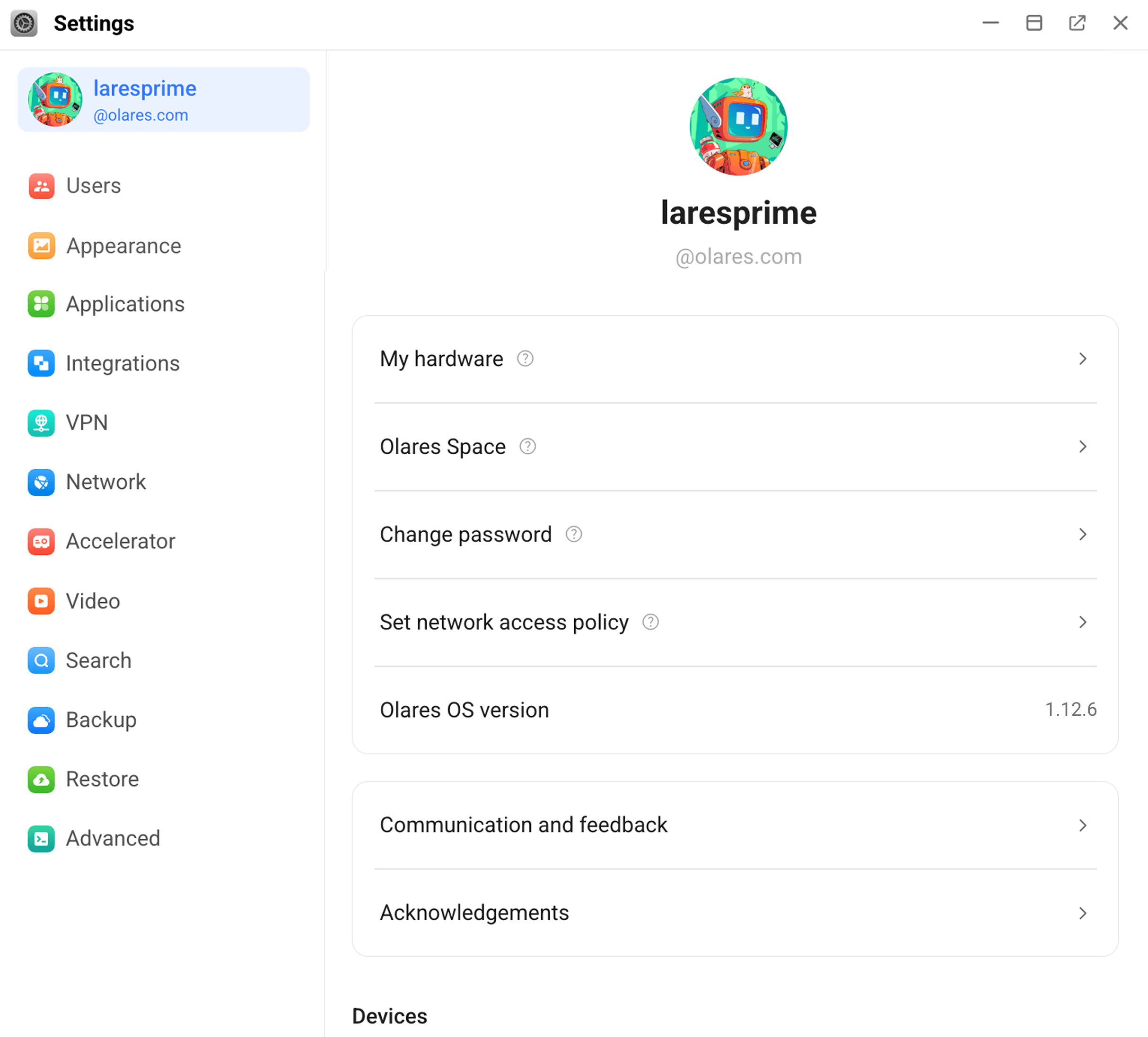
My hardware
View and manage your Olares hardware. You can see details such as Model, Device status, Device Identifier, CPU, and GPU.

Available actions are:
Shutdown
Powers off the Olares device. You’ll be handed off to the LarePass app to confirm.
After shutdown, the device status in LarePass shows Powered off.
Remote operations are unavailable until you manually turn the device back on.Restart
Reboots the device with confirmation in LarePass.
The status changes to Restarting and returns to Olares running in about 5–8 minutes.
Reset SSH Password Olares One Only
Take the following steps to change the default SSH password:
- On the My hardware page, click the Reset SSH Password button.
- In the dialog, enter a new SSH password that meets all strength requirements, then click OK.
- Open the LarePass app and scan the QR code shown on the screen.
- Click Confirm on LarePass to finish.
Power mode Olares One Only
Toggles Olares One’s performance profile.
- Silent mode – Limits CPU and GPU power for quiet operation, suitable for everyday workloads.
- Performance mode – Enables maximum CPU and GPU performance for demanding tasks such as AI inference or gaming.
Limit CPU frequency Olares One Only
Turn on this switch to limit the CPU frequency from 5.4 GHz to 5.0 GHz. Turn it off to restore the original maximum frequency.
Automatic startup Olares One Only
Turn on this switch to start the device automatically when power is connected or restored after a power outage.
INFO
Requires Olares OS 1.12.6 or later and EC firmware 1.03 or later. If either prerequisite is not met, the toggle is visible but disabled.
To check your current EC firmware version or update EC firmware, see Manage BIOS and EC.
Olares Space
Check your subscribed plan details and usage in Olares Space, including reverse proxy solution, backup storage, and traffic consumption. Log in to Olares Space as prompted to use this feature.
Change password
Update your Olares login password to enhance your account security.
Set network access policy
Define system-level access and authentication policies to control how users connect to your Olares.
- Two-factor (Recommended): Requires both your login password and a two-factor authentication code for enhanced security.
- One-factor: Only requires your login password.
Olares OS version
Check the current version of your Olares. If a new version is available, go to the Settings > Olares management page in the LarePass mobile client to complete the system upgrade.
For detailed steps, see Upgrade Olares.
Communication and feedback
Access help resources or send feedback to the Olares team regarding your system experience.
Acknowledgements
View open-source licenses and other acknowledgements for components used by Olares.
Devices
View devices that are authorized to access your Olares. Each device entry shows the device name and client type. Select a device to view more details or manage its access.
Log out
Click Log out to sign out of the current Olares session. You need to log in again before accessing Olares from this device.