Mount SMB shares
SMB (Server Message Block) is a protocol used to share files, printers, and other resources over a network. If you have a network-attached storage (NAS) device or another SMB server in LAN, you can easily mount SMB shares in Olares to access and manage shared files.
Before you begin
- Your Olares and the SMB server (e.g. a NAS device) must be on the same local network.
- You have the following SMB share details:
- SMB share path: This will typically look like
//<IP-address>/<Shared-folder-name>. - Username and password: Credentials for accessing the SMB share.
- SMB share path: This will typically look like
Mount SMB share to Olares
- Open Files, and navigate to Drive > External.
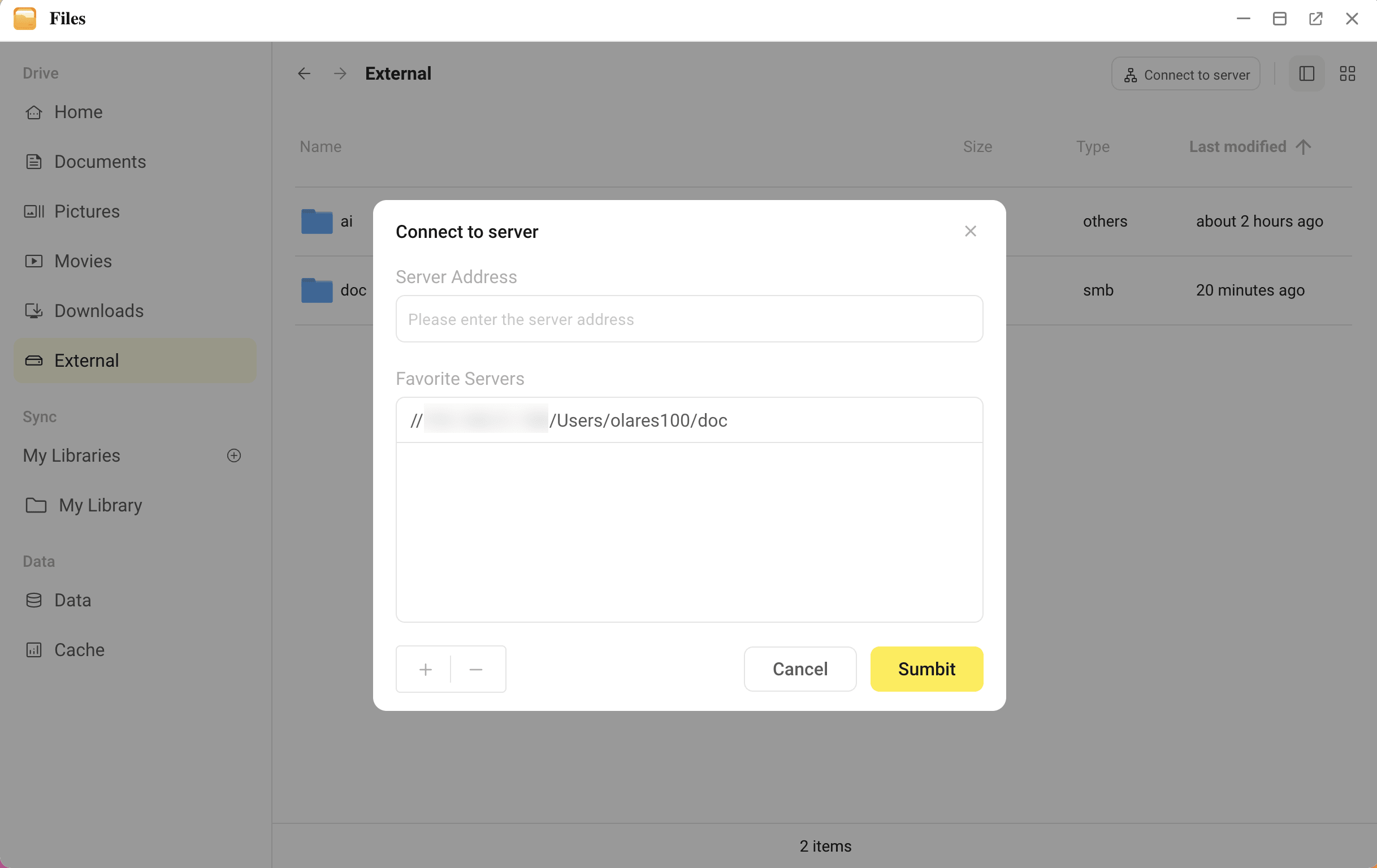
- Click Connect to server in the top-right corner.
- Enter the SMB share path (e.g.,
//192.168.1.100/Documents) in the Server Address field and click Submit.Save frequently used server addresses
- To add a server address to Favourite Servers, click add after entering the share path.
- To remove a saved server, click the server path under Favourite Servers, then click remove.
- Enter the username and password, then click Submit.
Once connected, the SMB share will appear in External directory, allowing you to access shared files and folders seamlessly.
Unmount SMB share
To unmount an SMB share:
- Open Files, and navigate to Drive > External.
- Right-click on the mounted folder, then select Unmount from the context menu.
The SMB share will be safely disconnected from your Olares.