使用 Olares CLI 管理 Olares
Olares CLI 技能可以让 NemoClaw Agent 通过自然语言管理 Olares 设备上的文件和应用。如需了解其他技能,请参阅管理技能和插件。
准备工作
- NemoClaw 已在 Olares 上安装并运行。
- 你的 Olares ID 和登录密码。
步骤 1:登录 Olares CLI
Olares CLI 需要你的账号密码。Agent 使用 Olares CLI 技能前,需要先在 NemoClaw CLI 中登录。
从启动台打开 NemoClaw CLI 应用。
连接到运行时沙盒:
bashnemoclaw my-assistant connect等待终端显示沙盒提示符,例如
sandbox@my-assistant:~$。登录你的 Olares 账号。将
<your-olares-id>替换为你的 Olares ID:basholares-cli profile login --olares-id <your-olares-id>例如:
basholares-cli profile login --olares-id [email protected]按提示输入你的 Olares 登录密码。
检查 profile 是否已登录。
basholares-cli profile list示例输出:
textNAME OLARES-ID STATUS * [email protected] [email protected] logged-in (23h59m)
步骤 2:从 ClawHub 安装 Olares 技能
打开 OpenClaw Web UI,并进入 Skills。
在 ClawHub 搜索框中输入
olares,找到 Olares 技能。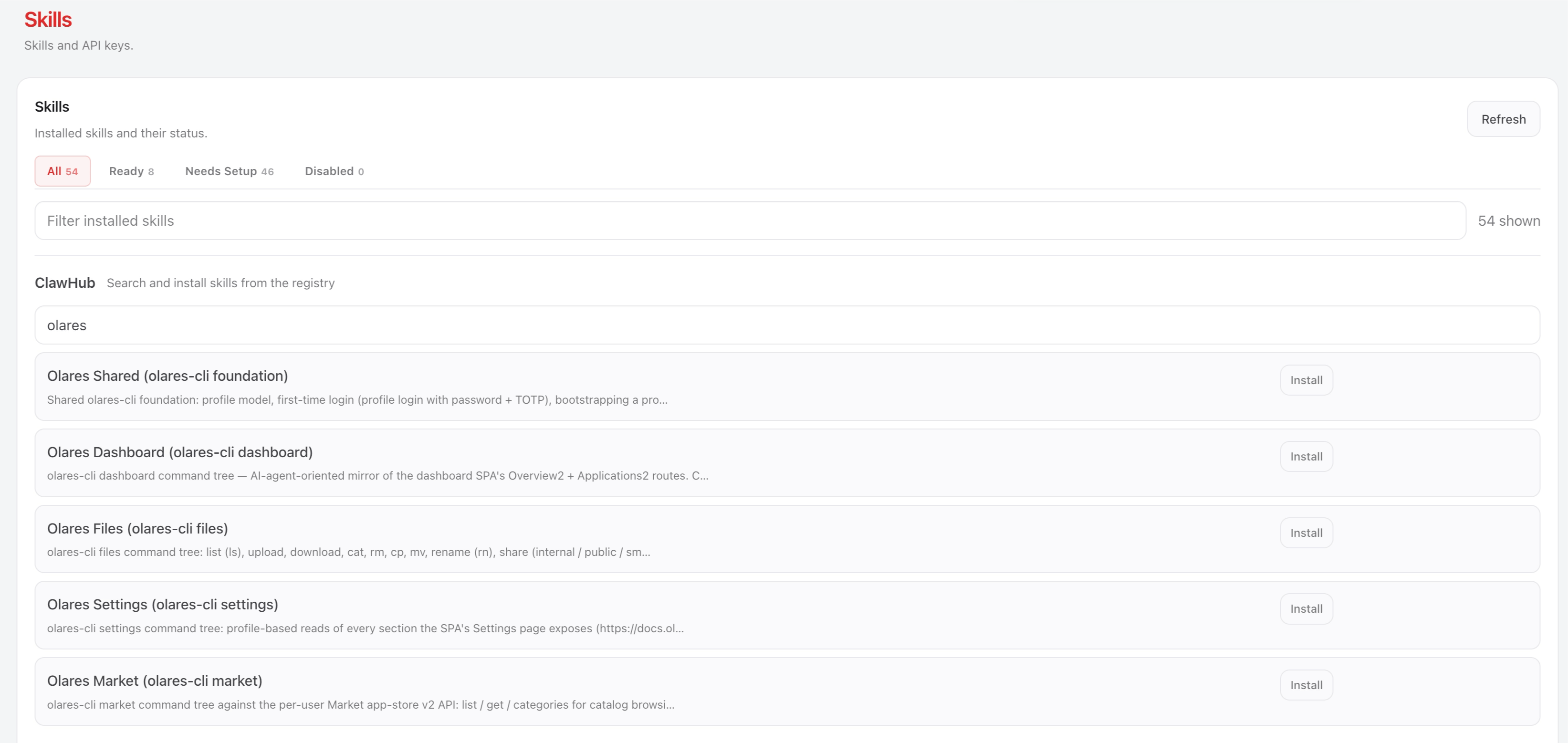
先安装 Olares Shared 技能,这是其他 Olares 技能的基础。
安装其余 Olares 技能,例如 Olares Files 和 Olares Market。
打开 OpenClaw Web UI 的聊天页面,运行
/reset开启新会话,让 Agent 识别新安装的技能。如果你已配置 Discord 等频道,也需要在每个频道会话中运行/reset。
遇到 429 错误时重试
如果下载技能时看到 429 错误,稍等片刻后重试。
步骤 3:用自然语言与 Agent 对话
打开 OpenClaw Web UI 或 OpenClaw TUI,并用自然语言向 Agent 提出请求。例如:
列出
/drive/Home/下的所有文件和文件夹:textList drive/Home/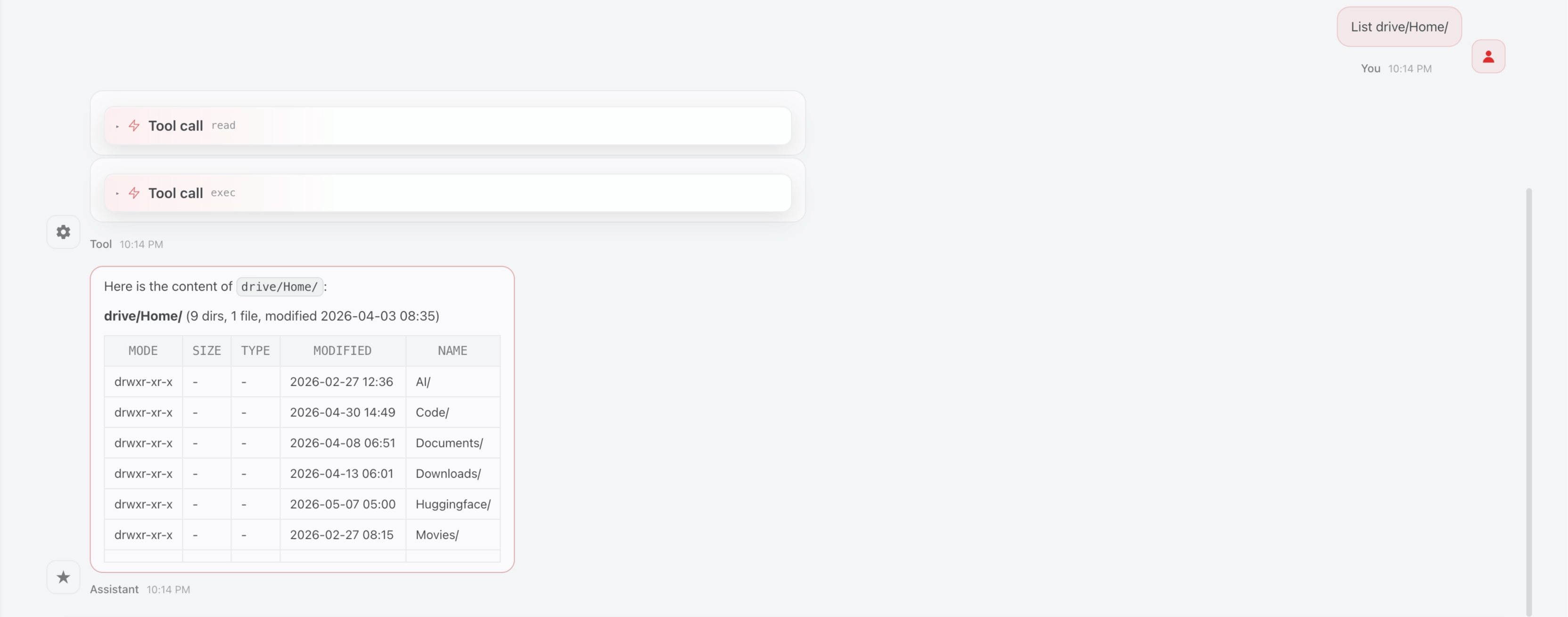
读取文件:
textRead the last 10 lines of the nemoclaw.log file in the Home directory.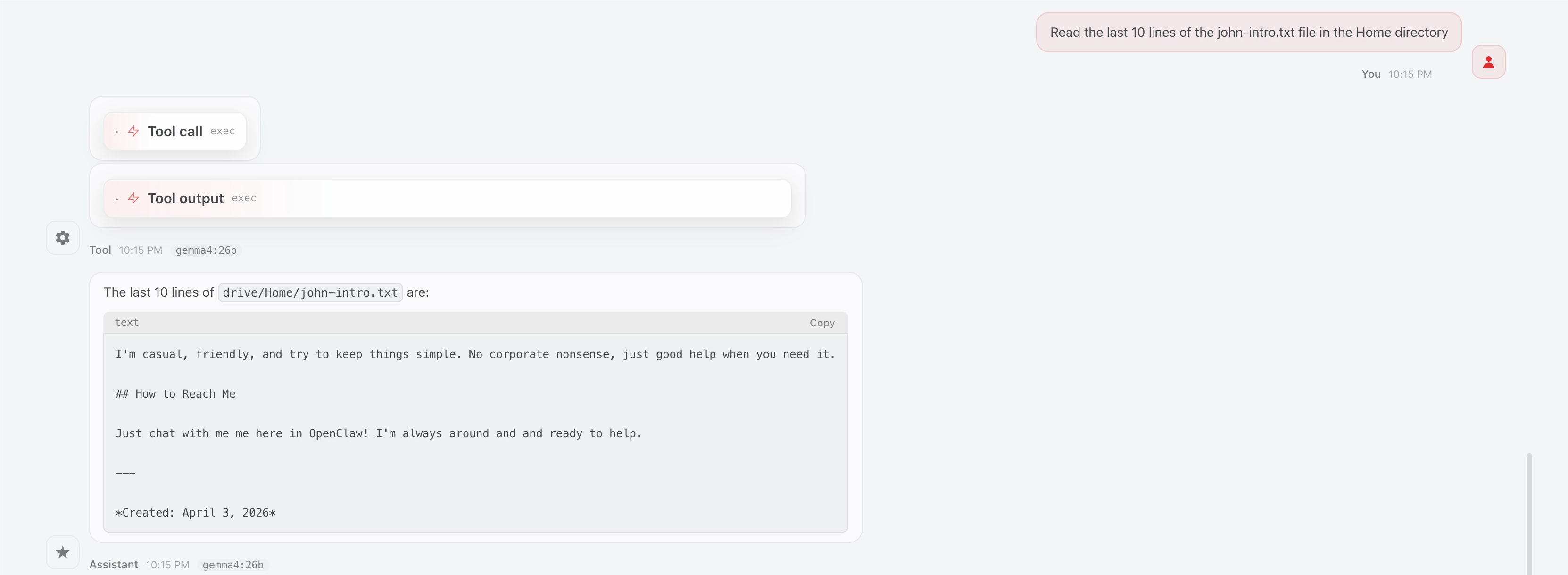
从 Olares 应用市场安装应用:
textInstall Firefox从 Olares 应用市场卸载应用:
textUninstall Firefox
了解更多
- 使用本地 LLM 运行 NemoClaw:使用本地模型设置 NemoClaw。
- 管理技能和插件:安装和管理其他 OpenClaw 技能。