集成 Google Workspace
gog 技能可以让 NemoClaw Agent 与 Gmail、Google Calendar、Google Drive 等 Google Workspace 服务交互。配置完成后,你可以用自然语言让 Agent 搜索邮件、安排会议或访问文件。本文以 Google Calendar 为例。
准备工作
- NemoClaw 已在 Olares 上安装并运行。
- 一个 Google Workspace 账号或个人 Google 账号。
- 拥有访问 Google Cloud Console 并创建 OAuth 应用的管理员权限。
步骤 1:创建 Google Cloud OAuth 应用
访问 Google Cloud Console,并使用你的 Google 账号登录。
进入 Console,创建新项目或选择已有项目。
进入 APIs and services > Library。
在左侧筛选器中选择 Google Workspace,并启用你需要的 Google Workspace API。例如:
- Gmail API
- Google Drive API
- Google Calendar API
- Google People API(用于联系人)
- Google Sheets API 和 Google Docs API
如果这是你第一次配置 OAuth,请先进入 APIs and services > OAuth consent screen,并按页面提示完成 OAuth consent screen 设置。
个人 Google 账号
如果你使用的是个人 Gmail 账号,而不是 Google Workspace 组织账号,请在 Audience 中选择 External。发布应用后,进入 Audience > Test users,并添加你自己的邮箱地址。否则,未授权用户的认证会失败。
进入 APIs and services > Credentials,点击 Create credentials,然后选择 OAuth client ID。
在 Application type 中选择 Web application。
配置 authorized origins 和 redirect URIs:
- Authorized JavaScript origins:你的 OpenClaw Web UI URL。可以直接从浏览器地址栏复制。例如
https://d38aad901.laresprime.olares.com。 - Authorized redirect URIs:你的 OpenClaw Web UI URL 后追加
/oauth2/callback。例如https://d38aad901.laresprime.olares.com/oauth2/callback。
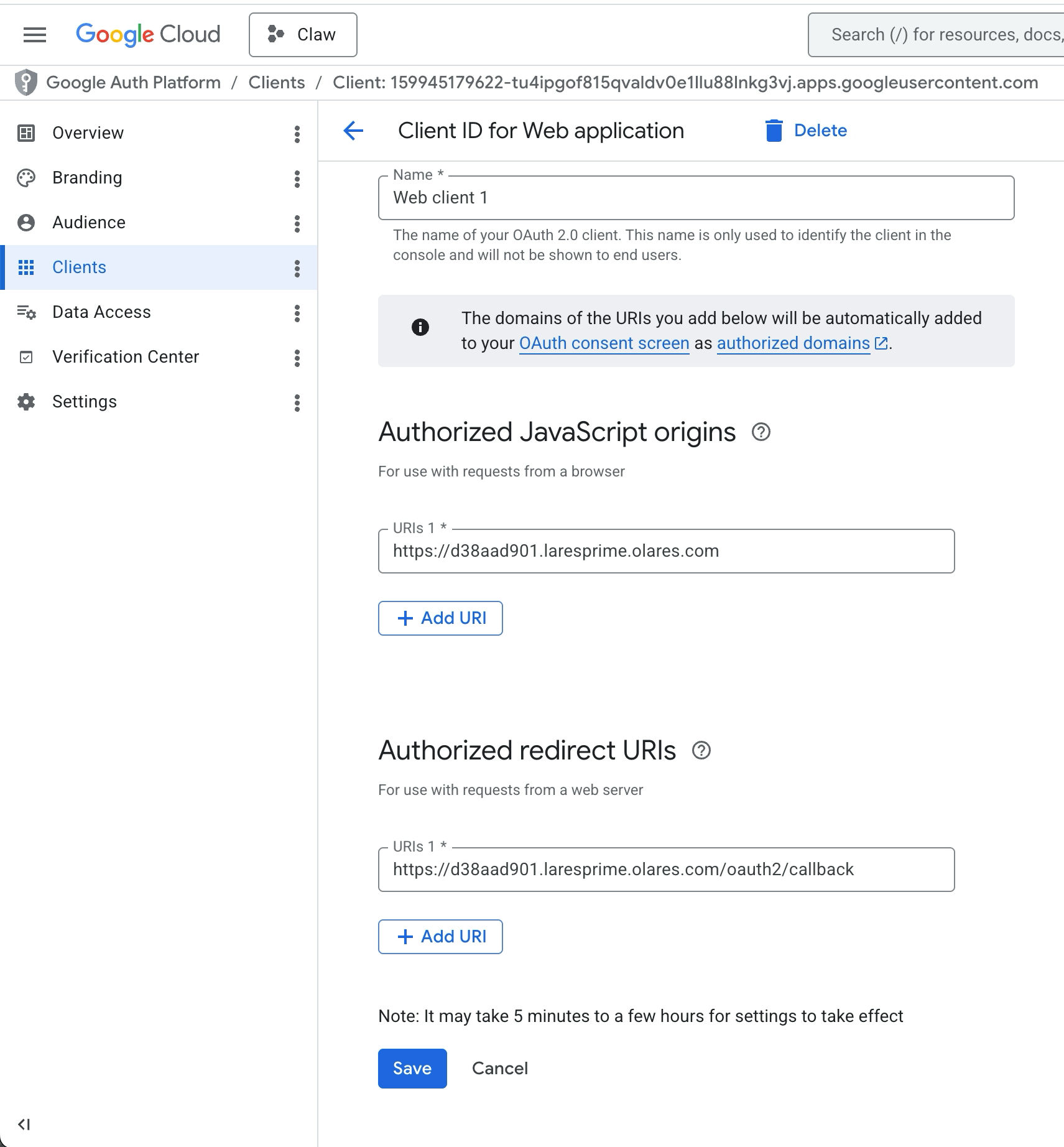
- Authorized JavaScript origins:你的 OpenClaw Web UI URL。可以直接从浏览器地址栏复制。例如
点击 Create,然后点击 Download JSON 保存 client secrets 文件。
步骤 2:安装 gog 技能
从启动台打开 NemoClaw CLI 应用。
连接到运行时沙盒:
bashnemoclaw my-assistant connect运行技能配置向导:
bashopenclaw config --section skills按提示配置安装。使用方向键移动,按回车键确认。
设置 选项 Where will the Gateway run Local (this machine) Configure skills now Yes Install missing skill dependencies 移动到 gog 技能,按空格键选中,然后按回车键。 Set [API_KEY] for [skill] 所有这些设置都选择 No。 打开 OpenClaw Web UI 的聊天页面,运行
/reset开启新会话,让 Agent 识别新安装的技能。如果你已配置 Discord 等频道,也需要在每个频道会话中运行/reset。TIP
你也可以从 OpenClaw Web UI 安装技能。进入 Skills,在 ClawHub 中搜索
gog,然后点击 Install。
步骤 3:使用 Google 认证
将下载的 JSON 文件上传到 NemoClaw 可访问的目录:
a. 打开文件,进入
Data/nemoclaw/openclaw-config/inbox/。b. 上传 JSON 文件。
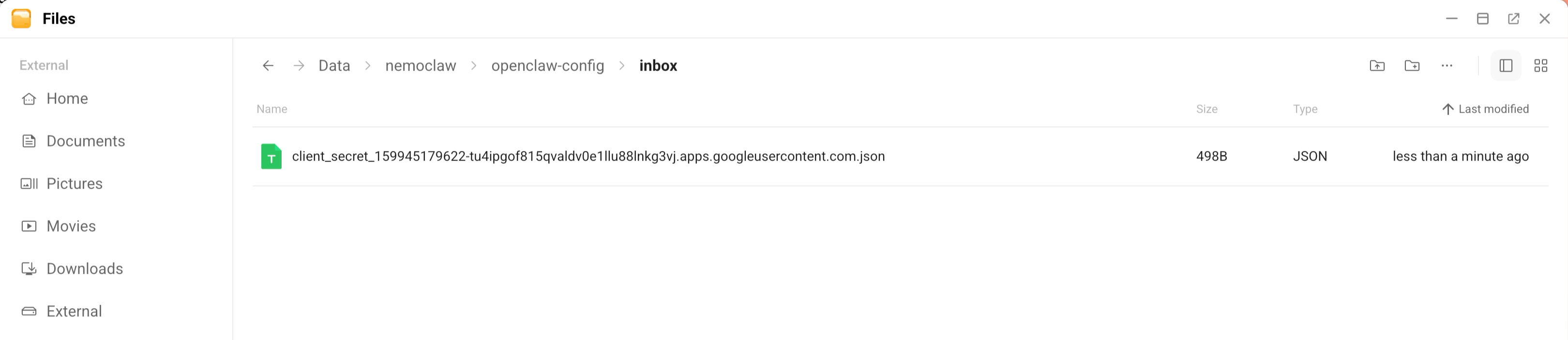
在 NemoClaw CLI 沙盒中添加 credentials 文件,并使用 Tab 自动补全 JSON 文件名:
bashgog auth credentials inbox/client_secret_....json示例输出:
textpath /sandbox/.config/gogcli/credentials.json client default启动认证流程。将邮箱、服务和 redirect host 替换为你自己的值:
bashgog auth add [email protected] --services gmail,calendar,drive,contacts,sheets,docs \ --listen-addr 0.0.0.0:8080 \ --redirect-host <your-control-ui-domain> \ --force-consentTIP
--redirect-host的值不要包含https://。只填写域名,例如d38aad901.laresprime.olares.com。例如:
bashgog auth add [email protected] --services calendar \ --listen-addr 0.0.0.0:8080 \ --redirect-host d38aad901.laresprime.olares.com \ --force-consent点击终端中显示的 URL,并在 3 分钟内完成 Google 认证。
TIP
最终回调 URL 应类似于
https://d38aad901.{username}.olares.com/oauth2/callback?state=...。如果浏览器因为缓存而在 URL 后追加/chat,请使用无痕窗口完成认证。认证成功后,终端中会显示确认信息。
示例输出:
textemail [email protected] services calendar client default
步骤 4:通过 Agent 使用 Google Workspace
你可以直接在 NemoClaw CLI 沙盒中使用 Google Workspace,也可以在聊天中通过 OpenClaw Agent 使用。
了解更多
- 使用本地 LLM 运行 NemoClaw:使用本地模型设置 NemoClaw。
- 管理技能和插件:安装和管理其他 OpenClaw 技能。