Set up Wake-on-LAN for Olares One
Wake-on-LAN (WOL) lets you wake Olares One by sending a Magic Packet from another device on the same local network. This guide applies to Olares One running Olares OS, Ubuntu, or Windows. It explains how to configure the device and send the packet from a phone, Linux, macOS, or Windows computer.
Local network only
This guide covers waking Olares One from the same local network. Waking it over the internet requires additional router and security configuration and is not covered here.
Before you begin
- Olares One is running Olares OS, Ubuntu, or Windows.
- Olares One is connected to your router through its Ethernet port. Wake-on-LAN does not work over its Wi-Fi connection.
- You have an administrator account on Olares One.
- A phone or computer is connected to the same local network as Olares One.
- EC firmware is version 1.01 or later. To check or update the version, see Manage BIOS and EC.
Configure Wake-on-LAN on Olares One
Choose the setup instructions for the operating system running on Olares One.
Olares OS or Ubuntu
Use the same steps whether Olares One runs the preinstalled Olares OS or an Ubuntu installation. Run the following commands in the host terminal as root or with an account that has sudo permission.
Find the network interface and addresses
Make sure the Ethernet cable is connected to Olares One and your router.
Open the host terminal on Olares One. On Olares OS, you can use the Olares terminal in Control Hub. On Ubuntu, open a terminal on the device or connect through SSH.
Run the following command:
baship addressFind the wired interface. Its name usually starts with
en, such asenp129s0.Record these values for the wired interface:
- Interface name: The name shown at the beginning of the interface entry.
- MAC address: The value after
link/ether. - IPv4 address: The value after
inet, without the subnet suffix. For example, record192.168.0.92from192.168.0.92/23. - Subnet broadcast address: The value after
brdon theinetline.
For example, the following line shows the IPv4 address
192.168.0.92and subnet broadcast address192.168.1.255:textinet 192.168.0.92/23 brd 192.168.1.255 scope global dynamic enp129s0These addresses are examples. Use the values shown on your own device.
Check the Wake-on-LAN status
Install
ethtool:bashsudo apt update sudo apt install ethtool -yCheck the current Wake-on-LAN status. Replace
<network-interface>with the wired interface name you recorded earlier.bashsudo ethtool <network-interface> | grep Wake-onCheck that the output contains
gin Supports Wake-on and showsWake-on: g:textSupports Wake-on: pumbg Wake-on: gThe
gvalue means the interface can wake the device when it receives a Magic Packet.If Supports Wake-on contains
gbut Wake-on is set to another value, enable Magic Packet wake-up:bashsudo ethtool --change <network-interface> wol gRun the status command again and check that it now shows
Wake-on: g.
Setting resets after a restart
Some network configurations reset the Wake-on-LAN setting during startup. If Olares One stops responding to Magic Packets after a restart, check the status again and re-enable it before suspending or shutting down the device.
Suspend or shut down Olares One
Keep Olares One connected to AC power and Ethernet. Then use one of the following commands.
Suspend Olares One:
bashsudo systemctl suspendShut down Olares One:
bashsudo shutdown -h now
Start with suspend if this is your first time using Wake-on-LAN. Some network environments or power settings might not support waking from a full shutdown.
Windows
Follow these steps to wake Olares One running Windows from sleep.
On Olares One, open Device Manager, expand Network adapters, right-click the wired Ethernet adapter, and select Properties.
On the Power Management tab, select Allow this device to wake the computer, and click OK.
Press
Win + R, enterncpa.cpl, and press Enter. Double-click the active Ethernet connection, click Details, and record:- Physical Address: The wired interface MAC address.
- IPv4 Address and IPv4 Subnet Mask: Use these to determine the subnet broadcast address. For example, IP address
192.168.1.92with subnet mask255.255.255.0has broadcast address192.168.1.255.
Calculate the subnet broadcast address
Run the following commands in PowerShell. Replace the example IPv4 address and subnet mask in the first two lines with the values you recorded:
powershell$ipBytes = ([System.Net.IPAddress]::Parse("192.168.1.92")).GetAddressBytes() $maskBytes = ([System.Net.IPAddress]::Parse("255.255.255.0")).GetAddressBytes() (0..3 | ForEach-Object { $ipBytes[$_] -bor ($maskBytes[$_] -bxor 255) }) -join '.'Record the resulting broadcast address to use when sending the wake-up packet.
Keep Olares One connected to AC power and Ethernet, then select Start > Power > Sleep.
Waking Windows from sleep
Use sleep for this procedure. Wake-up from shutdown depends on Windows power settings and hardware support. See Microsoft's Wake-on-LAN guidance.
Send a Magic Packet to wake Olares One
On another device connected to the same local network, choose one of the methods below. Use the wired interface addresses you recorded for Olares One.
From a phone
The following steps use Easy WOL as an example. You can use another app that sends Wake-on-LAN Magic Packets.
Connect your phone to the same local network as Olares One.
Install and open a Wake-on-LAN app.
Add Olares One and enter the following information:
- Device Name: Enter a name that helps you identify Olares One.
- Address: Enter the IPv4 address you recorded earlier.
- MAC: Enter the wired interface MAC address.
- Port: Enter
9.
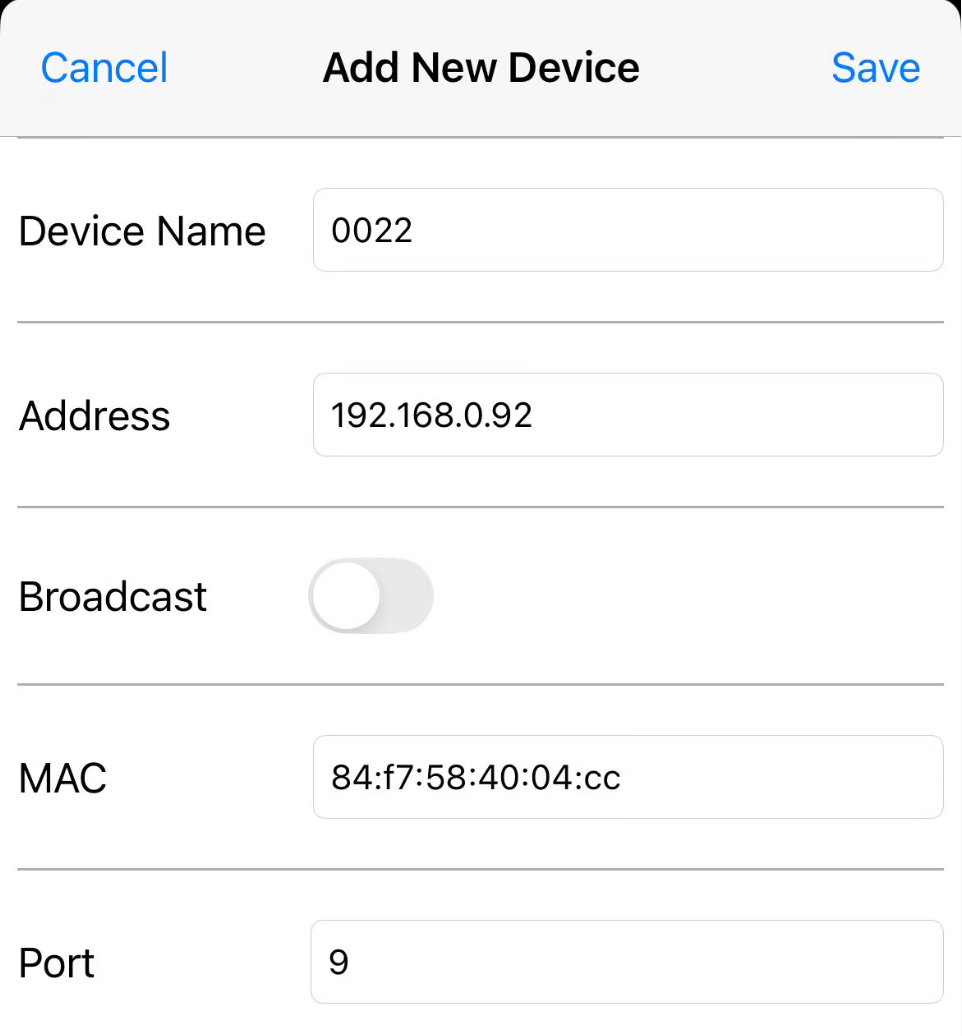
Save the device. To wake Olares One, tap the saved device. This sends the Magic Packet immediately.
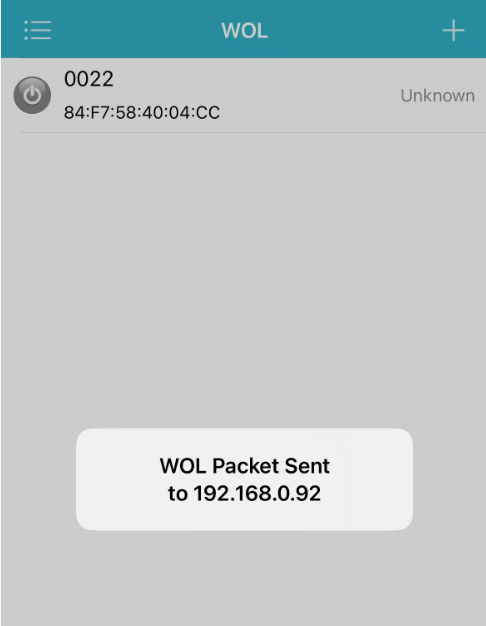
Wait for Olares One to start.
From Linux
Install
wakeonlan:bashsudo apt update sudo apt install wakeonlan -ySend a Magic Packet. Replace
<mac-address>with the wired interface MAC address of Olares One.bashwakeonlan <mac-address>The command sends the Magic Packet immediately. Wait for Olares One to start.
From macOS
If Homebrew is not installed, follow the installation instructions on the Homebrew website.
Install
wakeonlan:bashbrew install wakeonlanSend a Magic Packet. Replace
<mac-address>with the wired interface MAC address of Olares One.bashwakeonlan <mac-address>The command sends the Magic Packet immediately. Wait for Olares One to start.
From Windows
The following steps use Magic Packet Utility as an example. You can also use another Wake-on-LAN tool.
On the sending Windows computer, download Magic Packet Utility, extract
magic_packet_utility.zip, and openMAGPAC.EXE.Select Magic Packets > Power On One Host.
Fill in both fields:
- IP Broadcast Address: The broadcast address of the subnet containing Olares One, such as
192.168.1.255. Replace the default value with your actual broadcast address. - Destination Ethernet Address: The wired interface MAC address of Olares One.
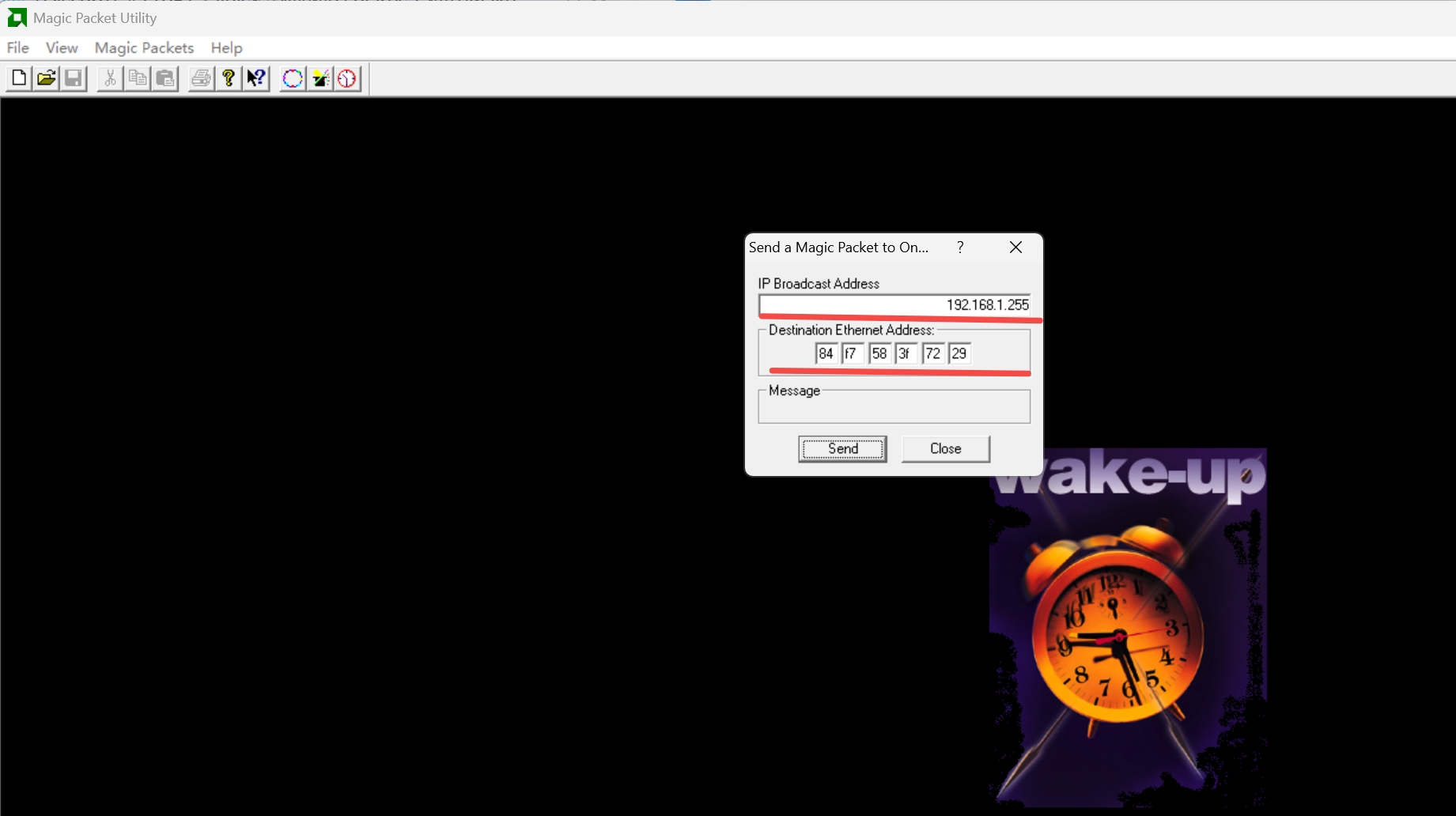
- IP Broadcast Address: The broadcast address of the subnet containing Olares One, such as
Click Send and wait for Olares One to wake.
Use PowerShell (no download required)
On the sending computer, open PowerShell and replace <mac-address> and <broadcast-address> with the values you recorded. Separate the MAC address pairs with colons or hyphens, for example 84:F7:58:3F:72:29. Run the following script to send the wake-up packet:
$mac = "<mac-address>"
$broadcast = "<broadcast-address>"
$macBytes = [byte[]]($mac -split '[:-]' | ForEach-Object {
  [Convert]::ToByte($_, 16)
})
$packet = [byte[]](,0xFF * 6 + ($macBytes * 16))
$udp = [System.Net.Sockets.UdpClient]::new()
$udp.EnableBroadcast = $true
[void]$udp.Send($packet, $packet.Length, $broadcast, 9)
$udp.Close()
Troubleshooting
If Olares One does not wake:
Make sure it remains connected to AC power and Ethernet.
Make sure the sending device is on the same local network.
Check that you entered the MAC address of the wired interface, not the Wi-Fi interface.
Check that the broadcast address in the sending tool matches the subnet containing Olares One.
Check that the EC firmware is version 1.01 or later.
On Olares OS or Ubuntu, confirm that
ethtoolshowsWake-on: gbefore suspending or shutting down Olares One.On Windows, confirm that Allow this device to wake the computer is selected for the wired adapter and that Olares One is asleep. If it still does not wake, check that Wake on Magic Packet is enabled on the adapter's Advanced tab, if available.
If waking from a shutdown does not work, suspend Olares One and try again.
Check whether your router isolates Wi-Fi devices from wired devices. If client isolation is enabled, the Magic Packet might not reach Olares One.
On Linux or macOS, try sending the packet to your subnet broadcast address:
bashwakeonlan -i <broadcast-address> <mac-address>