Set up an eGPU on Olares OS
Use this guide to connect the eGPU. Install the Gen1 workaround only if startup stalls or the GPU is not detected.
Always power off before changing the connection
Olares OS does not support eGPU hot-plugging. Shut down Olares One before connecting or disconnecting the eGPU.
Connect the eGPU
Open Settings > My hardware > Shutdown.
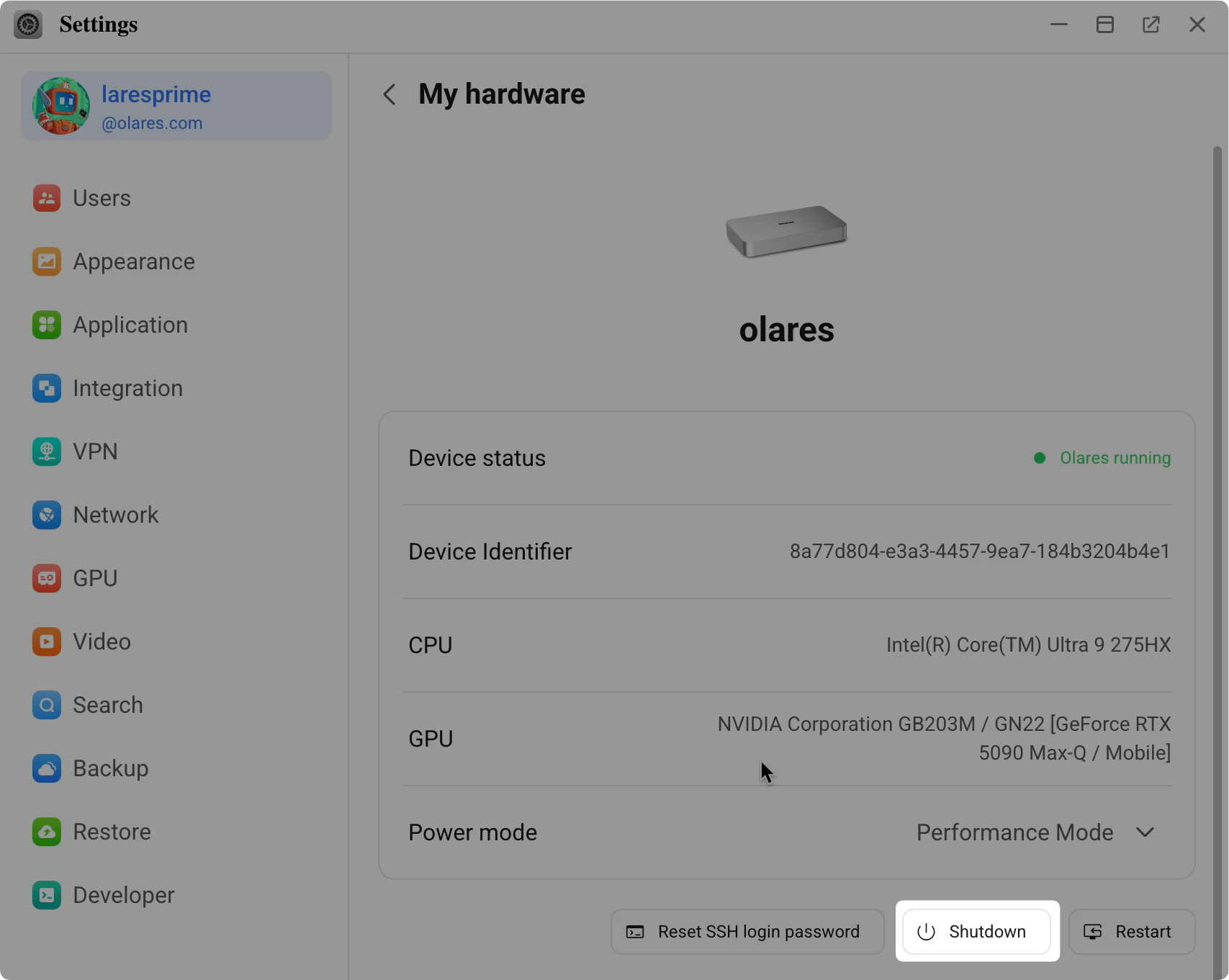
Scan the QR code with LarePass, then tap Confirm.
Wait until Olares One is completely off.
Prepare the eGPU:
- If the GPU is already installed, connect the device's power adapter.
- If you use an eGPU dock or enclosure, install the desktop GPU and connect all required GPU power cables.
Turn on the eGPU.
Disconnect other high-bandwidth Thunderbolt devices. Using a certified Thunderbolt 5 cable, connect the eGPU directly to a Thunderbolt 5 (USB-C) port on Olares One.
Press the power button on Olares One.
Check the connection
Log in to Olares and open Dashboard.
Select the GPU card.
Check that the built-in GPU and eGPU both appear.
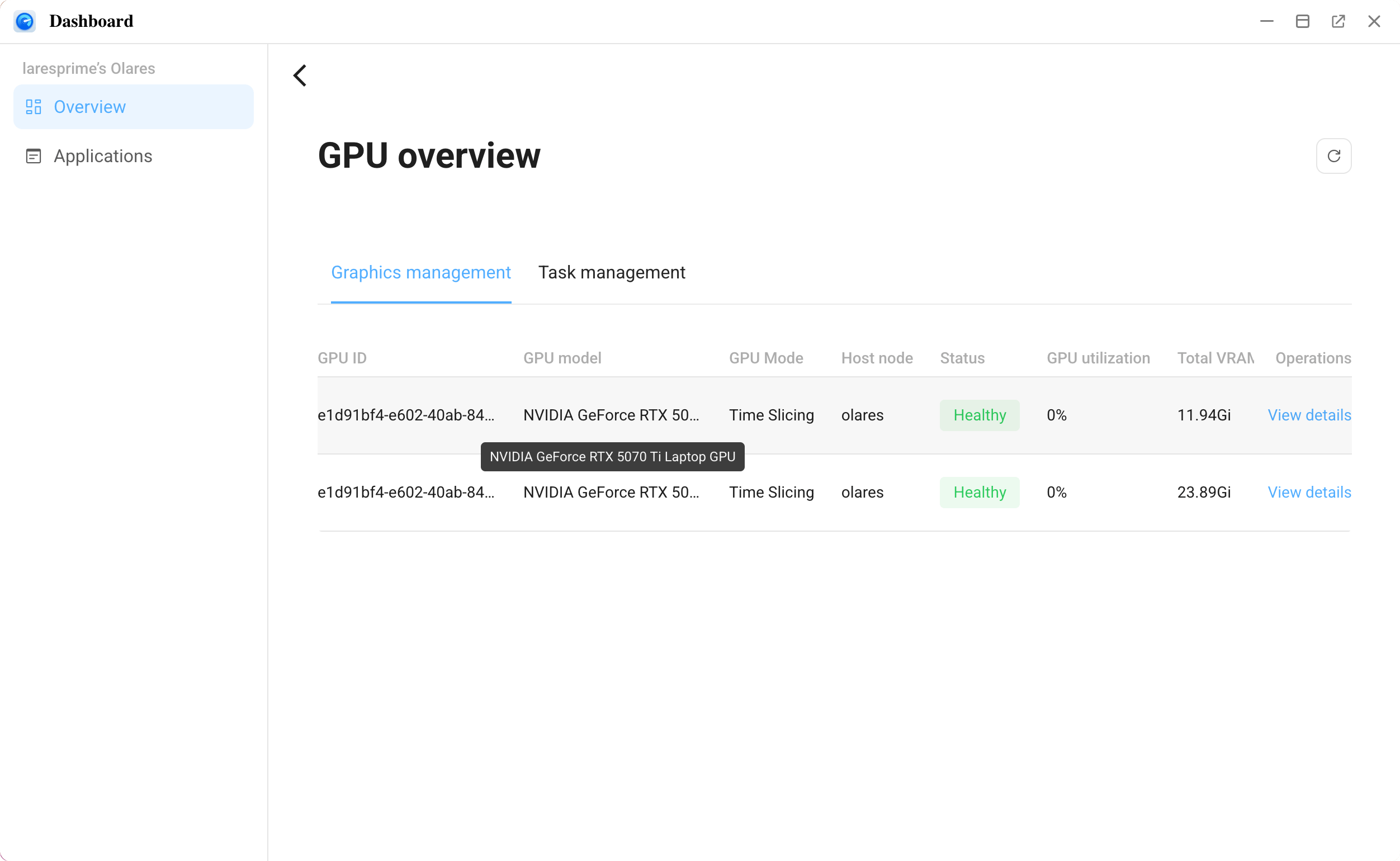
You can also check from the terminal:
nvidia-smiIf the eGPU appears in Dashboard and nvidia-smi, do not install the workaround.
If startup stalls or the eGPU does not appear in Dashboard or nvidia-smi, shut down Olares One, disconnect the eGPU, and start Olares One again. Install the workaround below before reconnecting the eGPU.
Install the workaround if needed
The workaround sets the external GPU's PCIe link to Gen1 before the NVIDIA driver loads. It targets only Thunderbolt-connected NVIDIA GPUs and does not change the built-in GPU.
Performance impact
The workaround reduces bandwidth between system memory and GPU memory. Model loading, CPU offload, gaming, and real-time rendering may be slower. It does not change the GPU's compute resources.
Temporary workaround
This workaround is provided by Olares and is not an official NVIDIA fix. Install only the files linked from this page. A future Olares release will include the workaround, so manual setup will no longer be required.
Start Olares One without the eGPU connected.
Download all three files to the same directory:
Open a terminal in that directory and check that
setpciis available:bashcommand -v setpciThe command should return a path such as
/usr/sbin/setpci. If it returns nothing, stop and contact Olares support.Install the files and enable the service:
bashsudo install -m 0755 fix-egpu-link.sh /usr/local/sbin/fix-egpu-link.sh sudo install -m 0644 egpu-gen1-fix.service /etc/systemd/system/egpu-gen1-fix.service sudo install -m 0644 99-egpu-gen1-fix.rules /etc/udev/rules.d/99-egpu-gen1-fix.rules sudo systemctl daemon-reload sudo udevadm control --reload-rules sudo systemctl enable egpu-gen1-fix.serviceCheck the result:
bashsudo systemctl is-enabled egpu-gen1-fix.serviceThe command should return
enabled.Follow Connect the eGPU again.
Check the workaround
After Olares One starts, check that the eGPU appears in Dashboard or nvidia-smi. Then check the workaround log:
sudo tail -n 20 /var/log/egpu-gen1-fix.logLook for a line similar to this one:
after rescan: 0000:0a:00.0 speed=2.5 GT/s PCIe driver=nvidia2.5 GT/s PCIe means the external GPU link is running at Gen1. The PCI address differs by system.
If the eGPU is still missing or unstable, follow Troubleshoot eGPU issues.
Disconnect the eGPU
- Open Settings > My hardware > Shutdown.
- Approve the shutdown in LarePass and wait until Olares One is completely off.
- Turn off the eGPU.
- Disconnect the Thunderbolt cable from Olares One.
- Start Olares One again.
Remove the workaround
Disconnect the eGPU first
Shut down Olares One and disconnect the eGPU before removing the workaround.
Start Olares One without the eGPU connected.
Remove the workaround:
bashsudo systemctl disable egpu-gen1-fix.service sudo rm /usr/local/sbin/fix-egpu-link.sh sudo rm /etc/systemd/system/egpu-gen1-fix.service sudo rm /etc/udev/rules.d/99-egpu-gen1-fix.rules sudo systemctl daemon-reload sudo udevadm control --reload-rulesRestart Olares One:
bashsudo reboot