Switch GPU mode 10 min
INFO
Only Olares admins can change GPU modes. This helps avoid conflicts and keeps GPU performance predictable for everyone.
Olares lets you control how applications use GPU resources for workloads like AI, image and video generation, and gaming. You can choose different GPU modes depending on how your apps should share compute and memory.
Learning objectives
By the end of this tutorial, you will learn how to:
- Choose the right GPU mode for your workload.
- Switch GPU mode in Settings.
- Use the basic app controls in each GPU mode.
Choose the right GPU mode
Olares provides three GPU modes, each designed for a different usage pattern.
| GPU mode | Definition | Best for |
|---|---|---|
| Time slicing (Default) | Multiple apps share one GPU by taking turns using compute and VRAM. | General workloads that run several lightweight apps. |
| Memory slicing | The GPU's VRAM is divided into fixed quotas, and apps run concurrently within their limits. | Running specific apps simultaneously while strictly limiting their memory usage. |
| App exclusive | One app gets full, uninterrupted access to the compute and VRAM of a single GPU. | Heavy workloads that require maximum stability, such as LLMs and high‑end gaming. |
Open GPU settings
This page displays your GPU details and allows you to change its mode.
Go to Settings > GPU.
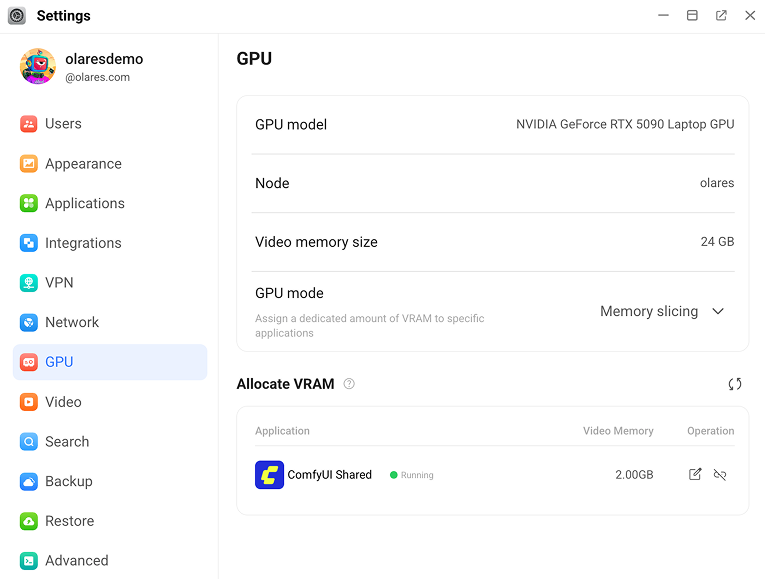
Choose a mode from the GPU mode dropdown.
App interruption notice
Changing a GPU mode reallocates hardware resources. Depending on the mode you choose, apps that are currently using the GPU may be paused automatically.
After switching modes, check the state of your apps and manually resume them if needed.
Manage app access by mode
Time slicing
Time slicing is the default mode in Olares. Use this mode to let multiple apps share GPU resources. 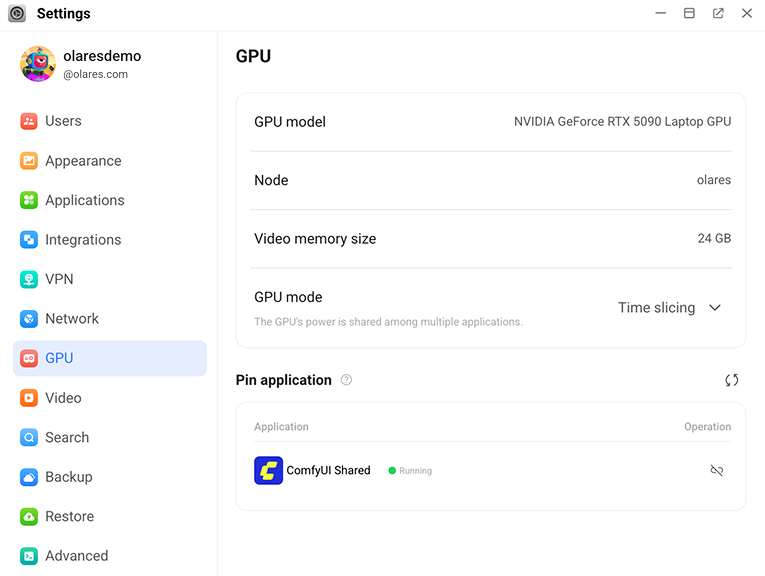
Add an app
In most cases, running apps are automatically bound and appear in the list after GPU scheduling is complete.
If the target app does not appear:
- Wait a few seconds.
- In the Pin application section, click sync to refresh the list.
- If the app is still not bound automatically, click Bind app, then select the app and click Confirm.
Remove GPU access
- Stop the app.
- Go to Market > My Olares, then select Stop from the dropdown list.
- Or go to Settings > Applications, select the app, then click Stop.
- Return to Settings > GPU.
- In the Pin application section, click link_off, then click Confirm.
Memory slicing
Use Memory slicing to run apps concurrently with strict VRAM limits.
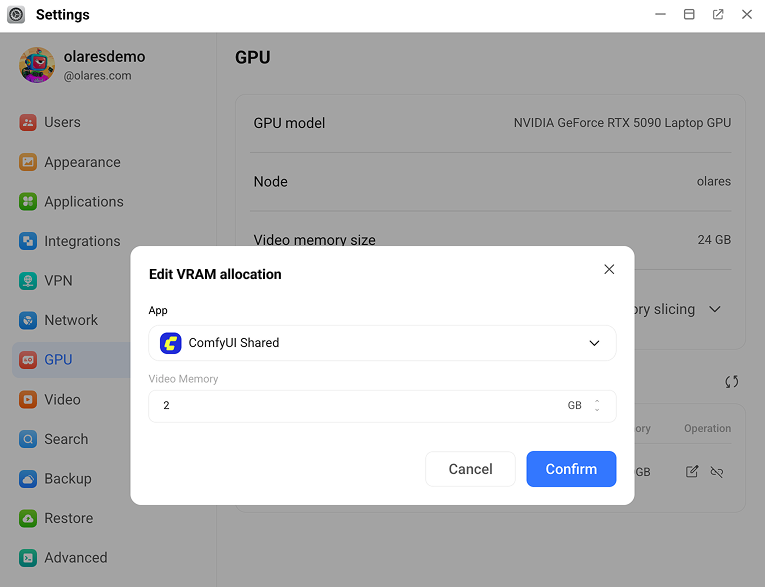
Adjust VRAM allocation
- In the Allocate VRAM section, find the target app.
- Click edit_square next to the VRAM value.
- In the Edit VRAM allocation dialog, enter the desired VRAM amount in GB and click Confirm.
WARNING
The total VRAM allocated to all apps cannot exceed the GPU's total VRAM.
If the value is lower than the app's minimum requirement, Confirm is disabled.
Add an app and assign VRAM
In most cases, running apps are automatically bound and appear in the list after GPU scheduling is complete.
If the target app does not appear:
- Wait a few seconds.
- In the Allocate VRAM section, click sync to refresh the list.
- If the app is still not bound automatically, click Bind app, then select the app and assign VRAM.
Remove VRAM allocation
- Stop the app first.
- Go to Market > My Olares, then select Stop from the dropdown list.
- Or go to Settings > Applications, select the app, then click Stop.
- Return to Settings > GPU.
- In the Allocate VRAM section, click link_off, then click Confirm.
App exclusive
Use App exclusive mode to dedicate a GPU entirely to one high-demand application.
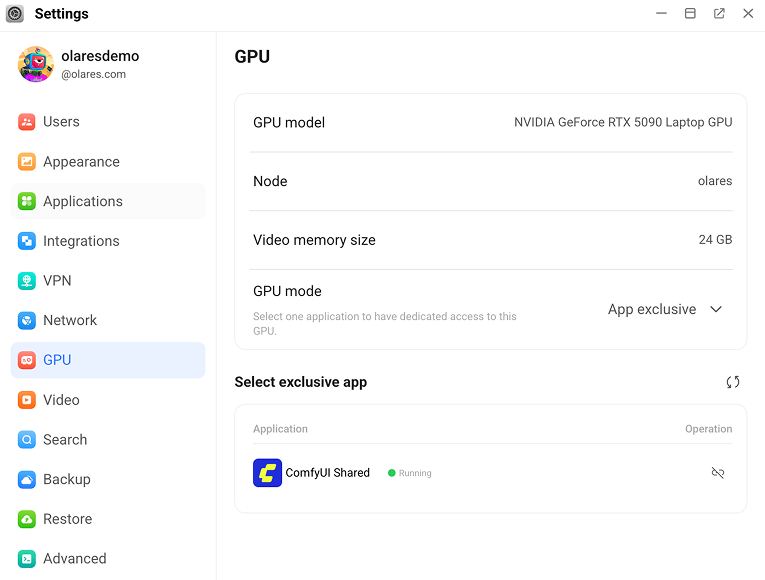
Change the exclusive app
- Stop the current exclusive app.
- Go to Market > My Olares, then select Stop from the dropdown list.
- Or go to Settings > Applications, select the app, then click Stop.
- In the Select exclusive app section, click link_off to unbind the current app.
- Resume the new target app and make sure it is running.
- Go to Market > My Olares, then select Resume from the dropdown list.
- Or go to Settings > Applications, select the app, then click Resume.
- Wait a few seconds.
- In the Select exclusive app section, click sync to refresh the list.
- If the system still does not automatically select the new exclusive app, click Bind app to set it manually.
Set the exclusive app
In most cases, Olares automatically selects one running app for exclusive access after GPU scheduling is complete.
If no app appears:
- Wait a few seconds.
- In the Select exclusive app section, click sync to refresh the list.
- If the system still does not automatically select an app, click Bind app to set it manually.
Remove exclusive access
- Stop the app first.
- Go to Market > My Olares, then select Stop from the dropdown list.
- Or go to Settings > Applications, select the app, then click Stop.
- Return to Settings > GPU.
- In the Select exclusive app section, click link_off, then click Confirm.
Resources
- Understand GPU management: Learn how GPU allocation and GPU modes work in Olares.
- Manage GPU resources for multiple GPUs: For advanced operations when you have multiple GPUs.