Manage Olares through natural language 1 h
olares-cli is the command-line tool for managing Olares. To let AI agents use it, Olares provides CLI Agent Skills in the form of tool definitions that translate natural language into the right olares-cli commands. They cover common tasks such as listing files, installing apps from Market, checking system metrics, and deploying custom apps.
The agent apps on Olares come with these skills built in. This guide uses OpenCode as an example. It walks you through installing the Qwen3.6-27B (llama.cpp) model app, connecting it to OpenCode, authenticating the Olares CLI with your Olares ID, and completing a few common tasks through chat.
Learning objectives
- Install the Qwen3.6-27B (llama.cpp) model app and get its connection details.
- Install OpenCode and connect it to the local model.
- Authenticate the Olares CLI with your Olares ID.
- Use natural language in OpenCode to manage Olares.
Prerequisites
System
- Olares OS upgraded to v1.12.6.
Hardware
- Olares One connected to a stable network.
- Sufficient free disk space to download the model and its dependencies.
- At least 23 Gi of GPU memory is required for Qwen3.6 27B.
User permissions
- Admin privileges are required to install shared apps from the Market and manage GPU resources.
Step 1: Install the model app and get the connection details
Open Market, and search for "Qwen3.6-27B (llama.cpp)".
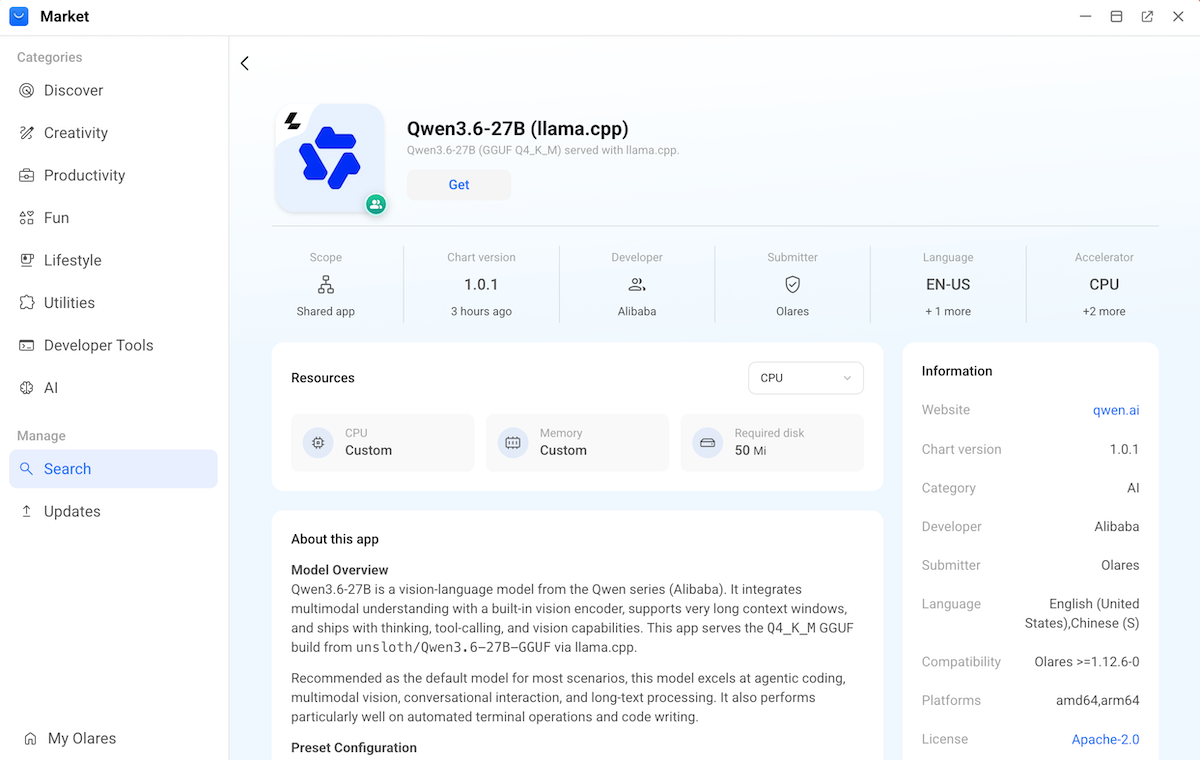
Click Get, and then click Install.
Select GPU as the hardware accelerator, and then click Confirm. The installation starts.
When the installation finishes, click Open. The model console opens and the model download starts automatically.
First download takes time
The first time you open the model console, downloading the model files might take a while, depending on the file size and your network speed.
Wait for the download to finish. You will see:
- Model: READY
- Engine: RUNNING
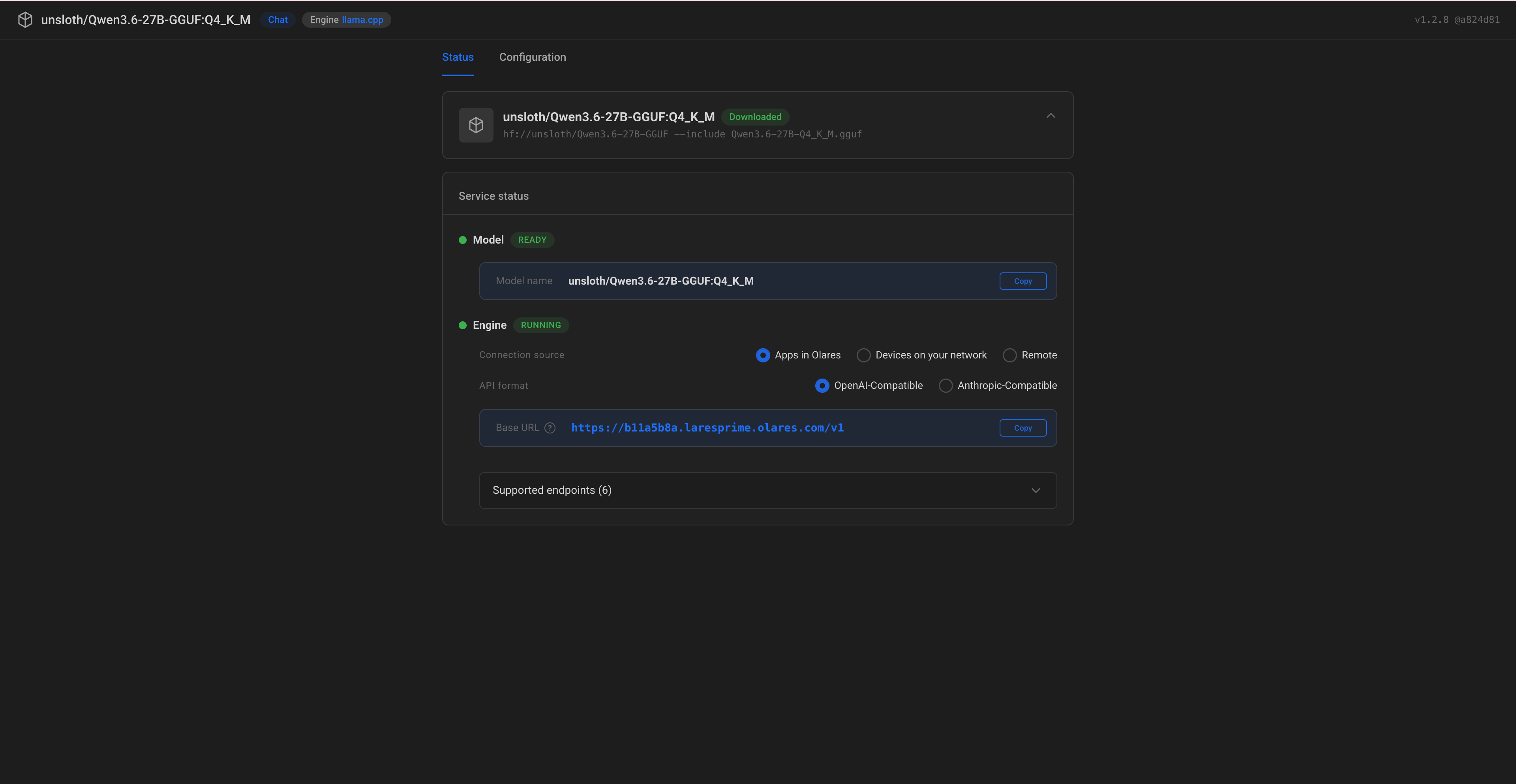
Configure how OpenCode will reach the service:
- Connection source: Select Apps in Olares.
- API format: Select OpenAI-Compatible.
- Note down the Base URL. For example,
https://b11a5b8a.laresprime.olares.com/v1. - Note down the Model name. For example,
unsloth/Qwen3.6-27B-GGUF:Q4_K_M.
Step 2: Install OpenCode
TIP
If you have a previous OpenCode installation, upgrade it to the latest version after the Olares OS upgrade.
Open Market, and search for "OpenCode".
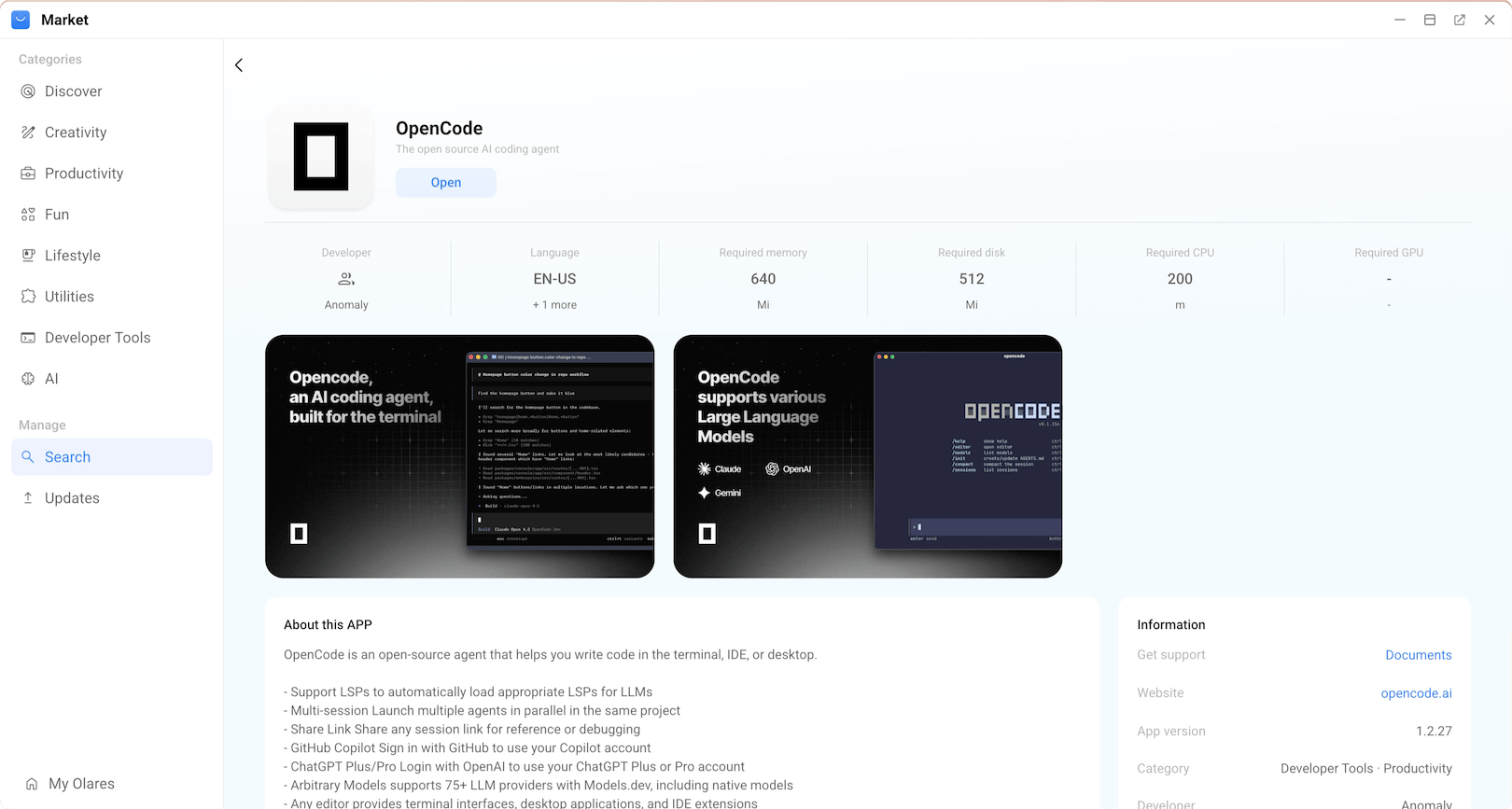
Click the OpenCode app card in the search results to open its details page.
In the Information panel, check Compatibility. If it shows Olares >=1.12.6-0, this is the new version.
Click Get, and then click Install. When the installation finishes, two shortcuts appear in the Launchpad:
- OpenCode: The graphical web interface for chatting with the agent and managing projects.
- OpenCode Terminal: The terminal for running CLI commands or launching the TUI (Terminal User Interface).
Click the OpenCode shortcut.
Step 3: Connect OpenCode to the model
In OpenCode, click settings in the bottom-left corner.
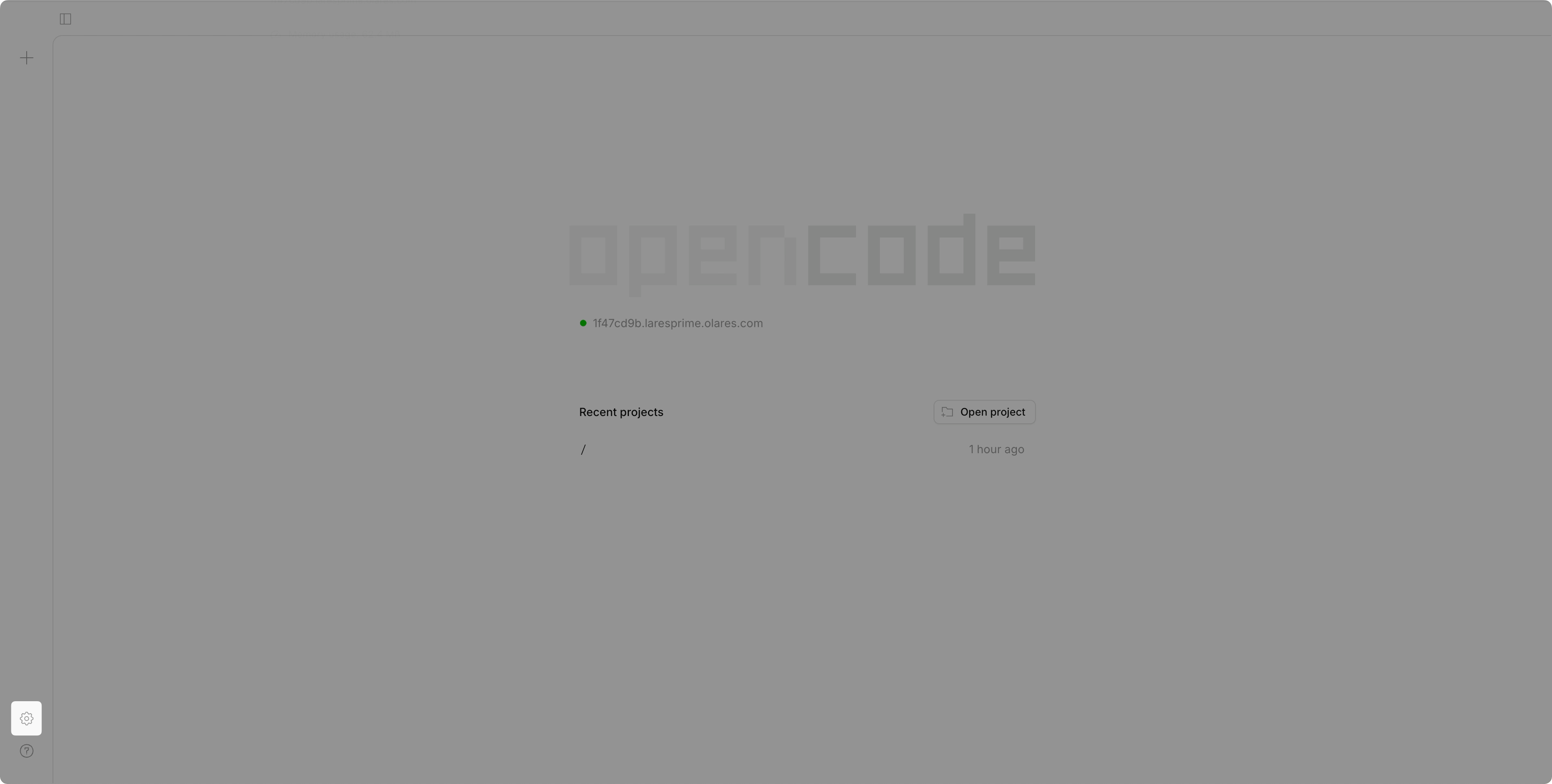
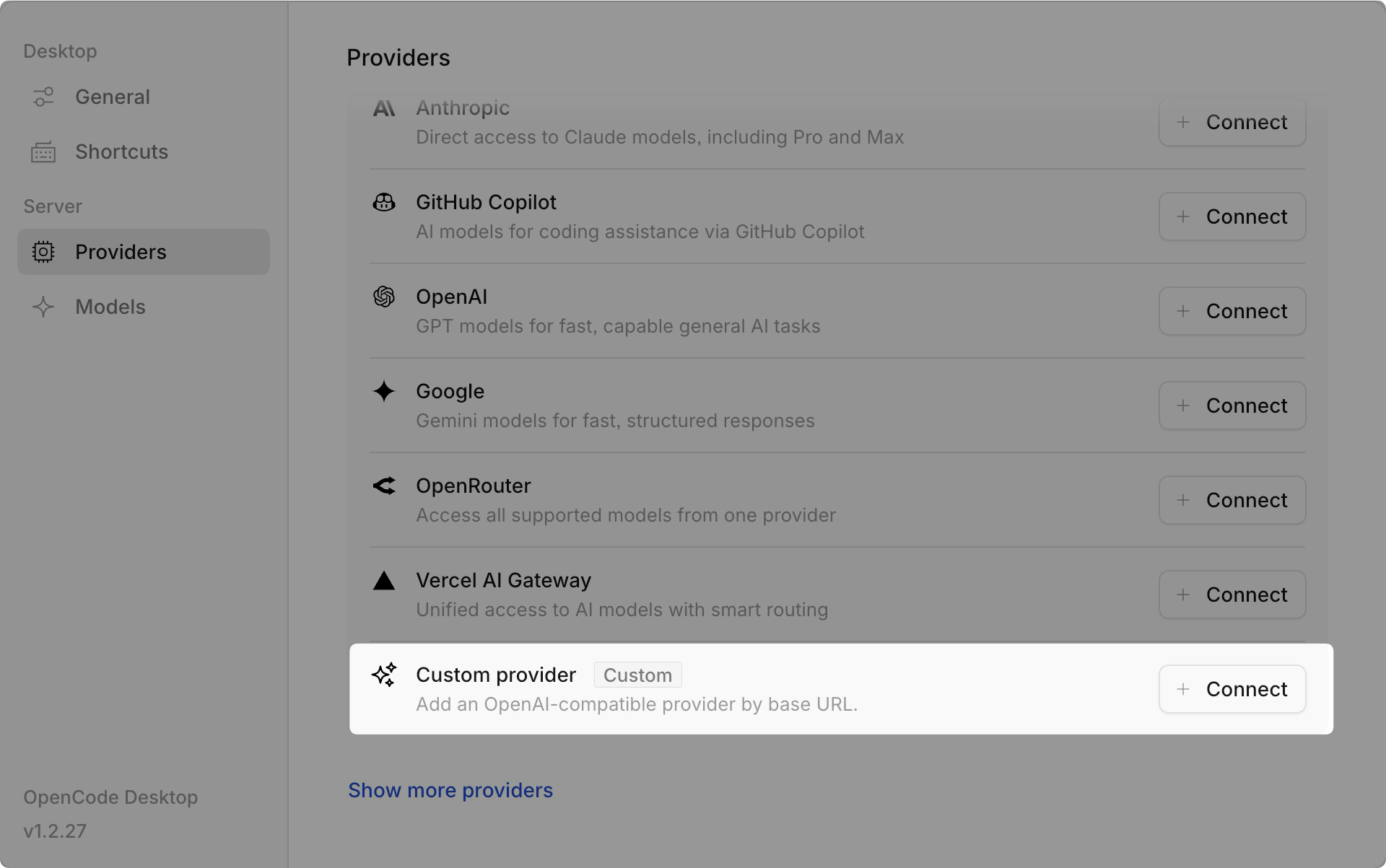
Select Providers, scroll down, and then click Connect next to Custom provider.
Specify the following settings:
- Provider ID: A unique identifier. For example,
olares-engine-base. - Display name: The name shown in the provider list. For example,
local-llamacpp. - Base URL: The Base URL you noted down in Step 1. Make sure it ends with
/v1. - Models:
- Model ID: The exact Model name you noted down in Step 1.
- Display Name: The name shown for this model. For example,
Qwen3.6 27B.
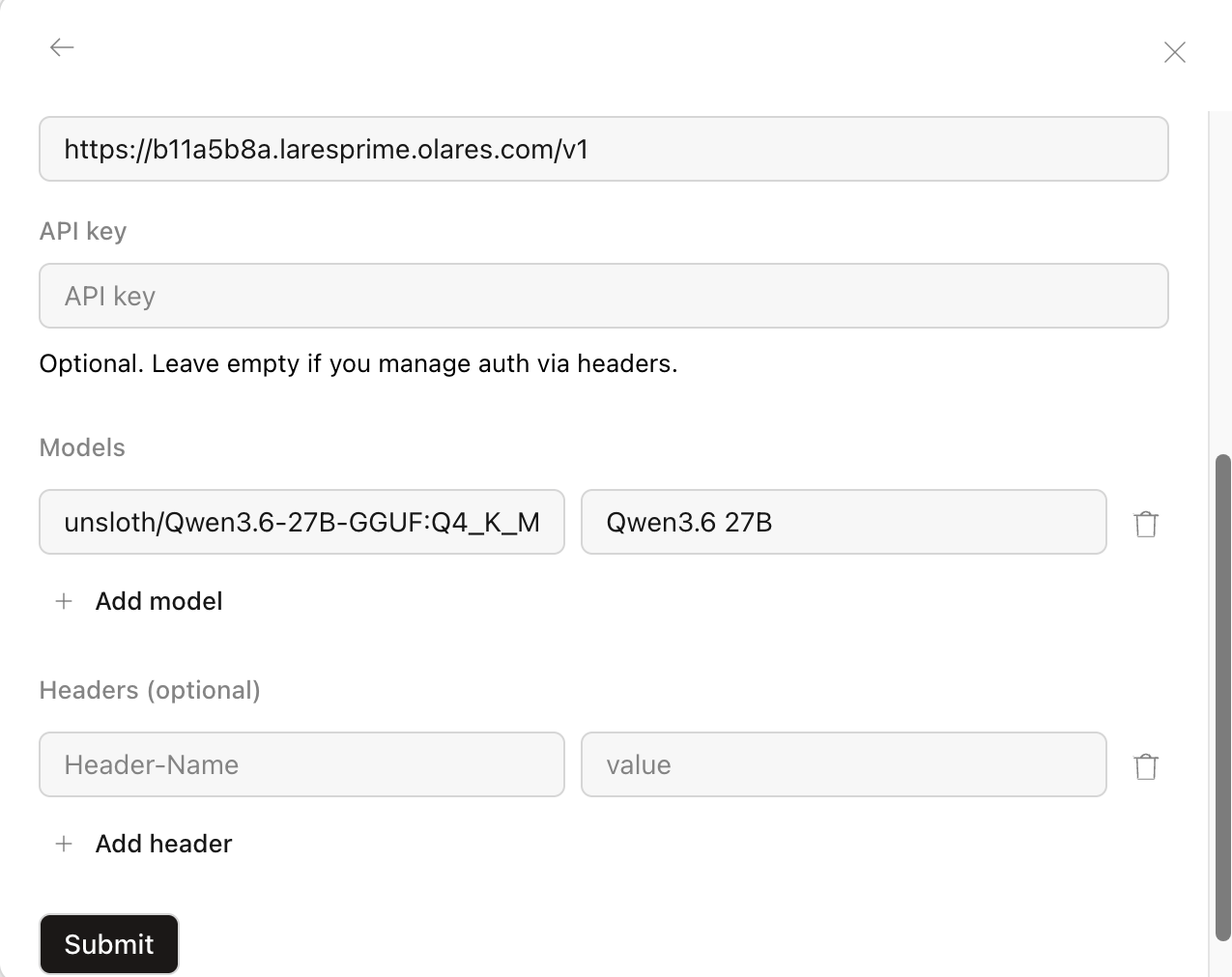
- Provider ID: A unique identifier. For example,
Click Submit to save the configuration.
Start a new chat.
Below the chat box, click Big Pickle to open the model selector, and then select the model you just added.
Step 4: Authenticate the Olares CLI with your Olares ID
Before OpenCode can run Olares CLI Agent Skills on your behalf, authenticate the Olares CLI with your Olares ID.
In OpenCode, click Search project at the top of the page, and then select Toggle terminal.
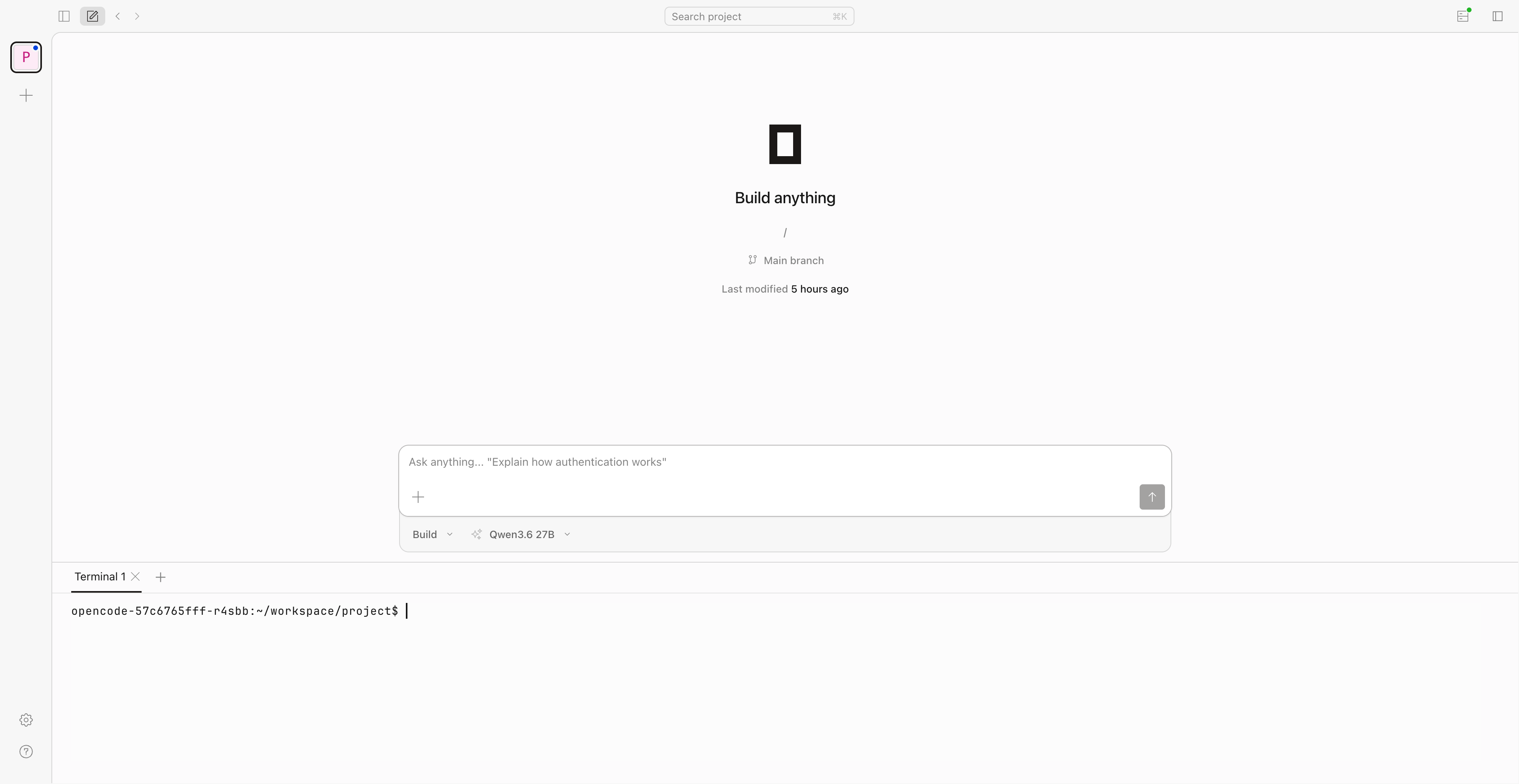
Run the following command to confirm that both
olares-cliand its skills are properly installed and enabled:basholares-cli -vExample output:
basholares-cli version 1.12.6 Git commit: d30eca705df2fb614bf2bbea95daa2e6998adeeb Build time: 2026-07-06T06:33:00ZRun the following command to log in to your Olares account. Replace
<your-olares-id>with your actual Olares ID.basholares-cli profile login --olares-id <your-olares-id>Example:
basholares-cli profile login --olares-id [email protected]When prompted, enter your Olares login password. The password is hidden as you type.
If two-factor authentication is enabled on your Olares, the CLI prompts you for a two-factor code for this Olares ID. Enter the 6-digit code from LarePass, and then press Enter.
Run the following command to verify that the profile is created and logged in:
basholares-cli profile listExample output (
*marks the current profile):textNAME OLARES-ID STATUS VERSION [email protected] [email protected] logged-in 1.12.6-alpha.15 * [email protected] [email protected] logged-in 1.12.6-alpha.15
Step 5: Manage Olares through natural language
With the model connected and the Olares CLI authenticated, you can now manage your Olares device by chatting with OpenCode in natural language. The following examples cover some common scenarios.
Ask a question
Start with a basic question to confirm the Olares skills are available:
List your Olares skills.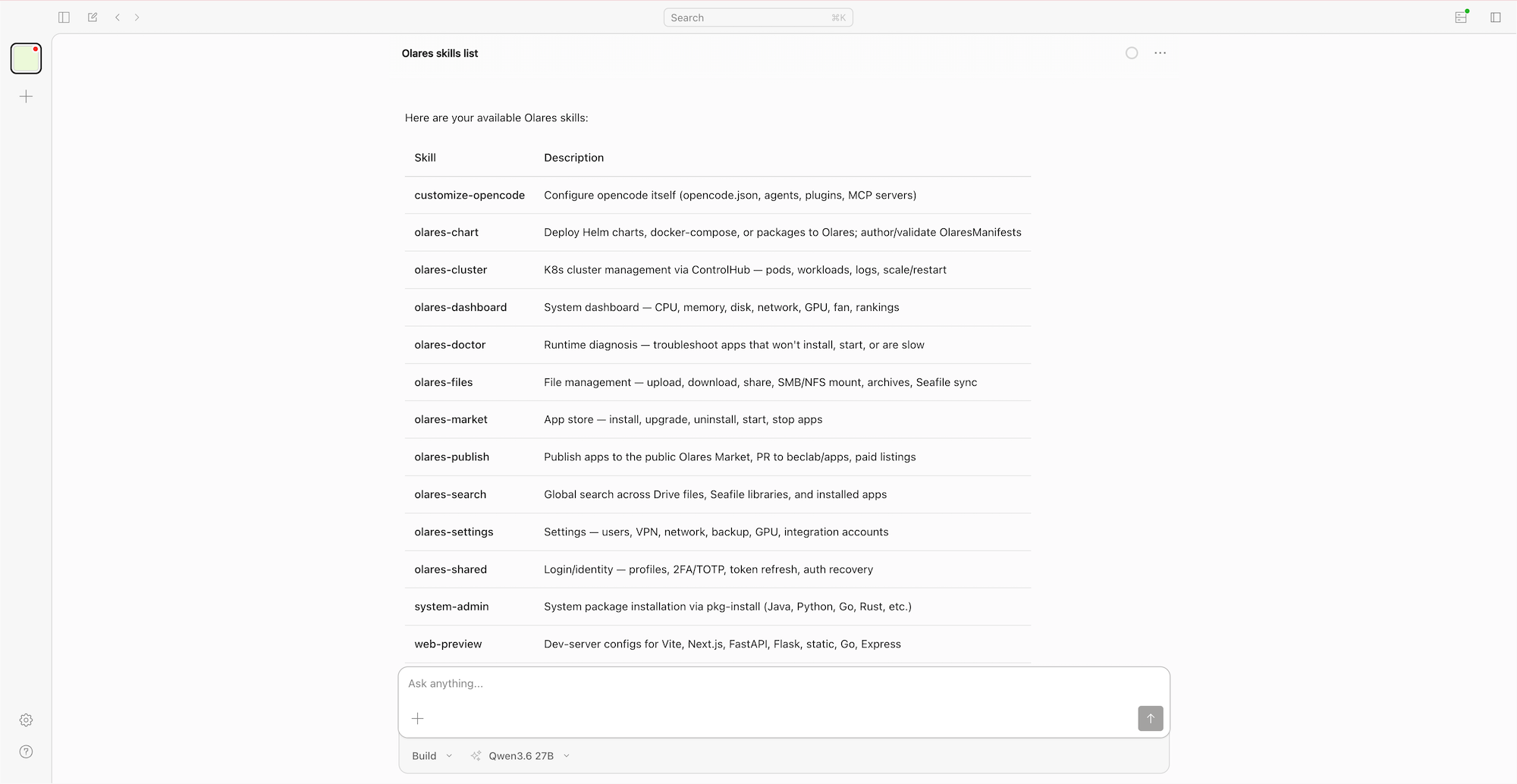
Or ask about your system:
Show me the CPU and memory usage of my Olares device.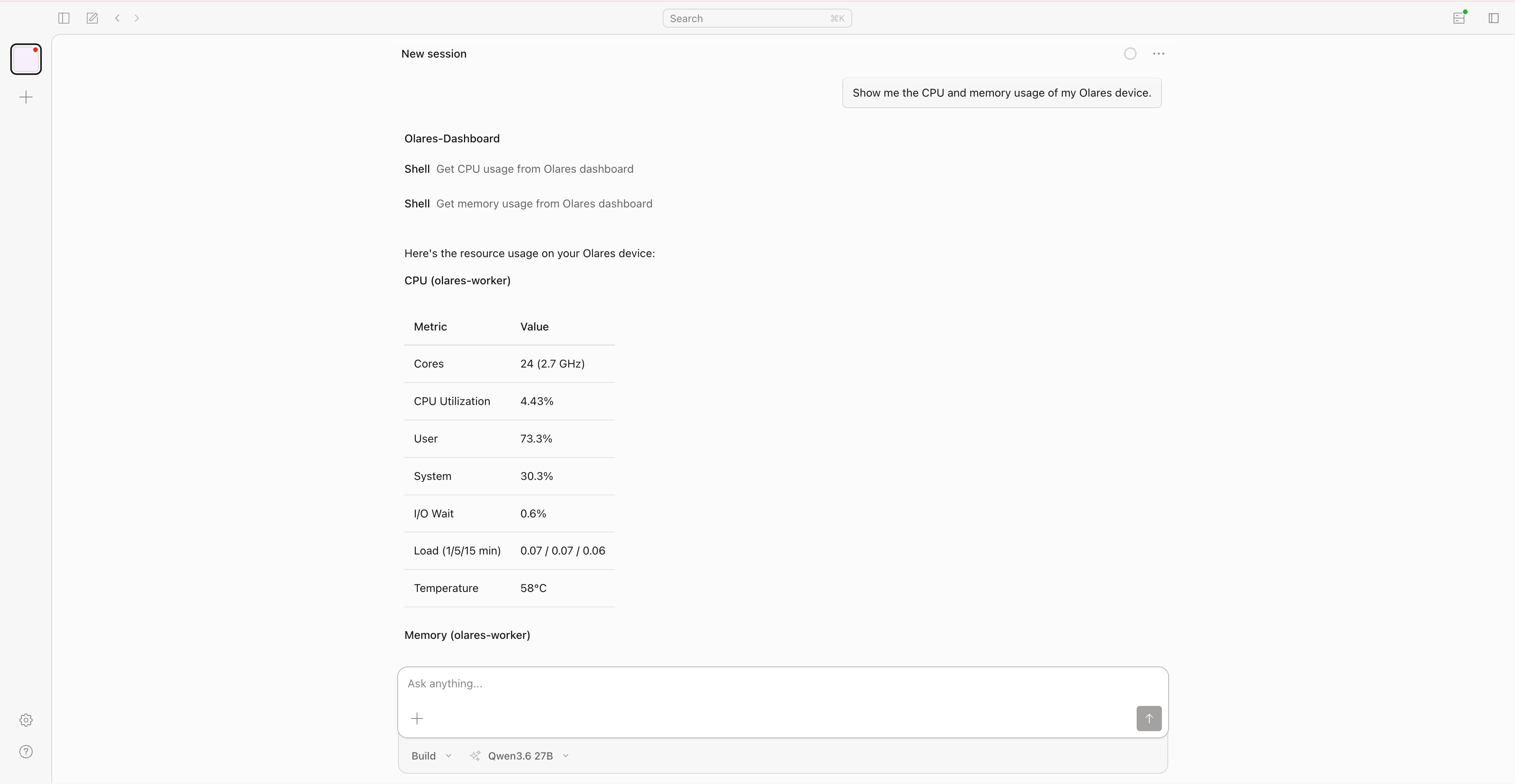
Install an app from Market
Ask OpenCode to install an app for you:
Install Code Server from the Olares Market and tell me when it's ready.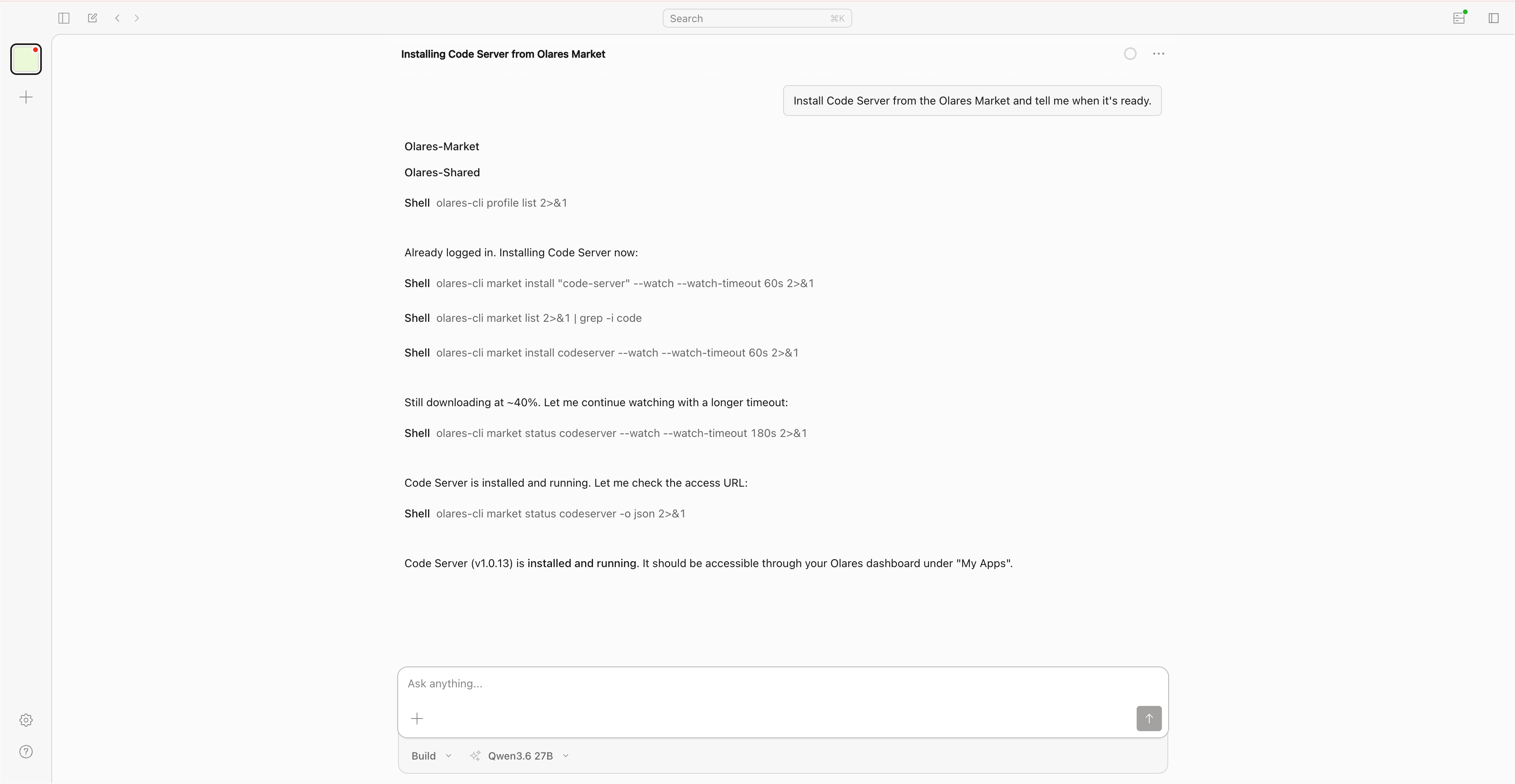
Deploy an app from a GitHub repository
For a more advanced task, ask OpenCode to deploy a project from a GitHub repository. The example below uses dockersamples/101-tutorial, a beginner-friendly Docker tutorial web app:
Deploy this app to Olares: https://github.com/dockersamples/101-tutorialFollow any prompts that appear until the deployment finishes. 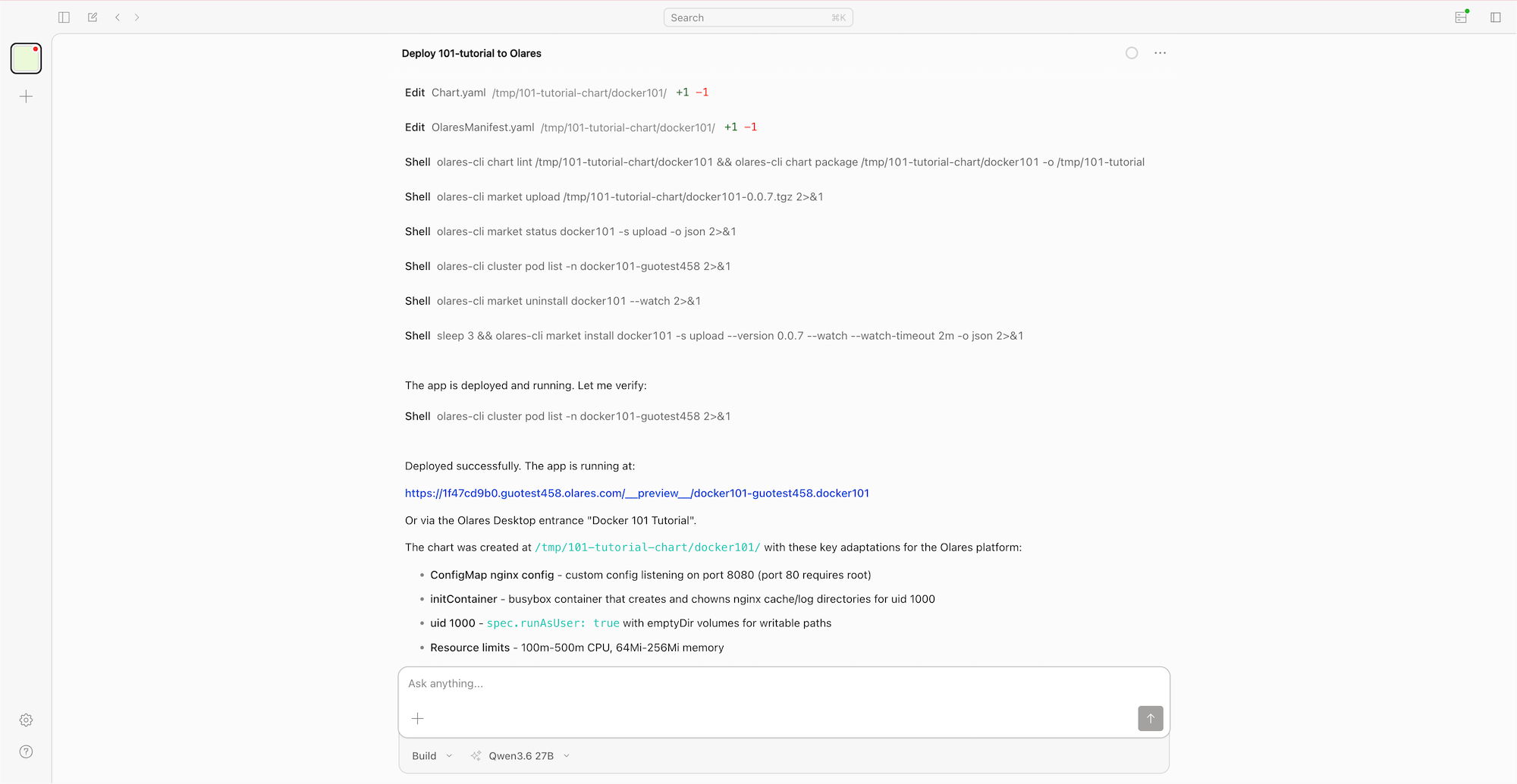
You can then find the app on the Launchpad and in My Olares. 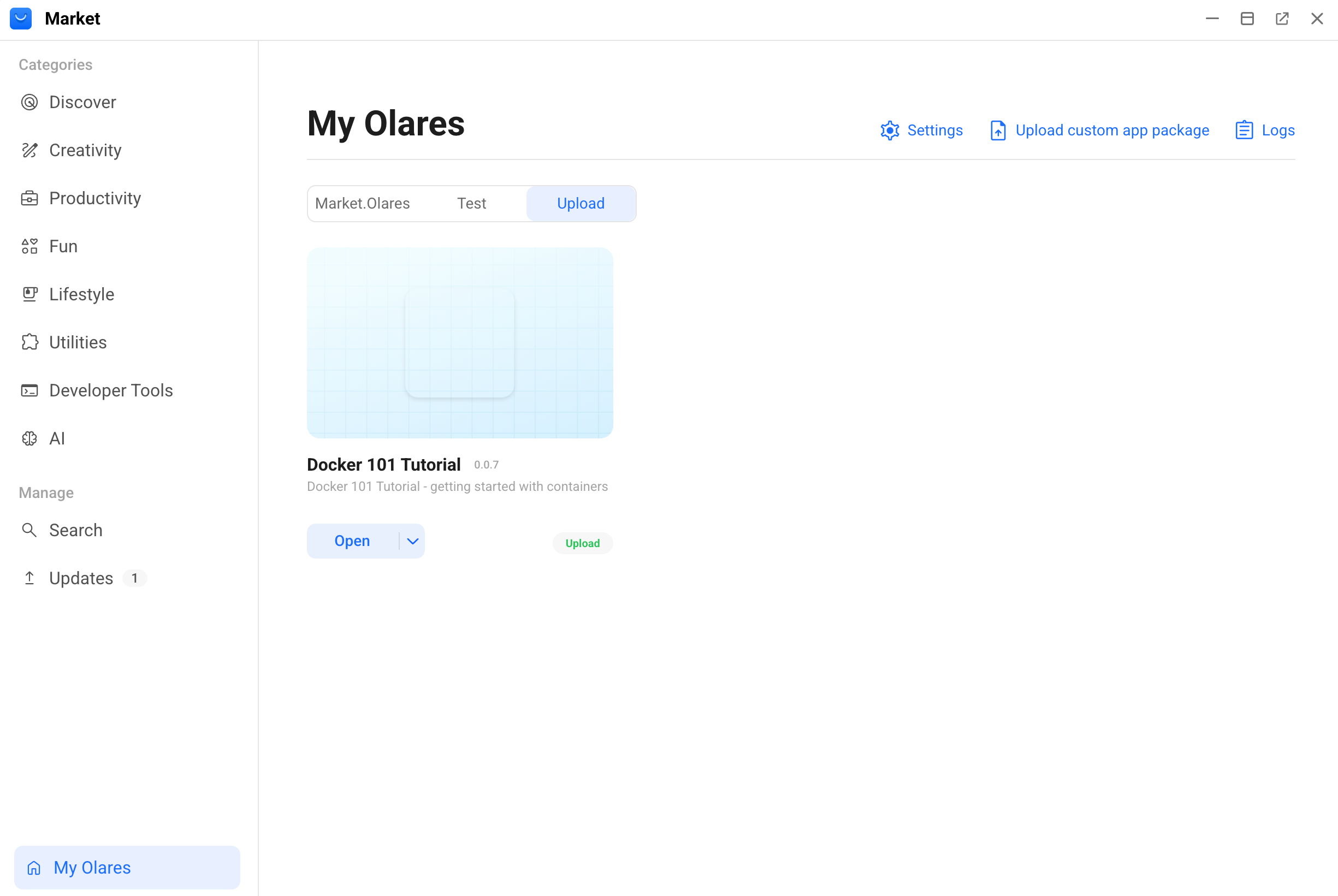
Resources
- Set up OpenCode as your AI coding agent: Full OpenCode setup guide.
- Install and use Agent Skills: Details about the Olares CLI skill bundles.
- Manage accelerator resources: Learn how to check GPU usage, switch GPU modes, and release accelerator resources on Olares One.