Set up a self-directed AI agent with Hermes
Hermes Agent is a self-directed AI assistant that connects to your local models to execute system tasks, generate code, and manage workflows. It retains memory across sessions and creates reusable skills based on your interactions.
In Olares, you can install specialized skills that allow your agent to manage your device's files and applications. You can also interact with your agent remotely via messaging platforms like Discord, or integrate it with other applications like Open WebUI.
Learning objectives
In this guide, you will learn how to:
- Install Hermes Agent on Olares.
- Configure Hermes Agent to connect to a local model.
- Interact with your agent directly via the terminal.
- Integrate with Discord for remote chat.
- Install Olares skills to manage files and applications via the agent.
- Enable the Gateway API to connect Hermes Agent with other applications like Open WebUI.
Prerequisites
- Local model: Ollama is installed with at least one tool-capable model downloaded and running. This tutorial uses
qwen3.5:9b. - Discord account: Required to create the bot application.
- Discord server: A server where you have permissions to add bots.
Install Hermes Agent
Open Market and search for "Hermes".
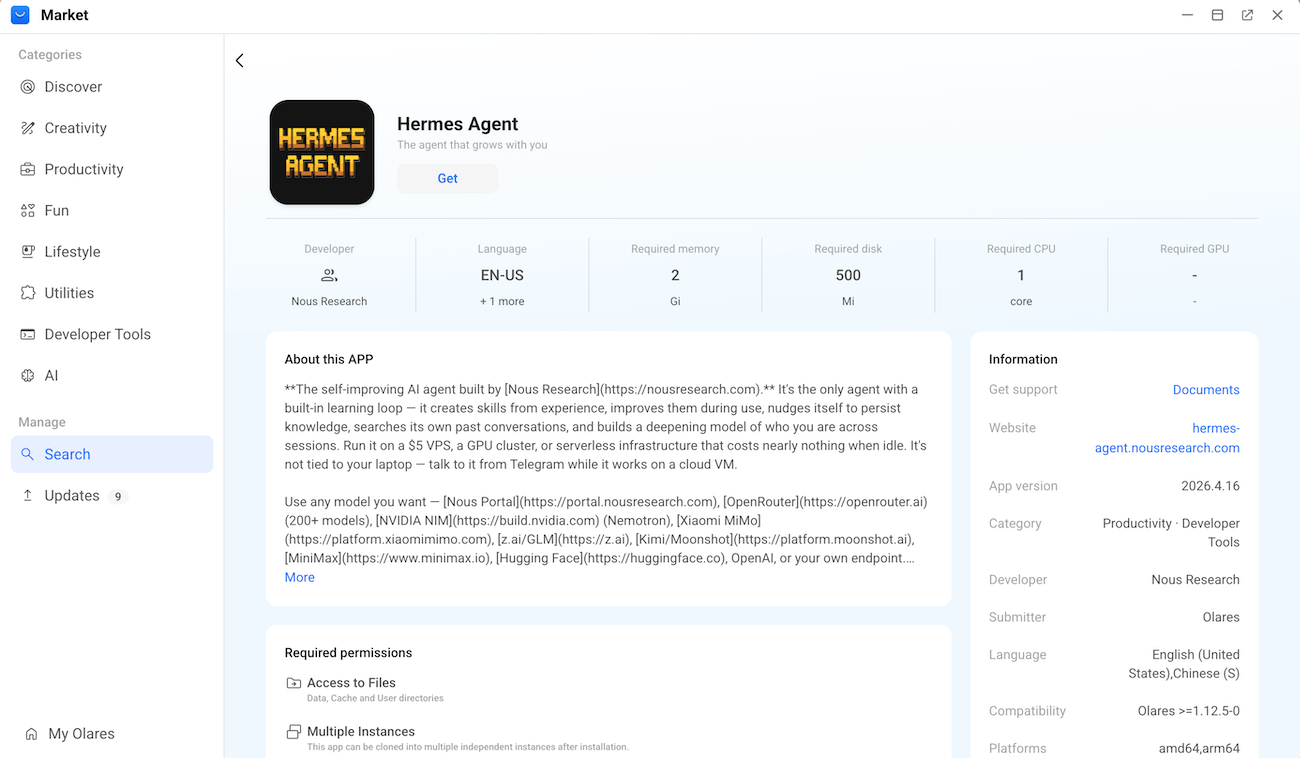
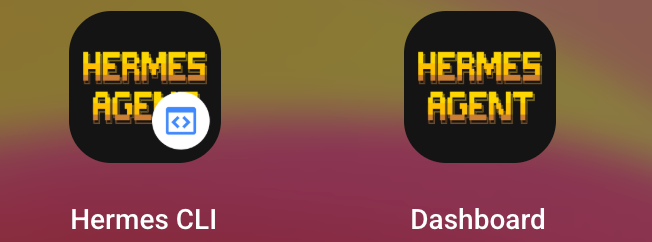
Click Get, and then click Install. When the installation finishes, two shortcuts appear in the Launchpad:
- Hermes CLI: The command line interface
- Dashboard: The graphical dashboard
Run multiple Hermes agents
Olares supports app cloning. If you want to run multiple independent AI agents for different tasks, you can clone the Hermes Agent app. For more information, see Clone applications.
Configure Hermes Agent
Run a quick setup to connect Hermes Agent to your local model.
Step 1: Get model and endpoint details
Open the Ollama app from the Launchpad.
Check the installed models by running the following command:
bashollama listCopy and save your model name exactly as shown in the NAME column. For example,
qwen3.5:9b.Check the context window of the model by running the following command:
bashollama psCopy and save the value as shown in the CONTEXT column. For example,
32768.Open Settings, go to Applications > Ollama > Shared entrances > Ollama API, and then copy the endpoint address. For example,
http://d54536a50.shared.olares.com.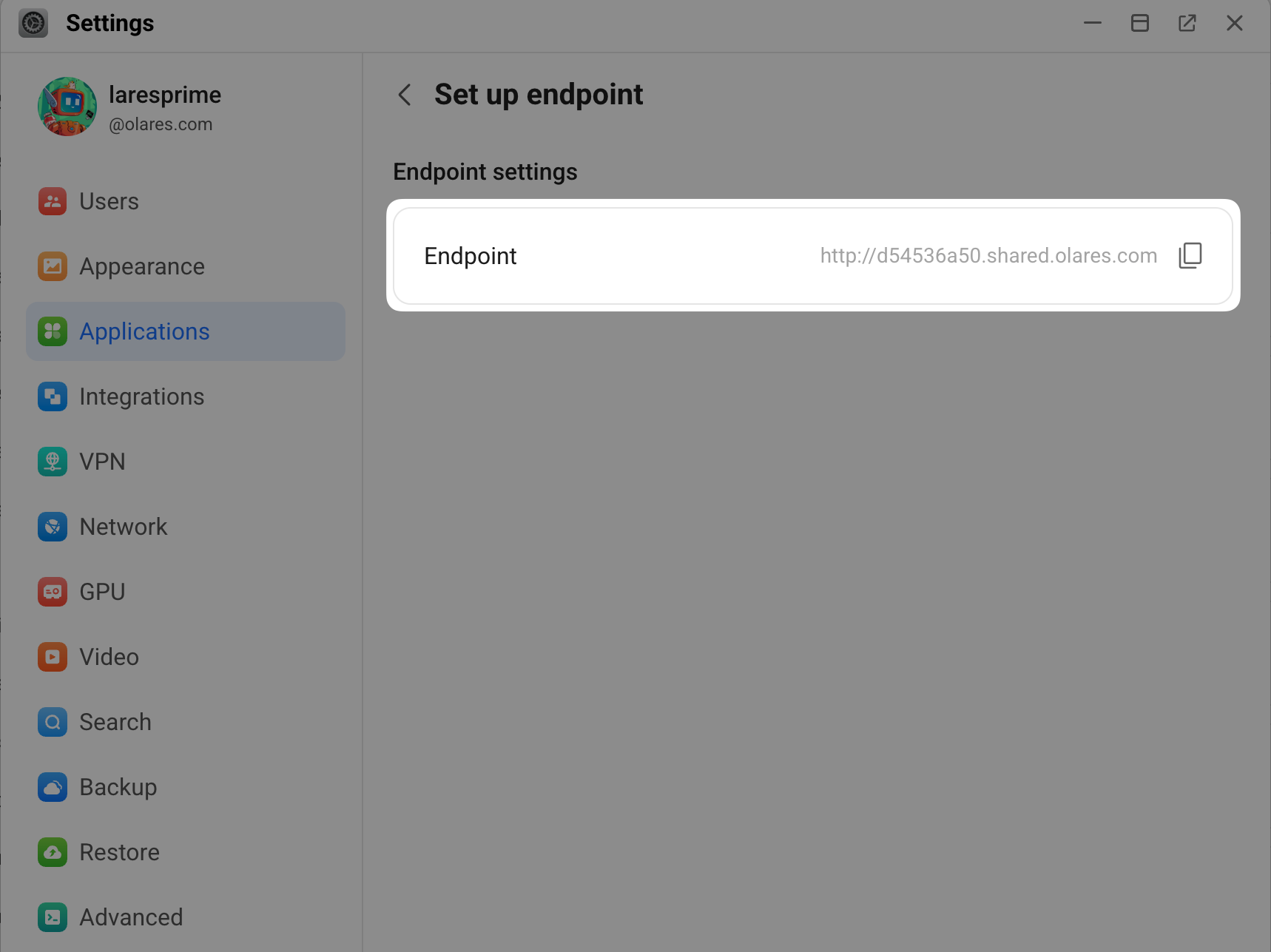
Step 2: Run the setup wizard
Open the Hermes CLI app from the Launchpad.
Enter the following command to start the configuration wizard:
bashhermes setupThe wizard guides you through a series of steps. Use the arrow keys to navigate and press Enter to confirm.
Settings Option How would you like to set up Hermes Select Quick setup - provider, model & messaging (recommended). Select provider Select Custom endpoint (enter URL manually). API base URL Enter your model's API address and append /v1to the end.
For example,http://d54536a50.shared.olares.com/v1.API key Enter any text as a placeholder value, such as ollama-local.
The input remains hidden for security.Available models Enter the number corresponding to your target model
from the generated list.Context length in tokens - If your model's context window is less than
65536,
enter a value greater than65536. - If your model's context window is more than
65536,
leave this field blank to auto-detect.
Display name Enter a name for easy identification, such as ollama-local.Connect a messaging platform Select Skip - set up later with hermes setup gateway.- If your model's context window is less than
Keep the Hermes CLI window open for the next step.
Interact with Hermes Agent
Option 1: Terminal chat
The Terminal User Interface (TUI) runs directly in the Hermes CLI with no extra setup. It is ideal for quick tests.
When the setup wizard completes, it prompts you to launch
hermes chat. Typeyand press Enter to start the TUI.TIP
If you exited the wizard, manually start the chat by entering
hermes chatin the Hermes CLI.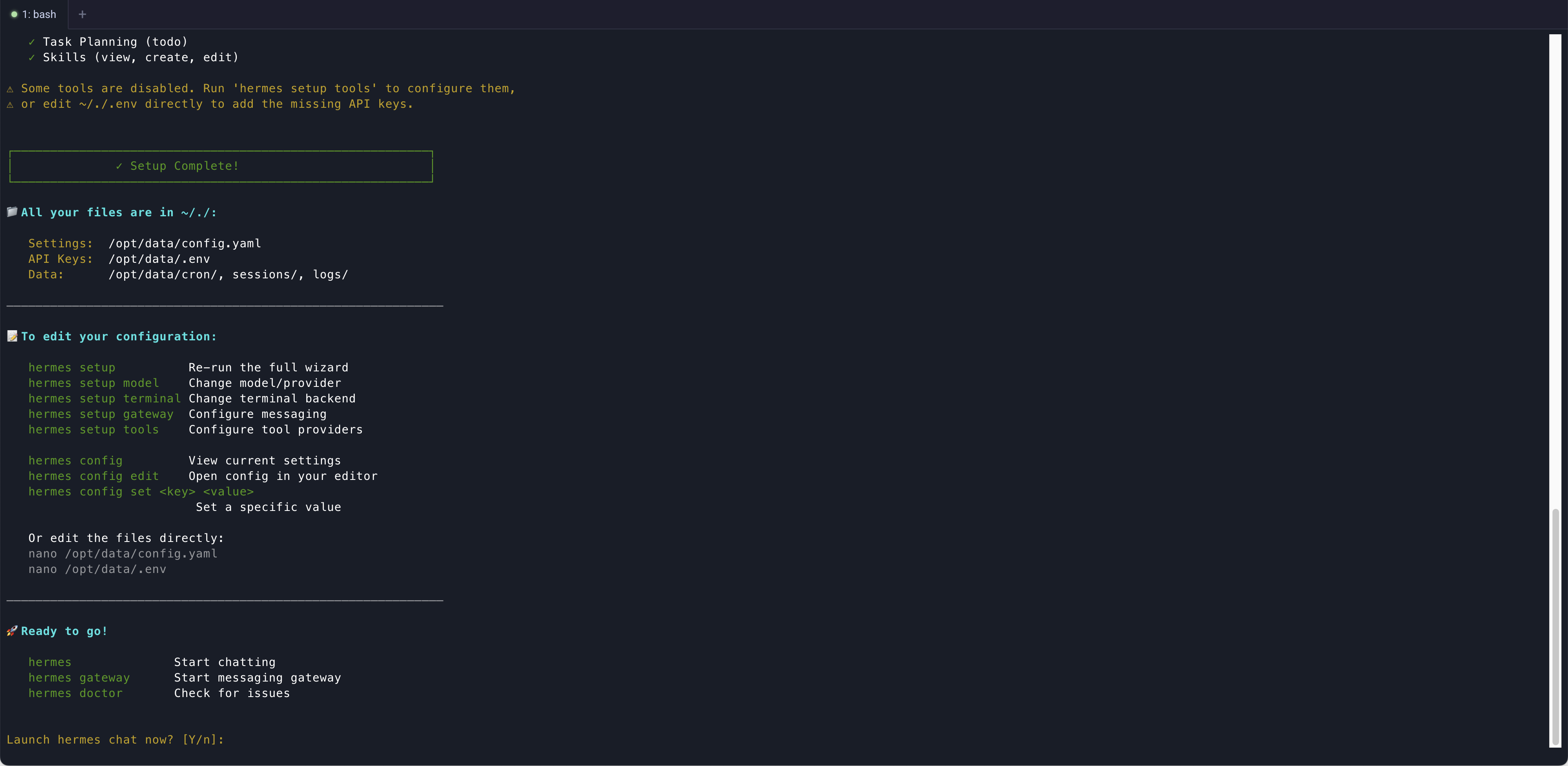
Send a message, such as
what can you do, to verify that the agent responds correctly.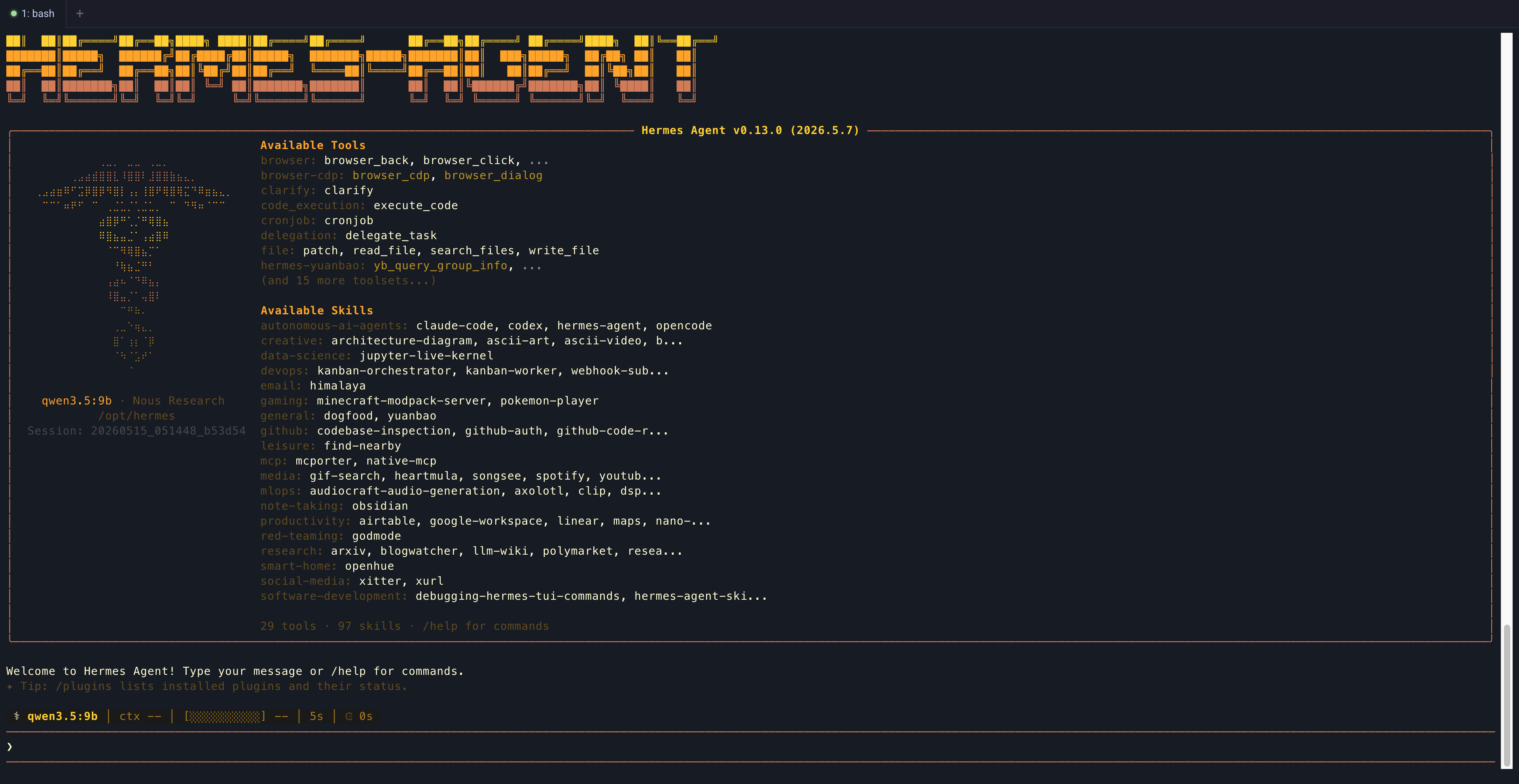
To close the TUI and return to the standard CLI, type
/exit, and then press Enter.
Option 2: Remote chat via Discord
To chat with your agent remotely, connect it to a Discord bot.
Step 1: Create a Discord bot
Log in to the Discord Developer Portal with your Discord account.
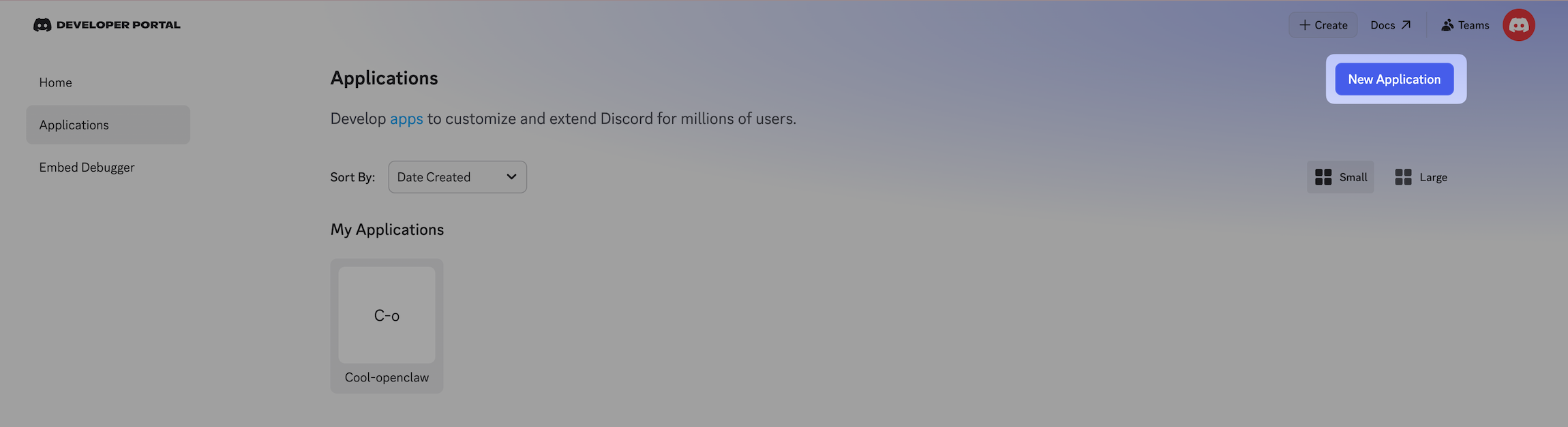
Select Applications from the left sidebar, and then click New Application.
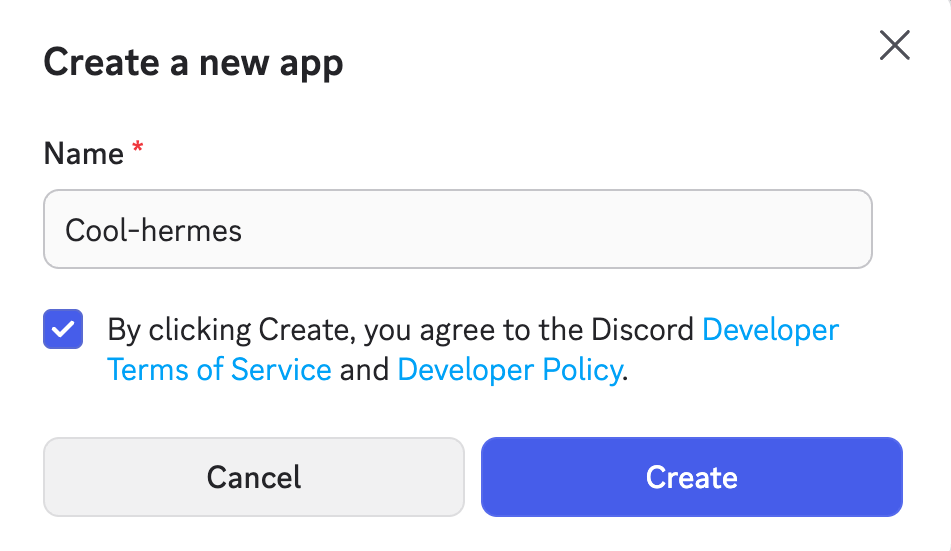
Enter a name for the new app, agree to the terms, and then click Create.
From the left sidebar, select Bot.
Scroll down to the Privileged Gateway Intents section and enable the following settings:
- Presence Intent
- Server Members Intent
- Message Content Intent
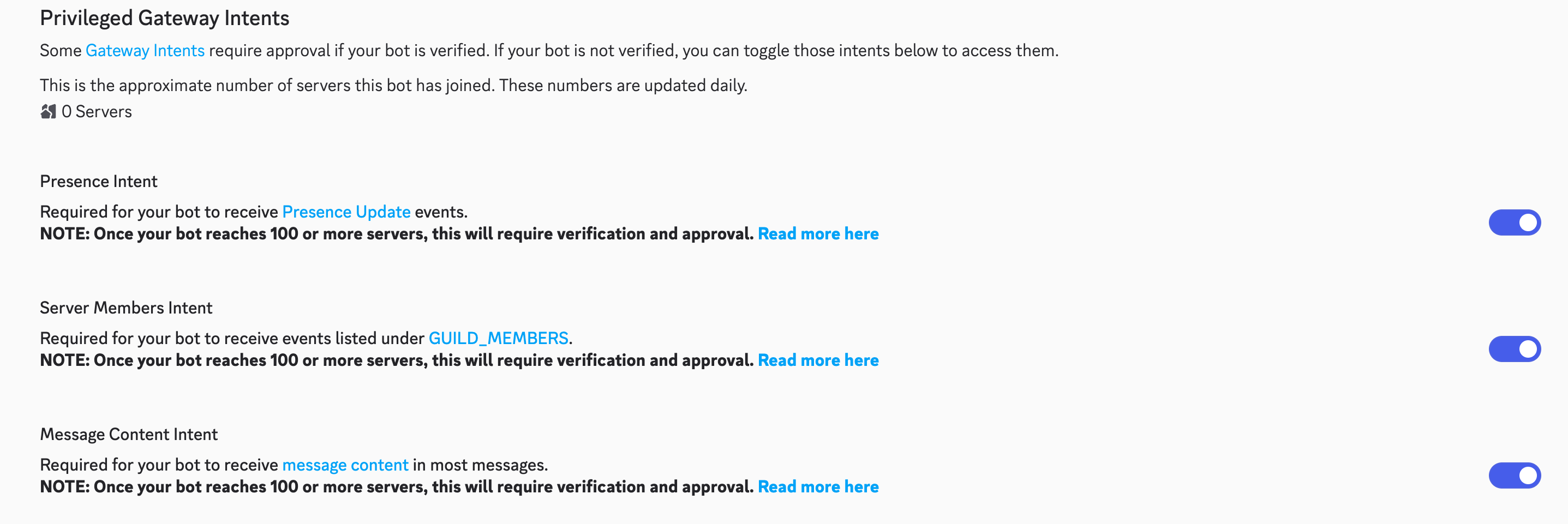
Click Save Changes.
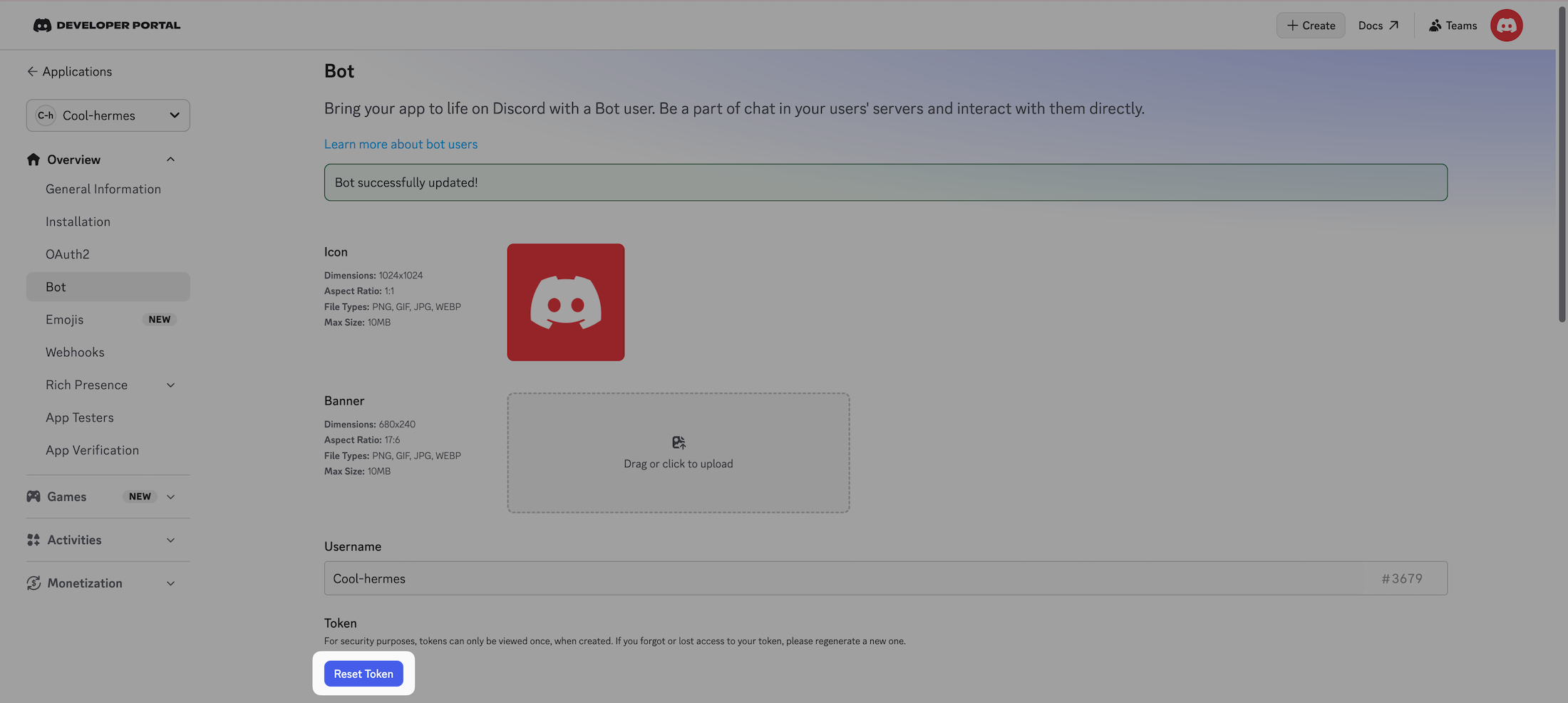
Scroll up to the Token section, click Reset Token, and then copy the generated token for your Discord bot. You need the token for messaging platform configuration later in the Hermes CLI.
Step 2: Invite the bot to your server
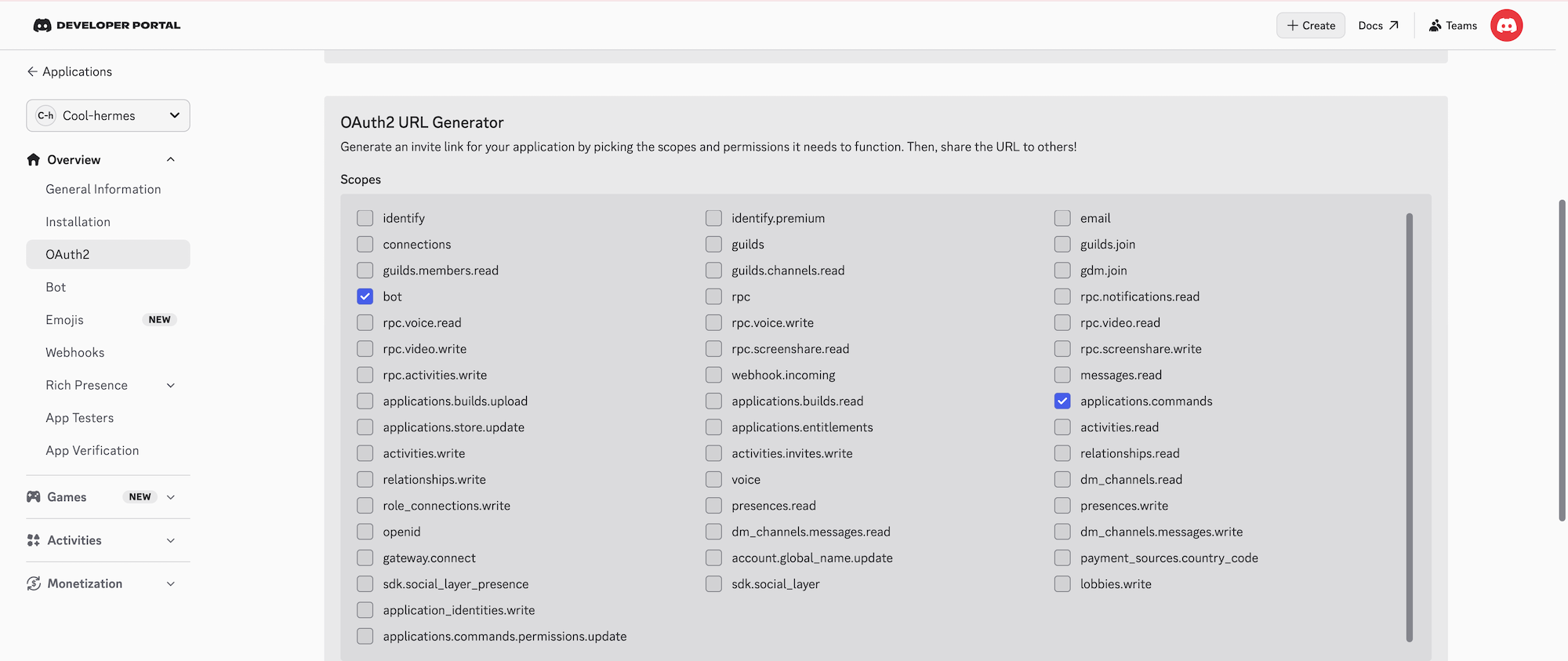
From the left sidebar, select OAuth2, and then find the OAuth2 URL Generator section:
a. In Scopes, select Bot and applications.commands.
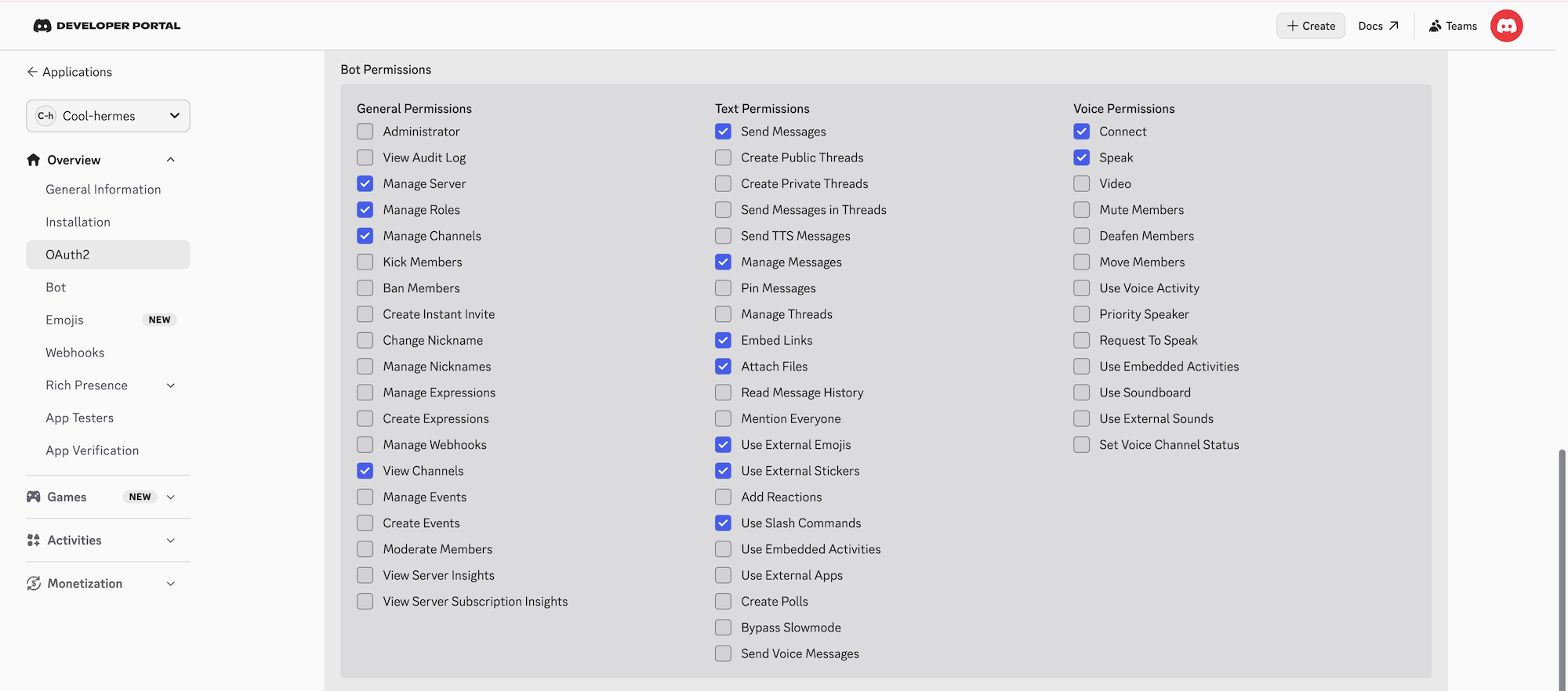
b. Scroll down to Bot Permissions, set the permissions as shown in the following image. You can modify the settings later.
Copy the Generated URL at the bottom.
Paste the URL into a new browser tab, select your Discord server from Add to server, click Continue, and then click Authorize.
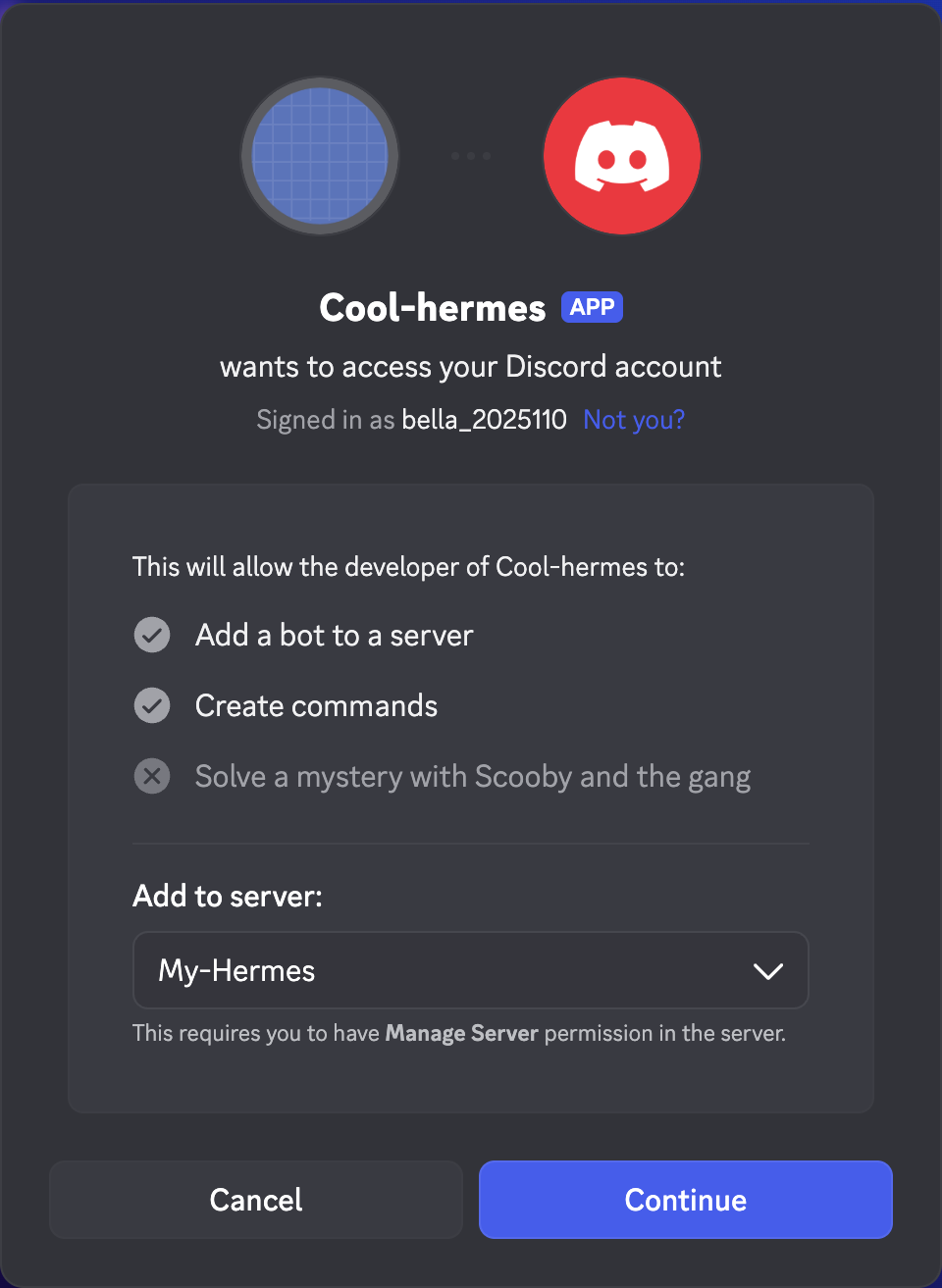
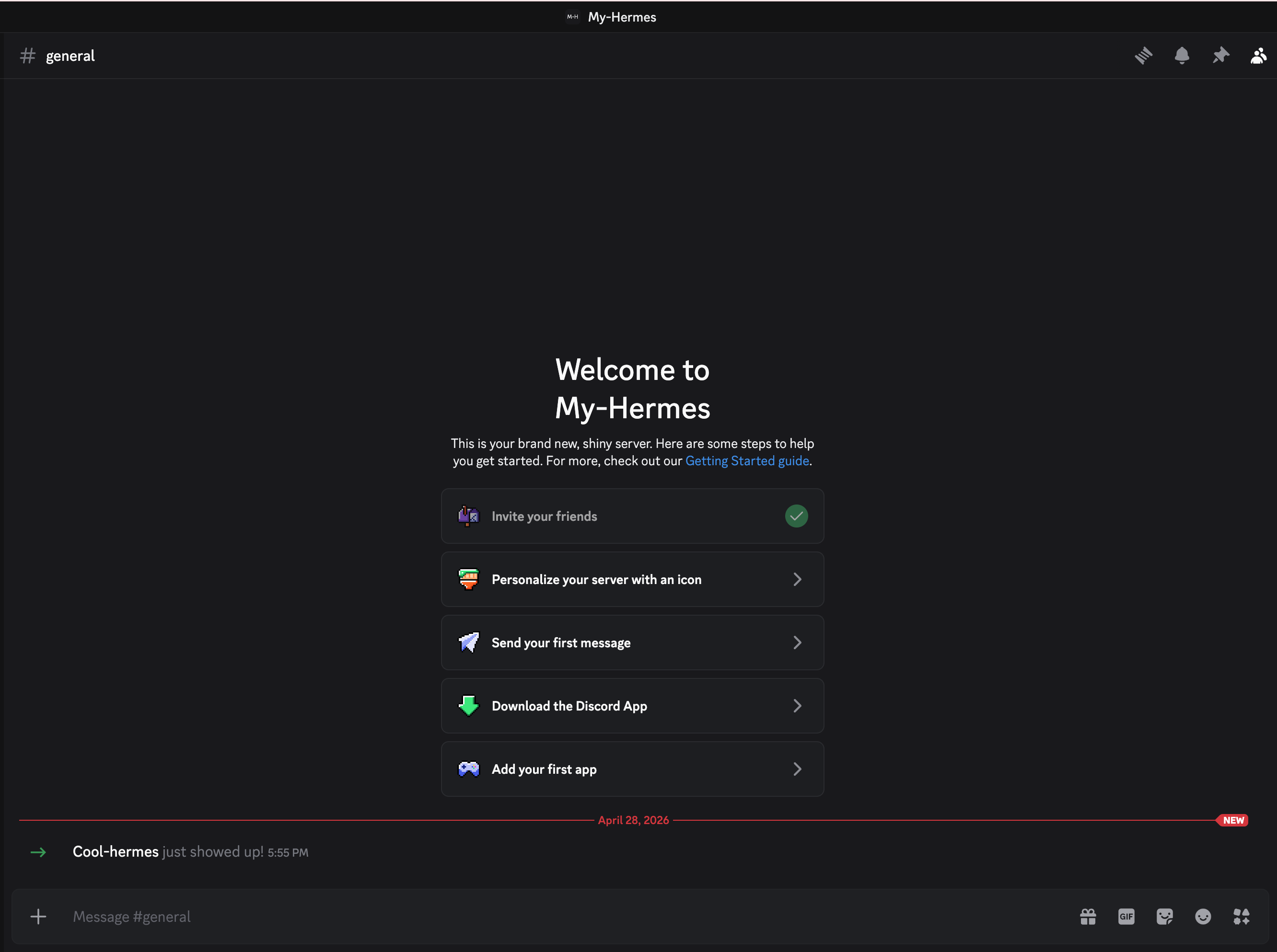
The bot is authorized and added to your server.
Step 3: Configure the messaging platform
Connect Hermes Agent to your Discord bot by configuring and running the Hermes gateway.
Open the Hermes CLI, and then enter the following command to start the configuration wizard:
bashhermes gateway setupSelect Discord as your messaging platform.
Follow the prompts to configure the bot integration:
- Discord bot token: Enter the bot token generated from your Discord Developer Portal. The input remains hidden.
- Allowed user IDs or usernames: Enter your Discord user ID to restrict access to yourself.
- (Optional) Home channel ID: Enter the ID of the Discord channel where the bot operates.
Select Done.
When prompted to Restart the gateway to pick up changes, enter
y.Check your bot status in Discord. A green status icon confirms the bot is online, which means the gateway restarted successfully and the configuration is correct.
Step 4: Authorize your account
For security, the bot does not talk to unauthorized users. You must pair your Discord account with the bot.
Send a Direct Message to your new bot. The bot will reply with an error message containing a pairing code.
Open the Hermes CLI and enter the following command:
bashhermes pairing approve discord {Your-Pairing-Code}Once approved, you can start chatting with your agent in Discord. If you are talking to it in a channel, mention it first.
Manage Olares with your Hermes Agent
Use the Olares CLI skills in Hermes Agent so your agent can manage files and applications on your Olares device. For example, ask it to list files, read logs, or install apps from Olares Market.
Open the Hermes CLI from the Launchpad.
Run the following commands one by one to confirm that both olares-cli and its skills are properly installed and enabled:
basholares-cli -v hermes skills listBefore using the skills, run the following command to log in to your Olares account. Replace {your-olares-id} with your Olares ID (e.g. [email protected]):
basholares-cli profile login --olares-id {your-olares-id}Follow the prompt to enter your Olares login password. For security, the password is hidden.
You can now enter the TUI, and ask the agent to interact with your Olares environment. For example, ask it to install an app from Olares Market.
Integrate Hermes Agent with other applications
Hermes Agent provides an OpenAI-compatible API, allowing you to integrate it with other applications like Open WebUI or Hermes Workspace.
Step 1: Enable the Gateway API
Open Olares Settings, and then go to Applications > Hermes Agent > Manage environment variables.
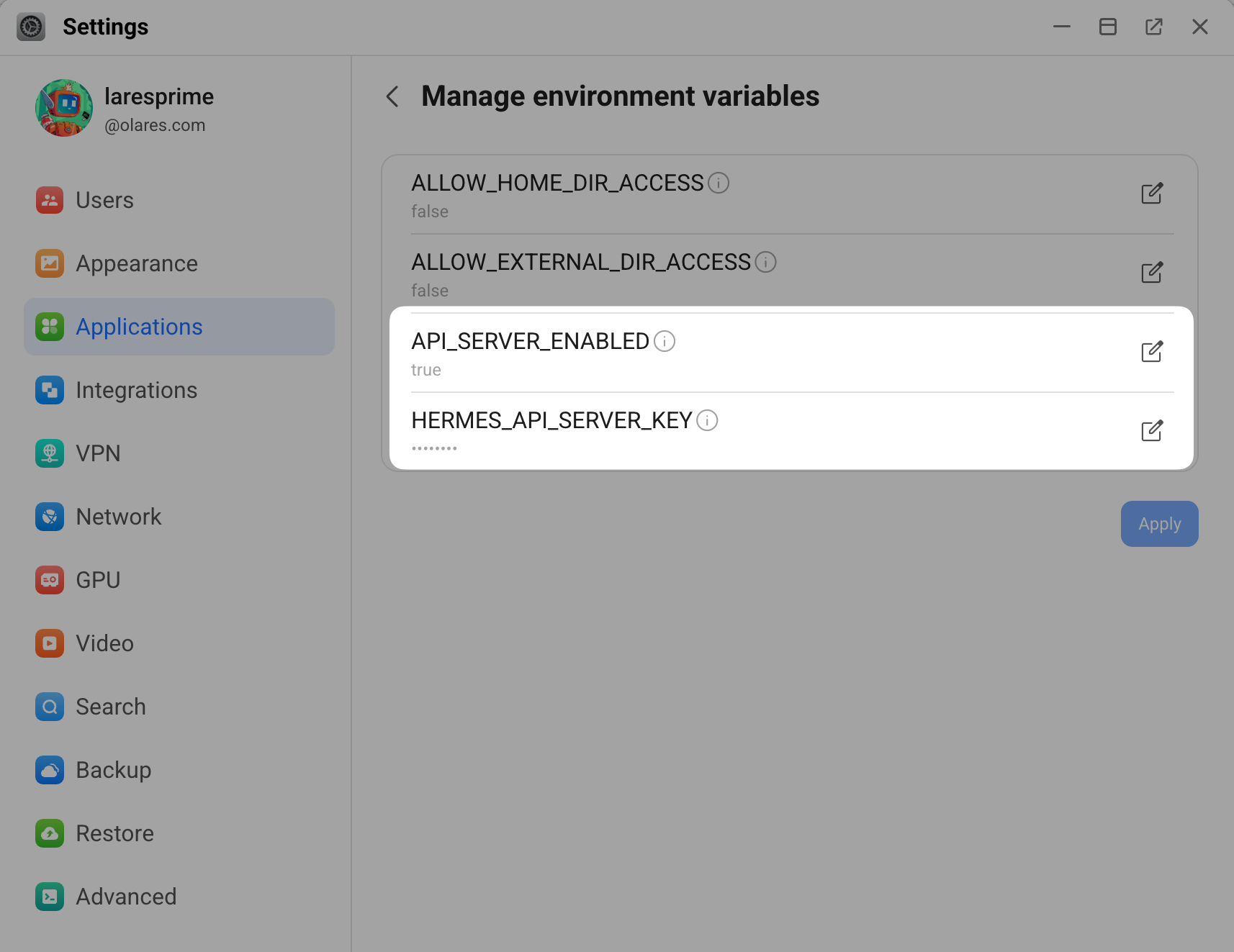
Find API_SERVER_ENABLED, click edit_square, and then set its value to
true.Click Confirm.
Find HERMES_API_SERVER_KEY, click edit_square, and then enter the value. Ensure the key meets the following requirements:
- It must be at least 8 characters long.
- It can only contain letters, numbers, and common symbols.
- It cannot be a predictable placeholder value, such as "your_API_key".
Click Confirm, and then click Apply.
Step 2: Get the Gateway API URL
- Go to Applications > Hermes Agent > Hermes Gateway API.
- Copy the endpoint URL. For example:
https://baf3d7172.olaresdemo.olares.com
Step 3: Verify the API is running
Open your browser and go to your gateway URL appended with /health:
https://{your-gateway-url}/healthIf the API is enabled successfully, the page displays a response confirming the service is active. For example, {"status": "ok", "platform": "hermes-agent"}.
Step 4: Connect your application
The following steps demonstrate how to connect with Open WebUI.
In Open WebUI, click your profile icon and select Admin Panel.
Go to Settings > Connections.
On the right of Manage OpenAI API Connections, click add to add a new connection.
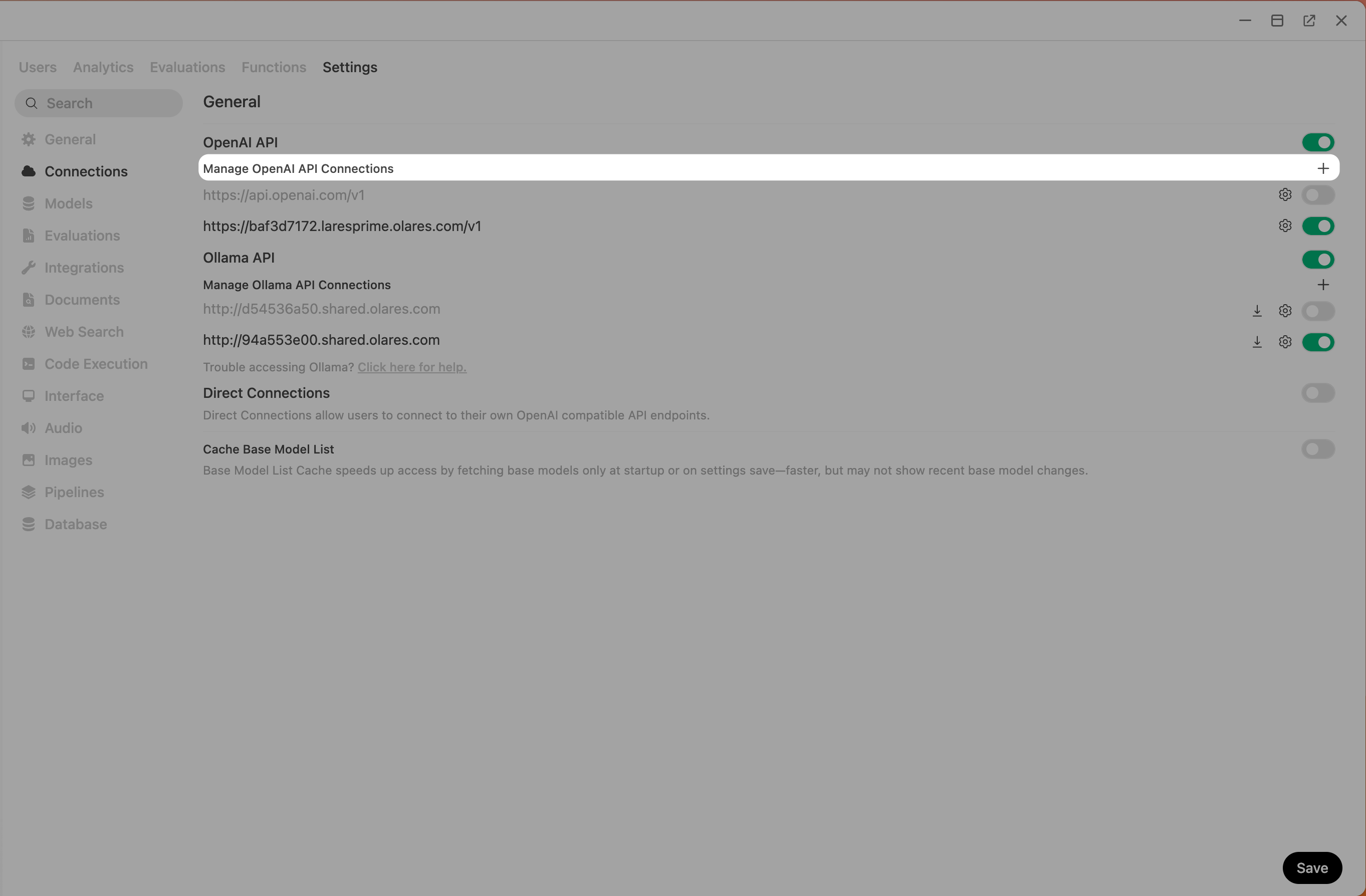
Configure the settings as follows:
- API Base URL: Enter your Hermes Gateway API URL and append
/v1. For example,https://baf3d7172.olaresdemo.olares.com/v1. - Auth: Select Bearer, and then enter the
HERMES_API_SERVER_KEYyou set previously.
- API Base URL: Enter your Hermes Gateway API URL and append
Click refresh to check the connection, and then click Save.
Go to the New chat page and verify that hermes-agent appears in the model drop-down list. You can start chatting with it now.
Advanced configuration
To manually adjust parameters, edit the configuration files directly, and then restart the Hermes CLI to apply the changes.
- Open the Files app from the Launchpad.
- Go to Data > hermesagent > home, and locate the configuration files, such as
config.yamland.env.
The file structure and configuration options match the official defaults. For detailed parameter descriptions, see the Hermes configuration guide.
FAQs
How to manually restart the Hermes gateway?
You can restart the gateway manually using one of the following methods:
Use the Hermes CLI
This is the fastest method. Open the Hermes CLI from the Launchpad, and then run the following command:
bashrestart-gatewayUse the Hermes Dashboard
This is the most intuitive method. Open the Hermes Dashboard from the Launchpad, and then select Restart Gateway in the left sidebar.
Use Control Hub
Open Control Hub, and then go to Browse > {username} > hermesagent-{username} > Deployments > hermesagent, and then click Restart in the upper-right corner. This method completely restarts the entire service, which takes slightly longer.
Why does the gateway fail to start after configuring the API?
Your gateway will fail to start if the configured API key does not meet Hermes security requirements. When this happens:
- The Gateway API displays an
upstream connect error. - The system logs show the message
[Api_Server] Refusing to start: API_SERVER_KEY is set to a placeholder value.
To resolve this issue, reset your HERMES_API_SERVER_KEY:
Open Olares Settings, and then go to Applications > Hermes Agent > Manage environment variables.
Set a new key for
HERMES_API_SERVER_KEYthat meets the following requirements:- It must be at least 8 characters long.
- It can only contain letters, numbers, and common symbols.
- It cannot be a predictable placeholder value, such as "your_API_key".
Click Save, and then click Apply.
Next steps
After you complete the basic setup, explore the official resources to expand your agent's capabilities:
- For advanced terminal commands, see CLI Interface.
- For integration with Slack, Telegram, and other platforms, see Messaging Platforms.
- For installation of skills, see Skills System.
- For installation of tools, see Tools & Toolsets.
- For information about best practices and optimization, see Tips & Best Practices.
Note on sudo commands
The Hermes CLI in the Olares environment does not support sudo commands. Ignore any steps in the official documentation that require sudo privileges.