Dual-boot Windows on a secondary SSD 30 min
For competitive gaming or Windows-exclusive software, configure a secondary NVMe SSD to create a dual-boot system.
This dual-drive setup physically isolates the operating systems. This ensures Olares OS remains stable and secure while providing full native performance for your Windows applications.
Learning objectives
By the end of this guide, you will learn how to:
- Create a bootable Windows installation USB drive.
- Configure BIOS settings to isolate Olares OS during installation.
- Install Windows on a secondary SSD.
- Set up GRUB to detect and switch between both operating systems.
Prerequisites
Hardware
- A secondary NVMe M.2 SSD physically installed in Olares One.
- A USB flash drive (8 GB or larger) for Windows installation media.
- A wired keyboard and mouse connected to Olares One.
- A monitor connected to Olares One.
- An Ethernet cable connected to Olares One.
- A Microsoft account for completing the Windows setup process.
Step 1: Create a bootable Windows USB drive
Download the Windows 11 ISO from the official Microsoft website.
Download and install balenaEtcher.
Insert the USB flash drive into your computer.
Open balenaEtcher and follow these steps:
a. Click Flash from file and select the ISO you downloaded.
b. Click Select target and select your USB drive.
c. Click Flash! to write the installer to the USB drive.
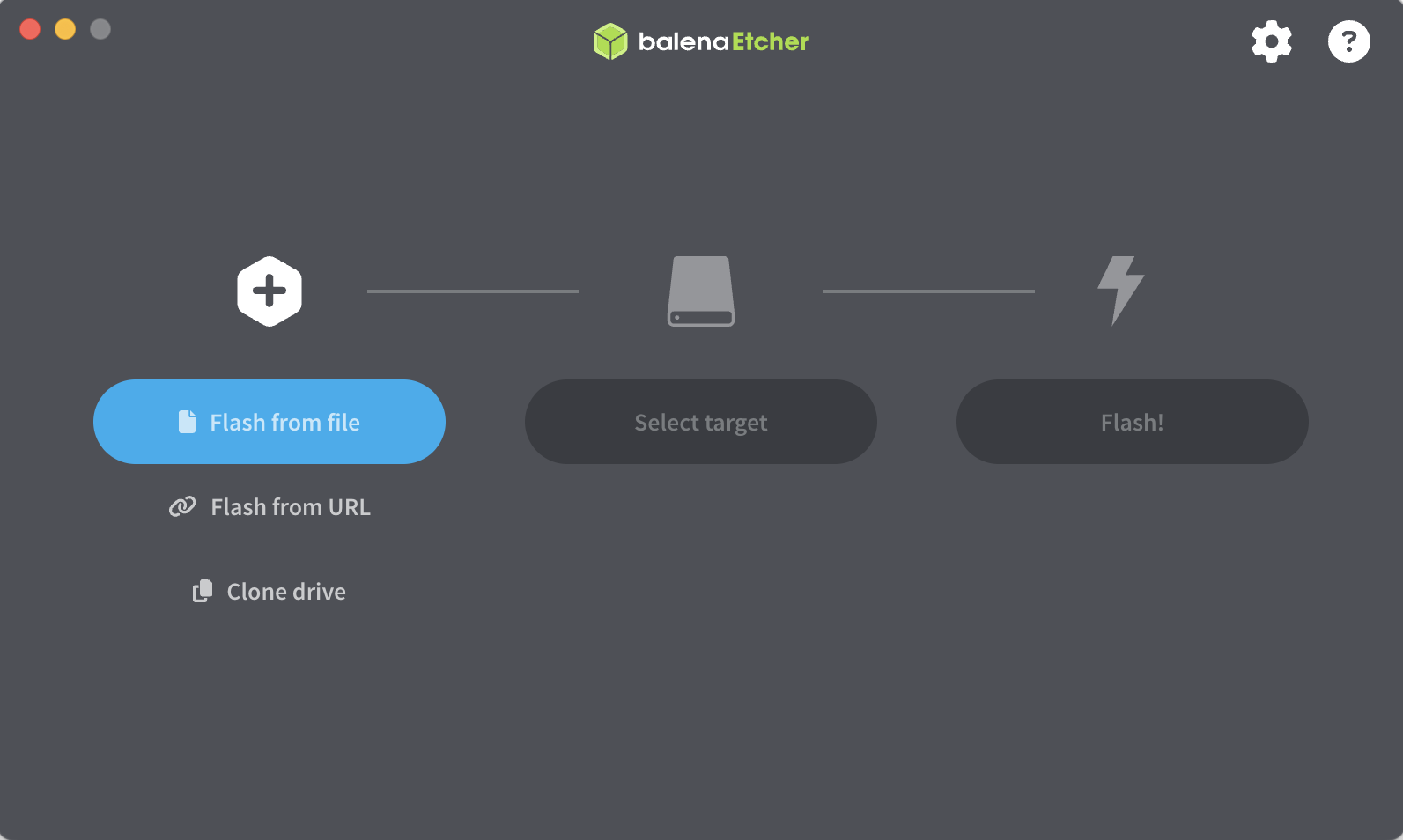
Wait for the flashing and validation to finish, and then safely eject the USB drive.
Step 2: Boot into BIOS and disable Olares OS
Disable the Olares OS drive in the BIOS before you install Windows to ensure the dual-boot configuration works correctly later.
Insert the Windows USB boot drive into the USB port on Olares One.
Power on Olares One, or restart it if it is already running.
When the Olares logo appears, press the Delete key repeatedly to enter the BIOS setup.
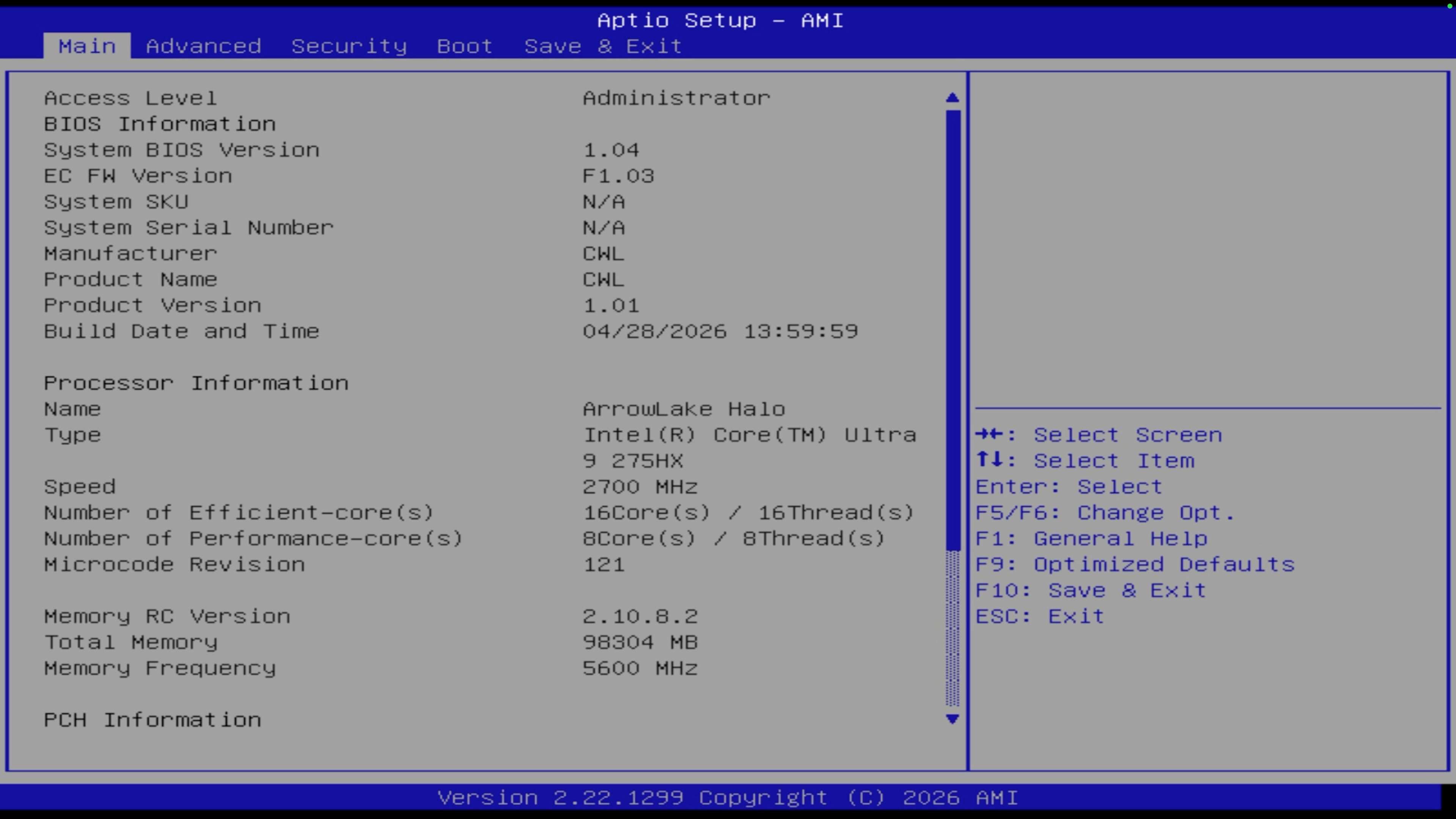
Go to the Boot tab, select the boot option for the Olares OS disk, and then press Enter.
Select Disabled in the popup window, and then press Enter.
Go to the Save and Exit tab, under Boot Override, select your Windows USB disk to boot directly from it, and then press Enter.
Press F10, and then select Yes to save the changes and exit.
The system automatically boots from the USB drive into the Windows installation interface.
Step 3: Install Windows
The Windows setup process guides you through configuring your new system.
On the Ventoy screen, select the ISO file such as Win11_25H2_English_x64_v2.iso, and then select Boot in normal mode. The Windows 11 Setup wizard launches.
Follow the on-screen prompts to finish the standard Windows setup. During this process, the system restarts several times.
Verify the selected partition
On the Select location to install Windows 11 screen, ensure you choose the correct secondary drive or partition. Selecting the wrong partition permanently erases your Olares OS.
After the final configuration process finishes, the Windows desktop appears, indicating a successful installation.
Unplug the Windows USB drive.
Step 4: Re-enable Olares OS in BIOS
After installing Windows, re-enable the Olares OS drive in the BIOS and set it as the primary boot device. You must boot back into Olares OS so you can configure the GRUB dual-boot menu in the next step.
Restart Olares One.
When the Olares logo appears, press the Delete key repeatedly to enter BIOS setup.
Go to the Boot tab.
Set Boot Option #1 to the SSD that contains Olares OS, and set Boot Option #2 to the SSD that contains Windows.
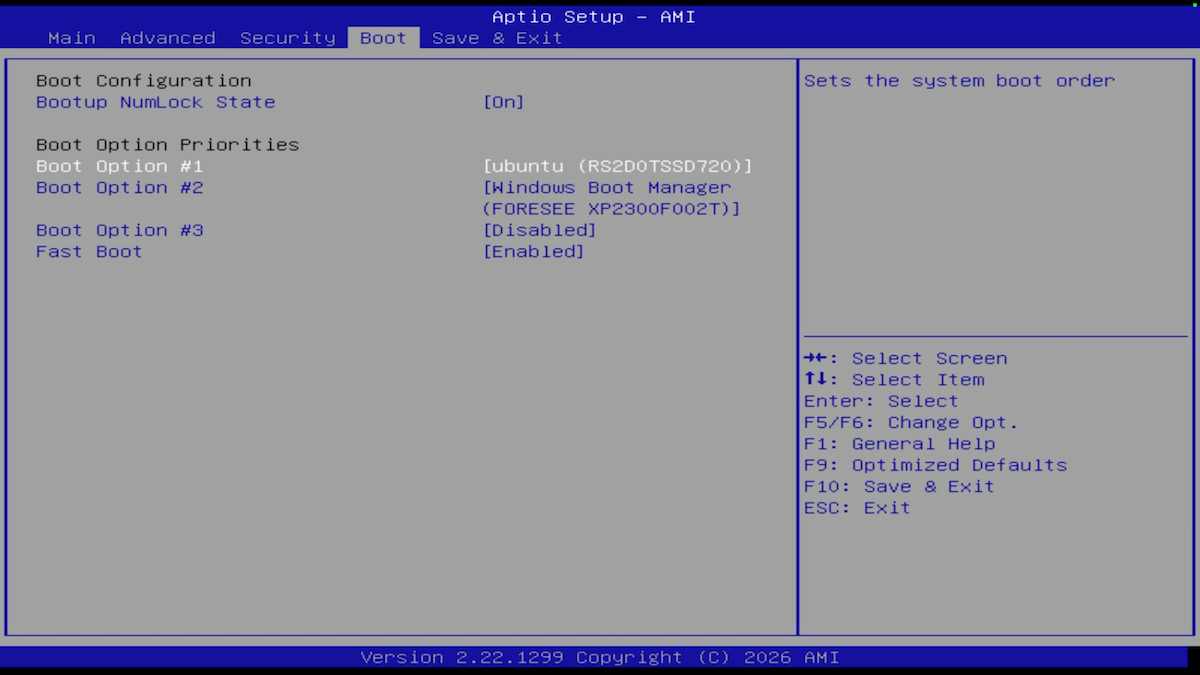
Press F10, and then select Yes to save and exit BIOS. Olares One boots into Olares OS.
Step 5: Detect Windows and update GRUB
To choose between operating systems at startup, configure the GRUB bootloader to detect Windows.
Step 6: Switch between operating systems
Use the GRUB boot menu to choose your preferred operating system every time you start Olares One.
Shut down Olares One, wait a few seconds, and then power it on again.
The GNU GRUB dual-boot menu appears automatically.
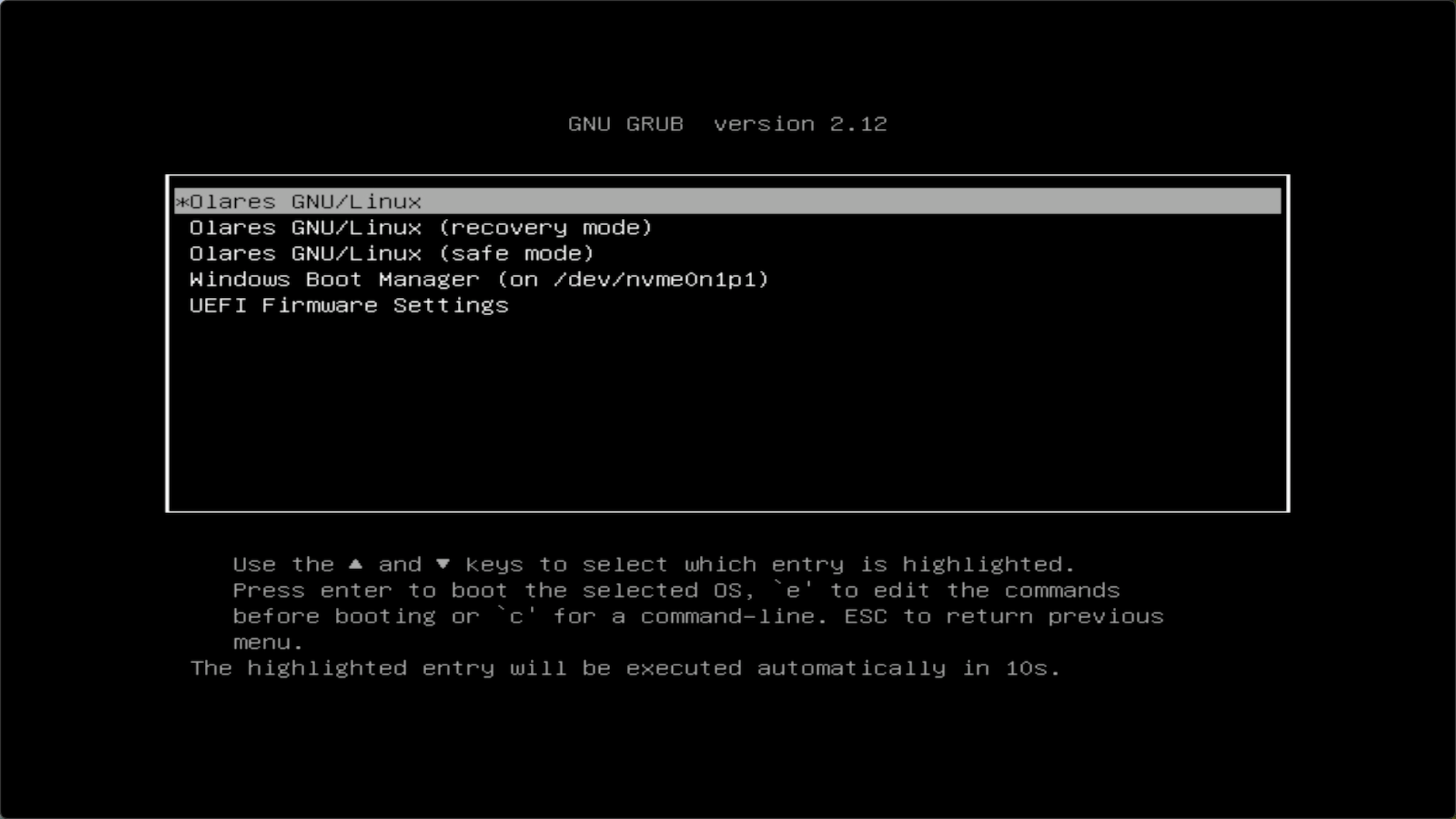
Choose which operating system to boot. The system automatically executes the highlighted entry in 10 seconds.
- Boot Olares OS: Select Olares GNU/Linux.
- Boot Windows: Select Windows Boot Manager.
To switch to the other operating system while currently logged in:
From Olares OS to Windows: Run
sudo rebootin the terminal and enter your password when prompted. When the GNU GRUB menu appears, select Windows Boot Manager.INFO
When you type your password in the terminal, the characters remain invisible for security. Ensure you have entered the correct password and press Enter.
From Windows to Olares OS: Restart Windows. When the GNU GRUB menu appears, select Olares GNU/Linux.