Description
An application stays in a “Stopped” state and fails to start up or resume.
Solution
Step 1: Check the app’s required VRAM
- Go to Market > My Olares.
- Click the card of the target app.
- In the app details page, note the app’s VRAM requirement.
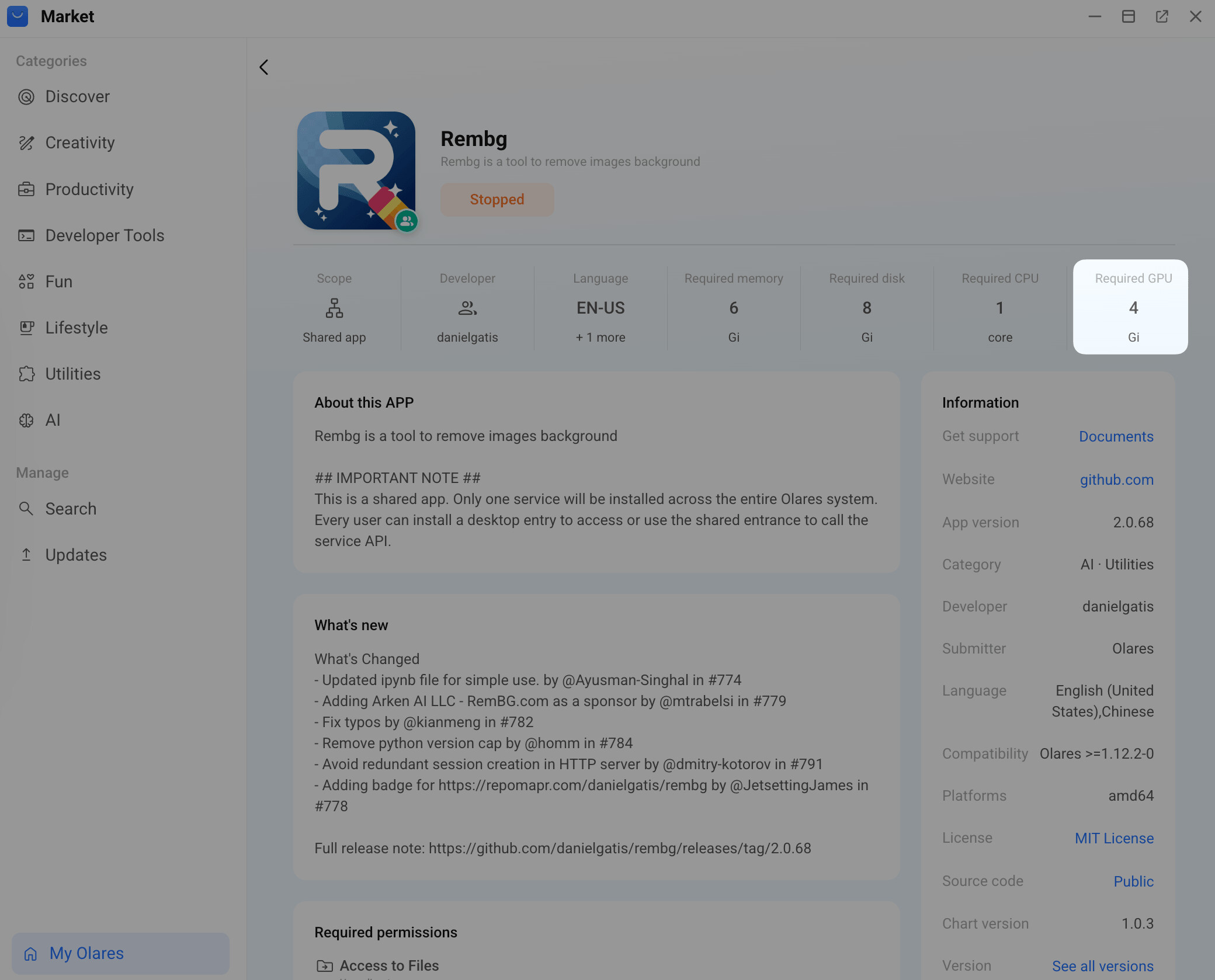
Step 2: Check current VRAM availability
- Go to Settings > GPU.
- In the Allocate VRAM section, note the total VRAM currently allocated across all apps in the list.
- Subtract this from your GPU’s total VRAM capacity to get the available VRAM.
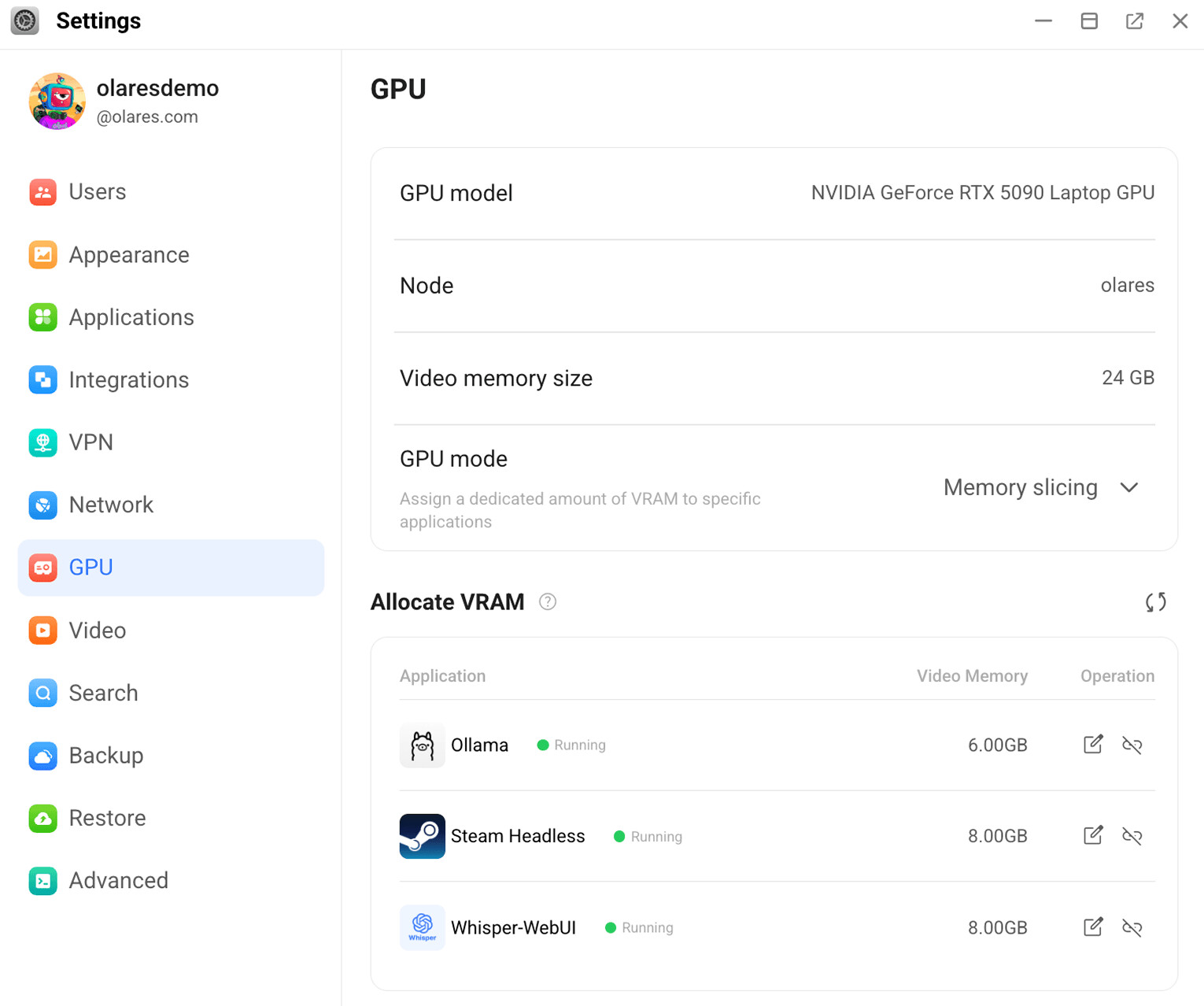
In the example above, 22 GB of VRAM is currently allocated, leaving only 2 GB available, which is less than the 4 GB required by the target app.
Step 3: Free up VRAM
Use one or both of the following approaches to free up enough VRAM.
Reduce the allocation of an active app
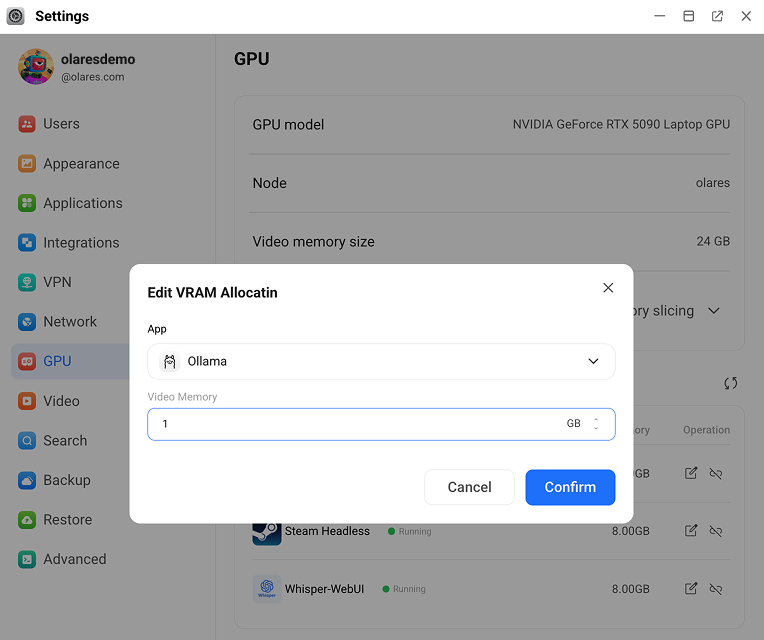
- In the Allocate VRAM section, click the Edit icon next to an app’s VRAM value.
- Reduce the allocation without going below the VRAM required by that app, then click Confirm.
Stop unused apps and release their VRAM
- Stop an app that is not currently needed using one of the following methods:
- In Market > My Olares, click the Arrow icon next to the app’s operation button and click Stop.
- Or go to Settings > Applications, select the app, and click Stop.
- Return to Settings > GPU.
- In the Allocate VRAM section, click the icon next to the stopped app, then click Confirm.
- Repeat until enough VRAM is available.
Step 4: Resume the target app
- Resume the target app:
- In Market > My Olares, click the Arrow icon next to the app’s operation button and click Resume.
- Or go to Settings > Applications, select the app, and click Resume.
- Wait for the app status to change to Running.
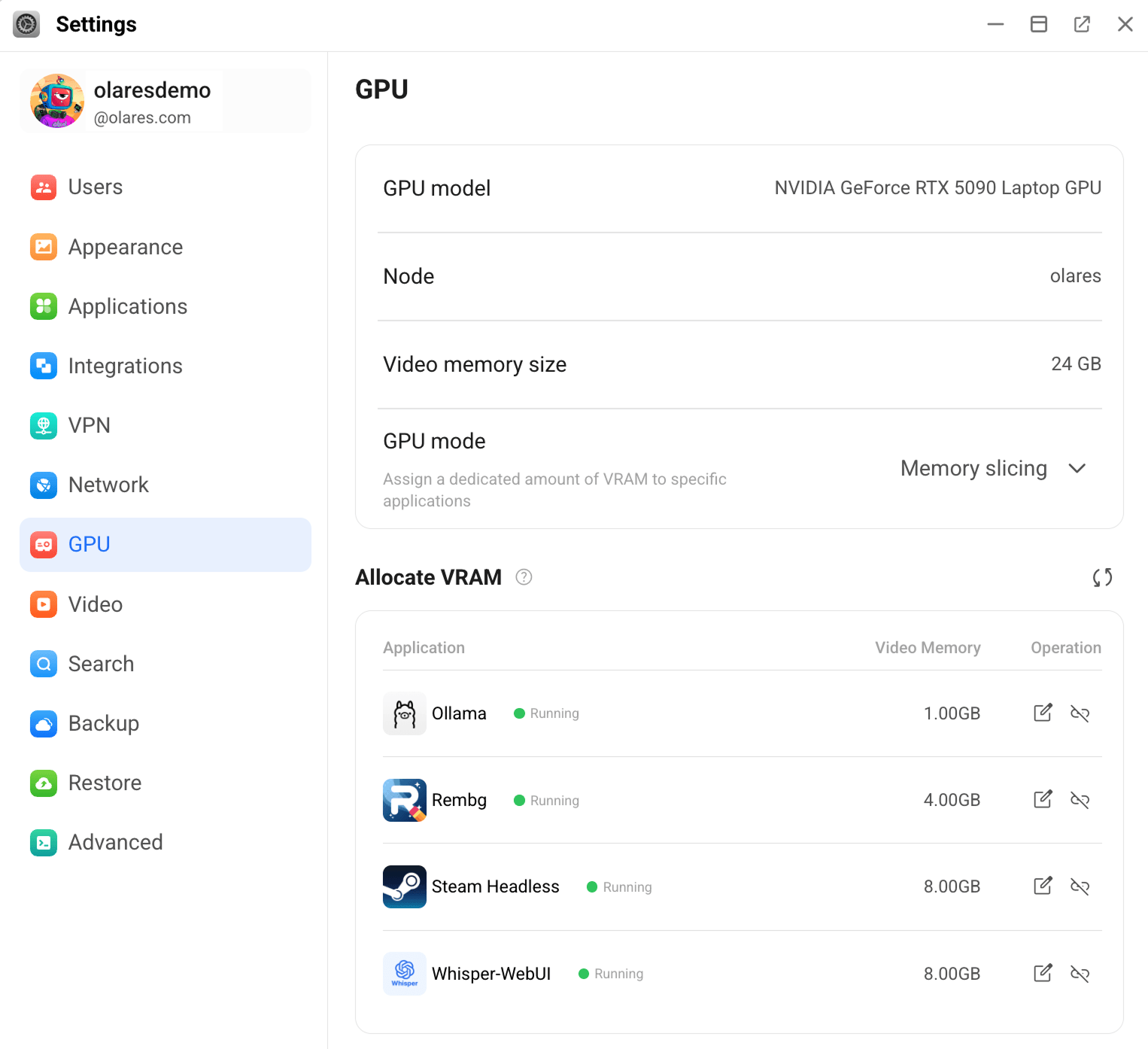
For the full official guide, see the Olares docs: