Inside Olares: How your credentials work together

If you have used 1Password, you may already be familiar with the idea of keeping passwords in an encrypted vault. Olares also uses a vault, but getting into it is only one part of the story. You may unlock LarePass with a local password, sign in to Olares Desktop with another password, and use a code or phone confirmation when two-factor authentication is enabled.
These credentials protect different things. Knowing which one you need matters when setting up a new client, signing in, or recovering access. This article shows where each credential is used, how Vault keeps saved items in sync, and what to back up before a device is lost.
Five credentials, five roles
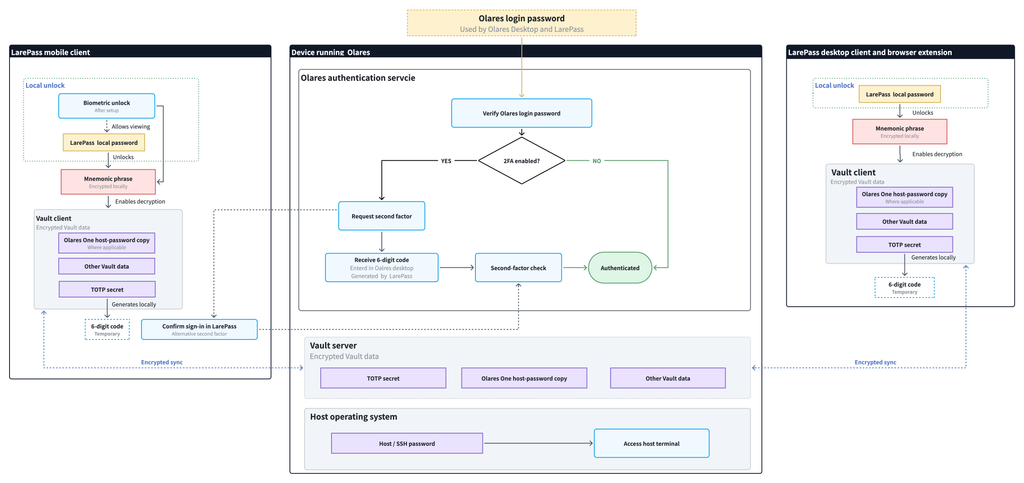
The diagram brings together five types of credentials used for identity recovery, local unlocking, Olares sign-in, second-factor verification, and host access. Each has a different role.
Mnemonic phrase
When you create an Olares ID using LarePass, it generates a 12-word mnemonic phrase locally. These words can recreate the cryptographic keys that determine its decentralized identifier (DID), the underlying identifier linked to the Olares ID. Using the same phrase on another device lets you import the same identity.
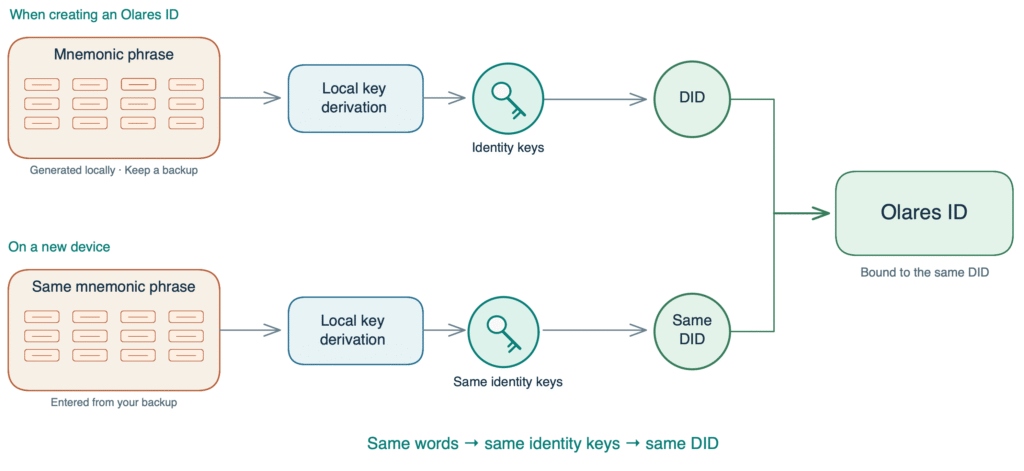
LarePass stores the phrase encrypted locally, outside Vault, protected by the local password. The phrase also helps unlock the associated Vault data, provided that encrypted data remains available.
Back up the phrase separately and keep it private. If no accessible client or backup remains, Olares cannot recreate the original phrase.
LarePass local password
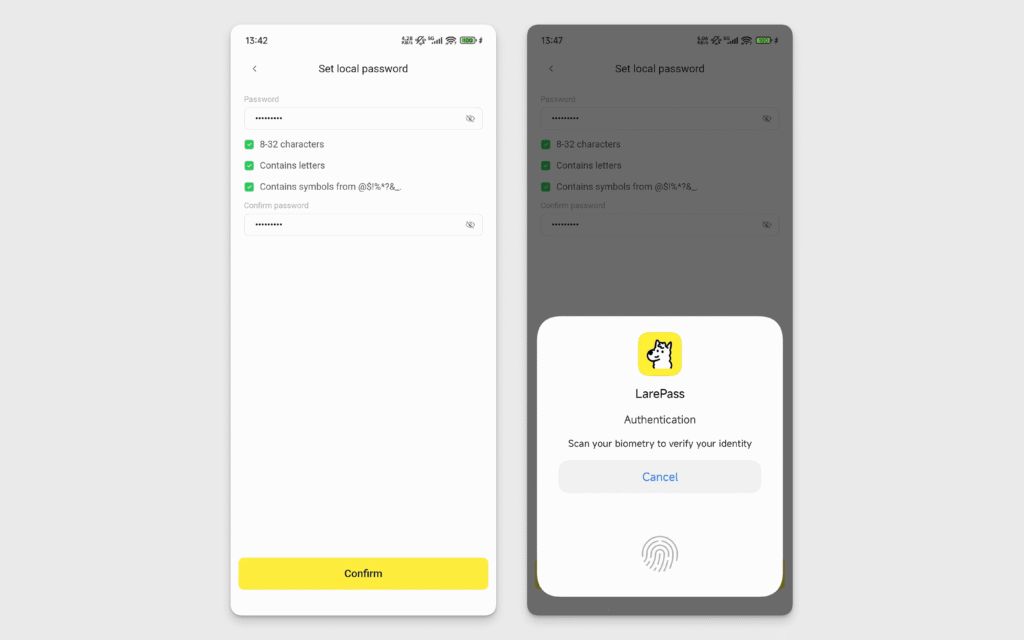
The local password protects the mnemonic phrase and access to Vault and other protected features within a particular LarePass client. Each client or browser extension has its own local password, which does not sync through Vault.
Setting it gives the client a local lock after an identity has been imported. On mobile, biometric unlock can be enabled after a local password is set. It offers a convenient way to unlock protected features and can also reveal the local password after successful biometric verification.
Olares login password
This password signs you in to Olares Desktop. LarePass may also request it when it needs to authenticate with Olares again.
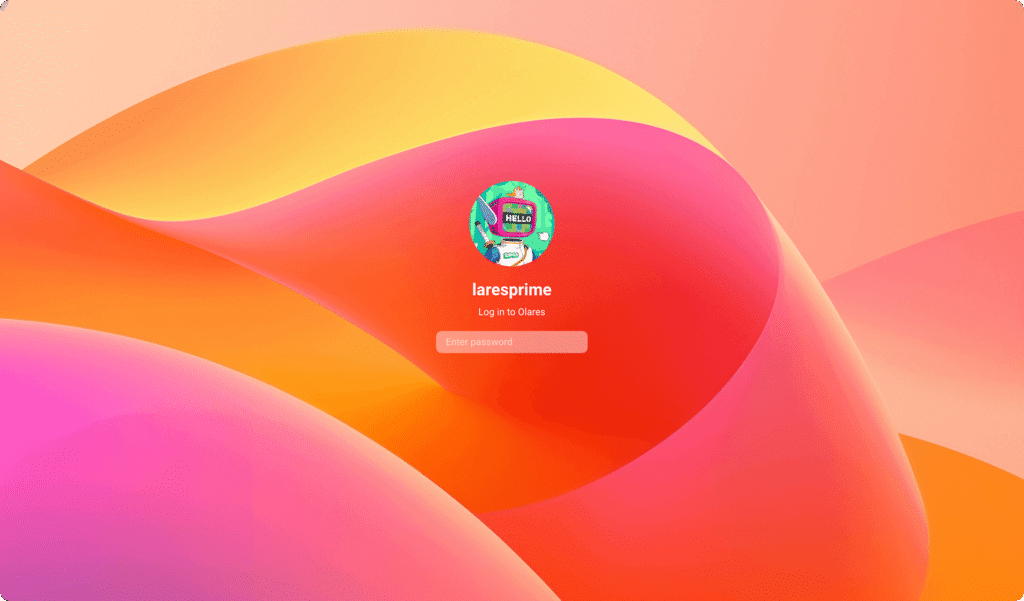
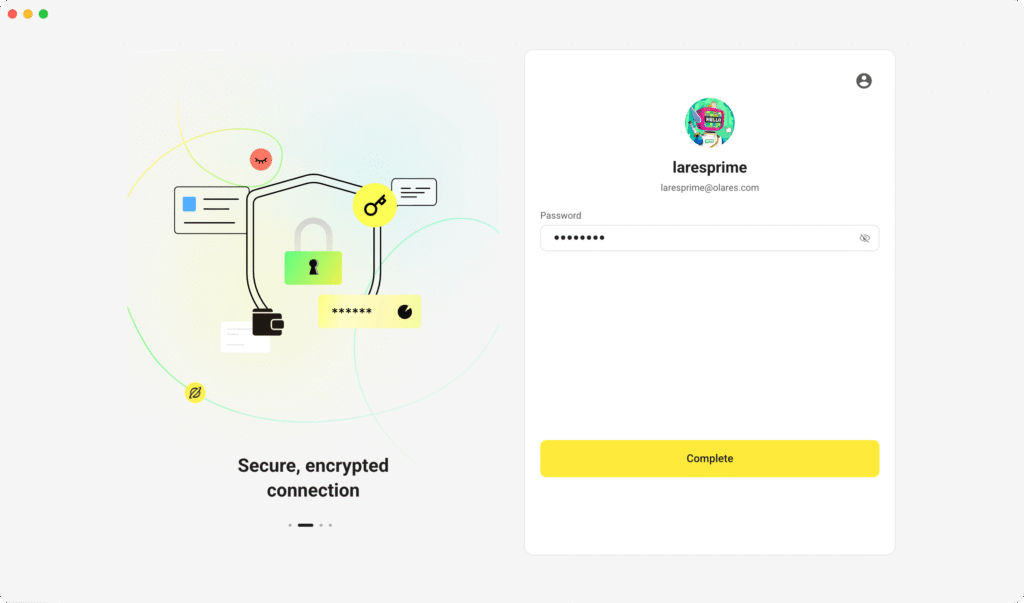
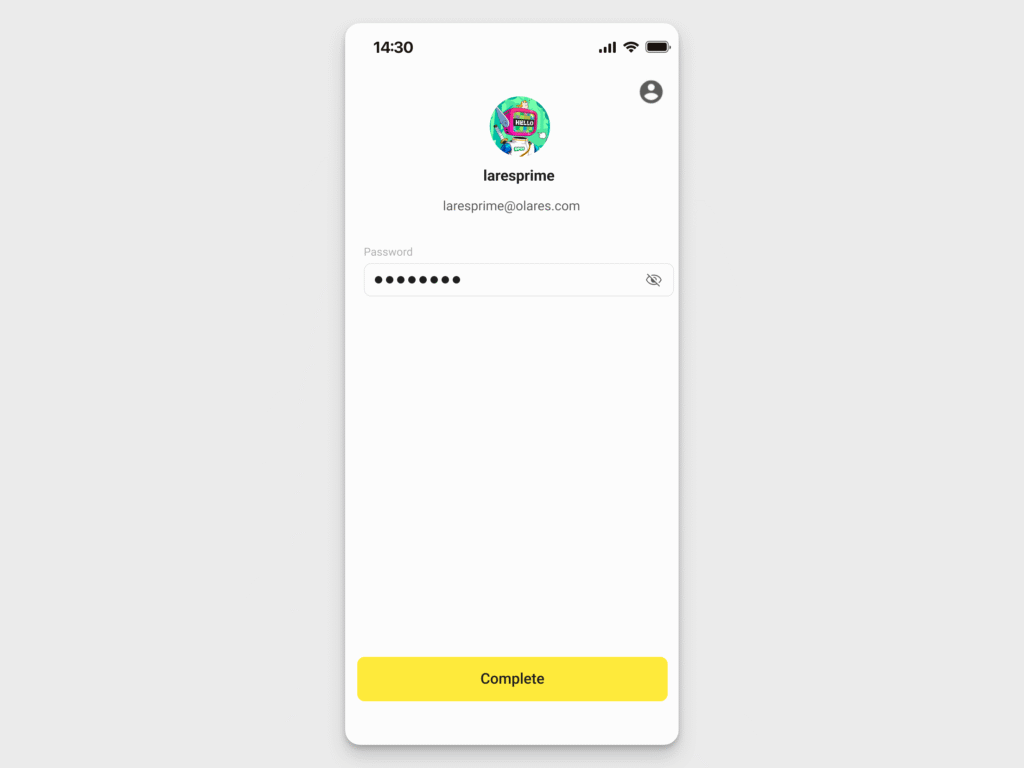
When Olares asks you to sign in, use the Olares login password whether the prompt appears in Olares Desktop or LarePass. Olares authentication services verify it. This is different from the local password used to unlock a particular LarePass client.
TOTP secret and 6-digit code
During Olares activation, a TOTP secret is created for that installation and saved in Vault. LarePass uses the secret to generate a temporary six-digit code that changes regularly. The secret is stored and synced as encrypted Vault data. The code itself is generated when needed. Activating the same Olares ID on another Olares device creates a new TOTP secret for that installation.
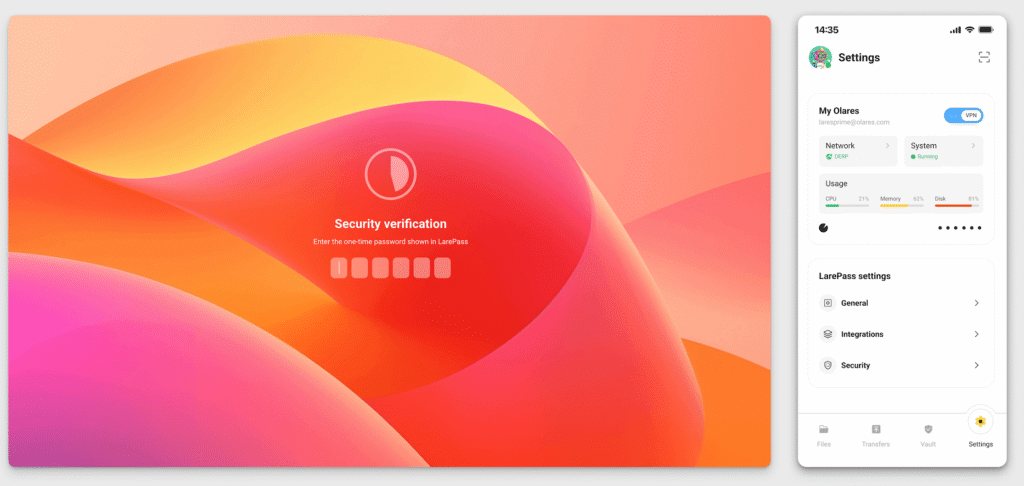
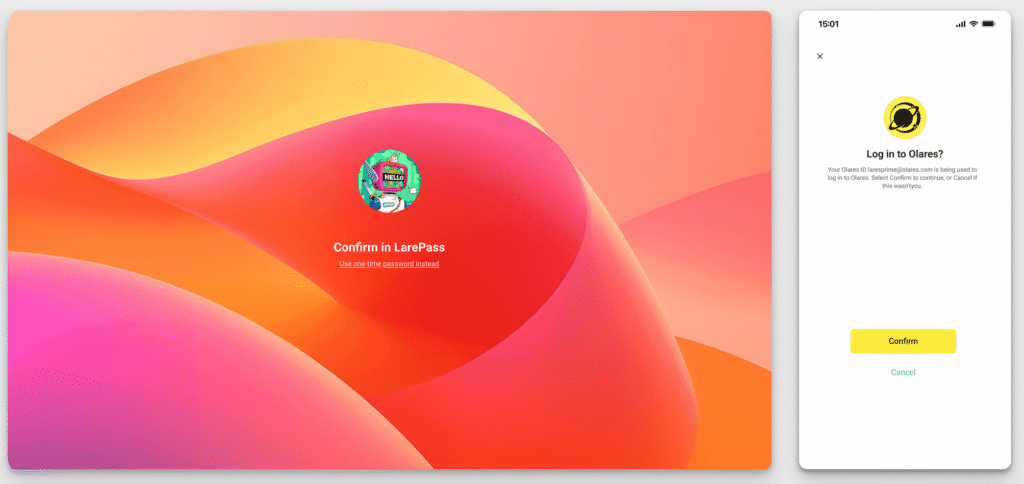
When two-factor authentication is enabled, Olares Desktop requires an additional check after the login password. You can enter the current code from LarePass or confirm the sign-in in LarePass Mobile. When signing in to Olares Desktop through LarePass, the client can generate and submit the required TOTP code automatically, so you may not see a separate code prompt.
Host / SSH password
The host password gives access to the underlying Linux system through SSH or a physical terminal. It is separate from the Olares login password and is managed by the host operating system.
On Olares One, a copy is saved in Vault for retrieval. Vault holds the copy; the host operating system verifies the password when you access the terminal.
How Vault keeps encrypted data in sync
Vault keeps saved passwords, TOTP secrets, and other sensitive items available across configured LarePass clients. Like 1Password’s encrypted syncing, it encrypts item contents on a client before syncing them and decrypts them on another client when unlocked. In Olares, the Vault server that stores and syncs the encrypted data runs on your Olares device.
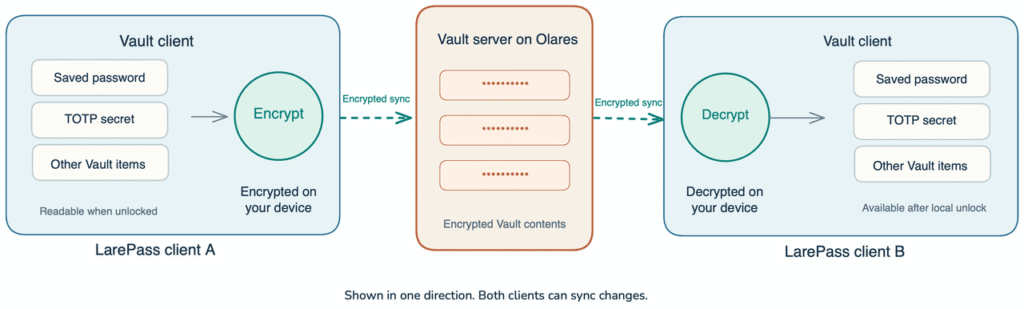
When an item changes, the Vault server makes its encrypted version available to other clients. It does not need a readable copy of the item to keep those clients in sync.
The mnemonic phrase stays outside Vault sync by default. LarePass keeps it encrypted locally, rather than storing it on Olares with synced Vault data. If the device is lost, you can still use a separate mnemonic backup or an accessible LarePass client.
Vault items, including the TOTP secret, are a separate matter: recovering them still requires an available copy of the encrypted data. Sync does not replace an independent backup.
Simple habits for safer access to Olares
A few preparations help protect everyday access and preserve recovery options.
- Back up the mnemonic phrase offline. Keep every word in the correct order, somewhere private, readable, and accessible over time. Avoid keeping the only backup on the device it is meant to help recover.
- Protect each LarePass client. Set a strong local password and keep a secure record of it. Another trusted client provides an additional access point, but does not replace an independent mnemonic backup.
- Check before resetting or replacing a device. Confirm that both the mnemonic backup and important data backups are available before removing an Olares ID, uninstalling LarePass, or reinstalling Olares.
The phrase deserves special care because someone who obtains it can recreate the underlying identity keys. Its backup needs to be protected from both loss and unwanted access.
Lost a credential? Start here
The next step depends on what is missing and what remains accessible. These credentials have different recovery paths; they do not all replace one another.
| Having trouble with… | Where to start |
|---|---|
| Mnemonic phrase | Check an existing LarePass client where the Olares ID remains accessible, then reveal and back up the phrase. Without an accessible client or a backup, the phrase cannot be recovered. |
| LarePass local password | On mobile, previously enabled biometric unlock can reveal it. The desktop client cannot reveal a forgotten local password. If this route is unavailable, check another accessible client for the mnemonic phrase and follow the recovery guide before removing anything. |
| Olares login password | An administrator with host terminal access can follow the password reset guide. |
| 6-digit code | Open an accessible LarePass client containing the corresponding authenticator. If a sign-in notification does not arrive, switch to code verification. |
| Host / SSH password | For Olares One, check the saved Vault entry. If Olares Desktop remains accessible with the required permissions, follow the SSH password reset steps. Other installations use their host system’s recovery process. |
See the access recovery guide for platform-specific steps and conditions.
Before removing an Olares ID or uninstalling LarePass, make sure the mnemonic phrase is safely backed up. An existing client may hold the only remaining copy.
Like 1Password, Olares relies on client-side encryption to keep synced Vault contents unreadable to the server. But protecting the data is only part of staying in control of it. Keep an independent backup of the mnemonic phrase, maintain another accessible LarePass client when possible, and back up important data separately. That way, you are prepared not just to keep credentials private, but to use the right one and regain access when circumstances change.