
One address, multiple paths: How access works in Olares

Open an Olares app at an address such as https://desktop.<username>.olares.com, and the experience looks simple: enter a familiar URL and reach the service. What happens behind that address is more nuanced. The same hostname can lead to different network paths depending on where the client is, whether it runs LarePass, and how the app entrance is configured.
That flexibility matters for a self-hosted system. Away from home, reaching an Olares device behind a home router can be difficult, especially when the device does not have a public IP address. At home, sending traffic out through a public reverse proxy and back would add an avoidable detour. TVs and media players may need direct LAN access but cannot run LarePass. Services inside Olares use another network layer altogether.
Olares addresses these cases with several complementary access methods. This article explains what each path is for, how the paths differ, and why the URL alone does not tell you whether traffic stays local or crosses the internet.
Architecture at a glance
Olares provides different paths for remote devices, clients on the same LAN, devices that need an app-specific LAN IP, and services running inside the Olares cluster.
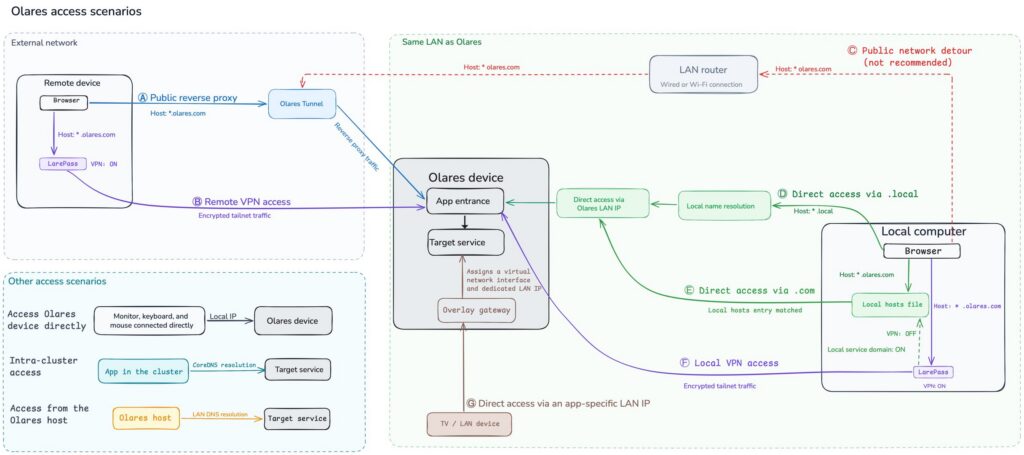
The diagram groups the main user-facing paths into seven scenarios:
- A. Public reverse proxy: A remote browser reaches an app entrance through Olares Tunnel.
- B. Remote VPN access: A trusted device running LarePass reaches Olares through an encrypted connection.
- C. Public-network detour: A client on the home LAN still sends traffic through the public reverse proxy. The app may load, but the route is inefficient for local access.
- D. Direct access through
.local: Local name resolution maps a.localhostname to the Olares LAN IP. - E. Direct access through
olares.com: A hosts mapping or local DNS resolves the standard hostname to the Olares LAN IP. - F. Local VPN access: LarePass detects that the client and Olares share a LAN and uses an Intranet connection.
- G. App-specific LAN access: A TV or another local device connects to a supported app through the dedicated IP assigned by Overlay gateway.
The hostname alone does not tell you whether the connection is local or remote. The actual path depends on how the hostname resolves, whether the device runs LarePass, and which access method is active.
Away from home: Remote access from anywhere
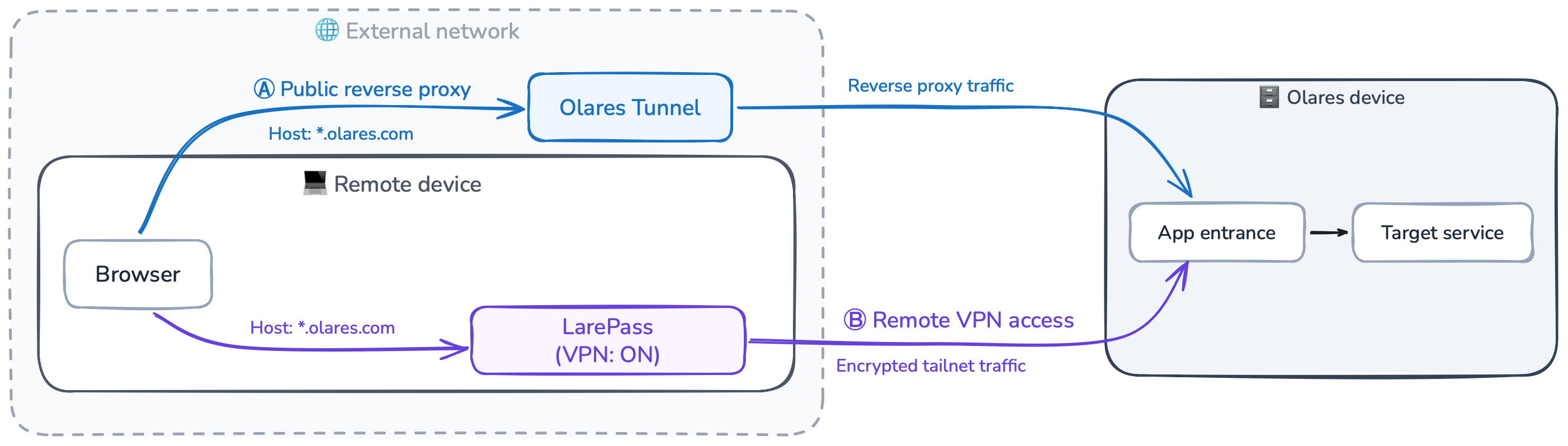
A self-hosted service commonly sits behind network address translation and firewall rules on a home router. Without a public IP address or explicit inbound routing, an outside client cannot simply connect to the server. Olares offers two remote-access approaches for different situations: LarePass VPN for trusted devices and Olares Tunnel for browser access through an app entrance.
Private access through LarePass VPN
LarePass uses Tailscale to connect a trusted computer or phone to Olares through an encrypted private network. When the endpoints can communicate directly, LarePass reports a P2P connection. If direct connectivity is unavailable, it can fall back to a secure DERP relay. On the same LAN, it can use an Intranet connection through the Olares LAN IP. The client displays the active connection type, so the route is visible rather than hidden behind a generic “connected” state.
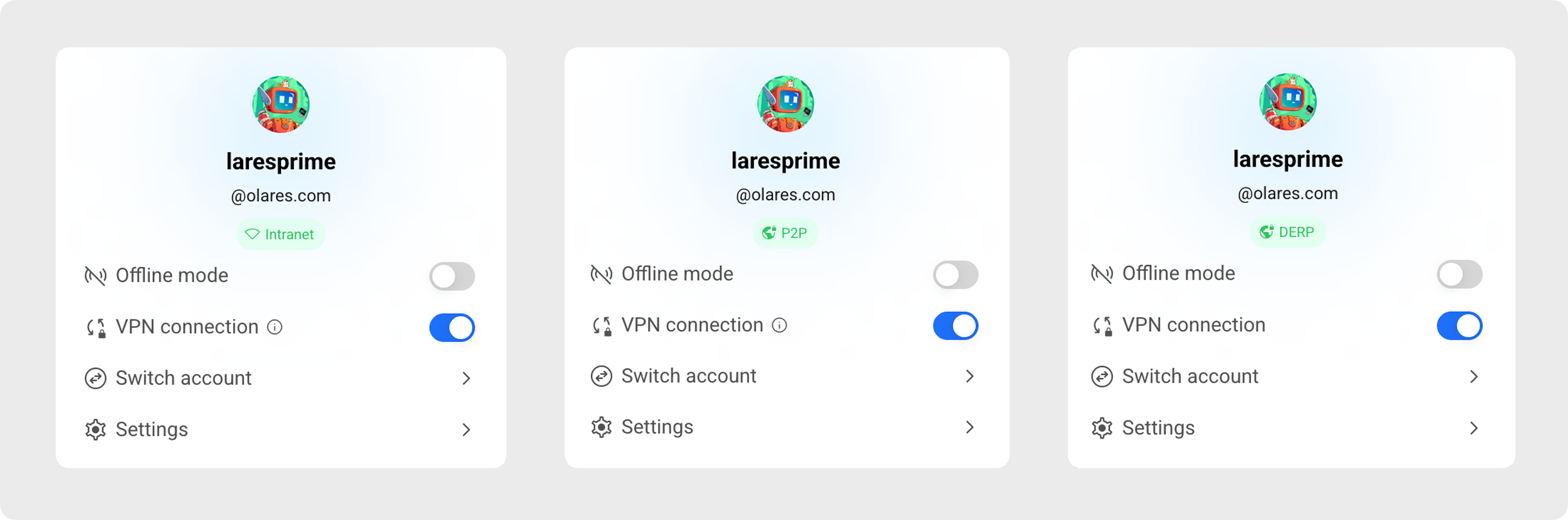
This path suits devices you control and use repeatedly. It requires LarePass to be installed and its VPN connection enabled, but it provides a consistent private-access model across networks. An app entrance configured as Internal can also recognize users arriving through LarePass VPN and let them skip the normal sign-in step. Users arriving through other paths must still authenticate.
Browser access through Olares Tunnel
Sometimes the client cannot run LarePass, or you simply need to open a selected app from an ordinary browser. In that case, an app entrance can be made available through a reverse proxy. The browser connects to the entrance’s public address, and Olares Tunnel carries the request to Olares without requiring the server to have a public IP address.
Olares Tunnel is the Olares-operated reverse proxy option. The entrance remains the application-level endpoint: it defines the route to the target service and the authentication policy applied to incoming requests.
Entrance policies are explicit. A Public entrance requires no sign-in. A Private entrance requires authentication for every user. An Internal entrance lets users on LarePass VPN skip authentication while requiring it on other paths.
LarePass VPN or Olares Tunnel?
| LarePass VPN | Olares Tunnel | |
|---|---|---|
| Client requirement | LarePass installed and VPN enabled | A browser |
| Best suited for | Trusted devices and ongoing private access | Selected apps exposed through a reverse-proxied entrance |
| Remote route | Direct encrypted P2P when available; DERP relay as fallback | Public reverse proxy through an Olares Tunnel node |
| Access boundary | Services available through the private Olares network | The configured app entrance and its access policy |
The two approaches are complementary. LarePass brings a trusted device into the private network. Olares Tunnel makes a configured app entrance reachable from a browser over the public internet.
At home, the public path becomes a detour
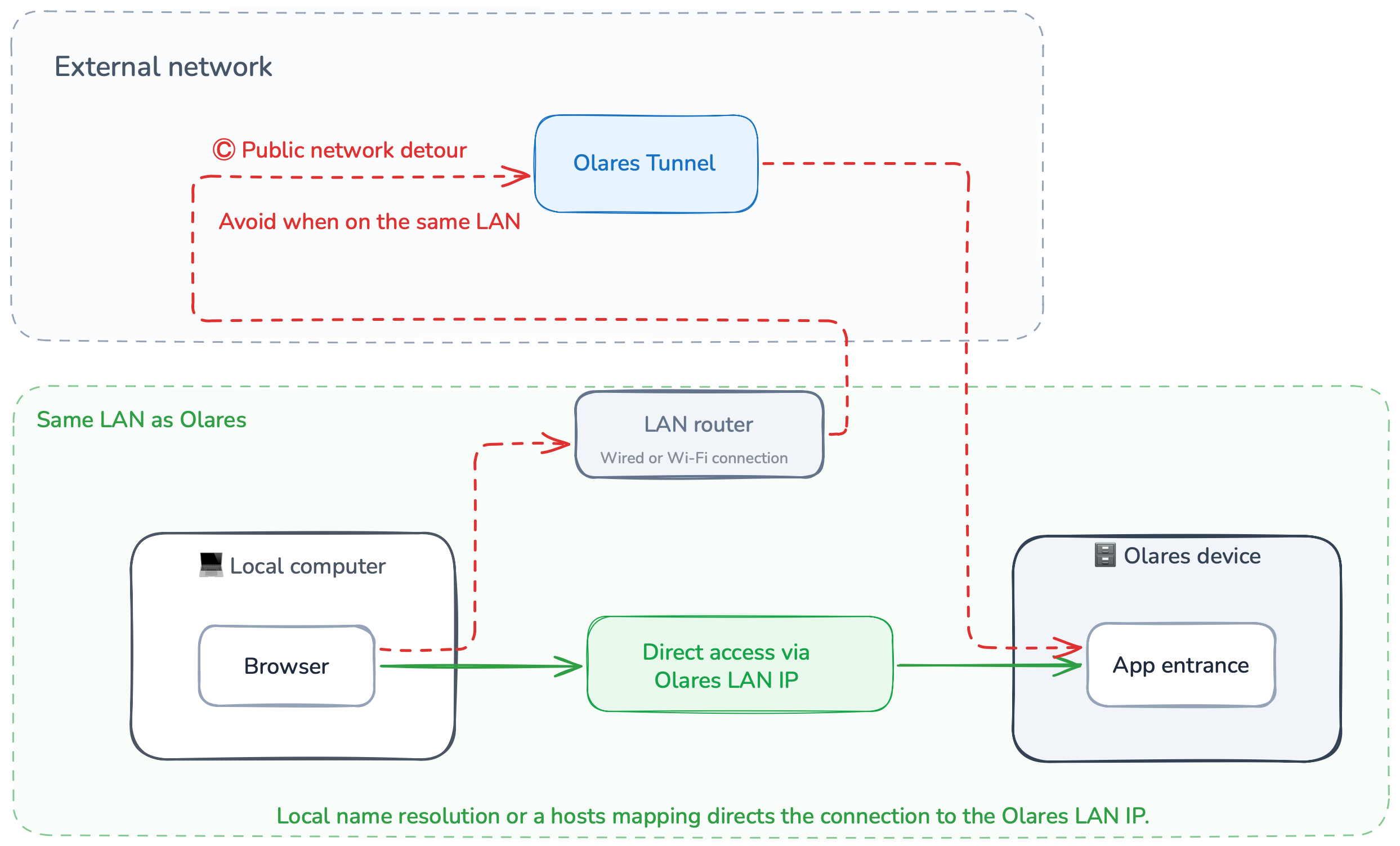
The standard olares.com address may still work when the client and Olares are on the same LAN. But without LarePass VPN, a matching hosts mapping, or local DNS, the hostname can resolve to the public reverse-proxy route. The request then leaves the LAN, reaches the reverse proxy, and returns to the Olares device.
This detour can increase latency, use internet uplink bandwidth, and make local access depend on the internet. Its impact is more likely to be noticeable during sustained, high-bandwidth transfers such as moving large files or streaming high-bitrate media.
The problem is the route, not the olares.com address. If the same hostname resolves to the Olares LAN IP, the browser can keep using the familiar HTTPS URL while connecting locally. This separation between hostname and route is what allows one address to work differently at home and away.
At home: Keep traffic on the local network
When the client and Olares share a LAN, a direct route can reduce latency, avoid the internet uplink, and keep locally hosted services reachable during an internet outage. Olares provides several local paths because a browser, a LarePass-enabled computer, and a smart TV do not have the same capabilities.
Direct access through .local
A multi-level .local hostname mirrors the standard Olares address:
http://desktop.<username>.olares.localWhen local service discovery or a hosts mapping resolves this name to the Olares LAN IP, the browser connects directly and the request stays on the LAN. Use http://, not https://, for this address.
Platform behavior differs. macOS and iOS can resolve multi-level .local hostnames through local service discovery without extra configuration. On Windows, LarePass Desktop can add the required hosts entries.
Direct access through *.olares.com
You do not have to change the visible address to use a local route. A hosts mapping on one computer, or local DNS shared across the network, can resolve standard olares.com hostnames to the Olares LAN IP. The browser then connects directly to Olares instead of using the public reverse proxy.
LarePass Desktop can manage local hosts entries on Windows and macOS. The mapping applies only to that computer. LarePass maintains the name-to-address entries; it does not relay the resulting browser traffic.
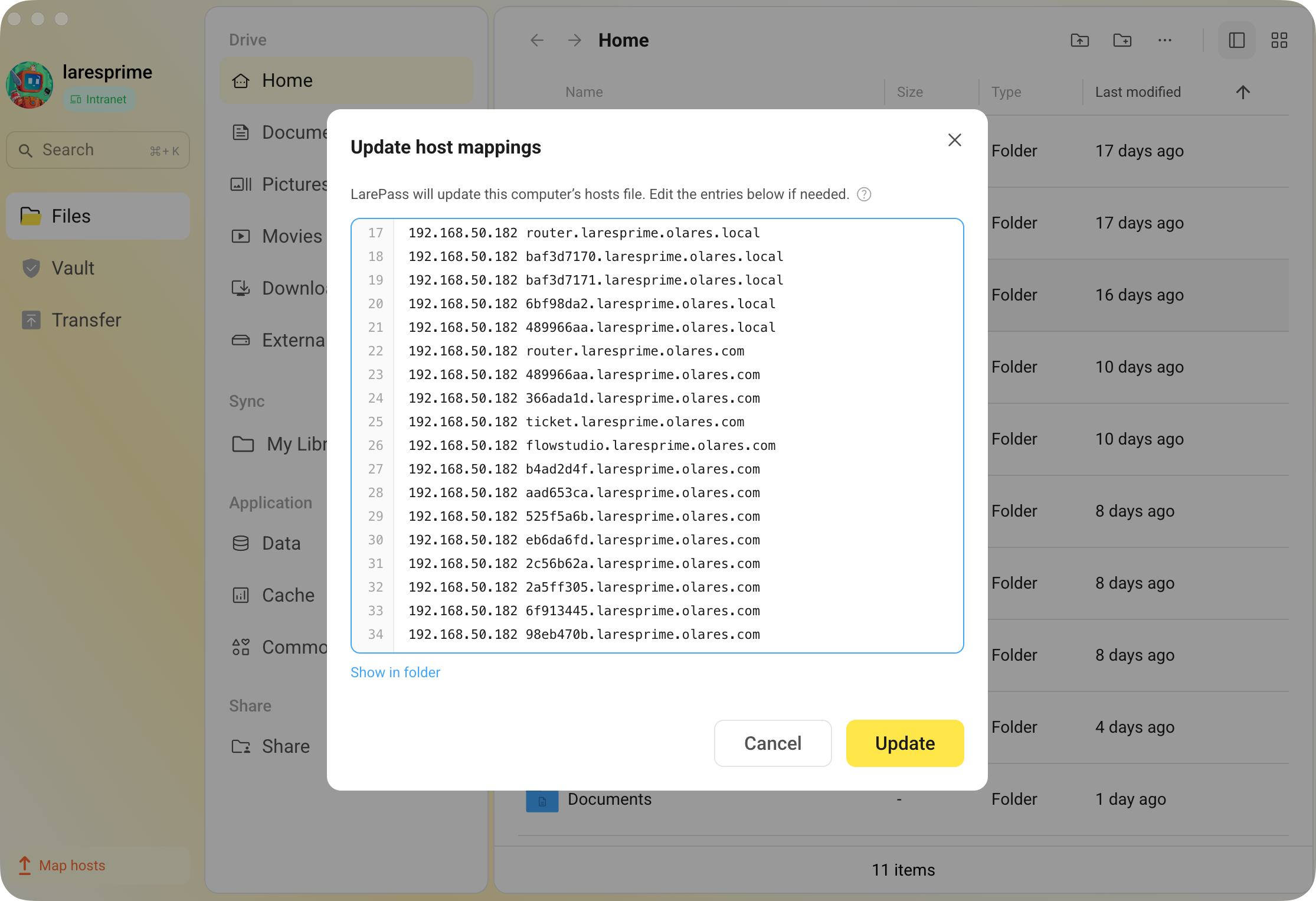
Host mappings and LarePass VPN are separate local-access modes and cannot be enabled at the same time. Use VPN if you want LarePass to select among Intranet, P2P, and DERP as you move between networks. Use host mappings if you want the browser on the current computer to connect directly through the LAN while keeping the standard app URL.
For multiple devices, local DNS moves the mapping from one computer’s hosts file to a resolver used by the LAN. Clients can then open the same standard URLs and receive the local Olares IP while connected to that network.
Local access with LarePass VPN enabled
If LarePass VPN is already enabled, you do not need to turn it off merely because you return home. LarePass detects that the client and Olares share a network and reports Intranet, a direct connection through the Olares LAN IP. When you leave the LAN, it can switch to P2P or DERP according to connectivity.
This is different from hosts-based access. With VPN enabled, traffic follows the LarePass path. With VPN disabled and matching hosts entries active, the browser resolves the app hostname to the LAN IP and connects directly.
Connecting TVs and other LAN devices
Some devices cannot install LarePass and need an app to appear directly on the LAN. Smart TVs, streaming boxes, and media players may rely on device discovery, DLNA, screen mirroring, or direct local streaming rather than a browser-oriented app entrance.
For supported apps, Overlay gateway assigns the app a dedicated local IP through a virtual network interface. The local device connects to that IP while the app keeps the default Olares cluster network for system services, DNS, and platform communication.
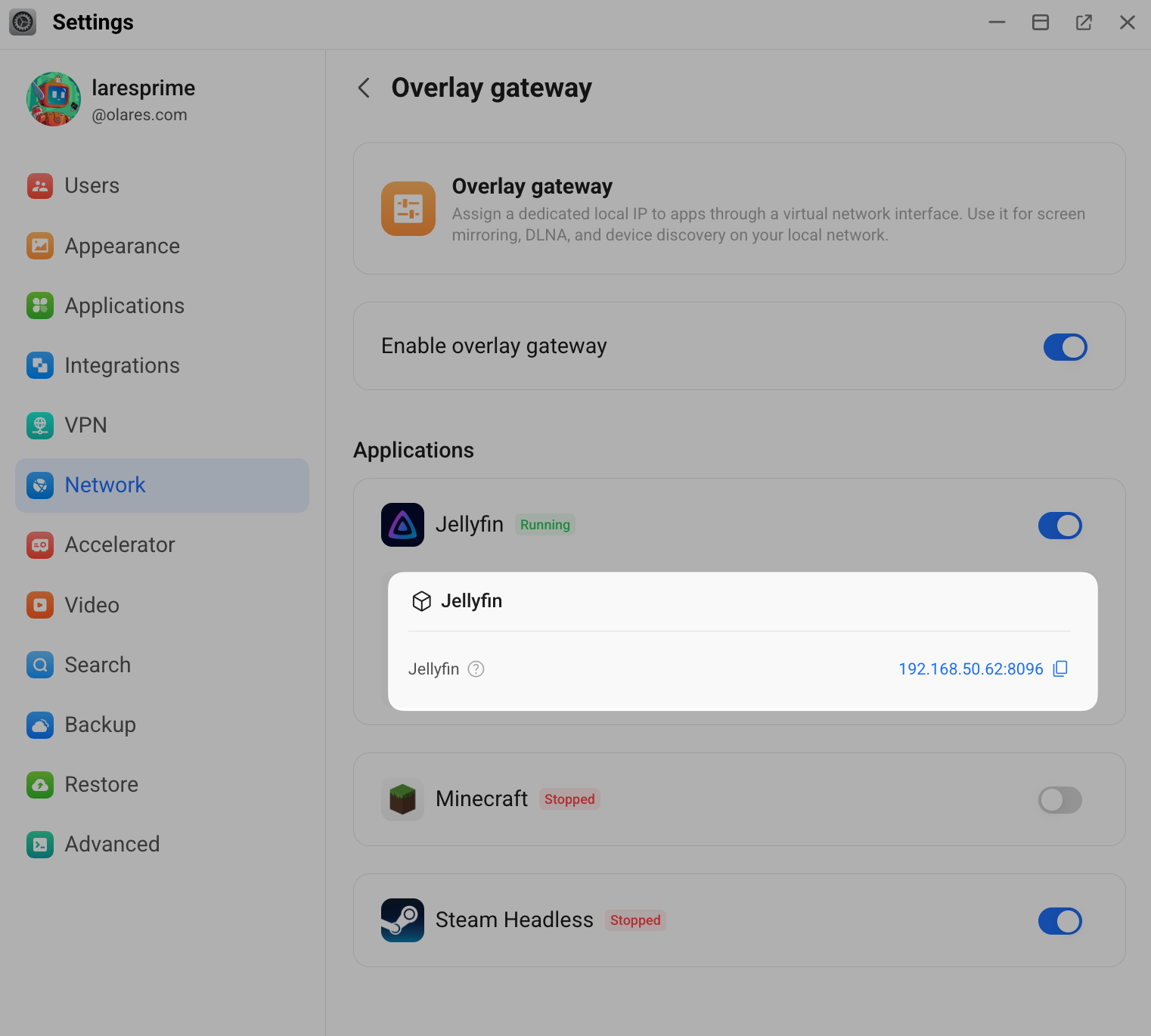
Overlay gateway has specific requirements: Olares must run on a native Linux host, WSL is not supported, and the host must use wired Ethernet. Only supported apps appear in the Overlay gateway application list. The feature is independent of LarePass VPN, hosts mappings, and local DNS.
Inside Olares: A different network layer
Browser requests to standard Olares app URLs normally enter through an app entrance before reaching the target service. The developer documentation describes the corresponding gateway layers as cluster, user, application, and service component.
Service-to-service traffic inside the Olares cluster follows a different path. Apps use internal service names rather than a user-facing olares.com or .local hostname, and CoreDNS resolves those names inside the cluster.
This is a different naming boundary from local DNS. Local DNS helps devices on the home network resolve an Olares hostname to the Olares LAN IP. CoreDNS helps workloads inside the cluster find services. Neither should be treated as a replacement for the other.
Using Olares directly with an attached display, keyboard, and mouse is different again: it is a local device session, not a network access path.
How the access paths come together
Each component has a focused role:
- LarePass provides private VPN connectivity across supported devices. Its Windows and macOS desktop clients can also manage local hosts mappings.
- Olares Tunnel carries reverse-proxy traffic to Olares when an app hostname resolves to the public route.
- App entrances define application endpoints, authentication policies, and routes to target services.
- Overlay gateway gives a supported app a dedicated LAN IP for direct access and local discovery.
- Local DNS or a hosts file maps a user-facing hostname to the Olares LAN IP.
- CoreDNS resolves service names for communication inside the Olares cluster.
Together, these paths keep Olares reachable outside the home while taking advantage of the LAN when it is available. The address can remain familiar, but the route changes to match the client, the network, and the app entrance.
Reachable anywhere, direct when at home
For a trusted computer or phone that moves between networks, keep LarePass VPN enabled and let it select Intranet, P2P, or DERP. For browser access without LarePass, use an appropriately protected application entrance through a reverse proxy. At home, use LarePass VPN, local name resolution, or host mappings to keep traffic on the LAN. For TVs and other devices that need a dedicated app address, check whether the app supports Overlay gateway.
The result is a simple user experience built on purpose-specific paths: reachable when you are away, direct when you are at home, and adapted to the capabilities of each device.