
Run MiniMax H3 Locally: Image to Video with FlowStudio

You can run MiniMax H3 locally to turn an image into video with sound. On Olares, FlowStudio provides ready-made workflows and prepares the models and runtime needed to use them.
FlowStudio is an app for generating images, editing images, and creating videos. It turns ComfyUI workflows into reusable scenes, with a form for your prompt, reference files, and generation settings.
Here is one example made in FlowStudio. We generated a landscape image, then used MiniMax H3 to create a short video with movement and ambient sound.
What FlowStudio handles for a local H3 setup
ComfyUI already supports MiniMax H3 with templates for text, image, and reference-based video generation. FlowStudio builds on ComfyUI workflows and manages their setup on Olares.
Choose a ready-made workflow in Workflow Plaza and create a scene. FlowStudio prepares its required models and runtime. Once initialization finishes, the scene is available for generation.
- Model preparation. The scene identifies and downloads the model files required by its workflow.
- Runtime setup. FlowStudio prepares the environment that runs the workflow.
- Repeat use. Open the prepared scene to change inputs and generate again without rebuilding its node graph.
The generation workload runs on your Olares device. You still need enough GPU memory and storage for the selected scene, and the first run includes downloads and initialization.
Choose how the image guides your video
An image can play different roles in an H3 workflow. Choose based on whether you need an exact opening frame or visual references for a new shot.
For a fixed opening frame: FlowStudio offers FastVideo FastH3: Image to Video. Supply a starting image and, optionally, an ending image. The output follows the starting image’s aspect ratio.
For reference-based generation: choose MiniMax H3 NVFP4 · Reference to Audio-Video. It accepts image, video, and audio references to guide the result. A reference image is not a locked first frame.
The distinction matters for a product photo or an approved composition. If the clip must open on that exact image, choose the first-frame workflow.
Our example: one landscape image, then video
We created this source image with Z-Image-Turbo Int8: Text to Image in FlowStudio. You can also start with an image you already have.
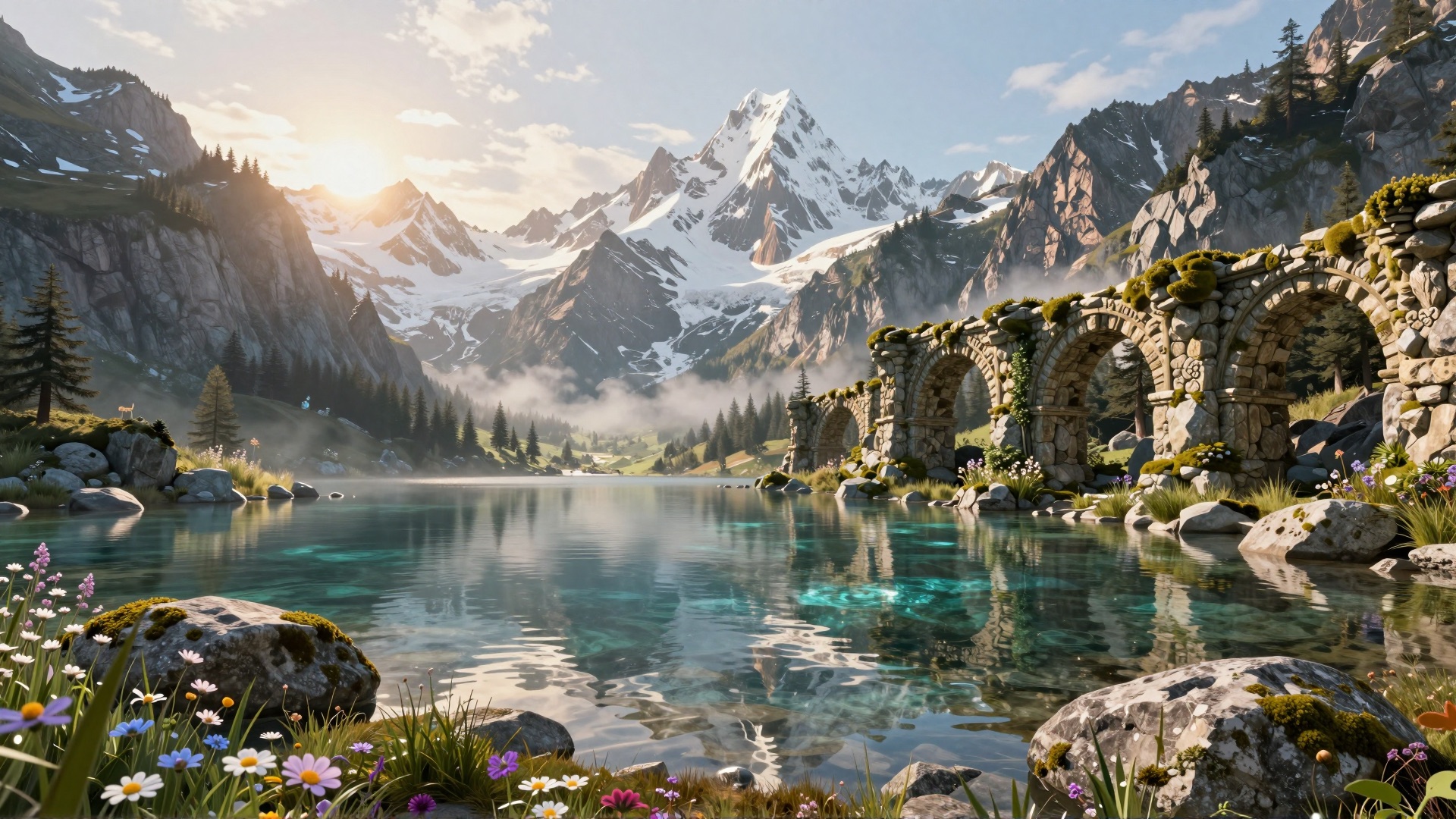
For the video, we used MiniMax H3 NVFP4 · Reference to Audio-Video and supplied only the landscape image. The reference video and audio inputs were left empty.
The requested result was a calm lakeside shot with rippling water, moving flowers, drifting mist, and birdsong. H3 generated the video and audio together. The clip at the top shows the output from this workflow.
The image and video are separate outputs. You can keep the still and use it as the reference for another generation when you want to try a different result.
You can also request generation through Lares
You can work directly in a FlowStudio scene, or describe what you want in Lares. Router connects Lares to the available FlowStudio capabilities, and FlowStudio runs the generation task.
Prepare the required scenes first. Then ask Lares which generation capabilities are available and describe your request. You can name a model or let Lares choose from the available options.
The Lares integration guide covers the required apps and local model setup. The landscape demo above used FlowStudio directly, so this is a separate way to use its generation capabilities.
What to expect when running MiniMax H3 locally
Resolution, clip length, reference inputs, and available memory affect what your device can run. Use the scene’s Pre-run checks to check resources before initialization.
For the reference workflow, the current Olares guide recommends 480p. Start with a short clip to check the result before spending more time on a longer generation.
Local H3 output also differs from MiniMax’s full hosted 2K pipeline. The official model card describes a 768p base model and separate hosted stages for the complete 2K workflow.
To get started, use Olares OS 1.12.7 or later and install or update FlowStudio from Market. The FlowStudio setup guide covers installation, scene preparation, and generation settings.
For more output examples and the Olares One hardware option, explore MiniMax H3 on Olares.