
Do You Need a GPU for a Home Server? Decide by Workload


Only buy or reuse a GPU for a home server when a specific workload on it can use one. Being a “server” doesn’t create the need. The deciding question is narrower: does the exact app you plan to run have a documented GPU path for the task you care about?
For media, that means checking whether the server actually transcodes video. For local AI, it means checking whether your app and model can run on the CPU, which GPUs its runtime supports, and whether the model fits in memory.
The Short Answer: Decide by the Workload
List the services you actually plan to run, then judge each one separately. A home server GPU becomes worth evaluating when at least one of those services has a supported GPU path that serves your goal. That might be server-side video transcoding in Jellyfin, or GPU inference in an AI runtime such as Ollama.
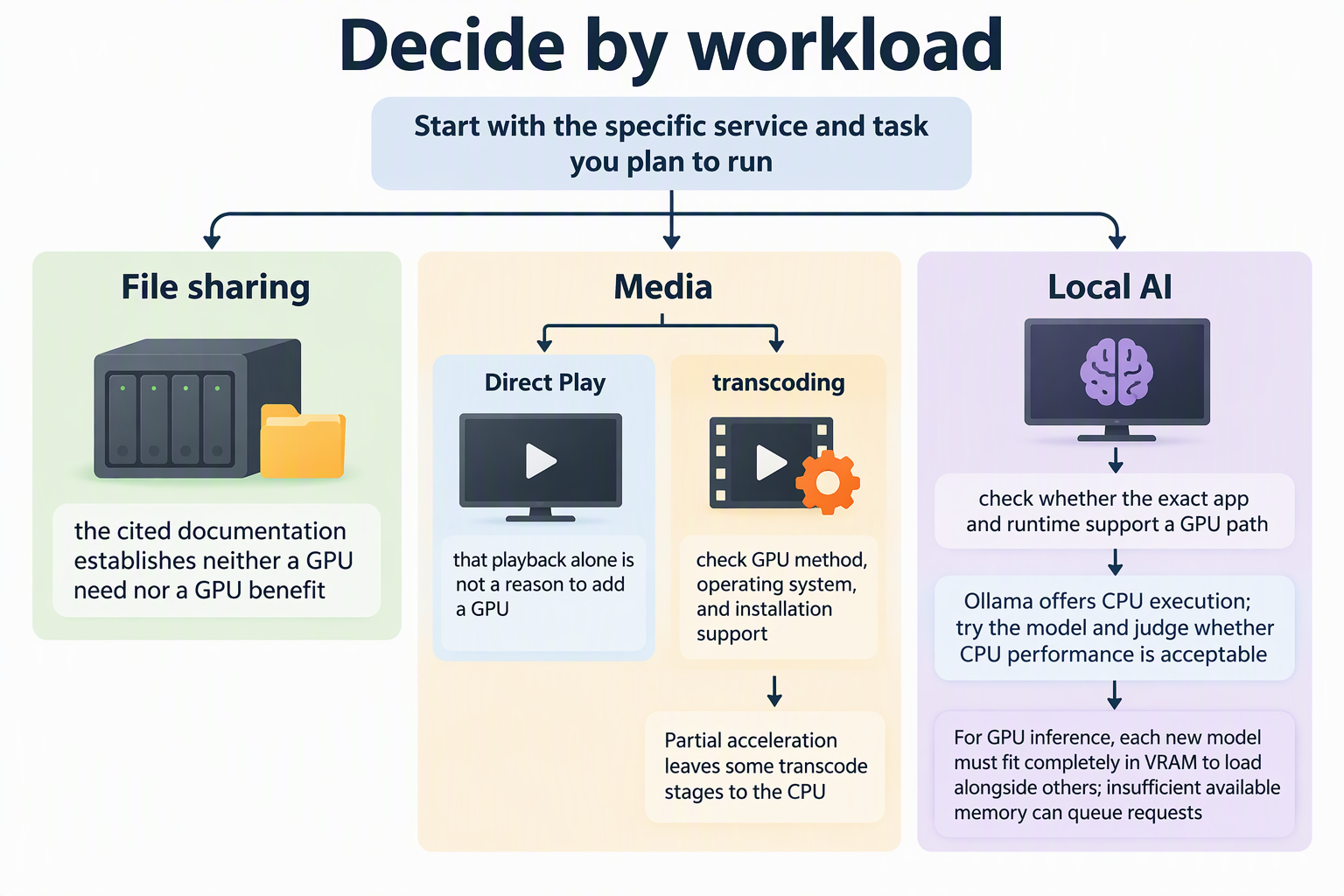
On a mixed-use box, one GPU-capable workload does not mean every other service needs acceleration. If your media clients play files directly and your AI app runs acceptably on the CPU, nothing in that setup makes the case for a card. File sharing is the branch with the least to go on. The sources below describe what file-sharing software does, but they don’t settle a GPU requirement in either direction. So base the GPU decision on your media and AI plans, not on file serving.
File Sharing and Ordinary Services
File sharing is a different job from transcoding video or running a model, and it should be treated on its own terms. A common example is Samba, where the smbd server daemon provides file-sharing services to clients using the SMB protocol.
Windows PCs, Macs, and many other devices use SMB to open and save files across a network share.
That documentation describes the service’s role. It doesn’t say file serving requires a GPU, and it doesn’t say a GPU speeds it up. A gap in the documentation is not proof either way. The honest conclusion is narrow: a file-sharing workload gives you no documented case for a GPU, and no documented reason to rule one out.
In practice, available documentation leaves the question of GPU requirements or benefits for file sharing unaddressed. If you’re configuring a box for shared folders, size it for the documented storage and networking requirements of that service. If you choose Ubuntu and Samba, the official guide to set up Samba as a file server walks through a share configuration and a check from a Windows client.
Media: Separate Direct Play From Server-Side Transcoding
For a media server, the deciding factor is whether the system actively converts video rather than simply streaming files. Jellyfin shows the difference clearly: its documentation lists four playback types, three of which require transcoding. With Jellyfin Direct Play, the server delivers the file without modification, adding almost no extra load on the server.
That gives you a concrete check. Start a movie on your TV, phone, or laptop, then open the Jellyfin dashboard. It lists the playback type in use for that file. If your usual devices and files show Direct Play, that playback alone is not a reason to add a GPU. If sessions show a transcoding type, the server is doing real conversion work, and acceleration becomes worth looking at.
Even then, an installed GPU is not an automatic fix. Jellyfin supports hardware acceleration through specific methods tied to particular GPU vendors and operating systems. Its documentation says setup steps vary by GPU vendor, installation method, and operating system. It also notes that some stages of a transcode can’t be GPU accelerated because of software, hardware, or driver limits. So before you buy or repurpose a card for transcoding, confirm three things in Jellyfin’s documentation: that its method supports your GPU, that it works on your operating system, and that it fits how you installed Jellyfin. If any of those doesn’t match, the card may sit idle while the CPU keeps doing the work.
These findings apply to Jellyfin. If you use a different media server, check its own playback and acceleration documentation before applying the same logic.
AI: Check the Exact App, Model, and Runtime
AI workloads don’t share a single GPU requirement. The app and its runtime decide whether there’s a GPU path at all, and the model decides how much memory that path needs. Ollama, a popular tool for running language models locally, is a useful example because its documentation addresses all three points.
First, Ollama documents a CPU execution option, so a GPU is not an absolute requirement for that software. That doesn’t mean a given model will feel fast enough on your CPU. It means you can try the model you care about before deciding a GPU is necessary.
Second, GPU support comes with platform conditions. For AMD Radeon cards, Ollama’s GPU documentation requires the ROCm v7 driver on Linux, and a ROCm v7 / HIP7-capable driver stack on Windows. A card that lacks the right driver stack for your operating system won’t give you the accelerated path, even though it’s physically installed.
Third, memory decides what fits. According to the Ollama FAQ on concurrent requests, the relevant pool is system memory when you use CPU inference and VRAM when you use GPU inference. With enough available memory, several models can load at the same time. Without it, new requests are queued. For GPU inference, each new model must fit completely in VRAM to load alongside others.
Here’s how that changes the decision. Say you plan to run one chat model for a single household user. Testing it on the CPU first tells you whether a GPU is a want or a need. If you plan to keep several models loaded for several users, the memory rules above matter more, and you’ll want the model sizes before choosing any card. Ollama’s sources set no universal VRAM minimum, so take sizing from your chosen model, not a general rule. Other AI apps, such as image generators or different runtimes, have their own requirements. Read each one’s documentation rather than assuming Ollama’s behavior carries over.
FAQs
Which GPU types does Jellyfin support for hardware acceleration?
Jellyfin lists these supported and validated methods: Intel Quick Sync Video (QSV), NVIDIA NVDEC/NVENC, AMD Advanced Media Framework (AMF), Intel/AMD VA-API (Linux only), Apple Video Toolbox (macOS only), and Rockchip RKMPP (Linux only). Match your hardware and operating system to one of these in the Jellyfin acceleration guide before counting on a GPU for transcoding.
What happens if my GPU can only accelerate part of a Jellyfin transcode?
Jellyfin’s documentation says partial acceleration can mean higher CPU usage and lower transcoding speed. The GPU handles the stages it supports, and the CPU handles the rest. If you plan to rely on transcoding, check whether your setup gets full or partial acceleration so the CPU still has enough headroom.
Can I make Ollama ignore an installed GPU and use the CPU?
Yes. Ollama’s GPU documentation says you can force CPU usage by setting an invalid GPU ID, such as “-1”. This is a simple way to compare CPU and GPU behavior for the same model on your own server before you decide whether the card is worth keeping in that machine.
Does a GPU help if Ollama requests start queuing?
Only if the model can actually run on the GPU and fits in its memory. Ollama queues new requests when there isn’t enough available memory to load another model. For GPU inference, a model must fit completely in VRAM to load alongside others. A GPU with too little VRAM for your models won’t remove the queue.