
Jellyfin DLNA Casting or a Media App on the TV?

Use DLNA casting if you like to pick a video on your phone or computer and send it to the TV, and the TV sits on the same local network as your Jellyfin server. Use a Jellyfin app on the TV if you’d rather browse and choose from the couch with the remote, and a client exists for your exact TV or streaming device.
Neither route is better for everyone. Two things decide Jellyfin TV playback: where you want to choose the video, and what your hardware supports.
DLNA Casting or a TV App: Which Fits Your Viewing Routine?
Pick DLNA when you choose the video on another device and the TV only needs to show it. Pick a TV client when the TV itself is where you browse, search, and choose what to watch.
With a DLNA handoff, the browsing happens somewhere else. You find the movie or episode on a phone, tablet, or laptop, then send that one title to the TV. The TV works as a screen for the video you sent. That fits a “pick one thing and press play” habit, like starting a movie you already had in mind. The browsing experience depends on the device you’re sending from, not on the TV.
A TV client flips that. Jellyfin describes supported Jellyfin clients as apps that connect your devices to your Jellyfin server so you can view your content on any supported device. Once the client runs on the TV or a streaming stick, the TV becomes the place where you scroll the library and choose. That suits households that browse together, or people who don’t want to grab a phone every time.
How good TV-side browsing feels depends on the exact client and platform, not on the idea of “an app” in general. Confirm that the client is available for your device, then test the library navigation, subtitle controls, playback reporting, and remote-control behavior you actually use.
Use your routine to make the first cut:
- You choose on your phone and watch now and then: DLNA is the candidate, if the network conditions in the next section are met.
- You browse from the couch with a remote: a TV client is the candidate, if one is available for your device.
- You depend on a specific feature, such as search, favorites, or a certain playback control: open the exact client you plan to use on your TV and confirm the feature is there. If it’s missing, compare another client listed for your platform before you settle on the app route.
Check Compatibility Before Choosing
Compatibility can rule out either route before your viewing habits matter. DLNA has a plugin requirement and a local-network limit. The TV app route depends on whether a client exists for your specific device.
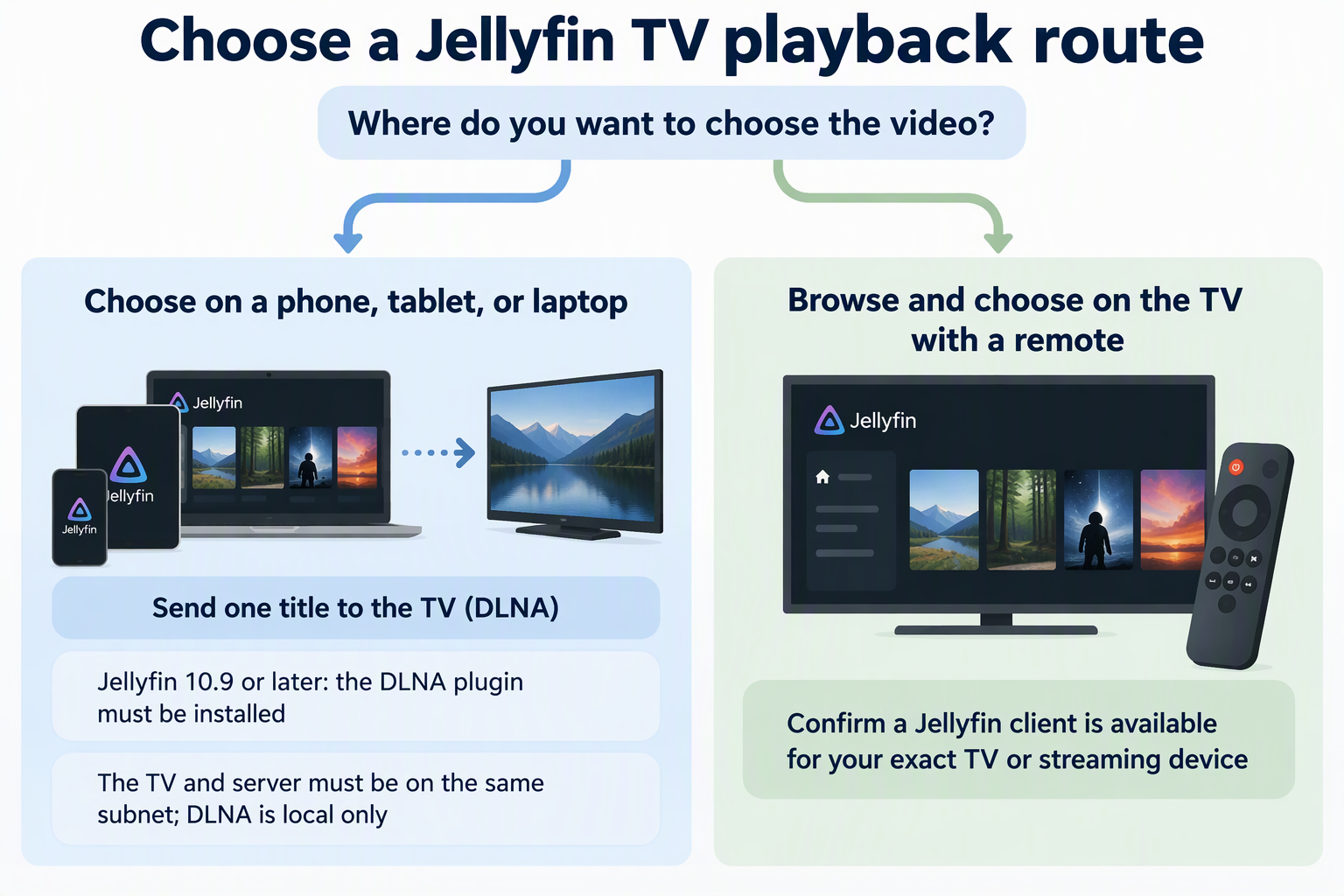
Start with the server. Jellyfin’s documentation explains the DLNA plugin requirement. Since Jellyfin 10.9, DLNA support is a first-party plugin and isn’t part of the base install. If your server runs 10.9 or later and you haven’t added the plugin, the DLNA route isn’t available yet. Install it first, then check whether your TV shows up.
Network layout is the second gate. Jellyfin’s documentation on same-subnet DLNA discovery says discovery works by sending a broadcast to the current subnet. Clients can’t find the server from a different subnet, and DLNA can’t be used remotely. In practice, if the TV is on a separate network segment from the server, such as a guest Wi-Fi network that hands out a different address range, discovery can fail even inside the same house. When the TV can’t see the server, put both devices on the same subnet or switch to a TV client.
If you run Jellyfin on Olares personal cloud, our documented TV path uses the Overlay gateway setting. It gives Jellyfin a local network IP that a TV on the same trusted wired LAN can discover. This setting exposes Jellyfin directly to that local network. It is a separate access method from remote LarePass VPN connections and does not make the TV discoverable across the internet.
For the app route, check the client list. The listed Jellyfin TV platforms include official apps for Android TV and Fire TV devices, Roku, webOS, and Samsung Tizen. That list is organized by platform, not by TV model. A brand or platform appearing there doesn’t confirm that every model, software version, or US app store carries a working app. Search your TV’s or streaming device’s app store for Jellyfin and confirm it installs on your model. If your TV’s own platform isn’t covered, a connected streaming device on one of the listed platforms gives you another way to use the client route.
FAQs
Does Jellyfin DLNA casting work with every TV?
No. Jellyfin’s DLNA documentation covers the server side. Servers on version 10.9 or later need the first-party DLNA plugin, and discovery only reaches devices on the same subnet. Even with both conditions met, your TV still has to show up as a target. If it doesn’t, a TV client may be the more workable path.
Can I use DLNA to watch my Jellyfin library away from home?
No. Jellyfin states that using DLNA remotely isn’t possible, because discovery depends on a broadcast within the local subnet. For viewing outside your home network, you’d use a Jellyfin client that connects your device to the server, along with whatever remote-access setup your server uses.
My TV platform is on Jellyfin’s list. Will the app work on my model?
Not necessarily. Jellyfin’s official client downloads page names platforms such as Android TV and Fire TV, Roku, webOS, and Samsung Tizen. It doesn’t list individual models or software versions. Search for Jellyfin in your device’s app store. If it installs and signs in to your server, the app route is open on that device.
Why can’t my TV find the Jellyfin server for DLNA?
There are two causes to check first. The DLNA plugin may be missing on a 10.9 or later server, or the TV may be on a different subnet from the server. Confirm the plugin is installed, then confirm both devices are on the same local network segment. A separate guest network is one setup that can block discovery.