
Connect NAS Folders or Copy Them Into Your Personal Cloud?

Connect a NAS folder when the NAS should stay the real home of those files and you just need to reach them through your personal cloud. Copy the folder when you want the new location to become the main copy, and you’re ready to handle a migration and a new recovery plan. Neither path wins every time, so decide one folder at a time.
For a NAS personal cloud setup, the most useful first question is not “connect or copy?” It’s “where should the real version of this folder live?” Once you answer that, the access method usually follows.
Connect for Access or Copy to Relocate the Source of Truth
If the NAS should remain authoritative, connect it; if the new storage should become authoritative, copy your files. “Source of truth” means the single location you treat as real, while everything else is just a view or duplicate.
Connecting fits when the library already lives where you want it and your goal is reach, not relocation. Network file sharing is built for this job. For example, Olares can mount an NFS share so its folders remain on the NAS while appearing under External in Files. That describes Olares and NFS specifically. Other protocols and personal cloud services have their own rules, so check how yours handles connected folders.
Copying fits when you have a reason for the files to live somewhere new. Maybe you plan to retire the NAS. Maybe you want a working folder to sit next to the apps that use it. Whatever the reason, it has to be worth taking on a second migration and a new recovery plan.
You don’t have to make one choice for the whole NAS. Here’s an illustrative split. A large family photo archive you rarely edit could stay on the NAS and be connected for viewing. A small project folder you want to live in the new location could be copied. For each folder, write down two things: where the authoritative files should live, and who needs access. Name the people, the devices, and the apps involved. Those names become your inputs for the next two sections.
Connecting, Copying, and Syncing Are Different Operations
Connecting, copying, and syncing deliver different outcomes, and confusing them causes flawed storage choices. Connecting, or mounting, gives your personal cloud a network path into existing NAS files without moving them. Because files stay in place, edits alter the NAS original, and losing network access takes the connected folder offline.
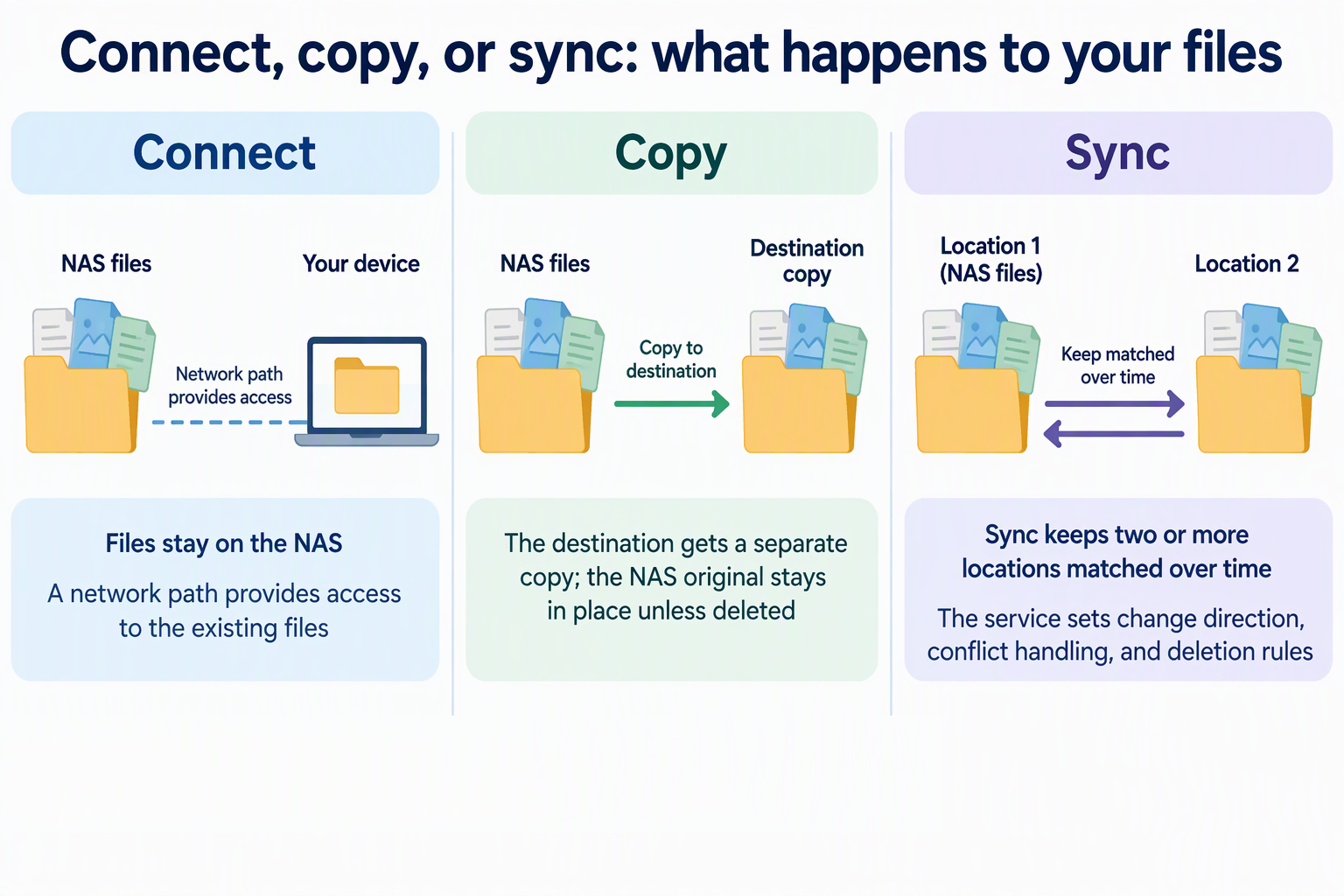
Copying writes a duplicate of the files to another location. The original on the NAS stays in place unless you delete it. From that moment on, you have two separate sets of files. If you edit one side, the other side doesn’t change by itself.
Syncing is a third behavior. A sync service keeps two or more locations matched over time, and the configured service sets the rules. Those rules include which direction changes flow, what happens when both sides change, and whether deletions carry over. If you plan to sync a folder, read your service’s documentation for those rules rather than assuming them.
Two takeaways follow from these definitions. A connection does not create a second copy, so it is not a backup. And a connection does not turn on sync just because the folder now shows up in a new interface.
Confirm the NAS Location Works for the Apps and Devices You Need
Seeing a folder in a file manager doesn’t prove that an app can use it. Treat app and device access as its own fit condition before you choose connection as your answer.
Apps often reach storage through their own paths and permissions. A media server, a photo app, or a backup tool may need the folder exposed to it specifically. It may also need the folder at a path that differs from what your file browser shows. So a NAS share that looks fine in a general file view can still be invisible or read-only to the app that matters.
Use the list from the first section and run one concrete check per app. Point the app at the connected folder, then have it open, play, or index a real file from that folder. If the file appears and works, connection meets that app’s need. If it doesn’t, look up that app’s own documentation for network or external storage paths and permissions. That’s the source for its exact behavior. If the app still can’t reach the NAS location, that’s a strong reason to reconsider copying that folder to a place the app can read.
Devices work the same way. A phone or laptop that reaches the folder on your home network may need a separate remote-access setup when you’re away. Test from the device and location where you’ll actually use the files.
Treat Copying as a Migration, Not Just a Location Change
Once you decide a copied folder will become the authoritative version, you’re running a migration. That brings a duty connecting never adds: you have to prove the new location is complete and that you can recover it.
Starting a copy, or seeing files appear at the destination, doesn’t mean the transfer finished correctly. Before the destination becomes the only real copy, compare it against the source folder using the tools your destination provides. Then open a sample of files from different subfolders to confirm they arrived intact. Any app or shortcut that pointed to the NAS path will keep pointing there, so repoint those as part of the move.
Next, decide where you would restore from if the new location failed. If your recovery plan relies on a backup archive, test that archive by restoring a sample to a separate location. A successful sample restore tells you that specific recovery path works. It doesn’t confirm that a direct folder copy is complete, so you still need the comparison above.
Don’t delete, wipe, or repurpose the NAS copy until you’ve confirmed the destination is complete and identified a working recovery route. Until both are true, the NAS is still your safety net.
FAQs
Does connecting a NAS folder use storage in my personal cloud?
With a connection, the files stay on the NAS, so you aren’t storing a second full set of them in the personal cloud. Olares’ NFS mount documentation describes the files as remaining on the remote NFS server while the share appears in Files. Other services may cache some data, so check yours if space is tight.
Is a connected NAS folder a backup?
No. A connection is just another way to reach the same files. If a file is deleted or corrupted on the NAS, the connected view shows that same change. You still need a separate backup for the NAS itself.
Can I start by connecting and copy the folder later?
Yes. Connecting leaves the files where they are, so it doesn’t lock you in. If you later decide the folder should live somewhere else, treat that move as a migration at that point, with its own completeness check and recovery plan.
Should every folder get the same treatment?
Not necessarily. Folders differ in how often they change, which apps use them, and where they make the most sense to live. Mixing connected folders and copied folders on the same NAS is a reasonable setup, as long as you know which location is authoritative for each one.