Only applications with the authentication level set to Internal or Public support custom third-party domains.
-
On Olares, open Settings, then go to Application > AppName.
-
Under Entrances, click the target entrance.
-
Under Endpoint settings, next to Set custom domain, click add.
-
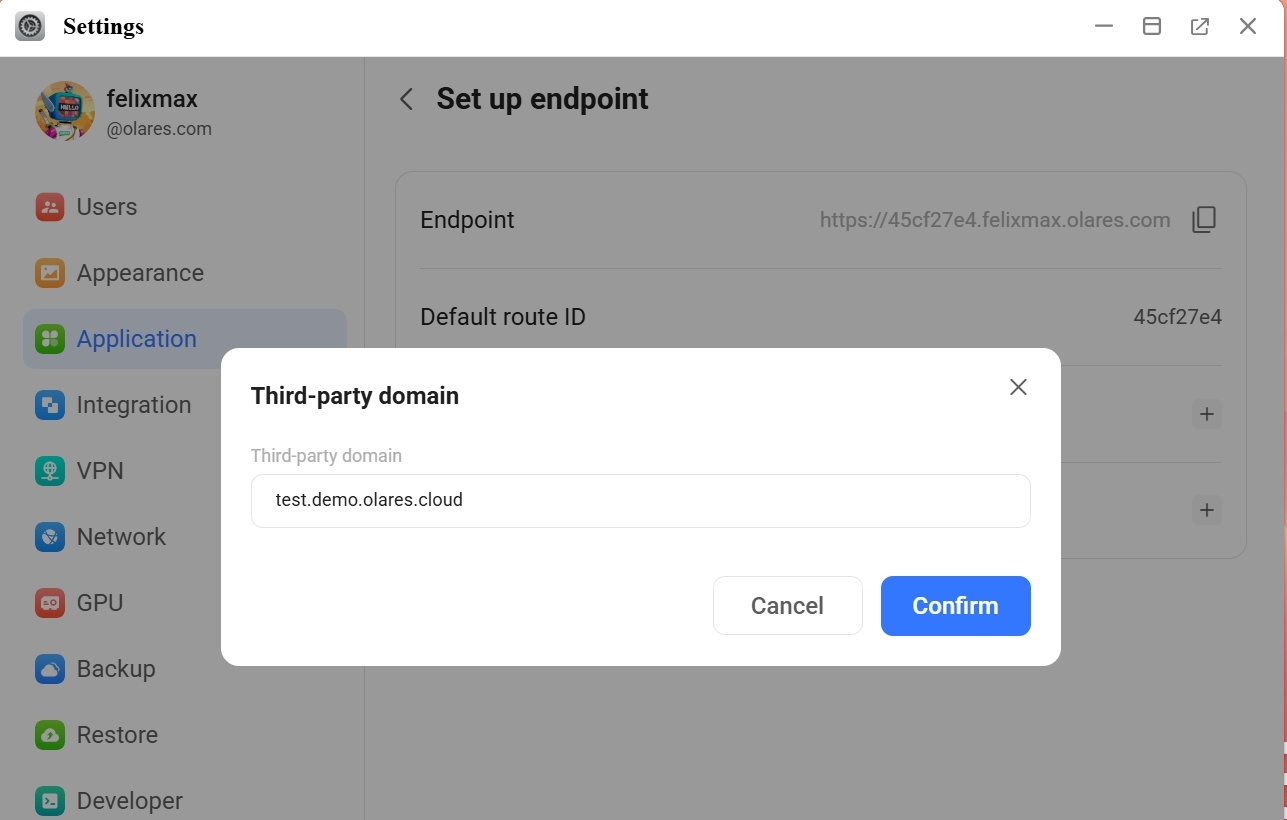
In the Third-party domain pop-up, enter your custom domain, and click Confirm to submit.
Note
If you are using Olares Tunnel or Self-built FRP for reverse proxy, you must also upload a valid HTTPS certificate and its private key for your custom domain.
-
Click the Activation button to open the activation instruction pop-up.
-
Follow the instructions in the pop-up to create a CNAME record with your domain hosting provider.
Disable Proxy status for Cloudflare Tunnel
If you are using Cloudflare Tunnel, disable the Proxy status option next to your DNS record. This allows Olares to receive timely updates on your domain’s resolution status.
-
Click Confirm on the activation pop-up to finish the activation.
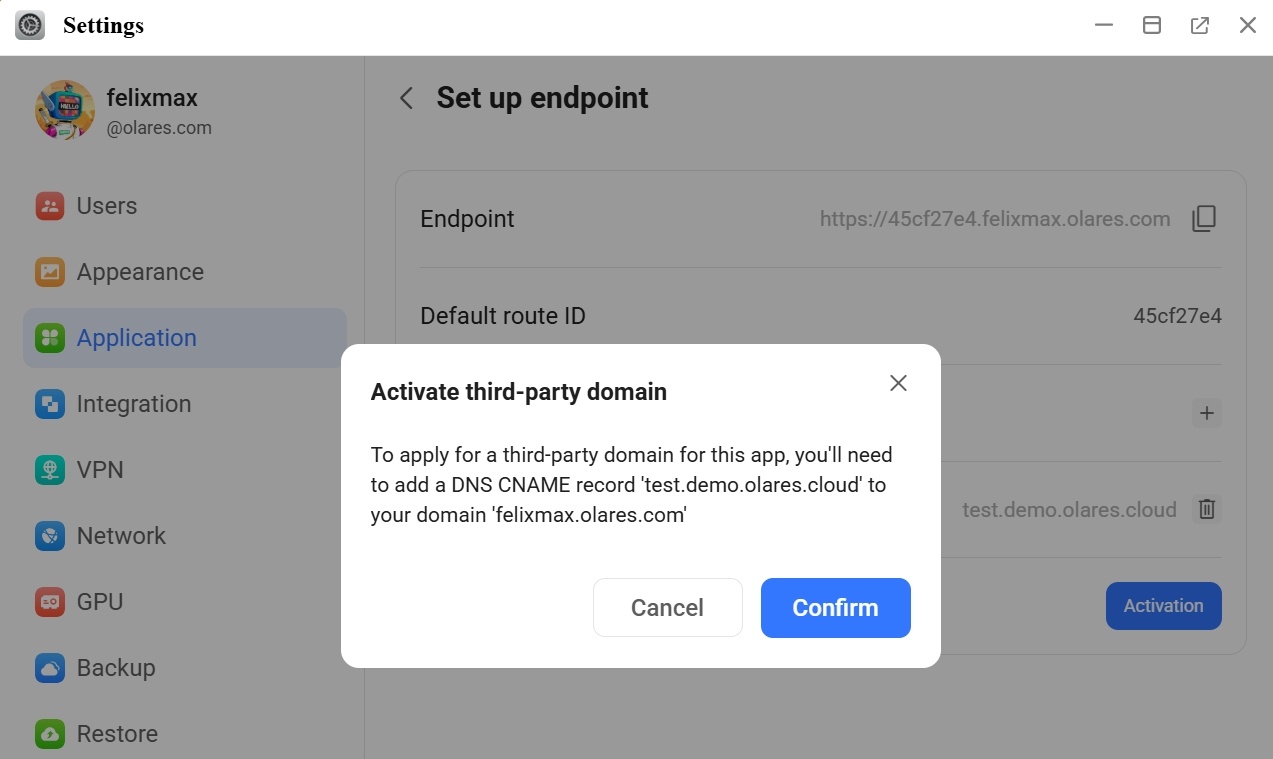

At this stage, the custom domain status will display as “Waiting for CNAME Activation”. You will need to wait for it to take effect. DNS propagation typically takes a few minutes or hours, depending on your domain provider.
Once the CNAME record is verified, the custom domain status will automatically update to “Activated”.