If your device is not on the same local network as your Olares One, use LarePass VPN to establish a secure tunnel to Olares One without exposing it to the internet. LarePass VPN uses Tailscale, a mesh VPN that assigns each connected device a stable IP address in the 100.64.0.0/10 range (the Tailscale IP) to enable direct, encrypted communication between them.
Step 1: Enable SSH via VPN
- Open your Olares desktop, and then go to Settings > VPN.
- Toggle on Allow SSH via VPN.
- On your computer, open the LarePass desktop client.
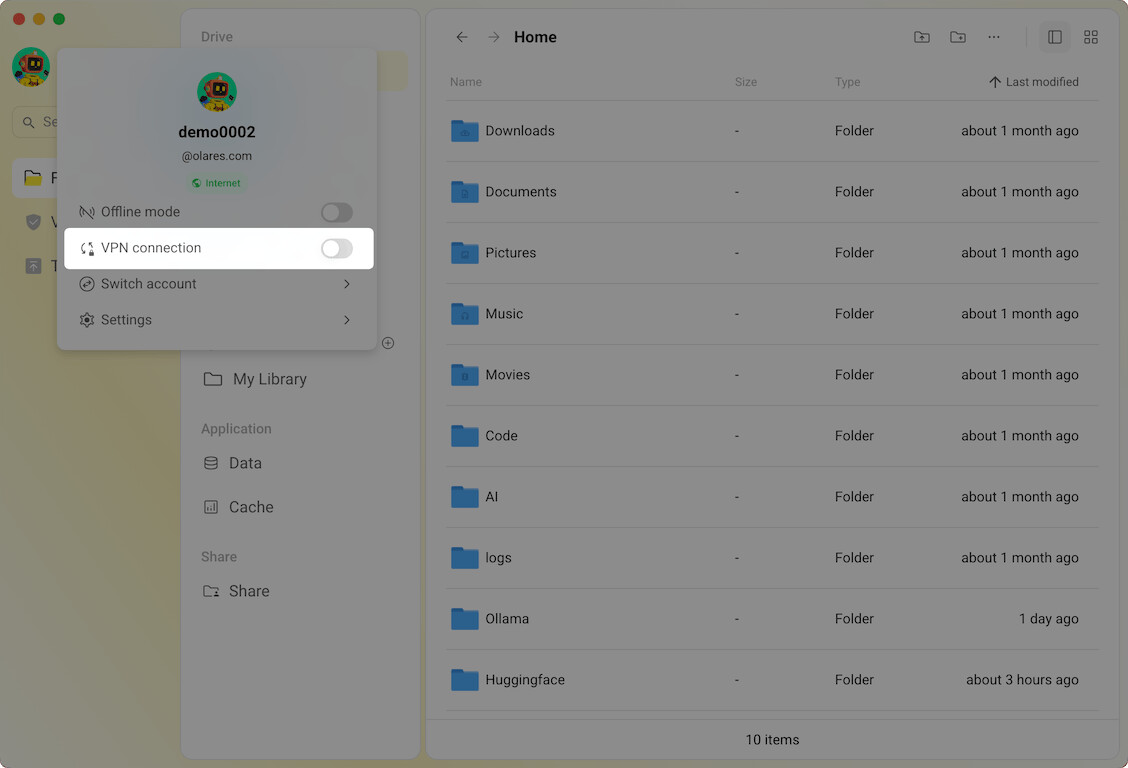
- Click your avatar in the top-left corner and toggle on VPN connection.
Step 2: Find the Tailscale IP address
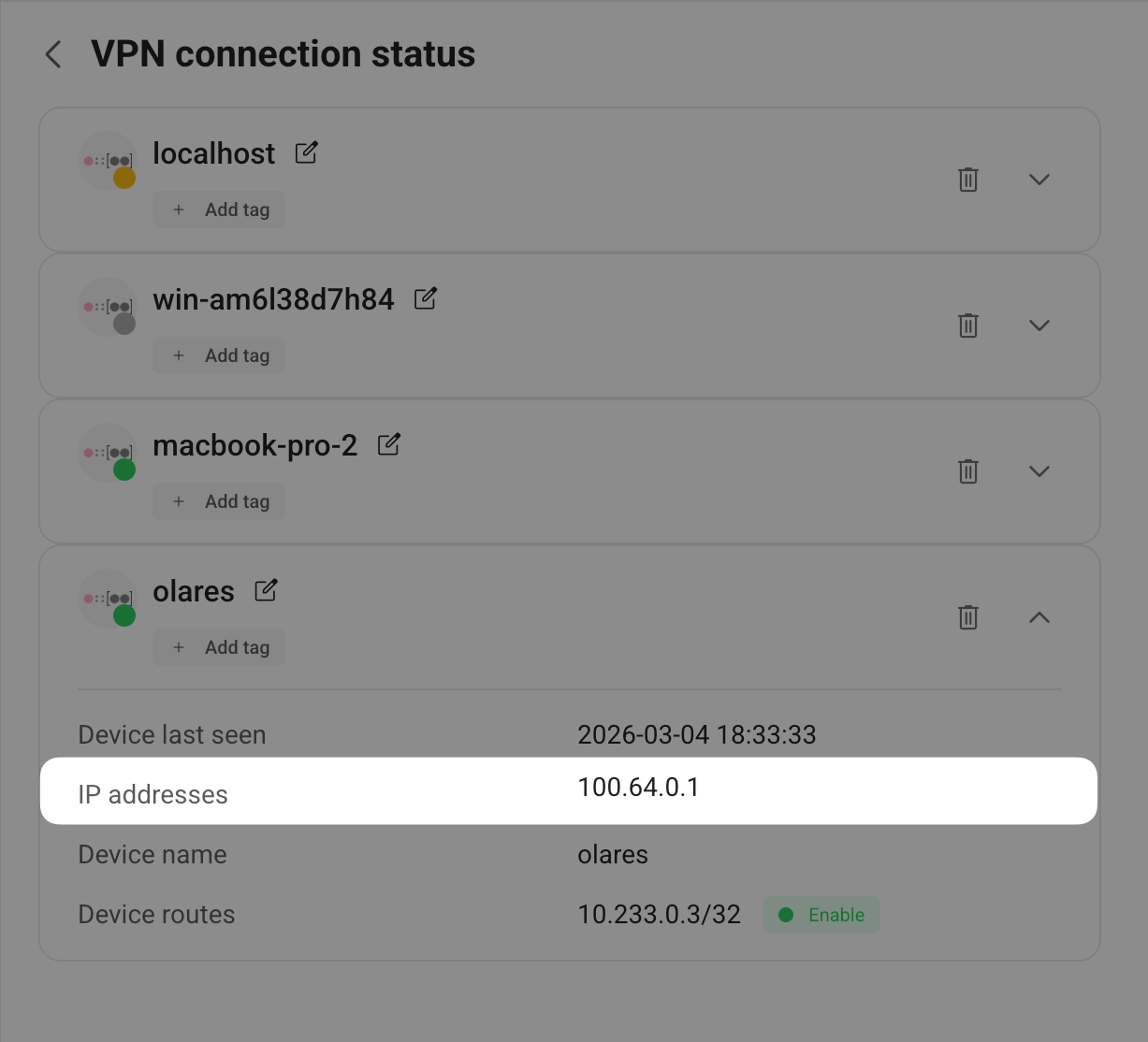
- On your Olares desktop, go to Settings > VPN > View VPN connection status.
- Find olares, and then click it to expand the connection details.
- Locate the IP address that starts with
100.64, and then note it down.
Step 3: Get the login password from Vault
After you activate Olares, you will be prompted to reset the SSH password on the LarePass app. The password is automatically generated and saved to your Vault.
To view the saved password in Vault:
-
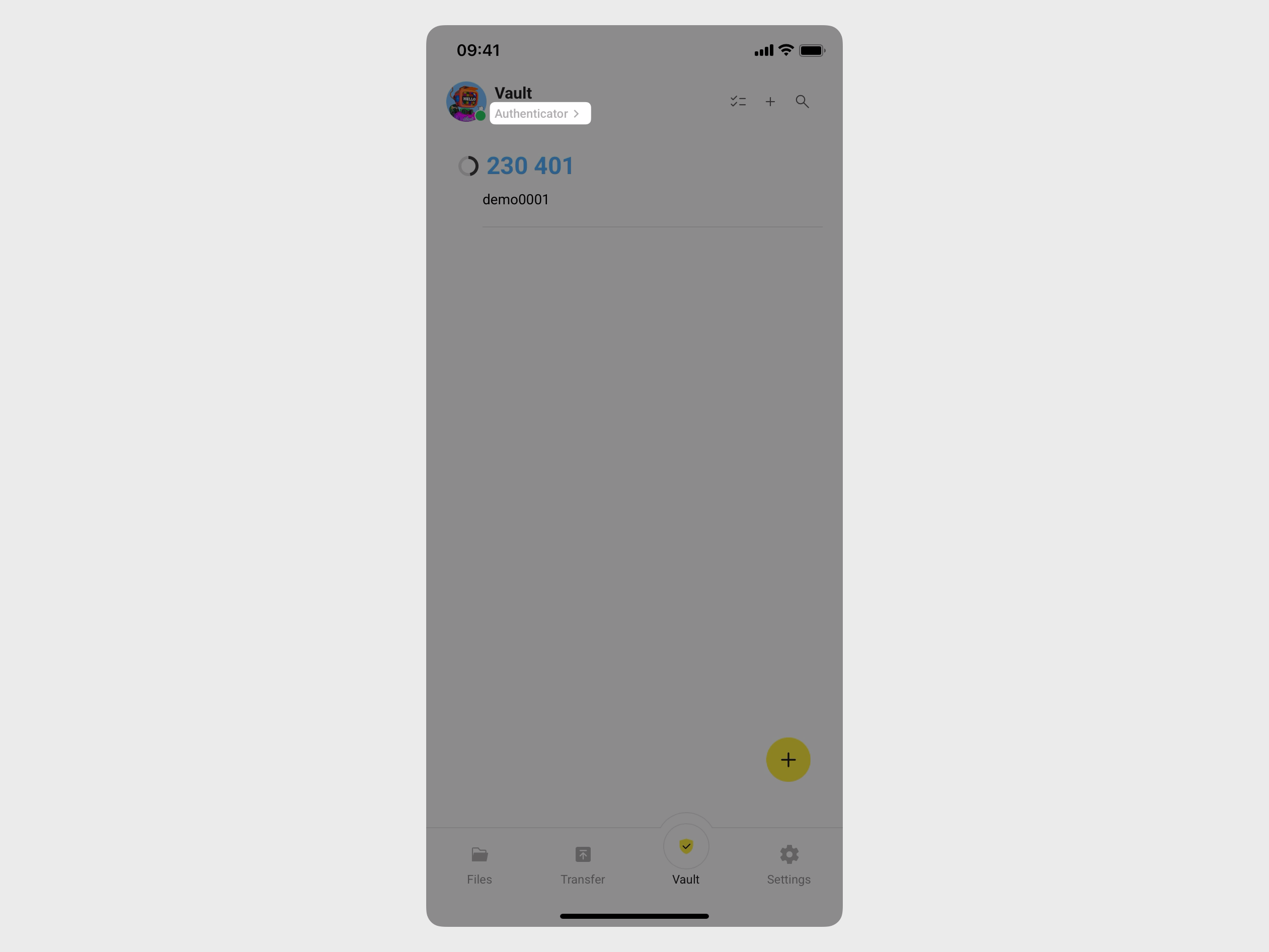
Open the LarePass mobile app, and then tap the Vault tab.
-
When prompted, enter your local password to unlock.
-
In the top-left corner, tap Authenticator to open the side navigation, and then tap All vaults to display all saved items.
-
Find the item with the terminal icon and tap it to reveal the password.

Step 4: Connect via SSH
The default username for Olares One is olares.
-
Open a terminal on your computer.
-
Run the following command, replacing
<tailscale_ip_address>with the Tailscale IP address you noted down:ssh olares@<tailscale_ip_address>Note
After you enable SSH via VPN, the first connection is slower because VPN routes are being applied. Wait a short time for the connection to complete. -
When prompted, enter the password obtained in Step 3.
Connect using the local IP address instead
If Subnet routes is enabled in Settings > VPN, all devices on Olares One’s local network become reachable through the VPN. You can then SSH using the local IP address (192.168.x.x) instead of the Tailscale IP (100.64.x.x), even when accessing from a different network.
For the full official guide, see the Olares docs: