Olares Forum uses Olares ID for login, not a separate email and password. This means you use the same identity across LarePass, Olares, and Olares Space.
If you already use LarePass to access Olares Space, the login flow here will feel familiar.
What you need
- The LarePass app installed on your device
- An active Olares ID
If you don’t have LarePass yet, search “LarePass” in Apple Store or Google Play Store and download it first.
Step 1: Create your Olares ID
-
Open LarePass.
-
Follow the prompts to create an Olares ID.
-
Complete the setup and back up your 12-word mnemonic phrase.
Note
Keep your mnemonic phrase safe and secret, and never share it with anyone. It is the only way to recover your Olares ID.
Step 2: Log in to the Forum
-
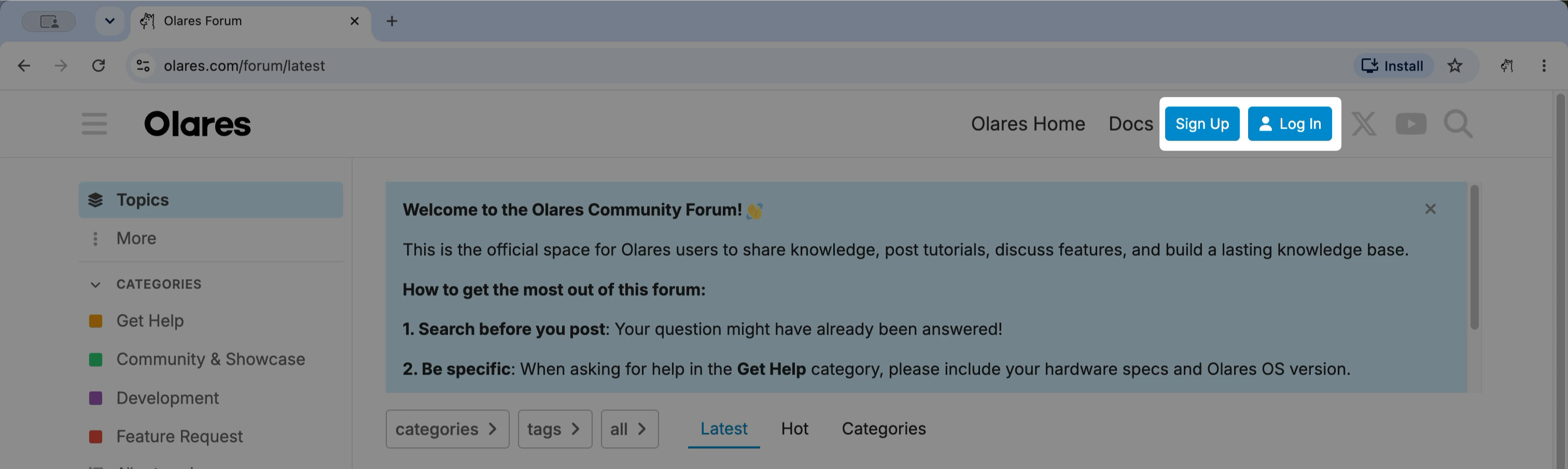
On Olares Forum, click Log in or Sign Up in the top-right corner.
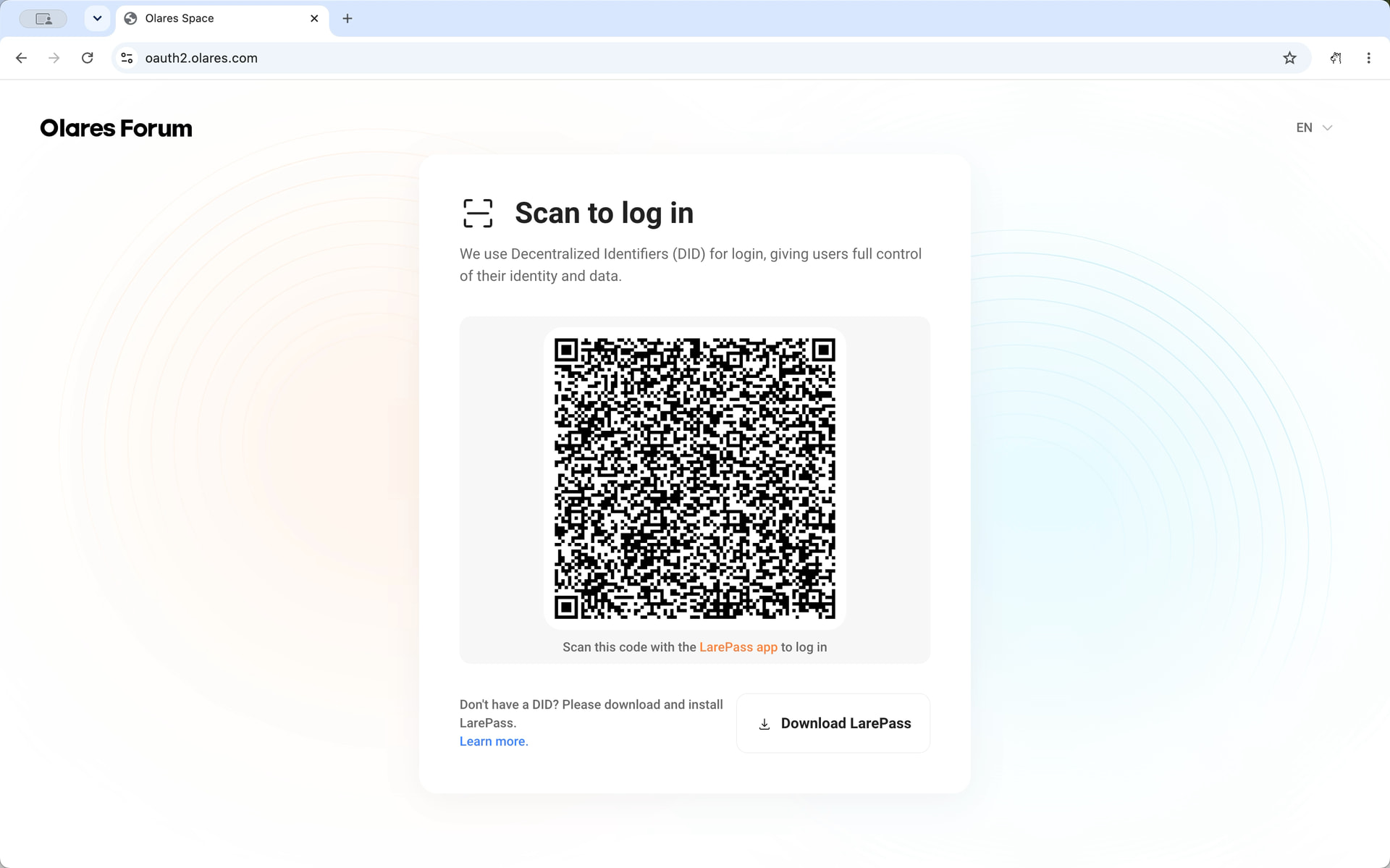
You will see a QR code on the screen.
-
Open LarePass on your device, and use the scan function to scan the QR code.
-
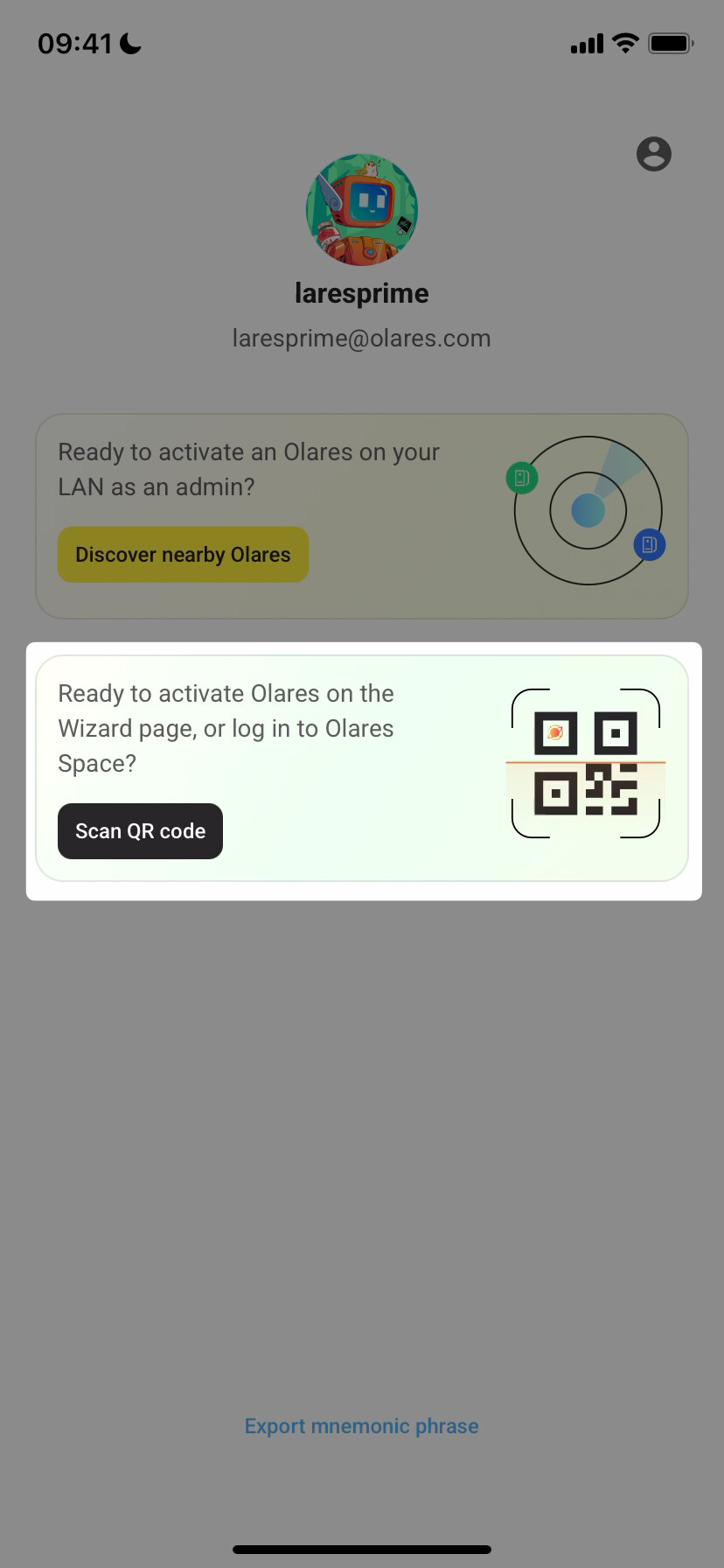
When you not have an Olares device activated, tap Scan QR code on the device discovery page.
-
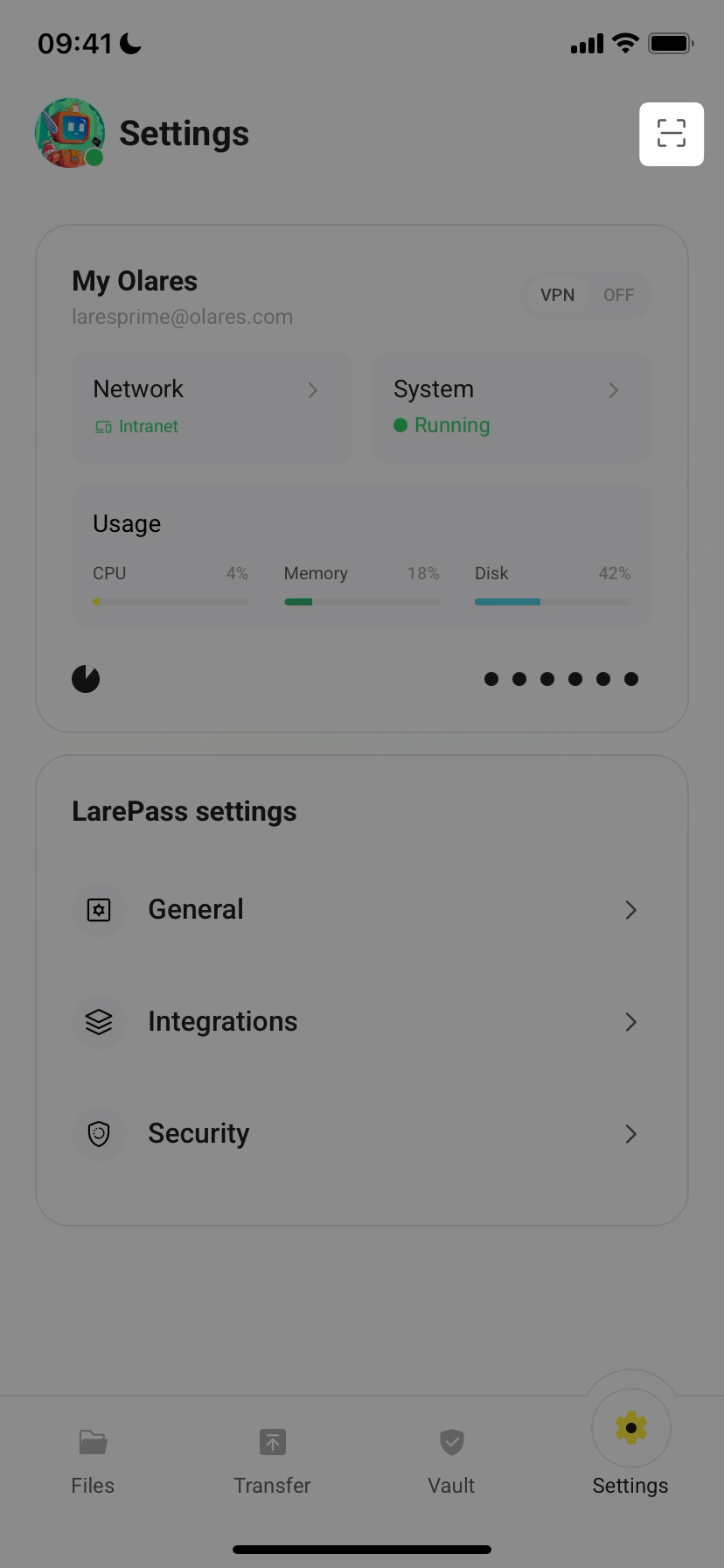
When you have an Oalres device activated, tap the scan icon in the top-right corner on the settings page.
-
-
Confirm the login request in LarePass.
After you confirm, the Forum refreshes and you are logged in.
Step 3: Update your avatar
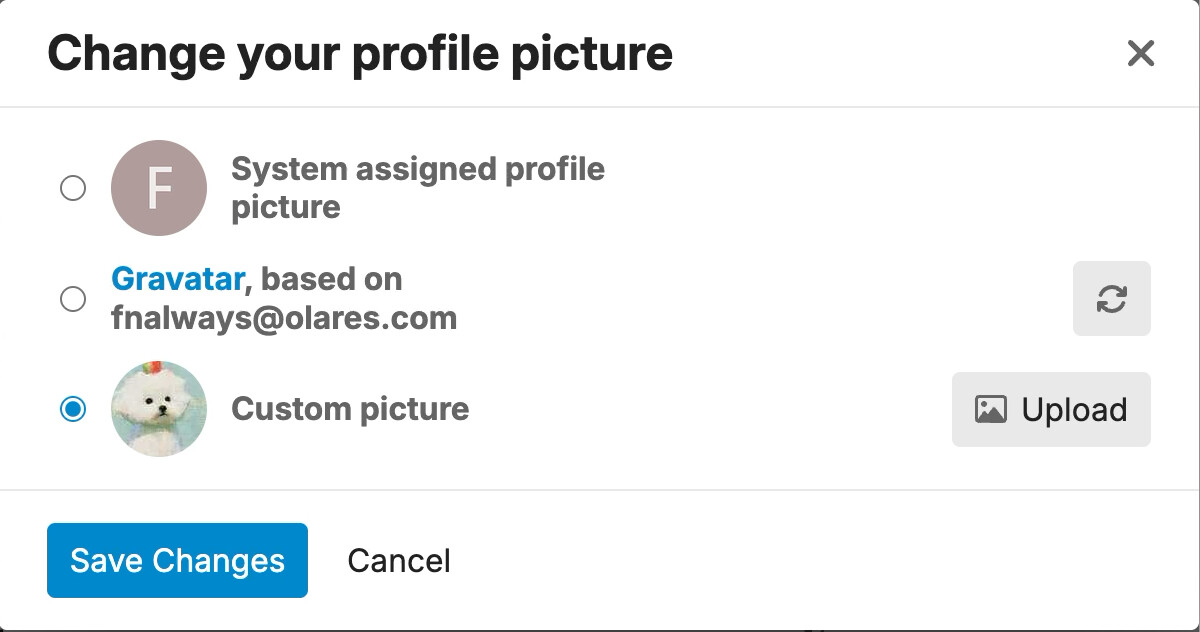
Adding an avatar helps other community members recognize you and makes discussions feel more personal. It’s optional, but recommended.
- Click your profile icon in the top-right corner.
- Select Preferences.
- Go to Profile.
- Upload a new avatar.
- Click Save Changes.
Still stuck?
If you can’t log in, you can’t post on the Forum yet. Get help in Discord and the team or community can walk you through it.
When you can log in, come back and say hello.