The Olares One terminal can be accessed securely using Secure Shell (SSH). Connection methods vary based on whether the access is requested from a local network or a remote location.
Connect over your local network
Follow these steps if your device and your Olares One are on the same local network.
Step 1: Get the local IP address of Olares One
-
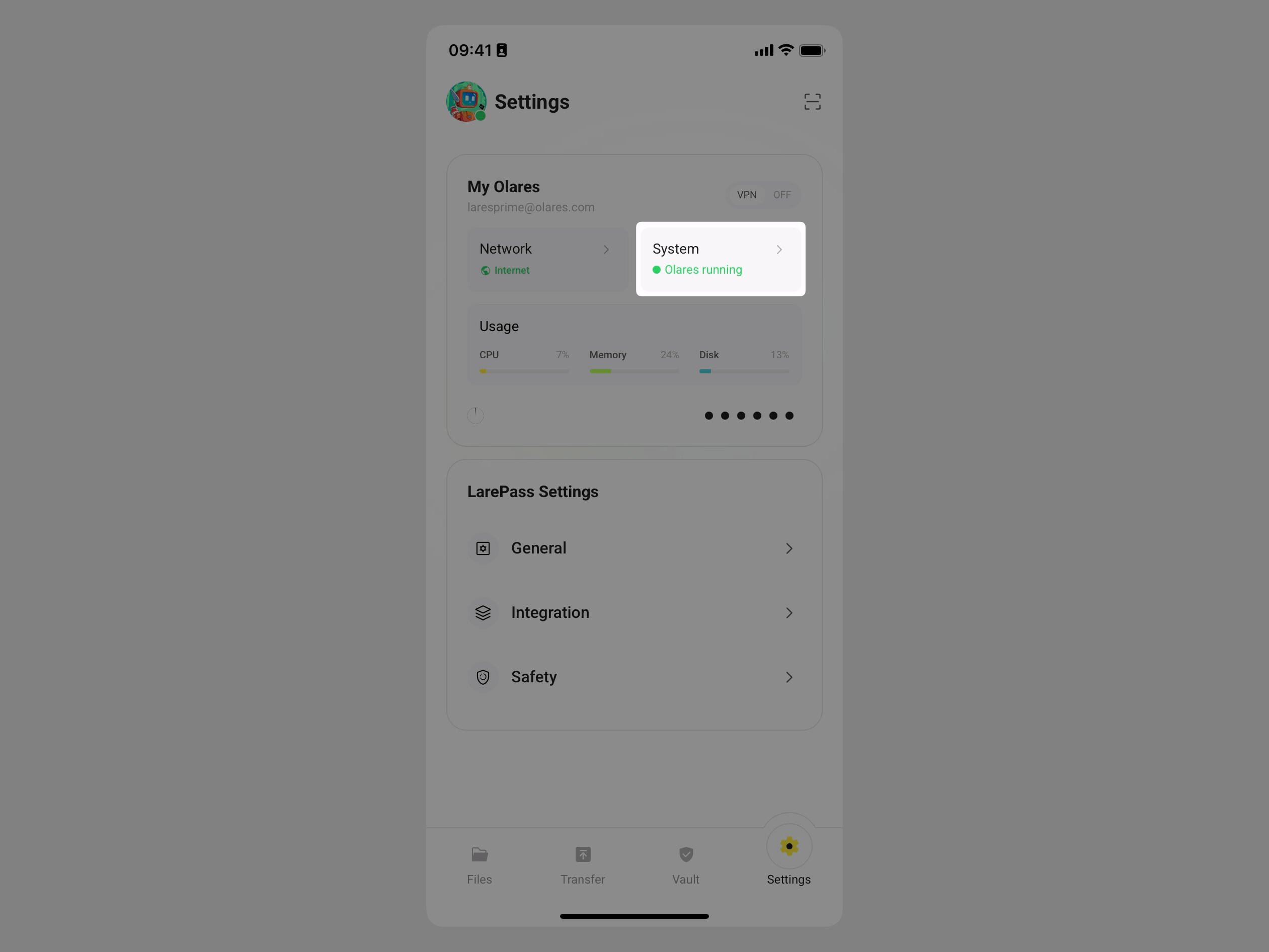
Open the LarePass app on your mobile device, and then go to Settings > System.
-
Tap the Olares One device card.
-
Scroll down to the Network section, and then note down the Intranet IP.
Check via Control Hub
You can check the IP using theifconfigcommand in the Control Hub terminal.
Look for your active interface, typicallyenp3s0(wired) orwlo1(wireless). The IP address appears afterinet.
Step 2: Get the login password from Vault
Not the same as your Olares Desktop password
This password logs you in to the Olares One host system over SSH. It’s different from the password you use to sign in to the Olares Desktop in your browser.
After you activate Olares, you will be prompted to reset the SSH password on the LarePass app. The password is automatically generated and saved to your Vault.
To view the saved password in Vault:
-
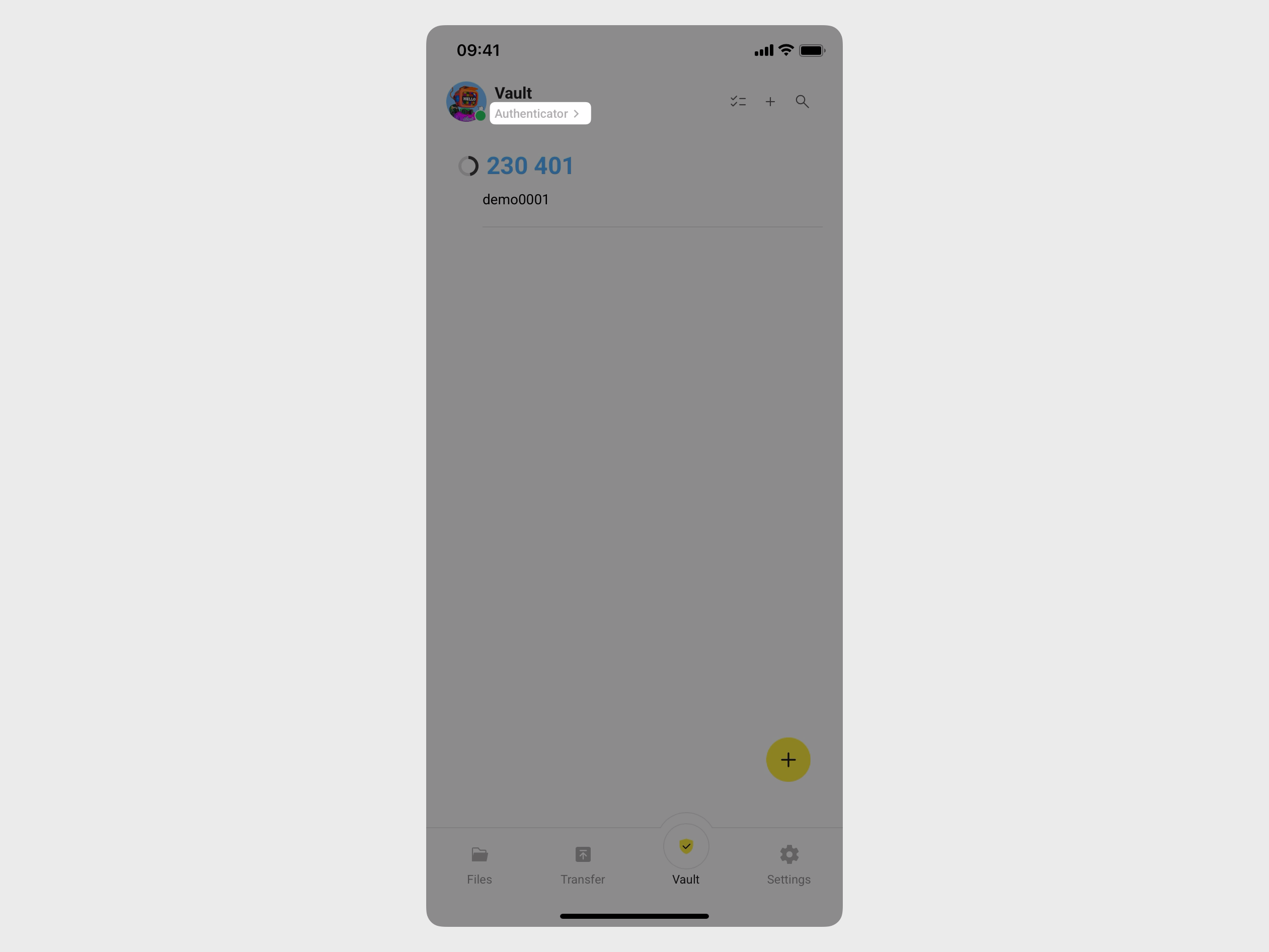
Open the LarePass mobile app, and then tap the Vault tab.
-
When prompted, enter your local password to unlock.
-
In the top-left corner, tap Authenticator to open the side navigation, and then tap All vaults to display all saved items.
-
Find the item with the terminal icon and tap it to reveal the password.

Step 3: Connect via SSH
The default username for Olares One is olares.
-
Open a terminal on your computer.
-
Run the following command, replacing
<local_ip_address>with the Intranet IP you noted down:ssh olares@<local_ip_address> -
When prompted, enter the password obtained in Step 2.
For the full official guide, see the Olares docs: