Qwen Image 2.1 on Olares: Local Image Generation and Editing
The Qwen Image 2.1 app is now in Olares Market. It runs Qwen-Image-2.1 on your own Olares device for text-to-image generation and image editing, so your photos and reference images stay on your hardware. The app requires Olares 1.12.8 or later.
Better yet, you don’t need to build a ComfyUI workflow first. The app gives you a simple workspace for generating, editing and composing from references, and prepares the model for you. When you want full control, any task opens in ComfyUI’s node editor with its workflow already loaded.
| At a glance | |
|---|---|
| Tasks | Text to image, reference-based editing, masked edits, image extension, background removal |
| Reference images | Up to 10 |
| Output | 1K and 2K |
| Precision | INT8 (default) or NVFP4, switchable per generation |
| Requirements | Olares 1.12.8+, supported NVIDIA GPU, 22 GiB GPU memory, 32 GiB system memory |
| Download | About 25 GB for the default INT8 weights |
| License | Qwen Research License. Commercial use requires separate authorization |
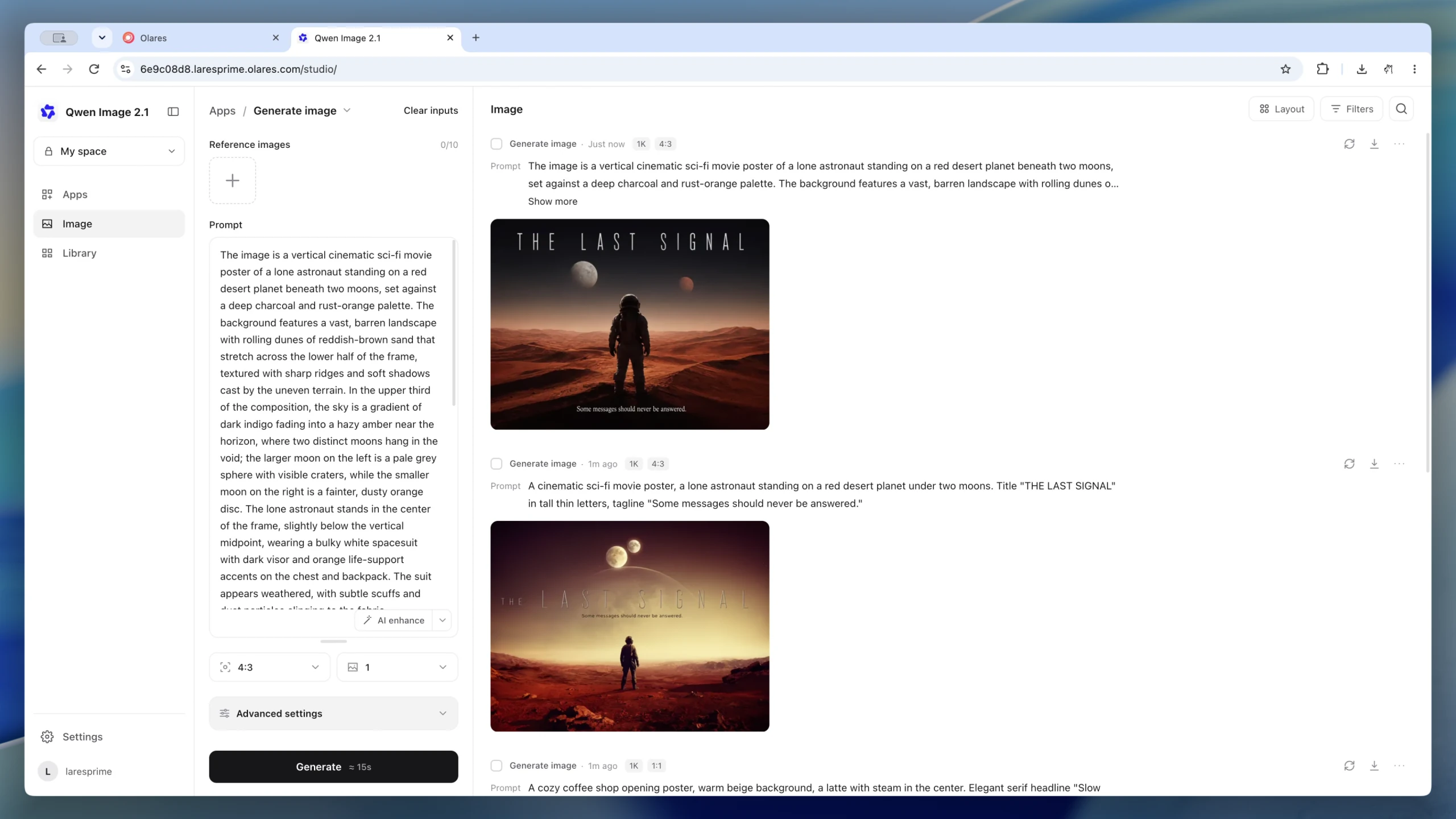
What you can do with Qwen Image 2.1
Qwen-Image-2.1 handles generation and editing in one model. It keeps people and products recognizable through every edit, lights portraits naturally, holds fine detail, and takes up to 10 reference images at once.
Start with a short idea
Every task starts with a prompt, and it doesn’t need to be long. Type a short idea and click AI enhance to rewrite or translate it into a fuller prompt, using a local model from Olares Router. A model that can see images also reads your references.
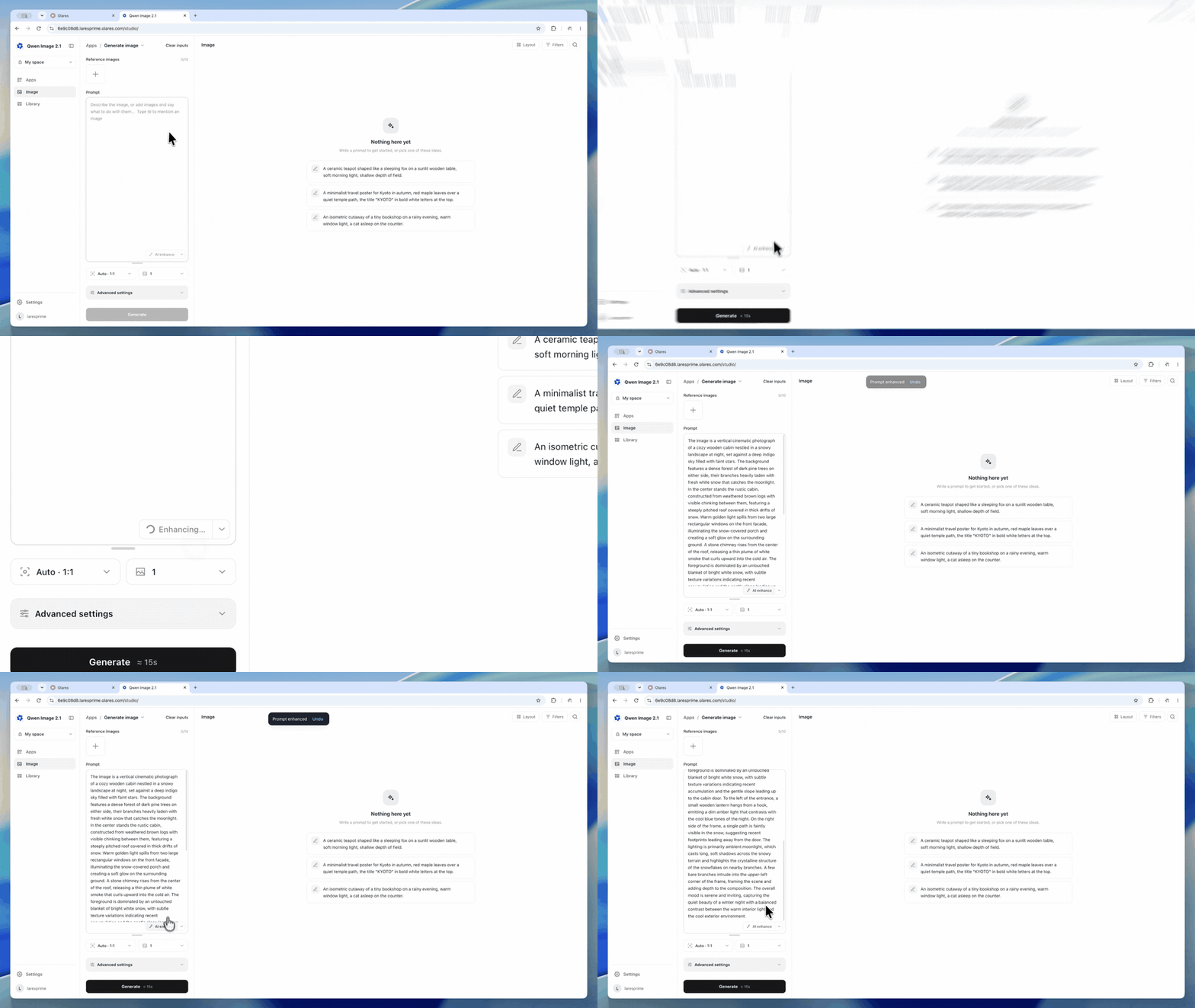
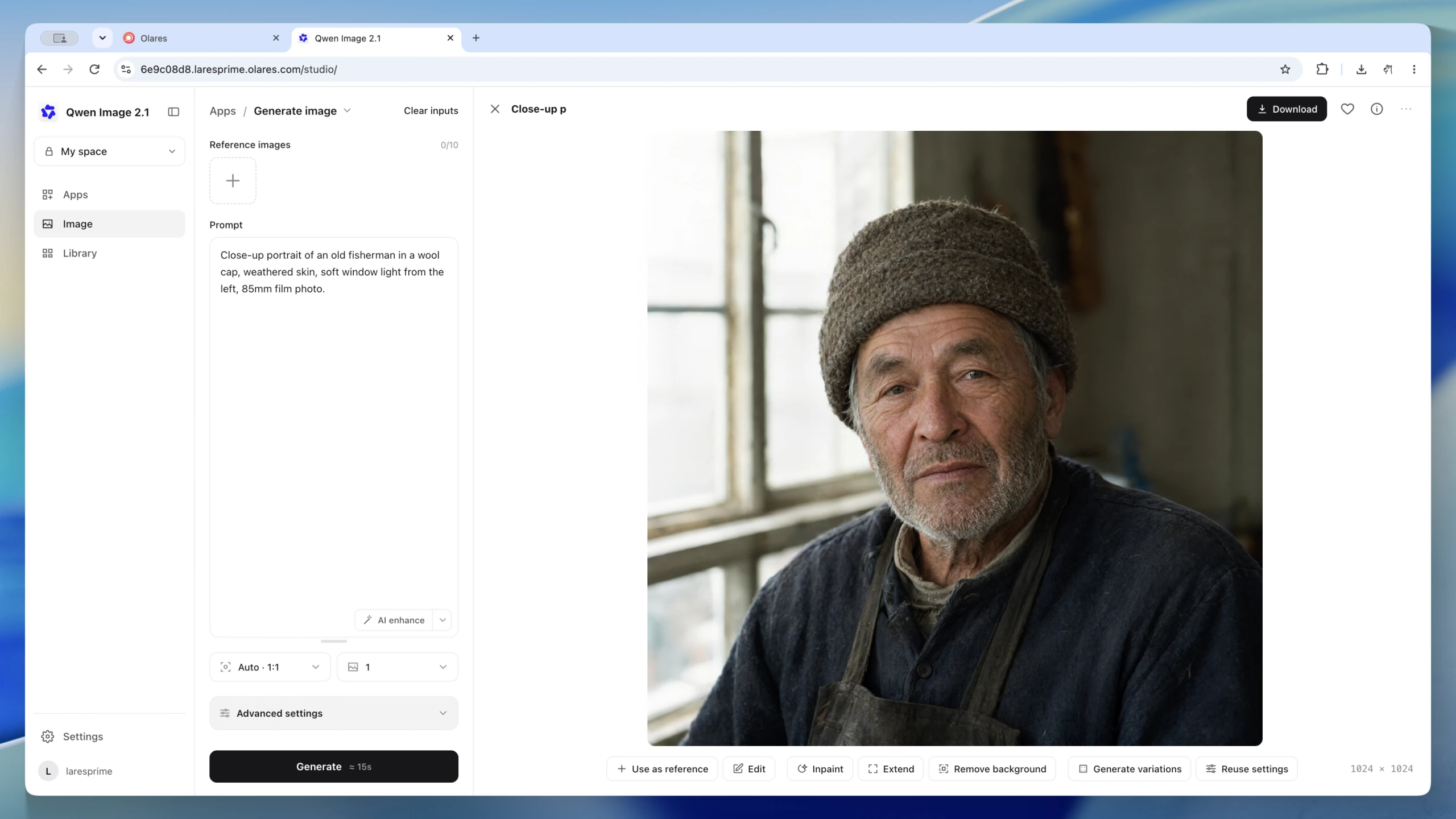
Text to image
Describe a scene and get a finished image at 1K or 2K.
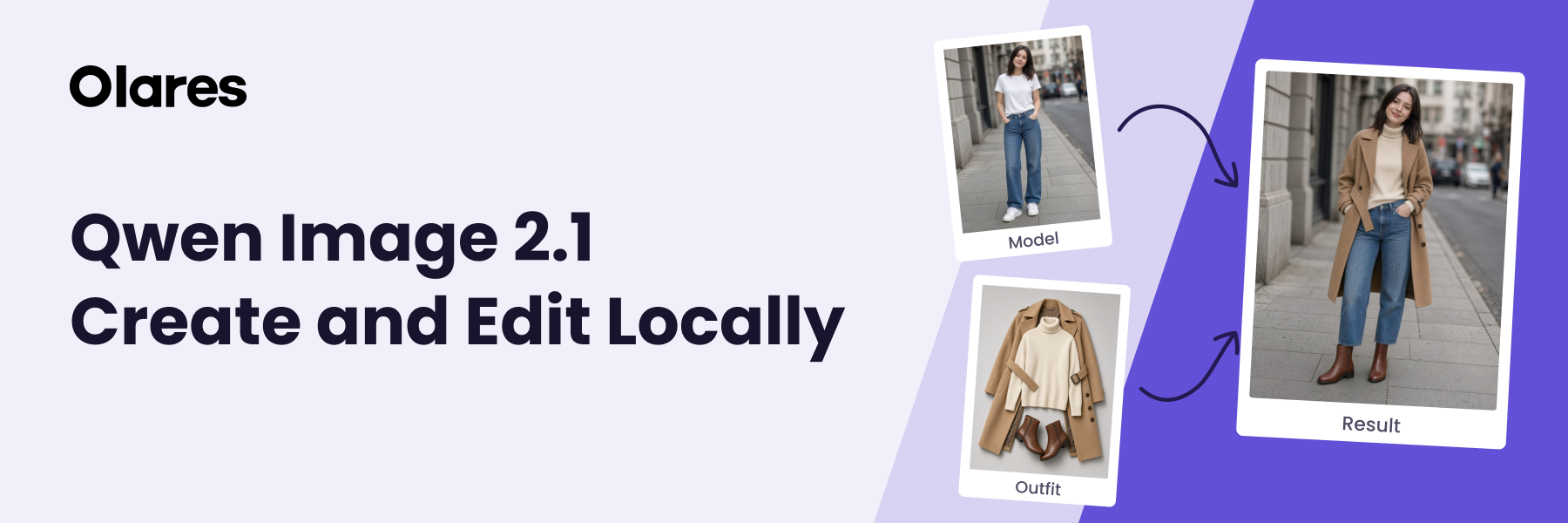
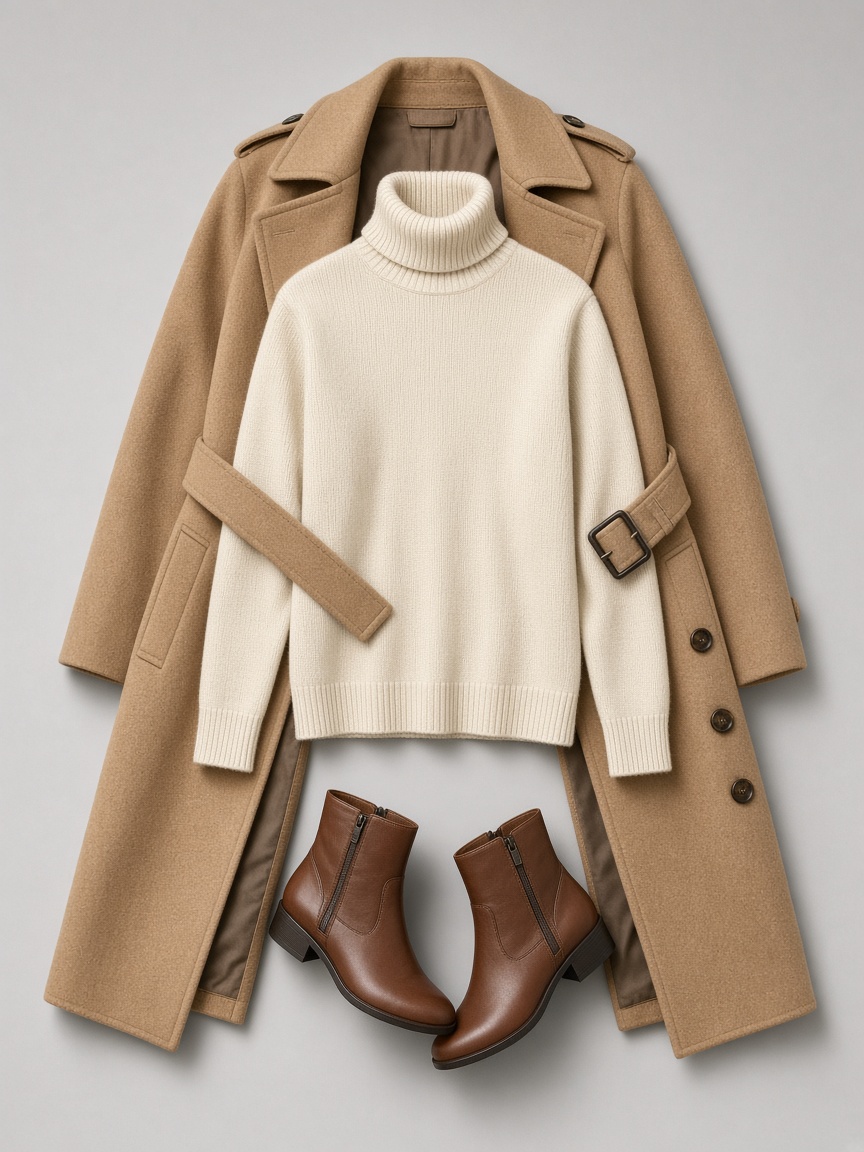
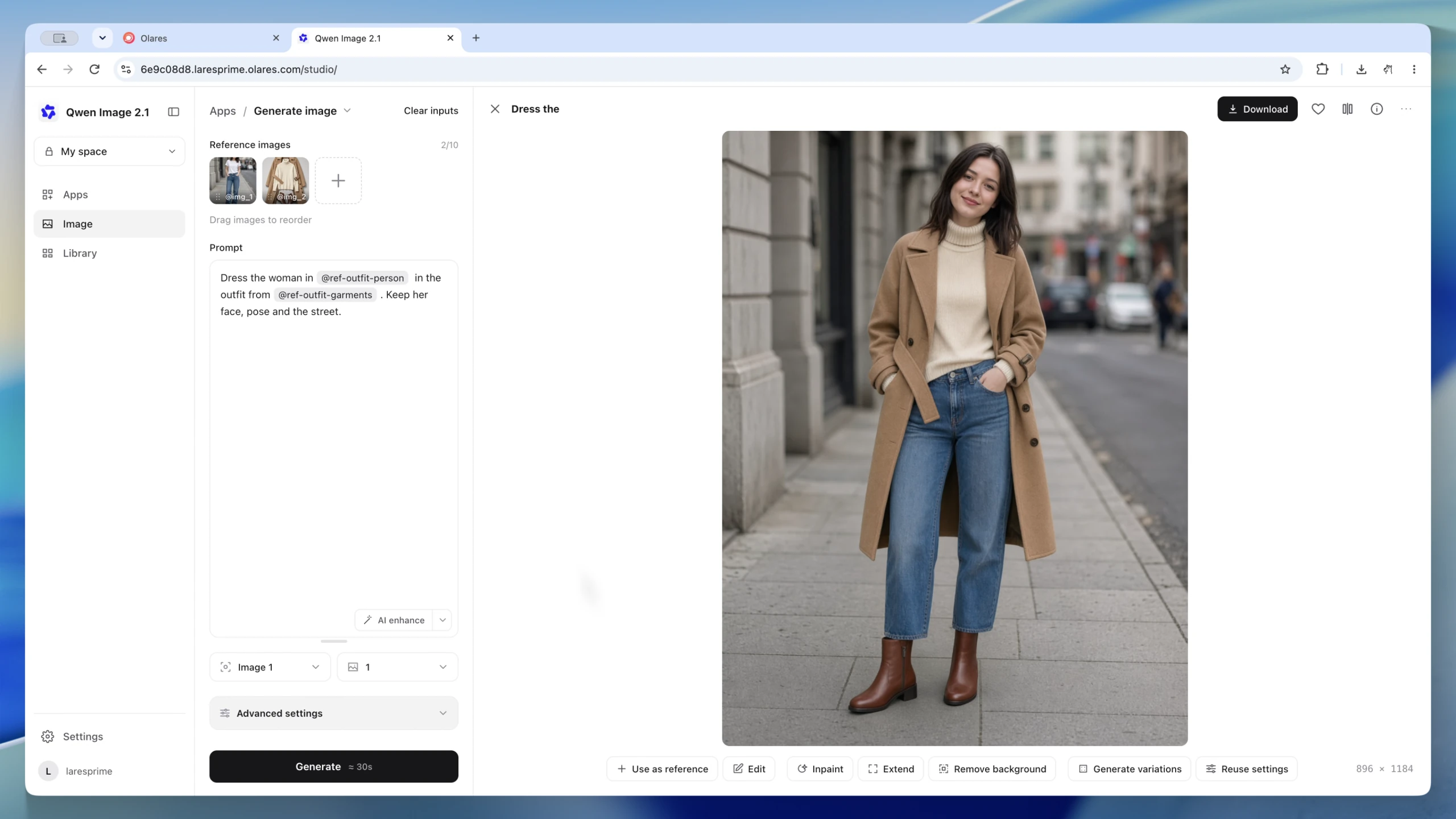
Change an outfit from a reference
Give the model a photo and a clothing reference, and it restyles the person while keeping who they are and where they stand.
References:
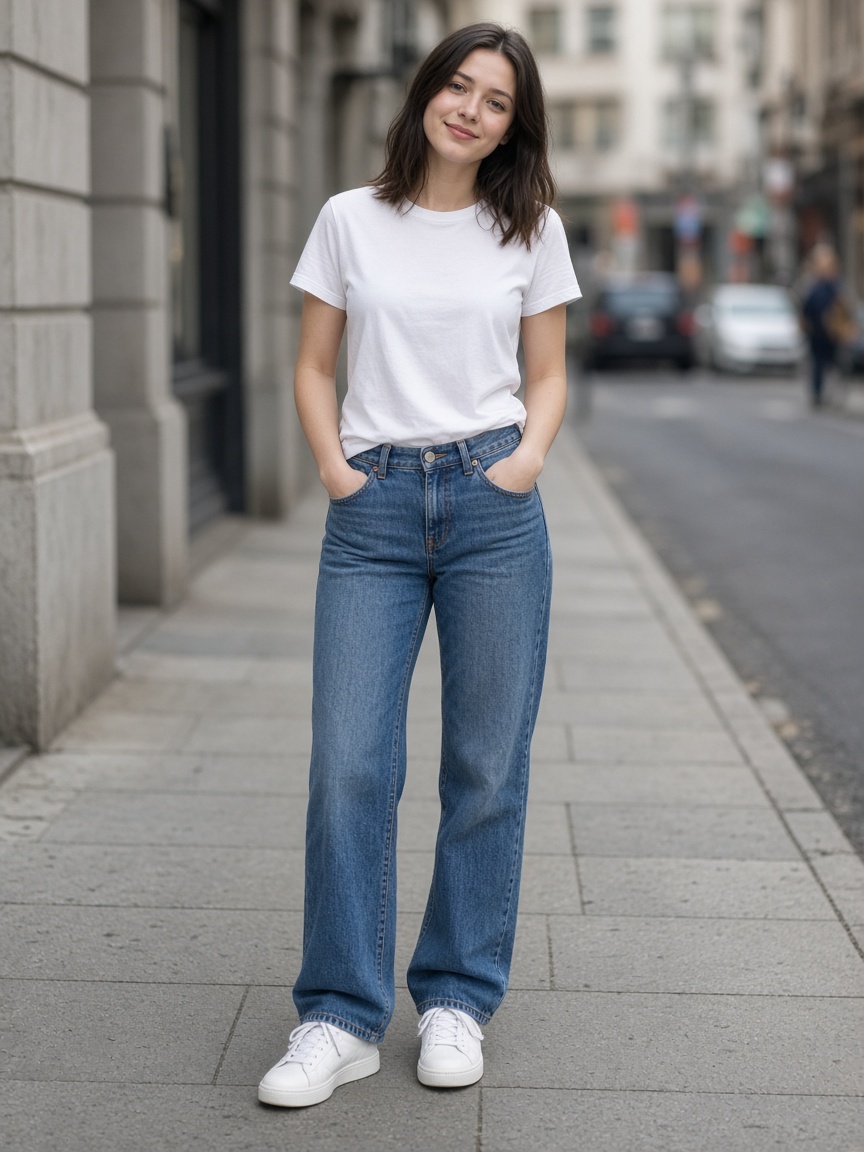
Result:
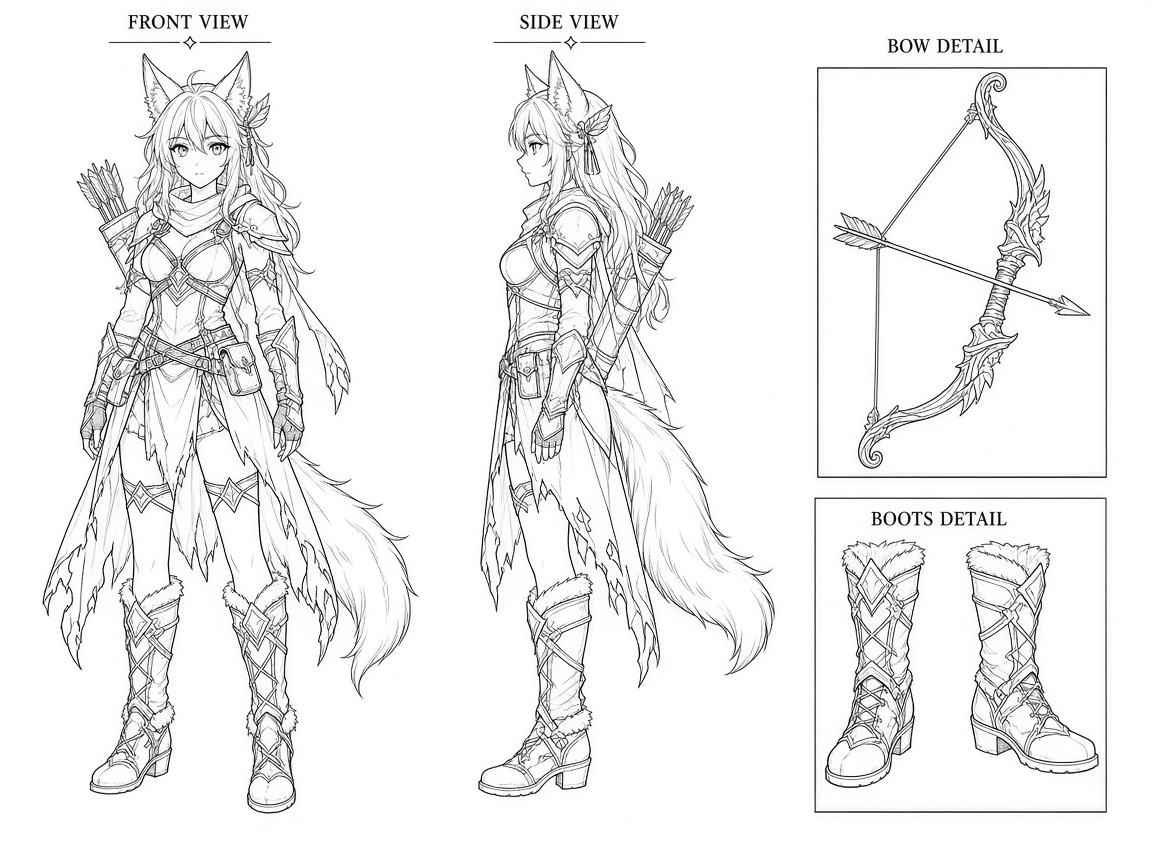
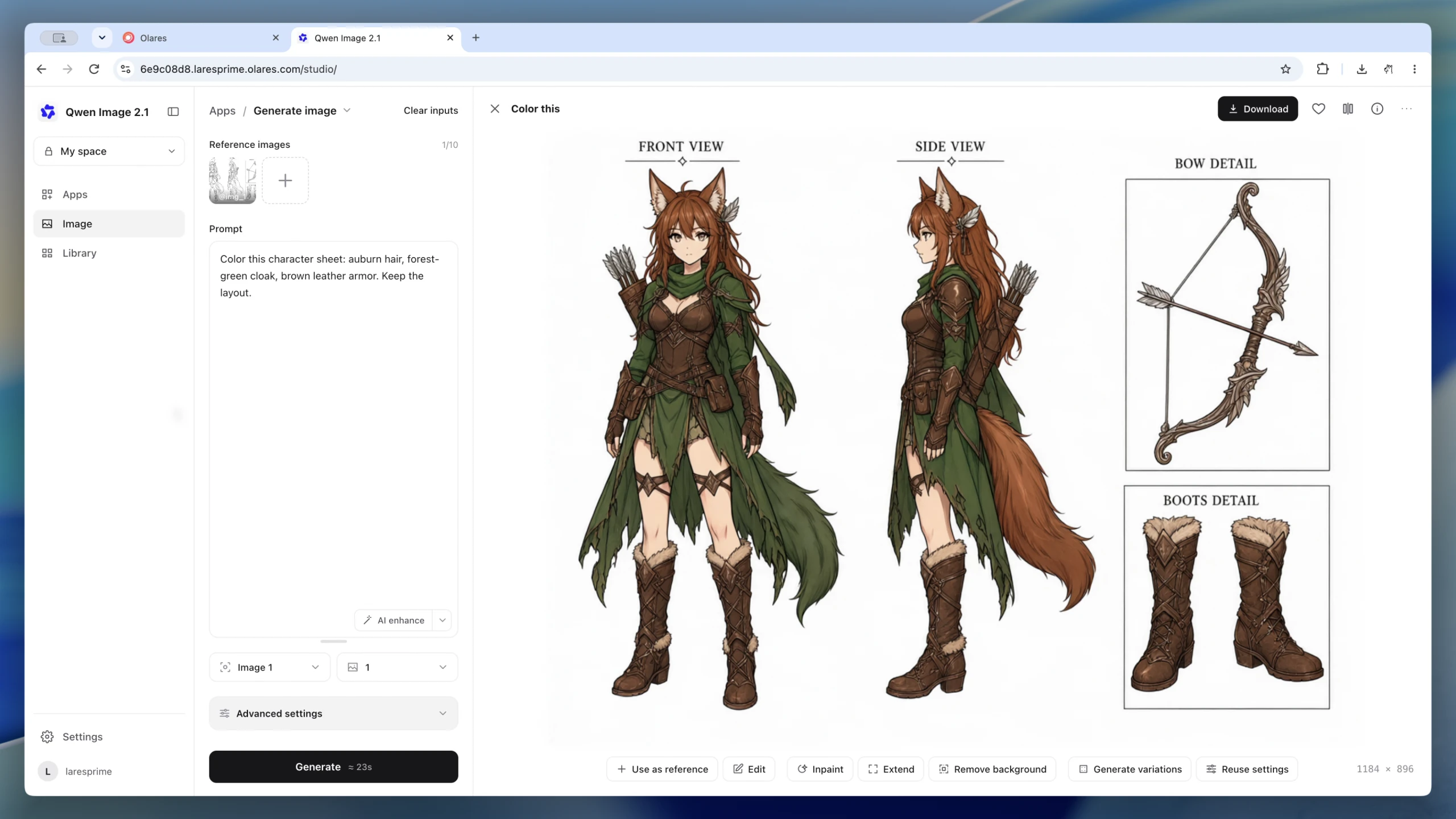
Color line art
Turn a black-and-white drawing into a color study, with every view and detail panel left in place.
Reference:
Result:
Make a targeted edit
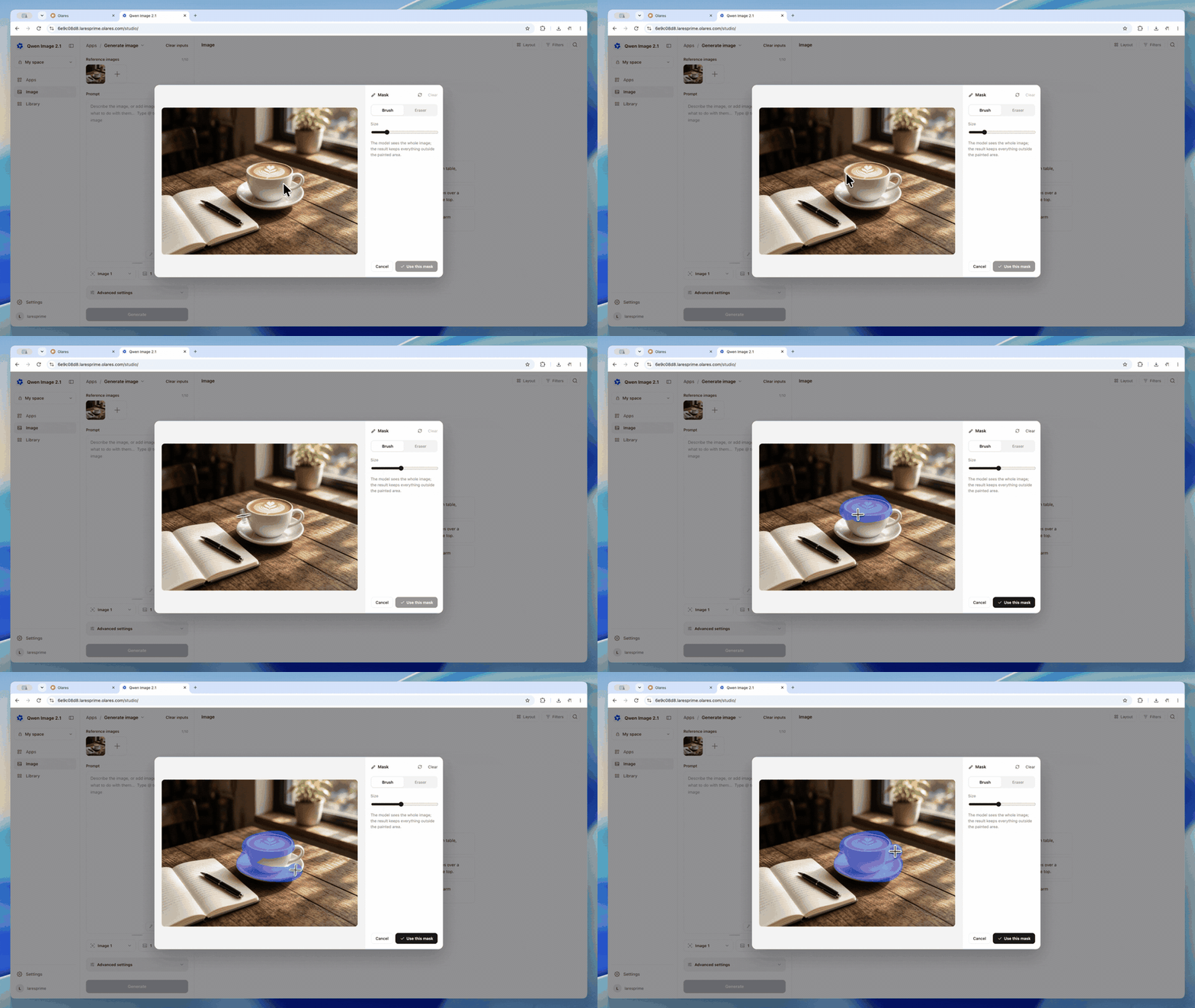
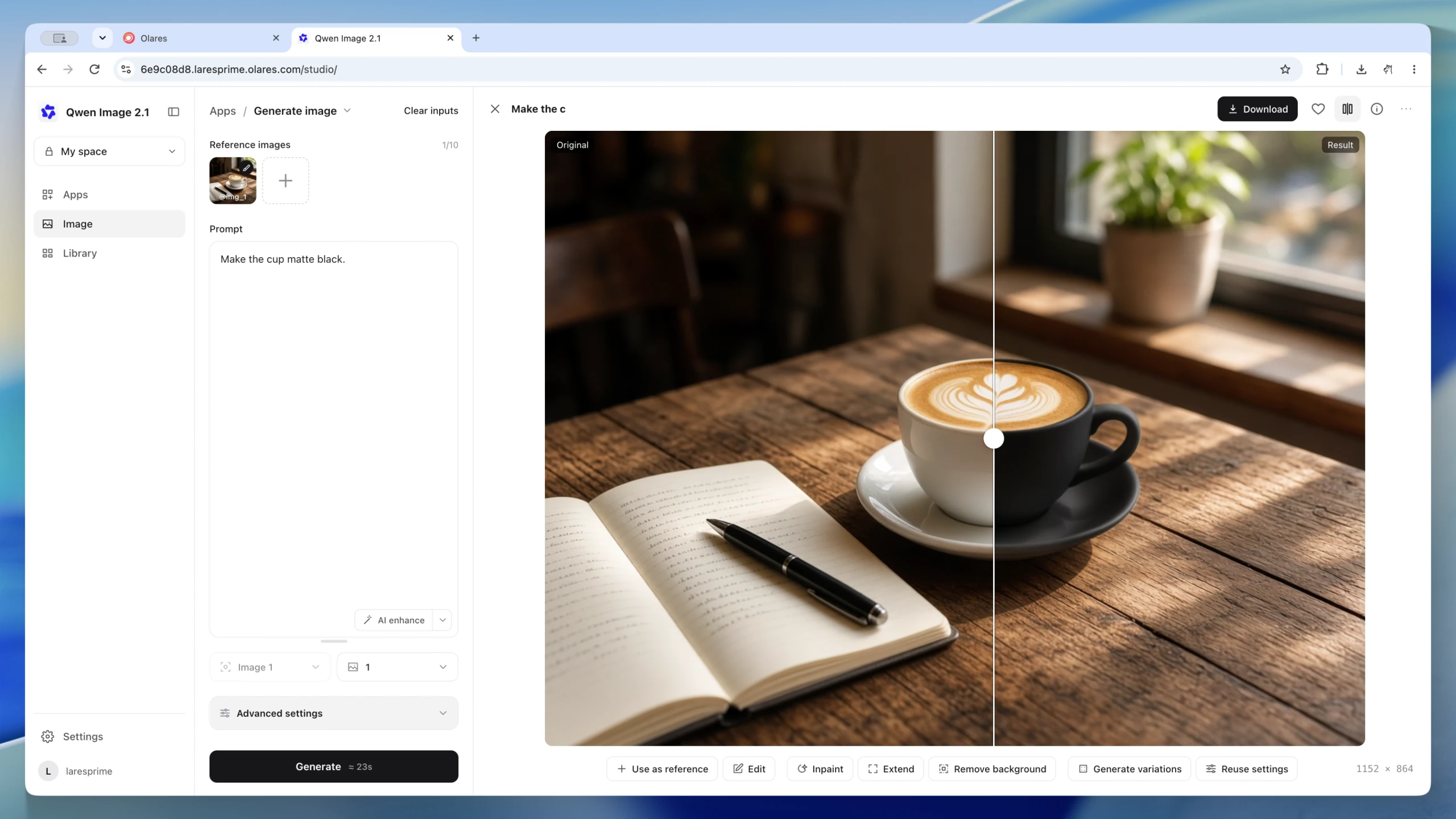
With Inpaint, paint a mask over the area you want to change, and everything outside it stays as it was. Use this to recolor an object, remove something, or swap a detail.
Mask:
Result:
Extend an image
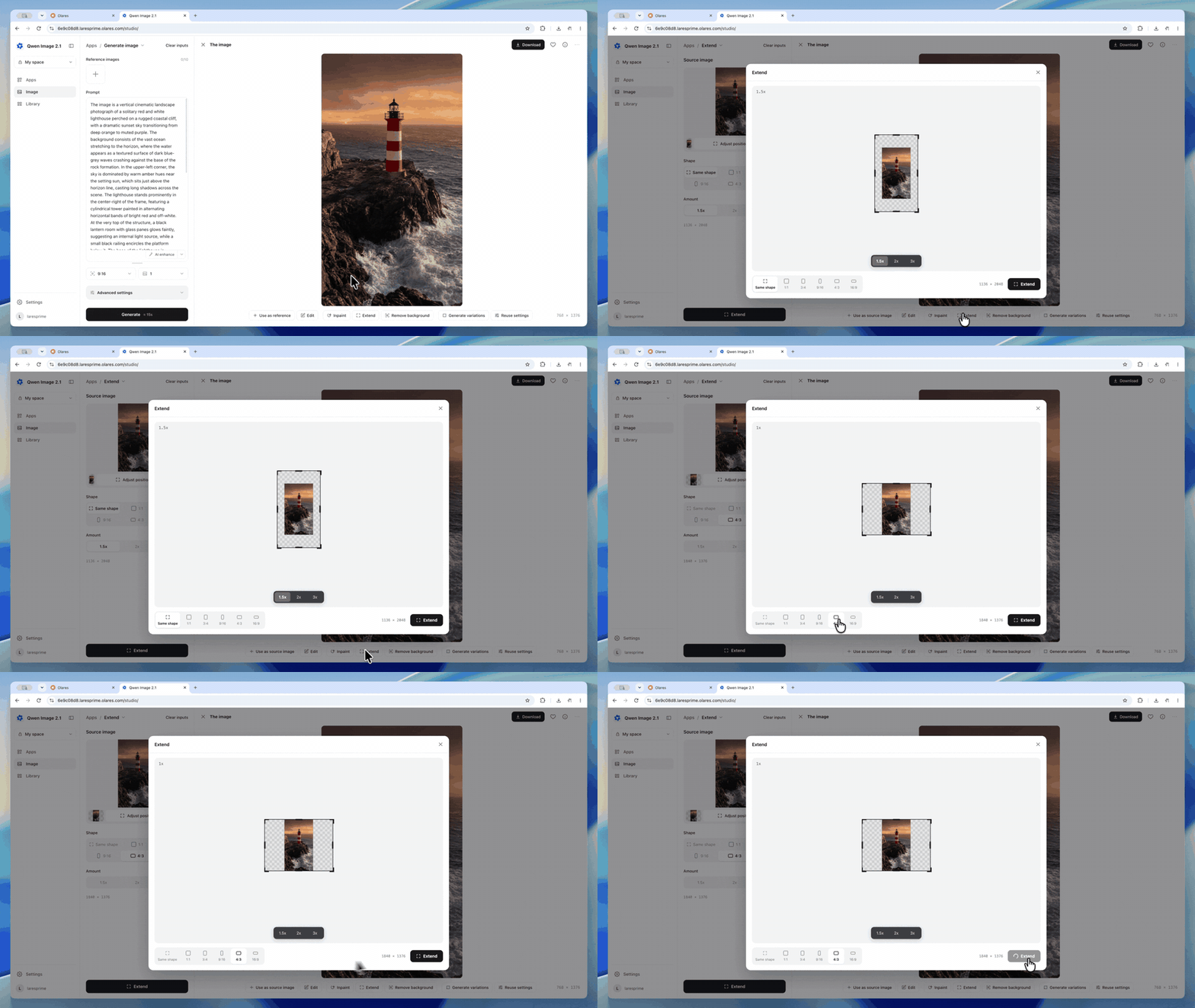
Extend is one of the quick actions under every image you create. It generates new surroundings around the original, turning a tight vertical shot into a wide scene.
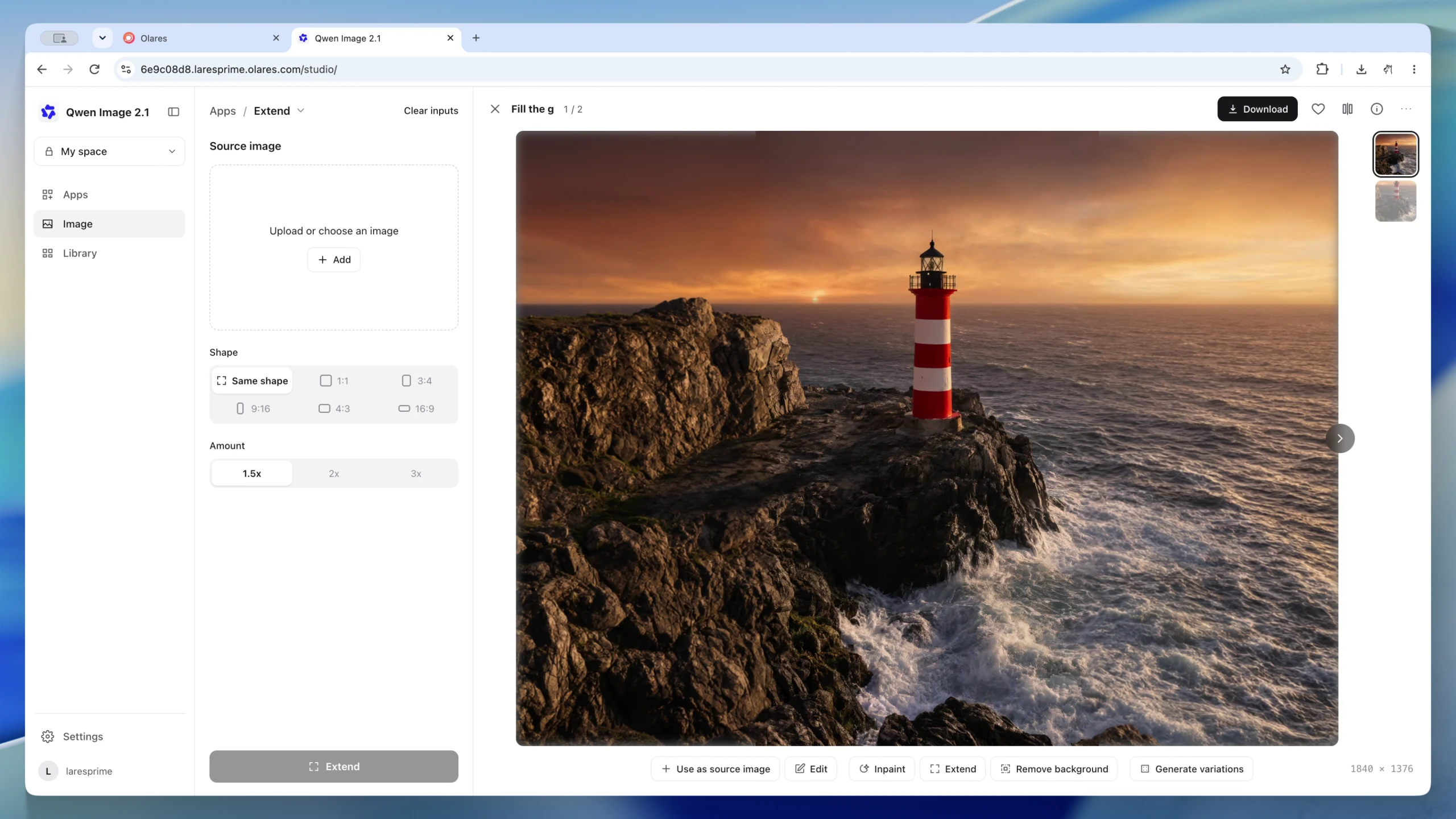
Pick a shape (same shape, 1:1, 3:4, 9:16, 4:3 or 16:9) and how far to extend, from 1.5x to 3x. Here a 9:16 shot becomes a 4:3 scene.
Result:
Remove the background
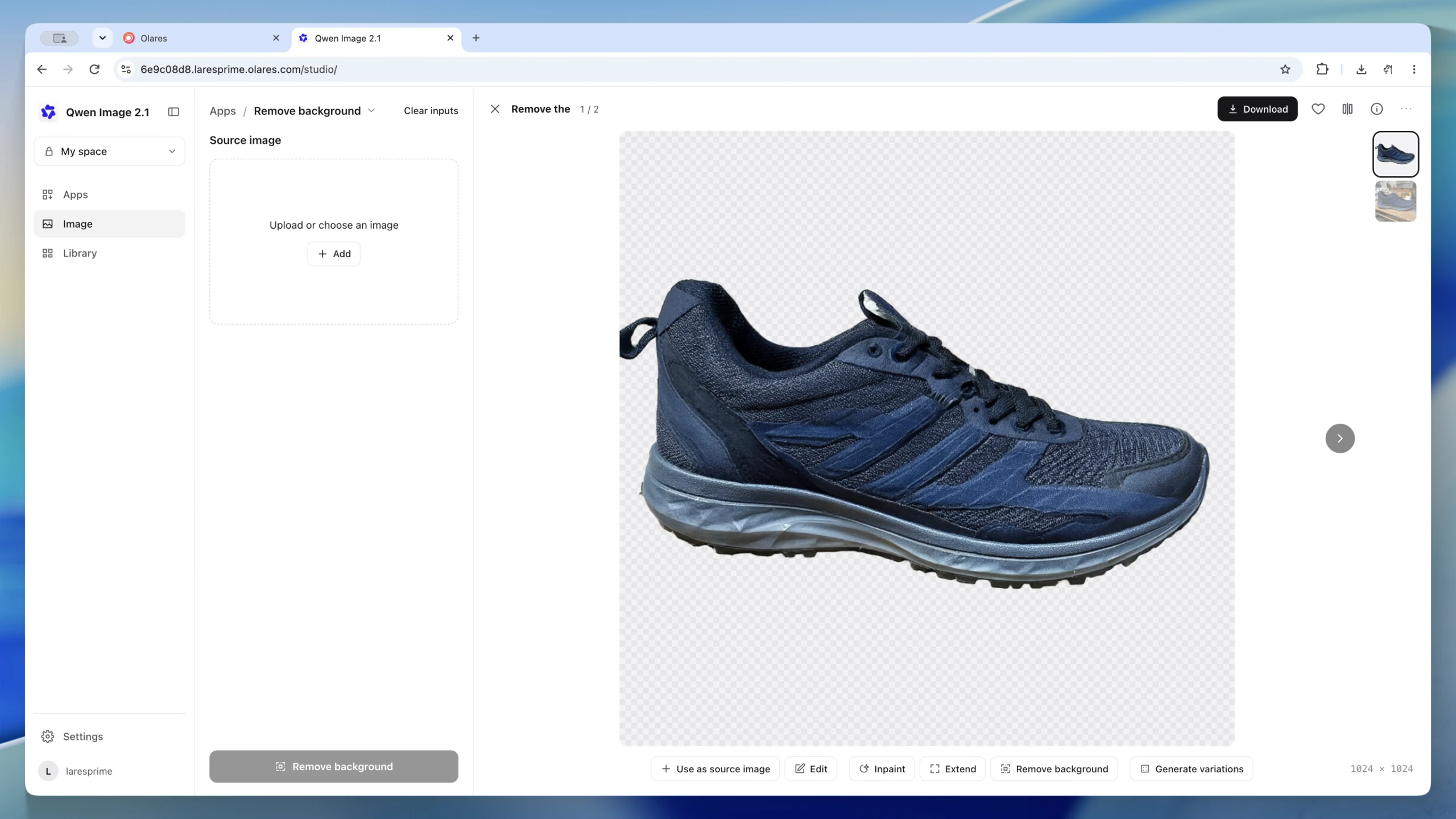
Remove background cuts the subject out of a product shot, portrait or illustration and exports it as a transparent PNG, ready to place over a new image or color.
Here we generated a sneaker photo, then removed its background in one click.
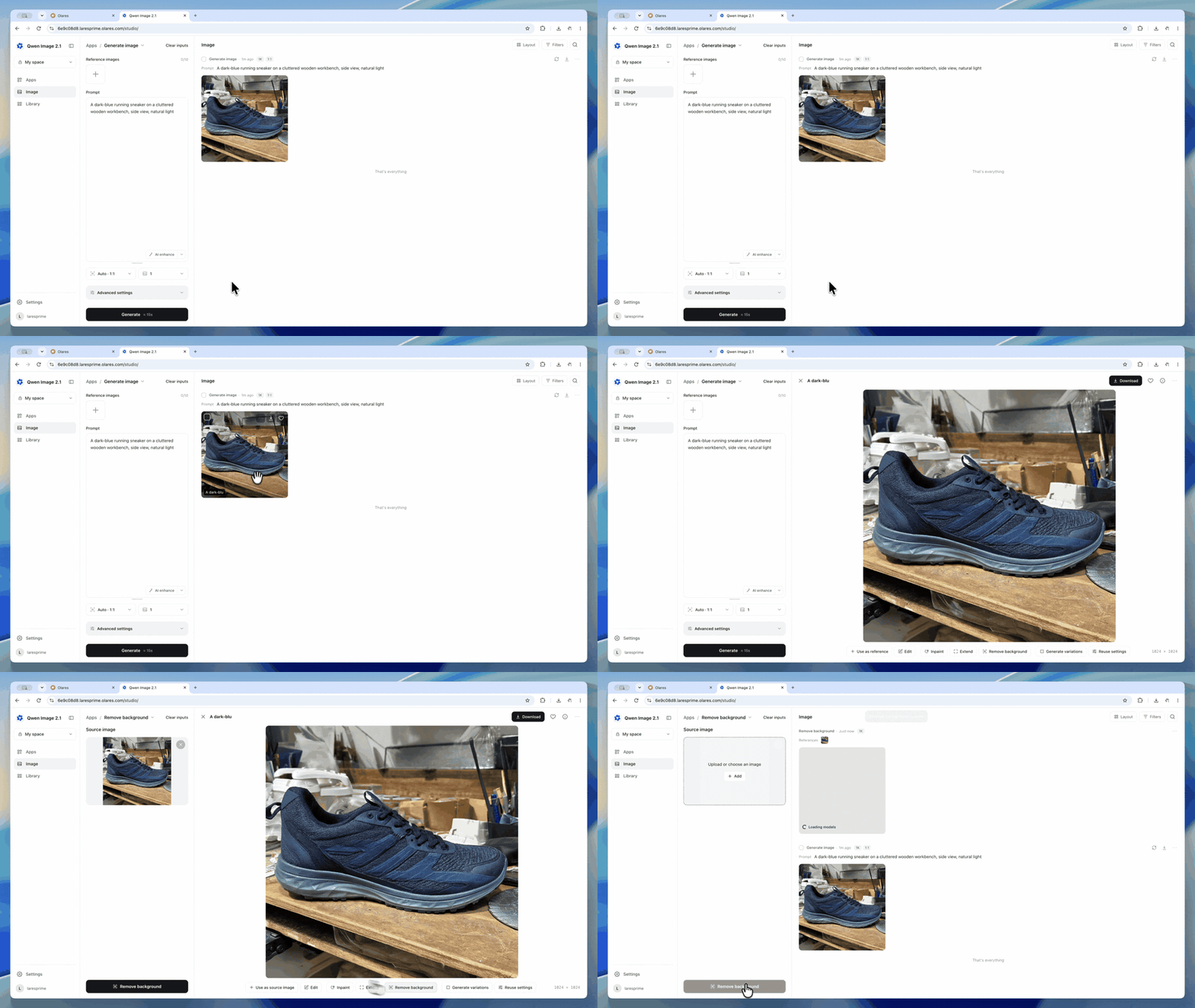
It works well for product listings, stickers and design mockups.
Result:
How fast Qwen Image 2.1 runs on Olares One
In our ComfyUI benchmark on Olares One, a 1024 × 1024 image took about 13 seconds with NVFP4 and 16 seconds with INT8.
| Task at 1024 × 1024 | INT8 | NVFP4 |
|---|---|---|
| Text to image, Base | 15.55 s | 12.87 s |
| Image edit, Base | 22.91 s | 20.12 s |
| Image edit, Turbo | 6.74 s | 7.64 s |
ComfyUI on Olares One, per image after model loading, same prompts and seeds. Base at 40 steps, Turbo at 8. These are model timings, not end-to-end app timings, and 2K output (about four times the pixels) takes longer.
INT8 or NVFP4? INT8 is the official default and is installed first. NVFP4 is a smaller third-party build that was faster for Base generation and editing in these tests. Each precision is a full set of weights: download the second from the app settings to switch between them per generation, and delete either one to free disk space. The benchmark page has side-by-side outputs for comparing quality.
Get started
Before installing Qwen Image 2.1, make sure your device is running Olares 1.12.8 or later. Then install the app from Olares Market in one click. The INT8 weights download automatically, and NVFP4 is an optional extra in the app’s settings.
The app guide walks through model preparation and each tool.
FAQ
Can Qwen Image 2.1 run locally?
Yes. On Olares it runs entirely on your device with a supported NVIDIA GPU and 22 GiB of GPU memory.
Do my images leave the device?
No. Generation and editing run on your Olares device. AI enhance sends prompt text to whichever chat model you choose in Router, so pick a local model to keep that step on the device as well.
Can I use the model directly in ComfyUI?
Yes. The app's settings open each workflow in ComfyUI's full node editor, so you can start in the simple interface and tune the workflow when you need to.