
Which Features of a Local-First App Still Need the Internet?


Local-first software aims to keep core work available on your device, including reading and editing existing data offline. Sync with remote devices, fresh sign-in, and content not yet downloaded may still need a network. Check the features you depend on rather than treating the label as a guarantee about the whole app.
Opening and editing data that is already on your device is one question. Sign-in, sync, search, and remote content are separate questions, and each one can need the network in its own way. The only reliable answer for your app comes from testing the exact task you need, on the version you use.
Can Local-First Software Still Depend on the Cloud?
Yes. Offline work and online collaboration can coexist: keep editing the local copy now, then exchange changes when a connection returns. The important distinction is which tasks work on the device itself.
Ink & Switch’s local-first essay describes local copies as primary and servers as supporting synchronization. Its ideals include offline read and write access, with changes exchanged between devices when a connection is available.
A nearby network can be enough for an app designed to synchronize locally; an internet service is not the only possible connection. That is an architectural possibility, not evidence that the particular app you use supports local peer sync.
Here is what that means for you as a buyer or user:
- Your data can be local while sync is not. You may be able to edit a document on a plane, but your laptop and phone will not match until you reconnect.
- The model is a goal, not a rulebook. An app that calls itself local-first may follow the ideal closely or only in part.
- Local data access covers only your data. It tells you nothing yet about signing in, searching, or loading content that was never saved to your device.
So the useful question is not “Is this app offline?” It is “Which of the tasks I care about still work when the network is gone?”
Server-local and device-local are different. Olares can provide local-network access to a home server, but that does not put every app’s data on your laptop. A laptop disconnected from the home network still needs its own offline-capable app and data copies.
Which Features Might Need a Network?
Check sign-in, sync, search, and remote content one at a time. Any of them can behave differently from the rest of the app, so one working feature does not vouch for the others.
Sync is the feature most tied to the network in the local-first model, because in the Ink & Switch description of offline access and networked synchronization, changes reach other devices only when a connection exists. The other three depend entirely on how a given app is built. Treat each row below as a test to run, not as a fact about your app.
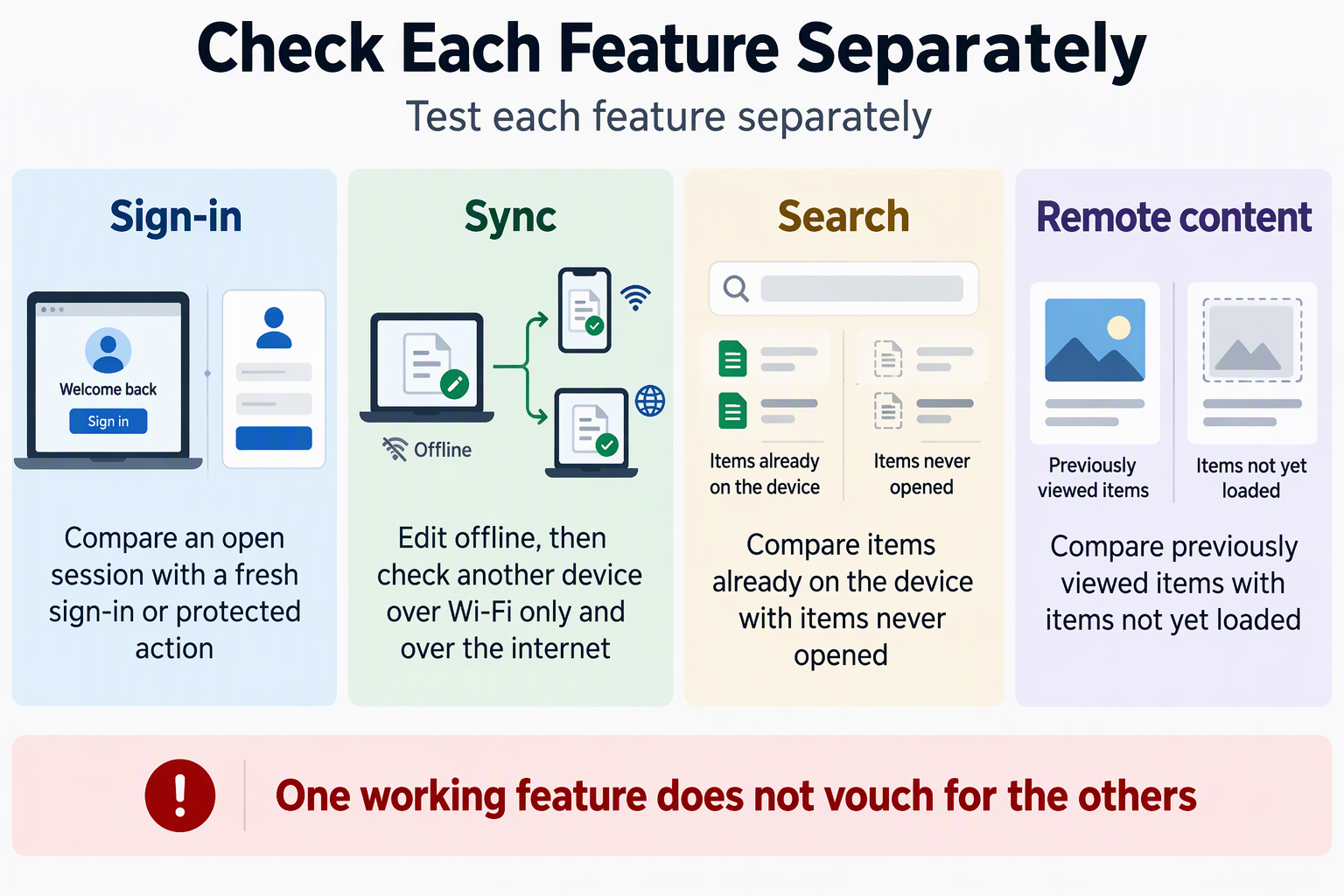
| Feature | What to try | What the result means |
|---|---|---|
| Sign-in and permissions | Use an already open session, then a fresh sign-in or a protected action | Session works but fresh sign-in fails: you need a connection to log back in |
| Synchronization | Edit offline, then check another device over Wi-Fi only and over the internet | Edits stay local but never arrive: plan to reconnect before switching devices |
| Search | Search for items already on the device, then for items you have never opened | Only saved items show up: search covers local data alone |
| Remote content | Open items you viewed before, then items you have not loaded yet | New items fail: download what you need before going offline |
Check session behavior separately. With safe test data, compare work in an existing session with a fresh sign-in and an action that requires permission checks. Record which operation needs a connection. Do not sign out of your only working account while offline merely to complete a test.
If a row matters to your work, test it before you need it. The next section shows how.
How to Check an App’s Offline Behavior Before Relying on It
Run a short, recorded test of the exact task you plan to rely on, under the conditions you expect. A result only holds for the app version, device, account state, and network setup you tested.
- Write down your test conditions. Note the app name and version or build number, the device and operating system, whether you are already signed in, what data is already on the device, and the network setup.
- Read the documentation for that version. Look for offline, sync, or sign-in notes that match your version. If the docs are vague or older than your build, treat them as a lead, not an answer.
- Pick one specific task. “Edit a saved note” is testable. “Use the app offline” is not.
- Use safe test data. Work with a throwaway file or data you can recover. Do not sign out or risk unsaved work unless you know how to get back in.
- Cut off the internet and try the task. Turn on airplane mode or unplug your router’s internet connection, then run the task and note what happens.
- Test the local network separately if it matters. Keep Wi-Fi on but block internet access, then try the task again. Some features may work between nearby devices but fail without the internet. Record which condition you used.
- Keep session and fresh sign-in tests apart. A task that works in an open session may still fail after a sign-out. Test the second case only when it is safe.
- Reconnect and watch pending changes. Bring the internet back and check whether your offline edits sync, conflict, or go missing.
- Label each result. Use “verified under tested conditions,” “network-dependent,” or “unknown.” Do not stretch one result to another version, device, account state, or task.
For a web app that you install from the browser, caching decides what loads offline. MDN’s guide to caching in Progressive Web Apps explains how different resources can use different caching strategies. It can help you understand why part of a web app loads offline while another part does not. It describes how these apps can work in general, not how your specific app behaves.
FAQs
Is a local network the same as internet access?
No. A local network links devices in the same place, like a home Wi-Fi router. Internet access goes beyond that router to outside servers. A feature that only needs devices to talk to each other might still work when your internet service is down, while a feature that calls a cloud server will not. Test both conditions separately if you rely on syncing between nearby devices.
If I stay signed in, will the app keep working during an outage?
Staying signed in may let some tasks continue, but it does not prove that a fresh sign-in or a protected action works offline. If your session ends during the outage, you may not be able to log back in until you reconnect. That is why the test steps keep these two cases apart.
What can a single offline test tell me?
It tells you how one task behaved on one app version, device, account state, and network setup. That is useful evidence for that exact setup. It does not cover a different task or a later update, and it does not cover another device. Retest after major app updates or when you change how you sign in.
Does local-first software mean my data stays private?
Not by itself. Local-first describes where the primary copy of your data lives. Features such as sync, sign-in, search, or remote content may still send requests to a server. To judge privacy, look at which features connect to outside services in your setup, not just at where files are stored.