
External Drive or Off-Site Copy for a Home Server Backup

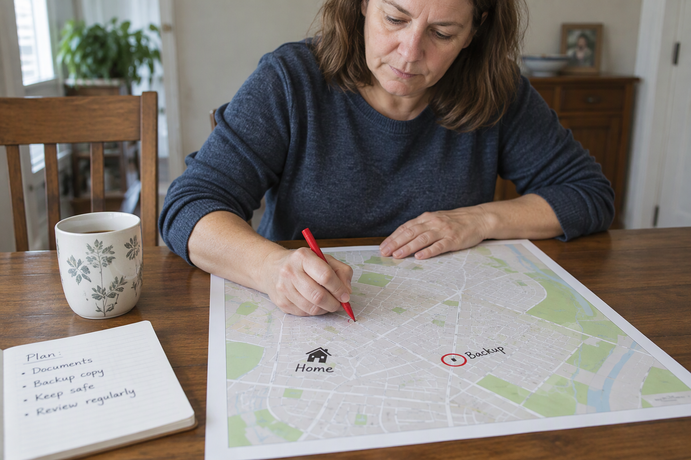
Use a nearby external drive when you want fast, easy recovery and your home and that drive are still usable. Use a copy kept away from your home when you need to recover after theft, fire, or other damage to the whole house. If both kinds of failure matter to you, keep both.
Location is only half the answer. An independent current copy can help after a disk fails. Recovering from an overwrite, deletion, or corruption also requires a usable copy from before that change. A synced mirror may not keep one, so check what each copy retains and test a restore.
Which Backup Location Fits the Failure?
Pick the location based on what could go wrong. A drive next to the server covers problems inside a working home. An off-site copy covers events that hit the home itself.
A nearby drive is the easy choice for routine trouble: a failed server disk, a bad update, or a folder you deleted by mistake. A directly connected drive avoids downloading the backup over the internet, though recovery time still depends on the backup size, drive speed, and restore process. The weak point is that it sits in the same place as the server. A burglar can take both. A flood or fire can destroy both.
An off-site copy, such as one at a relative’s house, a work locker, or a cloud service, is far less likely to be hit by the same event as your server. That is simple distance at work. It does not promise the copy will survive, and getting data back from it may take longer than plugging in a drive.
CISA’s Cyber Essentials guidance recommends using both on-site and remote backup methods. The same location principle is useful at home: a nearby copy and an off-site copy cover different physical risks.
| Location | Helps when | Limit |
|---|---|---|
| Nearby external drive | Home and drive stay usable | Same theft or damage risk as the server |
| Off-site copy | Home-wide theft or damage | Slower access; distance alone guarantees nothing |
| Both | You need quick restores and distance | More copies to maintain and check |
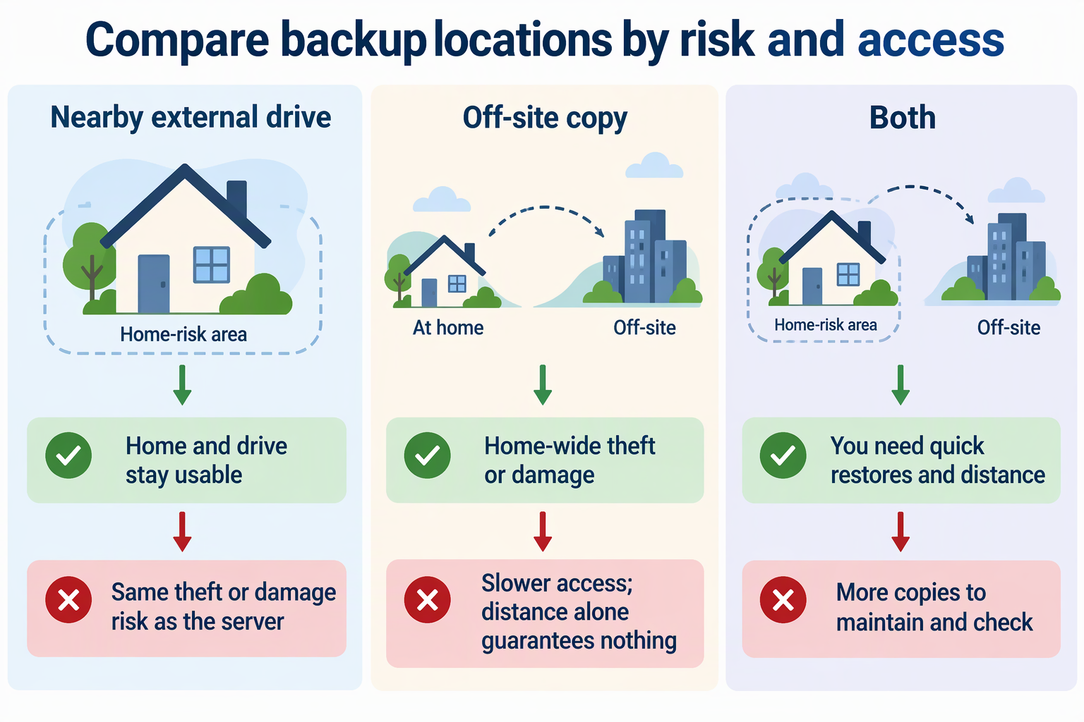
If losing everything in the house is a risk you can live with, a nearby drive may be enough. If it is not, add an off-site copy. Neither location, on its own, gives you version history or protection from ransomware. The next section covers those two points.
Check for History—and Test a Restore
A useful backup must return the state you need. For accidental edits or deletions, check how far its history goes. For a failed disk, an intact recent copy may be enough. Test the relevant recovery path before relying on it.
Syncing and backing up solve different problems. A sync tool keeps two places matching. If it copies a deletion or a corrupted file to the other side, and the destination keeps no older versions, that second copy now holds the same damage. There is no earlier state to go back to. Some sync tools do keep versions, so don’t assume either way. Open the destination’s settings and look for snapshots, version history, or a retention setting. If you find none, treat that copy as a mirror of the current state, not as backup history.
Online access is another weak point. CISA’s warning about accessible backups says many ransomware variants try to find and then delete or encrypt backups they can reach, which is why it advises keeping critical backups offline. An off-site copy is not automatically offline. A cloud folder that is always connected can still be reached. A drive you unplug after each run cannot be reached while it is unplugged.
Next, run a restore. CISA’s ransomware guidance recommends regularly testing backup availability and integrity. A simple partial check at home: choose one file you actually care about, such as a document or photo, and restore it from the backup to a new folder. Don’t overwrite the original. Then open it. If it opens and looks correct, that file came back usable. If the restore fails or the file won’t open, fix the backup job before you count on it.
A sample that passes shows that one file can be restored. It does not prove you could rebuild the whole server, so try a larger restore when you can. If your backup target is a local disk attached to the server, our guide to mounting a local disk explains how to connect one.
FAQs
Is RAID a backup for a home server?
No. Redundant RAID layouts can tolerate certain disk failures within their fault-tolerance limits, but RAID 0 has no redundancy. RAID does not preserve an earlier file version after an overwrite or deletion, and the array shares the server’s physical risks. Keep a separate backup.
How often should I test my backups?
CISA’s ransomware guidance advises testing backup procedures on a regular basis. At home, repeat the sample-file restore after you change backup software, swap drives, or edit a backup job. That way a broken job shows up before you need it.
Can I use a cloud storage service as my off-site copy?
Yes. A separate cloud copy can protect against losing the home’s hardware. For recovery from edits or deletion, also check its version history and retention. An always-connected destination is not the same as an offline backup, and its access controls matter.