
Should a Home Server Run 24/7 or Only When Needed?


Leave a home server running 24/7 when people or services need to reach it at times you can’t predict. That could be a family member opening shared files late at night, or you logging in remotely while you’re away. If your use falls into planned sessions or scheduled jobs, and a short wait is fine, an operating window can cover those needs while running fewer hours.
The right home server uptime depends on your household, not on whether the box is called a NAS or a server. Start with who needs access and when. Then weigh the extra hours against your power bill, the noise in the room, and the upkeep, and confirm any sleep or wake plan on your own hardware.
Choose 24/7 only when access must be immediate
Running nonstop pays off when someone expects a fast answer at a time nobody planned. If every need fits into hours you already know, a schedule can do the same job.
To sort this out, list each person and each service that uses the server. For each one, write down three things: who needs it, what they need (files, media, a remote login, an automation), and whether you can predict when they’ll ask. Anything with an unpredictable request time and no tolerance for waiting points toward continuous operation. Anything tied to known hours points toward a window.
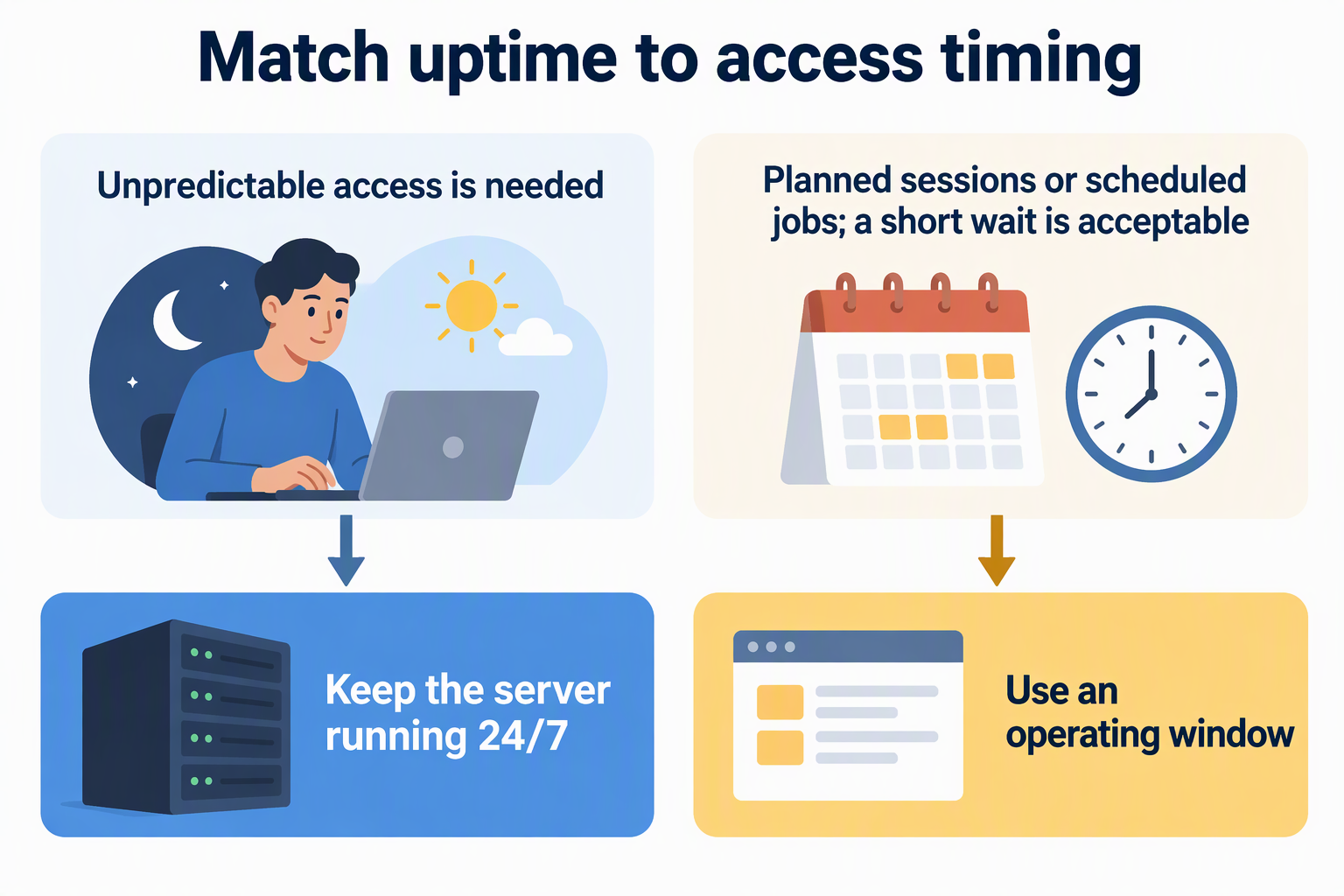
Here’s an example of anytime access. A partner streams from the media library whenever they like, and you sometimes pull a document from the road. Nobody can tell you in advance when those requests will happen. If the server is off at that moment, the request fails until someone turns it back on.
Now a planned-session example. You use the server on weekend evenings for a hobby project, and no one else in the house touches it. Starting it up when you sit down costs you a few minutes of waiting and nothing else.
Shared and remote services only change the answer when someone expects to reach them outside your planned sessions. A file share that only you use during work hours doesn’t need to be on at 3 a.m. It’s the same service either way. What decides the fit is how much delay the people using it can accept.
Build an uptime window around the task
A scheduled backup, sync, or automation might fit inside a defined window if the window matches the job’s real timing and your scheduler supports that schedule. Set the window around when the work actually needs to run, then check that the work got done.
Start by noting each job’s scheduled start time, how long it usually takes, and whether anyone needs access during or after it. Open the window before the job starts and close it after the job typically finishes, with extra room for slow runs. If two jobs run back to back, or someone wants to browse files right after a sync, stretch the window to cover that too. Once the timing gets hard to predict, a wider window or continuous scheduled home server uptime is the safer choice.
Different schedulers handle downtime differently, so read the documentation for the one you use. On Debian, for example, anacron can account for downtime: it runs periodic tasks while accounting for periods the computer was off, often a few minutes after boot. That’s helpful, but it doesn’t mean the job runs at an exact time. Other tools may not behave this way.
After each scheduled run, check the job’s completion status, log, or output files. A power light only shows that the machine is on. It doesn’t tell you the backup finished.
If you only use the server in sessions, compare the wait at startup with the value of having it ready between sessions. When nobody misses it while it’s off, session-based use is a reasonable fit.
Compare the real power, noise, and upkeep tradeoff
Weigh the convenience of extra hours against what those hours actually cost your household. Use your own numbers instead of a typical figure, because server draw and electric rates vary too much for one universal answer.
Estimate electricity cost for a chosen period as measured average watts ÷ 1,000 × operating hours × your electricity price per kWh. Compare the same period for both operating plans. If the machine draws power while asleep or shut down, include those hours at the measured standby draw as well.
To compare 24/7 against a schedule, keep the period the same and change only the hours. As an illustration of the hours alone, a 30-day month of continuous operation is 720 hours. A window of 8 hours a day over the same 30 days is 240 hours. Plug both into the formula with your own measured draw and rate to see the gap in dollars.
Measure the server at the wall during representative use instead of treating a power-supply rating as average consumption. If load changes, use separate active, idle, and standby periods. Use the applicable rate from your utility bill; tiered or time-of-use pricing may require more than one rate.
Noise and upkeep belong to your home, so judge them yourself. A server humming in a bedroom or home office bothers people more than one in a closet or basement. Upkeep cuts both ways. An always-on machine keeps needing updates and occasional restarts. A scheduled one adds the work of confirming that jobs ran inside their windows. Choose the setup whose burden your household will actually keep up with.
Treat sleep and wake as hardware-specific
Sleep or scheduled wake can stand in for continuous operation only after you confirm it works on your exact machine. Until then, plan as if the server stays off until someone starts it.
First, pin down your hardware, operating system, power state, and wake method. Sleep, hibernate, Fast Startup, and full shutdown are different states, and they don’t wake the same way. On Windows, Task Scheduler’s WakeToRun setting tells the scheduler to wake the computer when a task is due. That setting alone won’t prove that your machine wakes on time or that your services come back ready.
Remote wake has its own limits. Microsoft documents Windows Wake-on-LAN power-state limits: Wake-on-LAN is supported from S3 sleep or S4 hibernate, not from Fast Startup or S5 soft-off. The BIOS on some systems may still allow wake from S5 without Windows being involved. If you run Olares One, our Olares One Wake-on-LAN setup guide covers that device’s steps.
Those S3/S4 statements concern systems that support the traditional sleep states. Modern Standby uses S0 low-power idle instead, so check your device’s supported states and network-wake behavior rather than assuming it offers S3.
Then test the real window before you rely on it. Let the machine sleep, wait for the planned wake, and check two results: the host is reachable, and the service you need answers or the scheduled job completes. If either fails, widen the window or keep the server on.
FAQs
Will a scheduled backup still run if the server is off?
Not with every scheduler. The Debian handbook notes that regular cron tasks scheduled while the computer is off never run, which is why Debian provides anacron to catch up after boot. Check how your own backup tool handles missed times, then confirm the result in its log or output.
Is sleep or a full shutdown better between sessions?
It depends on how the server will start again. A full shutdown may suit manual starts; remote or scheduled wake requires a supported hardware, firmware, and OS combination. Measure standby draw if energy use decides the choice, and test the exact wake route before relying on it.
What happens to remote access when the server is off?
Every service hosted on that machine stops answering until the server is back up. That includes file shares, media streaming, and remote logins. Anyone who might connect at unplanned times should know your operating hours, or the server should stay on.
When should I revisit my operating choice?
Look at it again when your household changes how it uses the server. A new remote user, a new automation, a different rate on your bill, or a move to a quieter room can each shift the balance. Requests that failed because the server was off are a clear sign that your window is too narrow.