
Why Upload Speed Matters for Remote Home Server Access


Your home upload speed matters whenever your server sends a file to a device outside your home. The remote device receives that transfer using its download connection. Compare both directions, then test the actual server-to-device path.
Your remote device’s download speed is the other half of the same transfer. Neither plan figure alone tells you how fast a given file will arrive, so the useful move is to compare the right direction on each end.
Does Home Upload Speed Affect Remote File Access?
Yes, for any file your home server sends to you. Upload and download are named from the point of view of the device doing the sending or receiving.
Cloudflare’s upload and download definitions state this clearly for its own speed test. Upload throughput is the rate at which data is sent from the tested device to Cloudflare’s network edge. Download throughput is the rate at which that device receives data from the edge. Both are measured in Mbps, or megabits per second.
Now apply the same sender and receiver logic to a home server. When you pull a file from home, the server is the sender, so your home connection works in its upload direction. Your phone or laptop is the receiver, so its connection works in its download direction. This is a way to map directions, not a measured result for any particular home-server route.
That’s why a strong download figure on the remote side doesn’t settle the question. Hotel Wi-Fi or a mobile plan may look fast in a speed test, but that number only describes how quickly the remote device can receive. It says nothing about how quickly your home connection can send. Treat the two numbers as a pair. A low figure on either side leaves the transfer less room to move, and neither side is automatically the deciding one.
The slower access connection is only one possible limit. Wi-Fi, latency, packet loss, VPN or relay routing, server storage, and application limits can also reduce throughput. A speed test to a nearby test server does not measure the same route as a file transfer from your home server. For Olares, check the LarePass VPN connection status as well as the two access speeds.
To see your side of the pair, run a speed test on a device connected to your home network. Write down the upload result separately from the download result. Then compare it with the download result from the device you use away from home.
Which Connection Directions Matter for Each Transfer?
The directions flip when the file travels the other way. Using the sender and receiver directions from the same definitions, each transfer uses one direction at each end:
| Transfer task | Home connection | Remote device |
|---|---|---|
| Retrieve a file from home | Upload (sends) | Download (receives) |
| Send a file to home | Download (receives) | Upload (sends) |
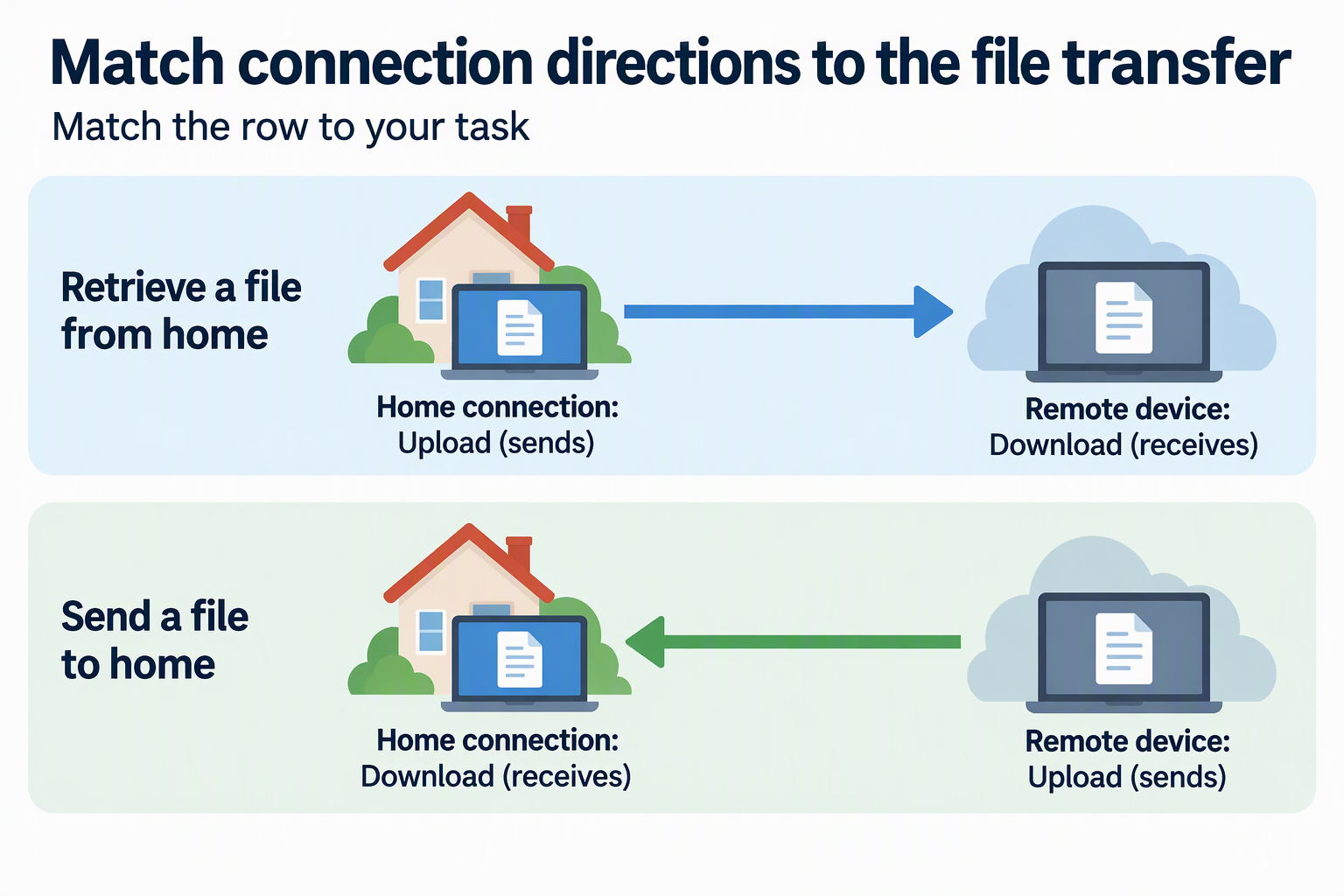
The task decides which row applies. If you mostly open documents, stream your own media, or grab photos from the server while traveling, the first row is your comparison. If you mostly push files home, like backing up phone photos or saving work from a laptop to the server, the second row matters. In that case your home download speed and the remote device’s upload speed are the pair to check.
Many setups do both. A quick look at the right row keeps you from blaming the wrong connection when one direction feels slow and the other feels fine.
Why a Plan Rate May Not Match a File Transfer
A plan’s advertised rate is a reference point, not a promise for one transfer. Units can also make two matching numbers look very different.
Advertised Rates Are Not Individual Transfer Guarantees
The FCC tracks this gap for U.S. fixed broadband in its Measuring Broadband America program. Its findings on advertised and measured speeds note that advertised download speeds may differ from the measured speeds subscribers actually get. The report also says measured speeds can vary by location and during the day. When combined user demand rises during busy hours, it can stress parts of the network infrastructure and cause congestion.
That doesn’t mean every connection slows down at peak times or that every provider behaves the same way. It does mean one slow transfer isn’t proof that a plan figure is wrong or that one connection is the only factor.
If a remote download from home feels slow, repeat it at a different time of day. Run a fresh home speed test around the same time, too. If results change a lot between tests, timing and network demand are part of the picture, not just the plan rate on paper.
Check Mbps and MB/s Before Comparing
Internet plans and speed tests usually report Mbps (megabits per second), while many file-transfer apps show MB/s (megabytes per second). There are eight bits in a byte, so divide Mbps by eight to express the same rate in MB/s. Check whether an app instead uses MiB/s, which is a different unit.
To compare them, divide a Mbps figure by eight to get the same rate in MB/s. Skipping this step can make a transfer look eight times slower than the plan when the two numbers actually describe the same rate. The conversion only puts both numbers in the same unit. It doesn’t predict how fast your next file transfer will run.
FAQs
Why do small files open fine remotely while large downloads crawl?
Small files finish quickly, so a limited sending rate on the home side may barely register. Larger files keep the connection busy for much longer, which makes any limit in the home upload direction or the remote download direction easier to notice. If big transfers are the problem, compare your home upload result with the remote device’s download result first.
Will a faster plan on my phone or laptop speed up downloads from home?
It can help only when the remote device’s download side is the tighter of the two directions. If your home upload result is the lower number, a faster remote plan may not change much for files you pull from home. Check both numbers in the same unit before paying for an upgrade on either end.
How do I find my home upload speed?
Run a speed test on a device connected to your home network, ideally the same network your server uses. Most speed tests report upload and download as separate results in Mbps. Note the upload figure, since that’s the direction your home connection uses when your server sends files to you. Testing at more than one time of day gives you a better sense of how much it varies.