
How to Update a Home Server with Less Disruption


The best way to handle home server updates is to change one layer at a time: the host or platform, the operating system, or a single self-hosted app. Before each change, check its documentation for linked steps and restarts, pick a time when nobody needs the affected service, and make sure you can restore the data it touches. After the change, check that service before you start the next one.
This approach can’t promise zero downtime. Some updates restart services, and some apps need steps done in a fixed order. What it does is tie each problem to fewer possible causes, so you know where to look and how you would recover.
Classify each change before choosing an order
Plan home server updates by naming the exact component you’re about to change and the layer it belongs to. Then run every change through the same short sequence:
- Identify the layer. Is this the host or platform underneath (hardware, hypervisor, or management system), the operating system, or one self-hosted app?
- Write a short change note. Name the component, the services that depend on it, and the result you expect to see afterward.
- Read the release notes or documentation. Look for linked steps, data migrations, expected restarts, and recovery notes.
- Split unrelated changes. Keep independent updates as separate steps. Group only the changes the documentation ties together.
- Prepare a window and a recovery path. Know when the service is free to go down and how you’d restore its data.
- Make one bounded change, then verify. Apply a single change or one documented group, and check the affected service before moving on.
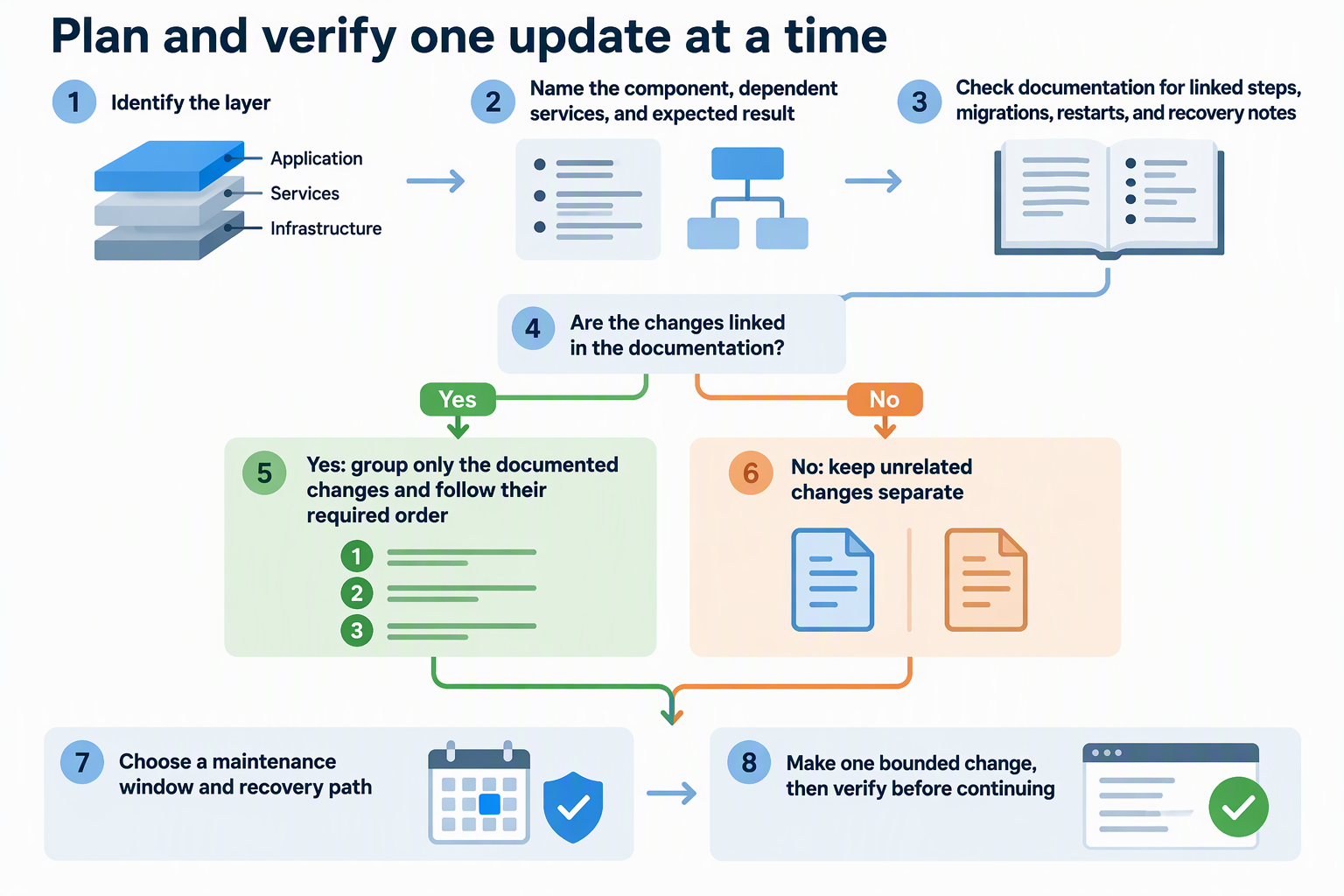
Separating changes is mostly about diagnosis. Say you update the OS and three apps in one evening, and the next morning the photo app won’t load. Any of four changes could be the cause. If you change one thing and check it, a later problem points back to fewer suspects.
Here’s an illustrative change note for an app update. Component: media server app. Serves: the living-room TV and two phones. Documentation: release notes mention a database migration. Expected result: the library loads and a video plays. That note takes a minute to write, and it sets up every later step.
Check documented dependencies before sequencing changes
Treat two changes as independent only after their documentation shows nothing linking them. Release notes may call for a required order, a data migration, or a minimum version of something else. When they do, that documented sequence overrides your preference to keep changes apart.
Docker Compose provides one version-specific example: pre_start steps require Compose 5.3.0 or later. They run in order, stopping the sequence if a step fails. Completed steps are not automatically rolled back. Check your installed Compose version before relying on this feature.
That makes a failed step in a coupled sequence a stop sign. Investigate before going further, and don’t assume earlier steps undid themselves. Keep in mind that this behavior belongs to Compose pre_start. Other container runtimes and app migrations follow their own documentation, and no single update order fits every home server.
Choose a maintenance window around service use
Schedule home server updates around when people actually use each service, not just when you have free time. A media server that’s busy every evening and a photo backup that runs overnight point to different windows. Give household-critical services the most careful timing, and let optional services take a looser one.
Restart behavior also shapes the window. On Ubuntu 24.04 LTS, unattended updates restart affected services automatically by default through needrestart. Ubuntu’s documentation warns that this could restart a critical service at an unexpected time. It also describes restarting excluded services manually during a suitable maintenance window.
That behavior is specific to Ubuntu 24.04 LTS and its unattended-updates setup. If you run a different OS, version, or update configuration, check its own documentation for restart behavior before you settle on a time. No window guarantees an uninterrupted service, but a well-chosen one keeps an interruption away from the hours people need it.
Confirm backup and recovery readiness
Before an update that touches stored data, write down what needs protection, when the latest backup ran, where it is stored, and how you would restore it. Include the versions needed to read the restored data.
Apply those questions to the update in front of you. Name the data in scope, such as an app’s database, uploaded files, or configuration. Then note when the latest backup ran, where it’s kept, and the route you would use to restore it for this specific component. A whole-disk copy, an app export, and a database dump each restore differently, so match the recovery plan to the data that’s actually changing.
Having answers on paper is not the same as a working restore. A backup that skipped the app’s database or sits on the same drive being changed leaves a gap you may only discover during an incident. If you can’t name the coverage and a restore path that fits this component, postpone the data-affecting change until you can.
Verify the affected service before continuing
Check the service you just changed against the result you wrote in your change note. Use a test that matches what the service does: the everyday task people rely on, plus any service-specific status you already watch. For illustration, a media app might pass when a video plays on the TV, and a file sync app might pass when a test file shows up on another device.
A server that responds or a dashboard that loads doesn’t show that every app behind it works. That’s why the check should target the changed service, not the machine as a whole.
Stop and investigate the last change if the service fails, a documented step fails, or the result is unclear. Don’t stack another update on top of an uncertain result, because that brings back the tangle of possible causes you worked to avoid. A passing check is your signal to continue, though it can’t rule out every problem.
FAQs
Should I turn off automatic updates on my home server?
Not necessarily. The real question is whether an automatic restart could hit a service people rely on at a bad time. On Ubuntu 24.04 LTS, the documentation describes excluding services from automatic restarts and restarting them manually later. On other systems, look for the equivalent options in that OS’s own documentation before deciding.
Can I update the OS and apps in the same maintenance window?
Yes, as long as you do them one after another instead of all at once. Finish one change, check the affected service, then start the next. If the window runs out before a check passes, stop there and save the remaining changes for another night.
Should I tell my household before I update?
For services people depend on, a short heads-up helps. Tell them which service may be unavailable and roughly when, so a planned outage isn’t mistaken for a breakdown. It also means someone can tell you quickly if something seems off after the window.
What if the release notes don’t mention any dependencies?
Silence in the release notes doesn’t prove a change is independent. Look for a separate upgrade guide or migration notes from the same project, especially for major version jumps. If you find nothing, treat the change as its own step and keep the backup check in place for any data it touches.