
Stop or Share the GPU? A Gaming-First Rule for Local AI Jobs


If smooth, responsive gameplay matters and your local AI job can wait, let the job finish or pause it before you launch the game. Don’t assume the game and the AI job will share the GPU without affecting play.
Running both at once is a fair exception only after you have tested that exact GPU, game, and AI workload together and found the gameplay good enough for you.
The Gaming-First Rule
When gaming comes first, finish or pause active AI work before playing. Then check whether the AI application still holds GPU memory. Removing active computation reduces one source of contention, but it does not guarantee that all resources have been released.
If the application supports stopping or pausing tasks, either option halts active computing, though whether video memory is fully freed depends on how the specific software handles pauses.
Here is the reason. Both workloads draw on the same GPU resources. NVIDIA’s technical guidance explains that GPU workload overlap can degrade performance when the combined work goes past what the GPU’s processing units can handle. It also warns about overlap when both workloads make heavy use of on-chip cache and video memory (VRAM) bandwidth. A game paired with a busy AI job can fall into either situation. That doesn’t mean every pairing will stutter. It means good results are not something you can assume.
Taking the AI job off the GPU doesn’t promise a certain frame rate. It only takes one competing workload out of the picture.
The rule changes when the AI job is time-sensitive. Maybe a render or batch job has to be done by a deadline. Then the question becomes which task needs to come first right now. If the job matters more, play later or accept that the game may run worse. If the game matters more, the job waits.
Why GPU Sharing Can Make Gameplay Uncertain
The result depends on the hardware, each workload’s resource needs, and software scheduling. Measure the combination you actually use rather than assuming either smooth sharing or inevitable stutter.
A GPU has a limited amount of processing throughput and memory bandwidth. A game draws frames, and an AI job such as image generation or model inference does heavy math. When both need the same units or the same memory traffic at the same moment, one or both can slow down. For a game, that slowdown can show up as lower or less steady frame rates.
How much overlap a GPU can absorb depends on the setup. In the same guidance, NVIDIA recommends verifying overlap behavior across different GPU tiers and resolutions. Higher-end GPUs have more processing units, so they have more room for overlap. Lower resolutions can also leave more idle time to use. So a friend’s good result on a different card, or at a different resolution, says little about yours.
Parallel GPU work does exist. Microsoft documents that a Direct3D 12 application can use a low-priority compute queue for background work on spare GPU cycles. The goal is to avoid hurting the main rendering. That path is something one application designs into its own queues and synchronization, though. A game and a separately launched AI tool are two independent programs. Neither is scheduling its work around the other in that way. So this capability shows that careful sharing is possible within one app’s design. It is not a promise that your game and AI job will cooperate.
When Is Sharing Reasonable?
Sharing makes sense when you have tried the exact combination you plan to use and the game felt responsive enough for you. Use this short check:
- Match the real setup. Use the same GPU, the same game, and the same AI job with the settings you actually run, such as game resolution, graphics preset, and the AI model or batch size.
- Play the way you normally play. Start the AI job, then play the kind of session that matters to you while it runs. A quiet menu tells you less than a busy match or a demanding scene.
- Decide based on how it feels. If the game stays responsive enough for you, sharing is a reasonable choice for that setup. If it stutters, lags, or feels worse than you will accept, finish the AI job first or pause or stop it if the app allows.
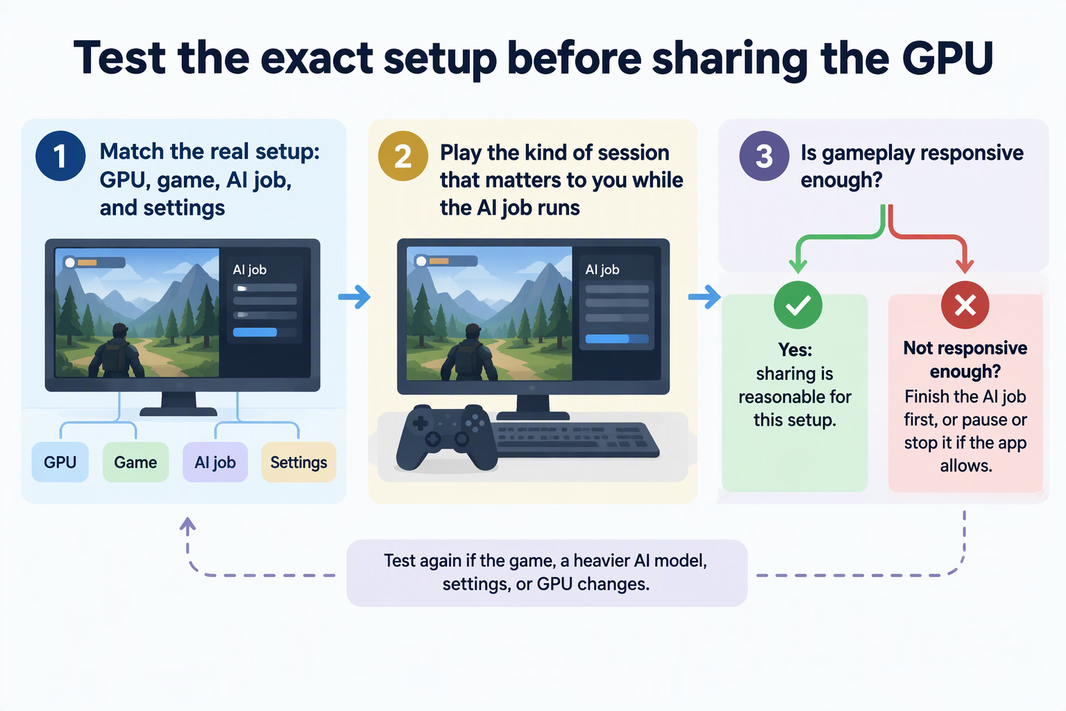
No single frame-rate or latency number works for everyone. The bar is your own tolerance. A competitive player may reject a small hitch that a casual player never notices.
Keep in mind that the result only covers what you tested. A new game, a heavier AI model, different settings, or a different GPU makes a new combination, and you need to check it again.
FAQs
Does pausing an AI job free up the GPU’s memory?
Not always. A paused task or completed request may leave a model loaded in VRAM. If memory pressure is the problem, use the application’s unload control or stop the relevant model service, then check GPU memory use. A finished job alone is not proof that memory was released.
Is it safer to run the AI job between gaming sessions?
Yes. Running heavy AI work while you are not playing avoids overlap between those two workloads. Other applications and system processes may still use the GPU, so scheduling does not reserve every GPU resource for the job.
If sharing worked once, will it keep working?
It should hold as long as nothing important changes. But a game update, a bigger AI model, new graphics settings, or a different scene can change the load. If play starts to feel worse after a change, test the combination again before you count on sharing.