
Share a Credential Without Sharing Your Whole Password Vault


To share access without exposing your whole password vault, first check whether the service offers a separate named account or delegated role. If a shared credential is necessary and permitted by the service, share a single entry only if your manager supports it. Otherwise create a dedicated vault containing only the required credential and grant access only to the intended people.
First check whether the service can give your teammate their own named account or a delegated role. If it can’t, share just that one saved entry from your password manager. Only if neither option exists, set up a separate shared vault that holds only that credential and only the people who need it.
Never hand over your password manager’s master password to cover a single login. And plan the exit before you grant access. Removing someone from a share and changing the password they may already know are two separate jobs.
Choose the Narrowest Workable Access Path
The best starting point is the option that gives your teammate their own access, not a copy of yours. This order is a decision rule, not a guarantee. Each step depends on what your specific service and password manager document.
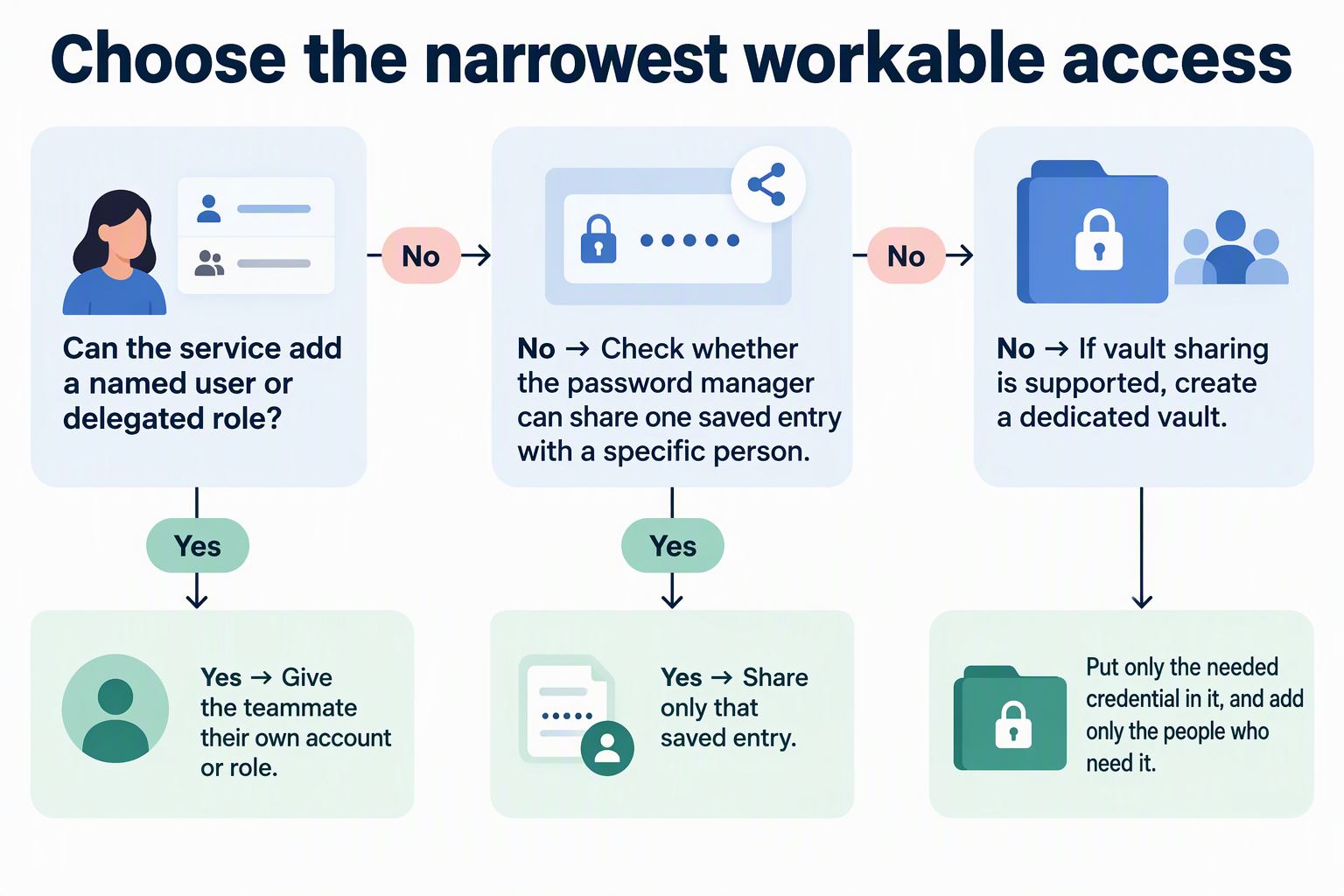
Start with the service itself. Many business tools let an admin invite another person as a separate named user or give them a delegated role. With this approach, the access unit is a person, not a password. Your teammate signs in with their own identity. You never hand over a secret, and the service can usually tell their actions apart from yours. To confirm this option exists, look in the service’s own admin or team settings documentation. Check for two things: whether you can add users, and whether a role limits them to the task they need. If the docs confirm both, you may not need to share a credential at all.
Fall back to one saved entry. Some services allow only one login for the whole account. That is common with older tools or single-seat plans. In that case, the access unit becomes one credential stored in your password manager. Look in the manager’s sharing documentation for wording that says a single item can be shared with a specific person. Don’t assume it works this way because the manager mentions “sharing” in general. Some tools share at the vault level only.
Use a limited shared vault only as a last resort. If your manager shares whole vaults and not single items, create a new vault for this one purpose. Put only the needed credential in it, and add only the people who need it. Don’t share an existing team vault that already holds unrelated logins. That would turn one handoff into broad, ongoing access.
Throughout, keep three credentials separate in your head:
- The service login is the username and password for the tool your teammate needs.
- The master password unlocks your own password manager. It opens everything inside it, so it should never be handed off.
- Shared vault access is a permission inside the manager. It controls who can open a vault, but it isn’t a credential for the service.
Good team credential sharing only ever moves the first item, and only when a named account isn’t available.
Check Whether the Grant Covers One Credential or a Whole Vault
Before sharing, check the scope of the grant and the operations it permits. A restricted interface may limit accidental changes, but a hidden password or autofill-only option does not prove the recipient cannot recover or retain the secret.
Start with the sharing unit. A single-entry share should expose one login. A vault share exposes everything in that vault now, and possibly anything someone adds later. The existence of shared vaults in a tool doesn’t mean it also supports item-level sharing. If the documentation describes only vault-level sharing, treat every share as covering the full vault. Plan around that by keeping the vault deliberately small, as described above.
Next, check the permissions attached to the grant. These are the dimensions that matter for team credential sharing:
- View: Can the recipient see that the entry exists and see its non-secret fields, such as the username and URL?
- Reveal: Can they display the password in plain text, or only use it through autofill?
- Copy: Can they copy the password to the clipboard, where it can be pasted anywhere?
- Edit: Can they change the saved password, rename the entry, or delete it?
Use the narrowest documented permission that supports the task. Reserve editing for whoever maintains the login, while recognizing that read-only access may still expose the secret. Editing an entry in the manager changes the saved copy; it does not necessarily change the password at the service.
Permission labels differ by product. 1Password’s permission-enforcement documentation explains the distinction between client restrictions and cryptographic enforcement. Do not use an absence of Reveal or Copy buttons as proof that a shared static password remains unknown to its recipient.
Using Olares Vault
The Olares shared Vault guide documents vault-level membership. The owner can create a dedicated shared Vault, add the required member, and select Read-only or Editable. Put only the necessary entries in that Vault: the grant applies to the Vault, not a separately authorized individual item. Review membership before adding any more credentials.
Offboard the Teammate—and Handle Any Credential They Learned
Ending access involves two actions: removing the teammate’s permission in your tools and dealing with any password they may already know. Doing only the first can leave a working credential in someone else’s hands.
For a named service account, disable its access at the service and review the provider’s session and token revocation controls. Confirm the account no longer works. A separate account usually avoids rotating a credential shared with the rest of the team.
If you shared a saved entry or vault, remove the person’s membership or share, rotate the static credential at the service, and update the saved entry for remaining users. Treat the old secret as potentially retained even if the interface hid it. Review active sessions, devices, recovery methods, and tokens too: changing a password does not necessarily revoke all of them.
Don’t treat offboarding as a cleanup task you can put off. In one incident, CISA and MS-ISAC reported that a threat actor gained initial access through the compromised account of a former employee with administrative privileges. The organization confirmed the account had not been disabled immediately after the employee left. That case involved an account, not a password manager share. Still, it shows what can happen when access outlives the person’s need for it.
When a teammate leaves or changes roles, complete these actions promptly, skipping any step that does not apply to their setup.
FAQs
What should we record when we share a login?
Keep a simple note of who has access to which credential, what permission they have, and why they need it. When someone leaves, that record becomes your offboarding list. Without it, you have to reconstruct access from memory, and a forgotten share is easy to miss.
Are password manager permissions the same as file or folder sharing permissions?
Don’t assume so. A password manager’s sharing roles belong to the manager. A file app or cloud drive may use similar-sounding names like “view” or “edit” with different meanings. Check each tool’s permission definitions on their own terms before you rely on them.
Who should be in charge of a shared credential?
Pick one person to grant access, remove access, and change the password when needed. That person should hold edit rights. Everyone else gets the narrowest permission that lets them do their work. A single owner makes it clear who acts when a teammate’s role changes.
Does changing a shared password lock out the rest of the team?
It can, if the new value never reaches the people who still need it. Change the password at the service, then update the saved entry in your password manager right away. That way remaining teammates get the new password through the share instead of by chat or email.