
Recover an Overwritten Client File Without Replacing the Whole Folder


To recover one overwritten client file, leave the current file alone and restore only the earlier version to a separate staging folder. Then compare the two copies before you replace anything. This keeps neighboring files untouched and shows you whether the backup actually holds the version your client needs.
The steps below use Restic 0.19.1 as a concrete, documented example. If your home server uses a different backup tool, the idea carries over, but the commands do not.
Recover one file with Restic 0.19.1
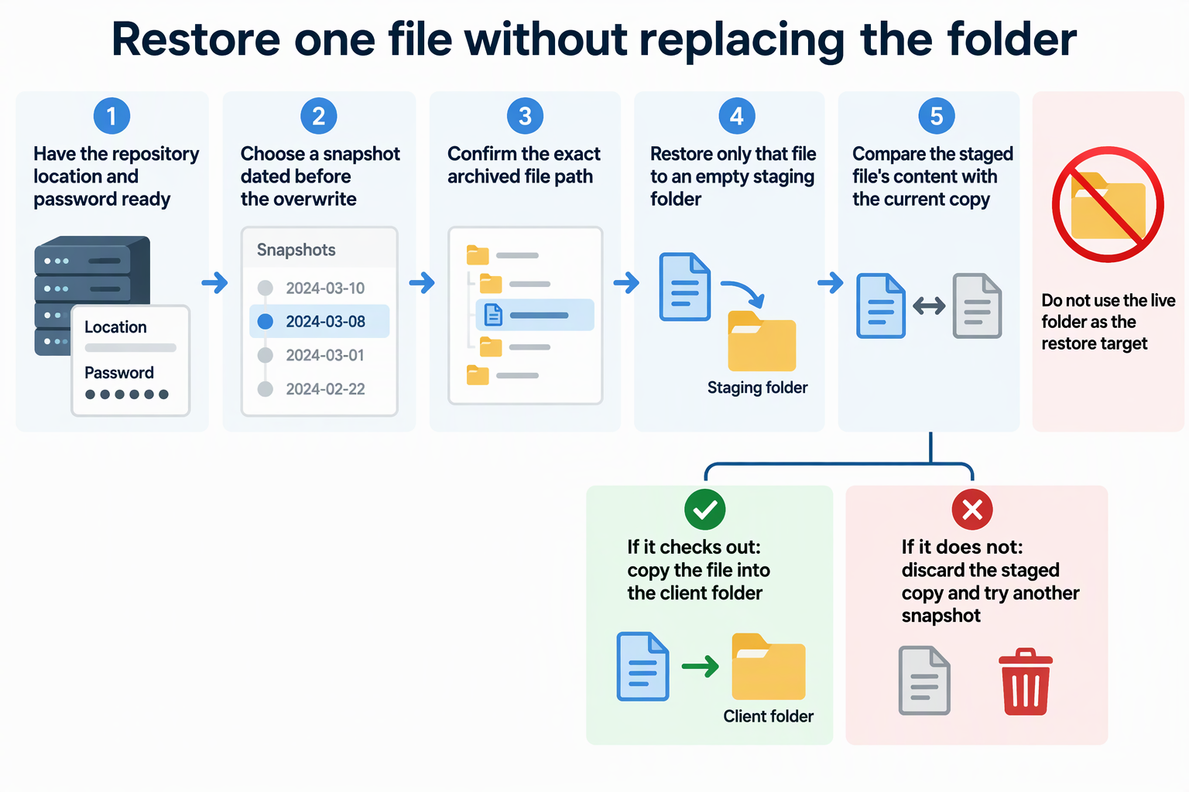
Overwritten file recovery in Restic comes down to four moves: pick the right snapshot, confirm the file’s archived path, restore just that file somewhere safe, and check it. You need the repository location and its password before you start.
- Protect the live copy first. Do not edit, move, or restore over the current client file. Pick a new, empty staging directory, such as a folder outside the client project, as the restore destination.
- List snapshots and pick one from before the overwrite. Run
restic -r "<repository>" snapshotsand enter the repository password. The Restic snapshot listing and archived paths documentation shows that this list includes each snapshot’s ID, date, host, and directory. Choose a snapshot dated before the file was overwritten, and note its ID. - Confirm the file’s path inside that snapshot. Run
restic -r "<repository>" ls --long "<snapshot-ID>". The output shows permissions, file size, modification time, and the archived file path. Copy the path exactly as shown. It can differ from the folder path you see on the server today, so do not assume they match. - Preview and restore the selected file to staging. Replace the placeholders below with your repository, snapshot ID, and paths, keeping quotes around paths that may contain spaces. First run
restic -r "<repository>" restore "<snapshot-ID>" --target "<staging-directory>" --include "<archived-file-pattern>" --dry-run --verbose=2. Check that the preview selects only the intended file. Then run the same command without--dry-run. Restic’s single-file restore options use--includepatterns, so wildcard characters in a filename need the documented pattern handling.--targetsets the destination.--pathselects a snapshot by its source path and does not restrict the restored files. Never target the live folder, because the default is to overwrite matching files. - Find the restored file. Restic rebuilds the archived path under your target. In the documented example, restoring /home/user/work/foo to /tmp/restore puts the file at /tmp/restore/home/user/work/foo. Check Restic’s exit status and error output before opening the staged file. Its presence alone does not prove that restoration completed successfully.
- Compare before you replace. Open the staged file in the app the client file belongs to, or use a file comparison tool. Check the actual content, such as revision notes, edited sections, or totals, against the current copy. A snapshot date or modification time helps you choose, but only the content confirms it is the version you need.
- Decide, then replace. Once the staged copy checks out, copy it into the client folder yourself. You might keep the overwritten version under a new name until the client confirms. If the staged copy is wrong, delete it and repeat from step 2 with a different snapshot.
If the version or restore path is unavailable
If no snapshot in the list is dated before the overwrite, or the file in every older snapshot is already the wrong version, this Restic repository cannot give you that earlier copy. A backup can only return what it captured. At that point, look for other copies the client file may have, such as an email attachment or a file on another device, rather than running more restores.
If your server uses a different backup tool, do not reuse the Restic commands. Look for that tool’s own documented way to restore one file, or to restore to a different location than the original. If you cannot find either, do not restore a whole folder over the active client folder. That can replace files you changed after the backup. Restoring the folder to a separate, empty location and copying out the one file you need is a safer pattern, but only when the tool supports a separate destination.
FAQs
Can I restore one file from a subfolder without typing the full path?
Yes, in Restic 0.19.1. You can use the <snapshot-ID>:<subfolder> syntax, and then give –include a path relative to that subfolder. For example, 79766175:/home/user/work with –include /foo restores the file to the target as foo, without the full folder tree. Using a full snapshot with a relative path, or the reverse, will not match.
What if I restore into a folder that already holds a copy of the file?
According to Restic’s restore documentation, the default behavior is –overwrite always, so the restored file replaces the matching file at the target. You can change this with –overwrite never, which skips existing files, or –overwrite if-newer, which only replaces a file when the snapshot copy has a newer modification time. An empty staging folder avoids the question entirely.
How do I find the file if I don’t remember where it was saved?
Restic offers restic find <filename> to search for the file across snapshots, and restic ls latest to list the newest snapshot’s contents. Use the archived path to construct the --include pattern, quote it, and verify the selected files with a dry run.
Should I back up the current state before restoring in place?
Yes, if you ever restore directly over existing files. Restic notes that an interrupted in-place restore can leave files partly restored. Taking a fresh backup first lets you return to the state you started from.