
Plan a Home Server Replacement Before the Old One Fails


To replace a home server without losing services or data, treat the job as a home server migration, not a disk copy. Plan it service by service. List what each service needs, pick a transfer route that fits your old and new stacks, prove your backups restore, and write go/no-go checks before anyone switches over.
Keep the old server running and unchanged until the replacement passes those checks. This approach lowers the risk of losing data. It can’t guarantee a lossless move, so the plan also covers what happens if you need to roll back.
Build a service-by-service replacement plan
Before you choose any transfer method, give each critical service its own row in a plan. A copied disk can boot an app that still lacks its accounts, settings, or the network address your family uses. Mapping each dependency shows those gaps early.
Rank services by household impact first. Photo storage or the password manager may be essential, while a test container can wait. Then record the items below for each priority service. Change the fields to fit your setup, because services don’t all use the same parts.
| Item to record | Where it goes and how | How to check it afterward |
|---|---|---|
| Purpose and priority | Same role on the new host | A real user task works |
| Admin, service, and user identities | Recreate or transfer per app | Each user signs in with the right permissions |
| Configuration and secrets | Store apart from app data | Settings and keys load correctly |
| Persistent data and storage type | Exact current path to target path | Expected files or records open |
| Dependencies and scheduled jobs | Databases, upstream services, timers | Jobs run on schedule |
| Access route | Hostnames, addresses, ports, certificates, network rules | Clients connect the usual way |
Fill in the current location and the intended target for every row. A blank target cell is an item you haven’t planned yet.
Choose a migration route that matches the old and replacement stacks
Compare three things on each machine: the operating system, the application and runtime versions, and how data is mapped to storage. These inputs depend on each other. A new OS can change paths, and a new app version can change the data format.
You can keep the existing stack only when the replacement can run the same components and either keep their dependencies or remap them on purpose. If the OS, versions, or storage layout differ, plan a rebuild instead. Install each app fresh and bring its data over with that app’s own documented backup/export and configuration method. Don’t assume one disk-copy route works for everything.
Docker shows why the storage mapping matters. Docker’s volume and bind-mount documentation says volumes are easier to back up or migrate than bind mounts. It also says bind mounts depend on the host machine’s directory structure and OS. If your containers use bind mounts and the new host has a different folder layout, expect to recreate those paths or edit the container configuration. Containers built on volumes can use Docker’s own backup path. This only covers how Docker handles storage. It is not a method for moving a whole server.
Protect and transfer data without assuming one universal method
Make a backup that is separate from both the source disk and the replacement, then restore it on the new host or in a staging location. A backup counts only after you restore it and confirm that the expected files or app records open. Do this verification before the migration copy becomes your only proof that data is safe.
For Docker volume data, Docker documents a volume backup and restore method. You archive a volume’s contents into a tar file. Then you restore that archive into the same container or into a new container somewhere else. Docker notes that the same technique can be used for migration and restore testing. It applies to volume data only. It does not handle app identities, network access, or database consistency.
Databases and other stateful apps need extra care. A live copy or a generic disk image may not capture them in a usable state. Follow each app’s documented procedure for pausing writes, running a final sync, or exporting data. If the app has no documented method, treat its data as unproven until a restored copy works on the new host.
Set acceptance, cutover, and rollback conditions before switching
Write your pass/fail rules using the check column from your service map before moving production traffic. A “running” status alone does not count as a pass. Switch only when all of the following conditions are met:
- Critical files or records are present and open correctly.
- Each priority service finishes a representative task, such as uploading a photo or playing a video.
- Intended users can sign in with their expected permissions.
- The access routes those users rely on work from their usual devices.
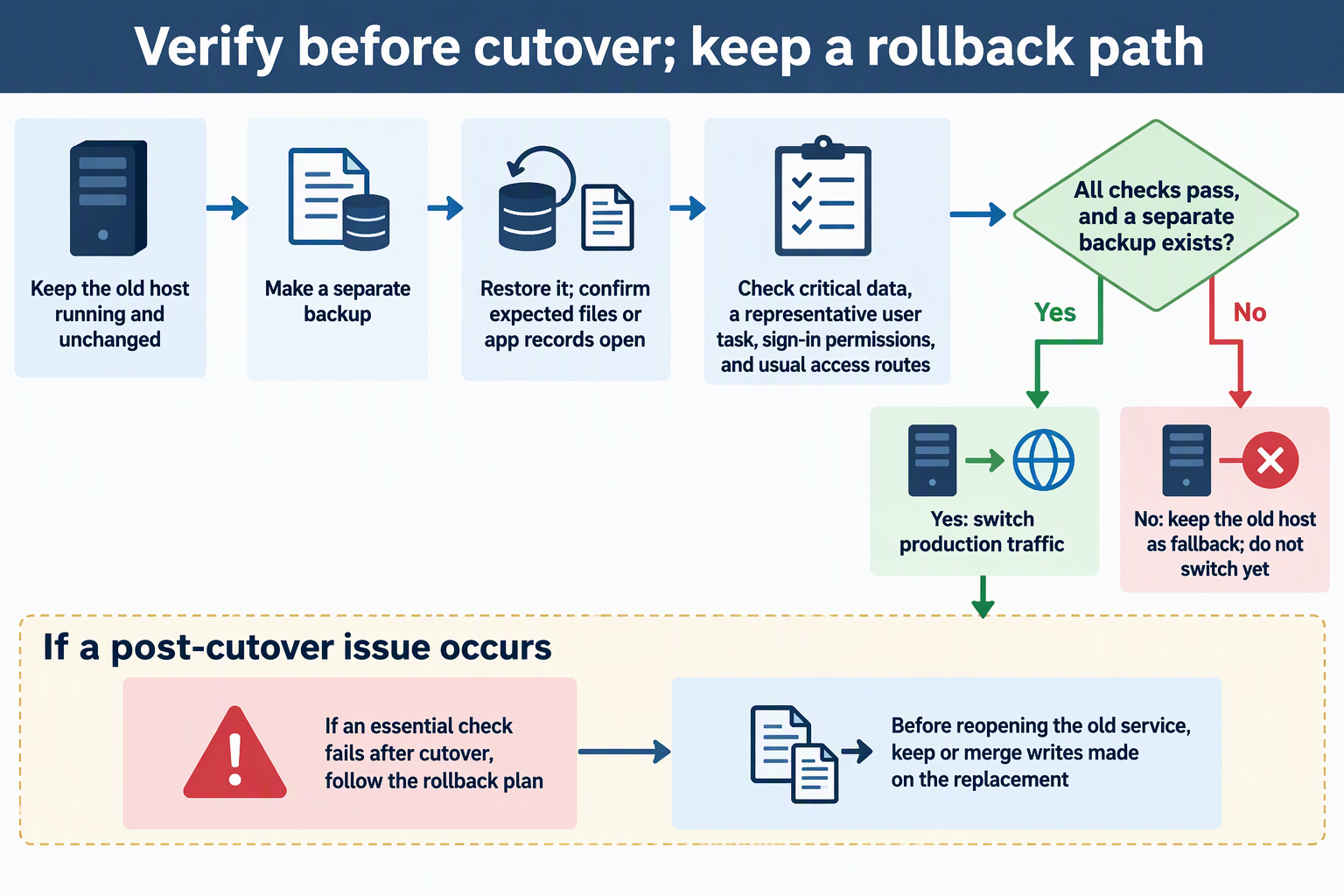
If an essential check fails, follow the rollback route you planned. First decide what happens to anything written on the replacement after cutover. Keep it, or merge it back, before you reopen the old service. Otherwise a rollback can bring service back while leaving newer data stranded, or leave you with two copies that both accept changes.
Keep the old host available and unchanged until the replacement passes and a separate backup exists. It gives you a fallback, but it won’t have changes made only on the new machine. Your next step: finish the service map and these acceptance and rollback rules before you change where production traffic goes.
FAQs
What if the replacement runs a different operating system?
Plan a rebuild for each service that depends on the OS or host paths. Install the apps on the new system, then restore data through each app’s documented export or backup method instead of copying the old disk.
Can I keep using the old server during testing?
Yes, as long as you treat the replacement as a test copy. Changes made on the old server after your last transfer still need a final sync or export before cutover. Plan that step for each stateful service.
When is it safe to wipe the old server?
Wait until the replacement has passed every acceptance check, real users have worked on it, and a separate backup of the new host has been restored successfully. Until then, the old machine is your fallback.
Does a Docker volume backup cover the whole service?
No. It covers volume data. You still need to move configuration, secrets, user accounts, scheduled jobs, and network access separately, and follow the app’s own consistency steps for databases.