
Organize PDFs for Long-Term Access, Not Just by Filename

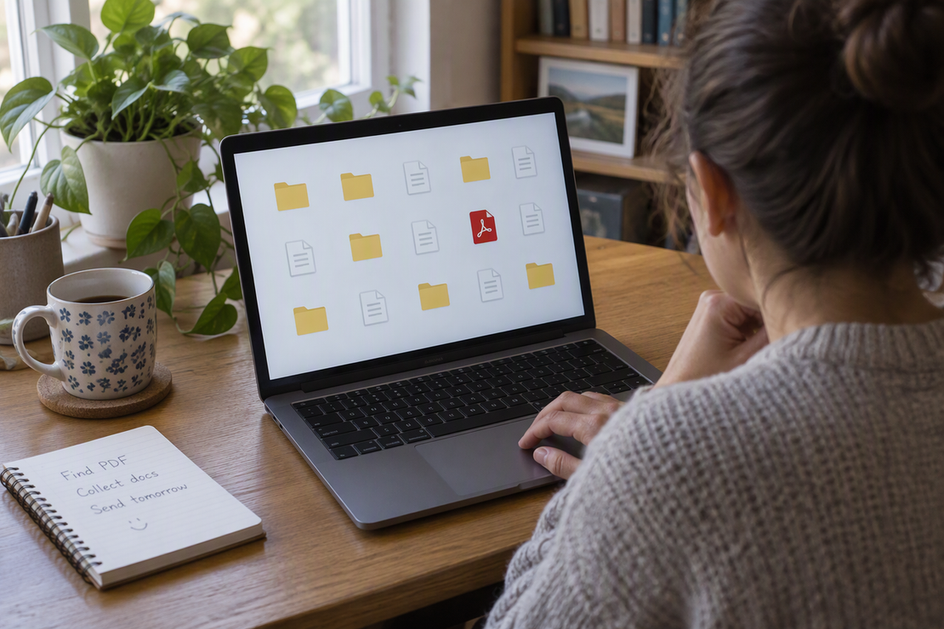
Good PDF organization gives you more than one way back to a file. Use a descriptive filename, a folder you can browse, and a short note that explains how the collection is laid out. Keep the original PDF as your reference copy, and treat OCR text, extracted text, and annotations as helpful layers that can be wrong.
This matters because you often remember a subject, author, or project long after you forget what you named a file. A light yearly check then confirms that the files still open.
Build a Searchable System Beyond Filenames
Give every PDF at least three routes back: its name, its folder, and a written map of the collection. For personal digital records, the Library of Congress suggests descriptive names, folders, and a brief collection note that describes the structure and the documents in it.
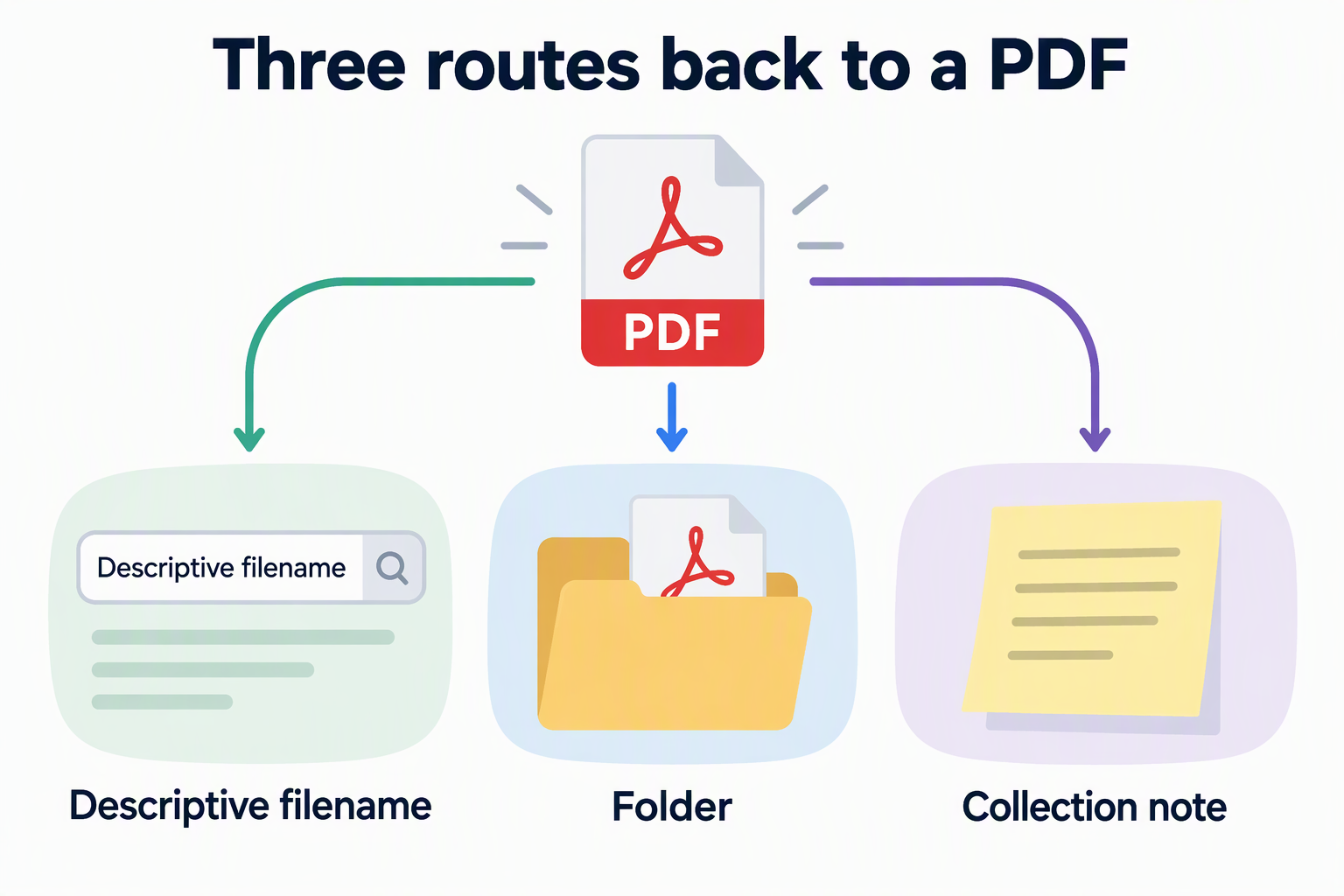
Each route does a different job. A filename identifies one document. A folder lets you browse by a second idea, such as a class, a project, or a source. The note tells future you what each folder holds and why it exists. Here’s an illustration: a student might name a paper 2023-Nguyen-soil-carbon-review.pdf, keep it in a Thesis/Literature folder, and write a short note saying Literature holds published papers while Drafts holds their own writing. No single folder scheme fits everyone, so build yours around the detail you’re most likely to remember first.
Many PDFs also carry built-in descriptive fields. Digital.gov’s guidance for Search.gov treats the PDF title, subject, and keywords as search cues that help a search engine match a file. Filling them in gives a search tool one more thing to match. Whether your desktop or reading app actually reads those fields depends on the tool, so treat them as a bonus on top of clear names and folders.
Keep OCR and Notes Traceable to the Original
Your original PDF is the reference copy, and everything made from it is a derivative. OCR text, extracted text, and marked-up copies help you search and study, but the original page wins if they disagree. Keep that original clearly named so you can always tell it apart from converted or annotated versions.
Keep each derivative traceable to its source. A simple personal convention is to reuse the original file’s base name for its OCR export, extracted text, or notes and add a clear suffix. That way, search results can lead you back to the exact page image you should verify.
Annotations have no equivalent rule you can borrow from these programs. You might keep comments inside the PDF or in a separate notes file. Either way, make sure every note can be traced to one specific original, and never let an annotated copy quietly replace it.
Check What a Scanned PDF Can Actually Search
A PDF’s contents are searchable only if the file contains real text, which scanned pages often lack. While a born-digital document carries readable text, an image-only scan cannot supply words for searching. In Search.gov guidance, Digital.gov explains that image-only scans may lack searchable text, meaning page contents cannot help query matching find the file.
OCR (optical character recognition) fixes this by guessing letters from the page image and adding a text layer. That makes a scan searchable, but OCR can contain errors. Federal Section 508 accessibility training has staff correct OCR suspects and errors before a document moves on. Likewise, NARA notes that machine-generated OCR is not always accurate, and its catalog lets staff and community members edit, correct, or validate transcriptions.
A quick spot-check helps you decide how far to trust one file. Think of it as a practical habit, not a formal quality standard:
- Pick a word you can clearly see on a page, ideally an unusual name or term.
- Search for that word inside the PDF.
- If nothing turns up, the file may be image-only or the OCR missed the word. Find that file by name and folder instead, or add OCR if you need to search inside it.
- If you get a hit, compare the highlighted spot with the page image. A mismatch means you shouldn’t rely on that OCR layer.
One good match doesn’t prove the whole text is right. When accuracy matters, quote from the page image rather than the OCR text.
Maintain Access with a Light Recurring Check
A short yearly routine keeps your PDF organization useful. For personal digital records, the Library of Congress suggests that you open selected files at least once a year to confirm they can still be read, and that you make copies and keep them in different places.
These are two separate jobs. The yearly check catches a file that no longer opens. Copies in different places mean you don’t depend on a single drive or device. Neither one promises access forever, but together they lower the chance that one problem takes out your library. Keep in mind that a file opening only tells you it’s readable. It says nothing about whether its OCR is accurate. Use the same yearly pass to update your collection note if you’ve added or renamed folders.
FAQs
Does adding PDF metadata make a scanned page searchable?
No. Title, subject, and keyword fields describe the file as a whole, and some search tools can match them. They don’t turn a page image into text. To search the words on a scanned page, the PDF needs an embedded text layer, which usually means running OCR.
Do I need to OCR every scanned PDF?
Not always. If you find a scan by its name or folder and only read it on screen, OCR adds little. It’s worth adding when you want to search inside the document or copy text from it. Even then, check a few words against the page before you trust the results.
Is one backup or a special file format enough to keep PDFs safe long term?
No single step guarantees long-term access. The Library of Congress pairs regular readability checks with copies kept in different places, which spreads the risk instead of resting it on one copy, one drive, or one format.
How detailed should my collection note be?
Brief is fine. The note just needs to say how your folders are organized and what kinds of documents live in each one. A few lines that someone else could follow are enough. Update the note when the structure changes, not every time you add a file.