
Client File Intake: Upload-Only Drop Box or Shared Folder?

For client file intake, give the client an upload-only drop box when all they need to do is send you files. Choose a shared folder only when the client also has to see, download, or edit files that already exist. Base the decision on what the client actually needs to do, not on the name a service gives its sharing feature.
Choose the Access Model by What the Client Needs to Do
If the client only submits, use an upload-only path. If they need to work with existing files, use a shared folder that gives them only the rights the work requires. Before you send any link, answer three questions about the client’s job:
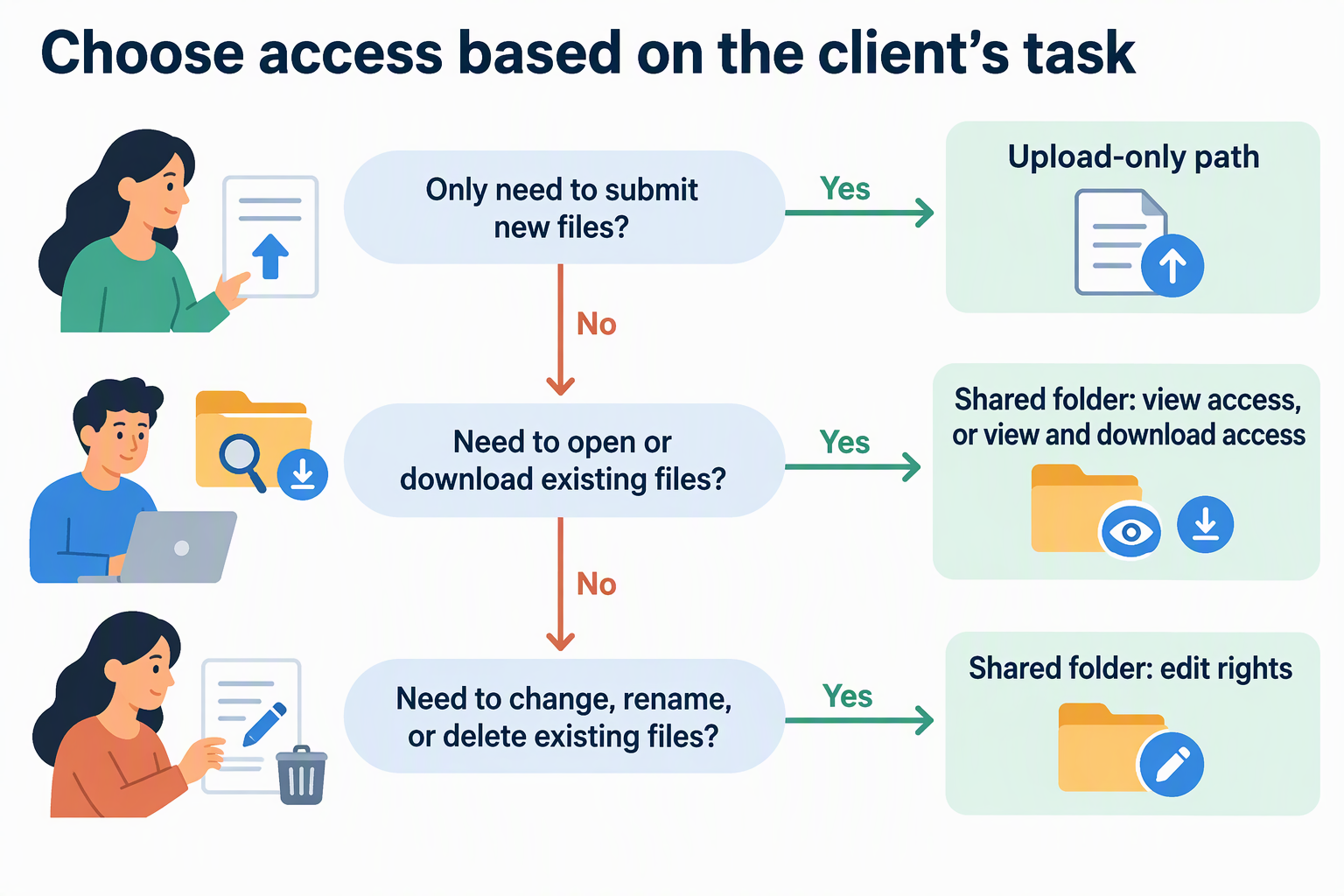
- Do they only need to submit new files to you?
- Do they need to open or download material you already have, such as drafts or contracts?
- Do they need to change, rename, or delete existing files?
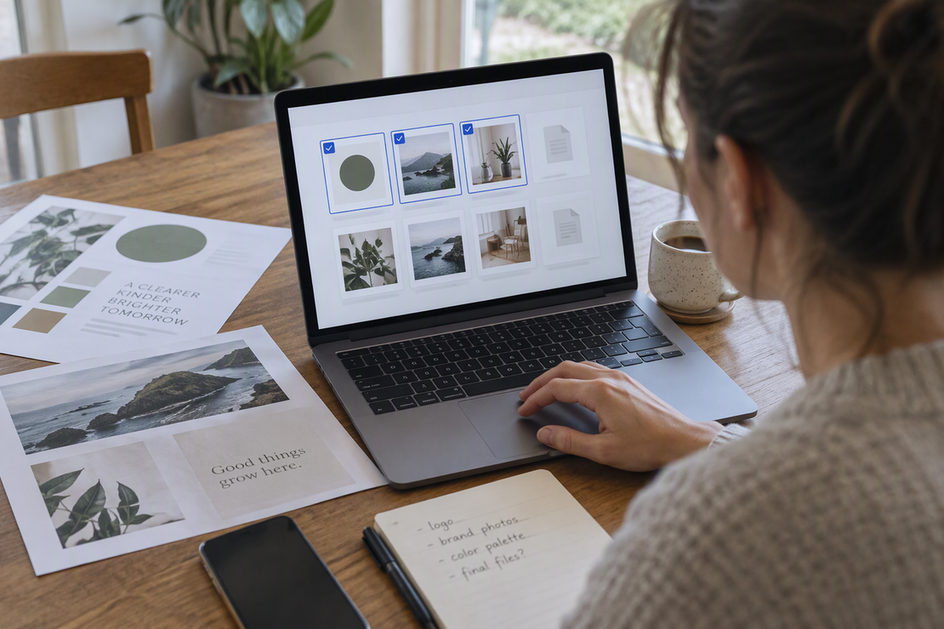
A “no” to the last two questions points to one-way intake. Take a freelance designer who needs a client’s logo files and brand photos. The client has no reason to see the designer’s other projects or past drafts. An upload-only link fits this job. The client drops files in, and the designer finds them waiting in one intake folder. Giving the client access to the working folder would give them more than the handoff needs.
A “yes” to the second question changes the answer. Say the same designer now sends three rounds of drafts for review. Here the client must open and probably download those drafts, and an upload-only route cannot do that. A shared folder with view access, or view and download access, matches the task. If the client also needs to replace files or clean up old versions, that requires edit rights. Grant edit only when the client really needs it, because edit access lets them change your work too.
Make sure the setting actually behaves the way its name suggests. Labels like “drop box,” “file request,” or “upload link” do not mean the same thing at every service. Read that service’s own documentation for one point: does the upload-only option block access to existing folder contents? If the documentation says so, the upload-only path is a good fit for submission-only intake. If it does not say so, treat the link as a shared folder. Point it at a new, empty folder used only for intake, so the client can’t reach any other work even if they can see more than you expected.
This decision rule works for most client file intake setups because it depends on the client’s job, not the brand of tool. The details of each permission, covered next, decide how narrow you can make that access.
Separate Upload, View, Download, and Edit Rights
Uploading, viewing, downloading, and editing are four separate actions. Allowing one does not have to mean allowing the others. Uploading adds new files to a folder. Viewing lets someone see the folder’s file list and open what is there. Downloading lets them save copies of existing files to their own device. Editing lets them add, change, rename, or delete files that are already in the folder.
These actions matter because they expose different things. An upload-only recipient adds files to your folder but does not need to take anything out of it. A view-and-download recipient can see and copy your existing material but cannot change it. An edit recipient can change your working files directly. Services group these rights in different ways. One tool’s “viewer” role might include downloads while another’s does not. So treat each role name as specific to that service and check what it includes before you rely on it for client file intake.
Our Olares Files app shows how these rights are split in practice. According to the official Olares Files sharing documentation, a Public share for outside visitors has an “Allow uploads only” option. With it on, visitors can upload but cannot view or download existing content. That makes it a good fit for collecting deliverables from a client. When you create the link you also set a password and an expiration time, and you can cap upload size if you need to.
The same documentation sets the limits of this example. Sharing works only at the folder level, not on single files. Public share is available for Home and Data directories but not for External, Sync, or Cache. For people who are members of the same Olares cluster, Internal share uses separate permission levels. View allows reading and downloading. Edit allows adding, changing, and deleting files. Admin also lets the person manage members and share settings.
Put into practice, an outside client who is only sending materials gets a Public share on a Home or Data folder with uploads only switched on. A collaborator inside your cluster who has to revise shared work gets an Internal share with Edit. Someone who only needs to review gets View.
FAQs
Can a client see the files they just uploaded through an upload-only link?
That depends on the service. A setting that blocks access to existing content may not say anything about the files a visitor adds during their own session. If the answer matters to you, open the link yourself in a private browser window, upload a test file, and see what the page shows afterward. Read that service’s documentation for post-upload behavior instead of assuming it from the upload-only label.
What if a client needs to send files and also review my drafts?
Set up two separate paths for the two jobs. Use an upload-only link to an intake folder for what the client sends you. Use a separate shared folder with view or download access for the drafts you send them. When intake and review share one folder, you have to give the client the broader permission for both jobs, and that can expose more than either job requires.
How should I handle revised files or resubmissions?
Ask clients to put a version marker in each file name, such as “logo-v2” or a date. Services handle a second upload with the same name in different ways. Some may keep both files and some may replace the first one, so clear names keep every round easy to tell apart. If revisions mean changing files you already hold, the client needs edit rights in a shared folder, not another upload link.
What should I do with an intake link after the handoff is done?
Close it or let it expire once you have the files, so the link can’t keep collecting uploads. In Olares Files, the Share page lets you check a share’s attributes, reset a public share’s password, edit member permissions, or revoke sharing completely. Other tools have their own controls, so look for a comparable revoke or expiration setting before you send the link.