
Diagnose Minecraft Java Join Errors: Version Mismatch or Network?

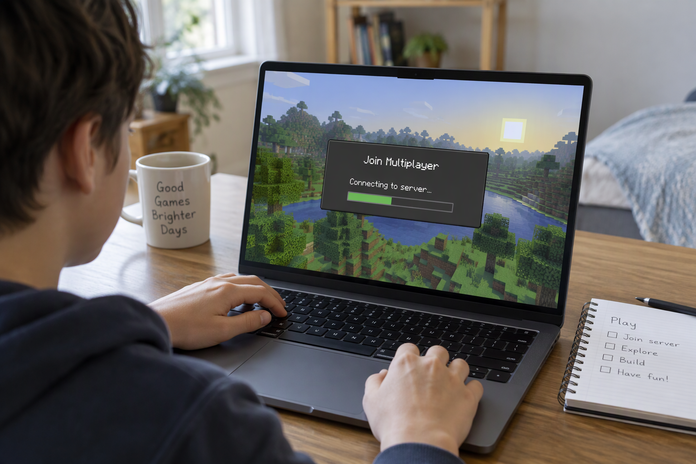
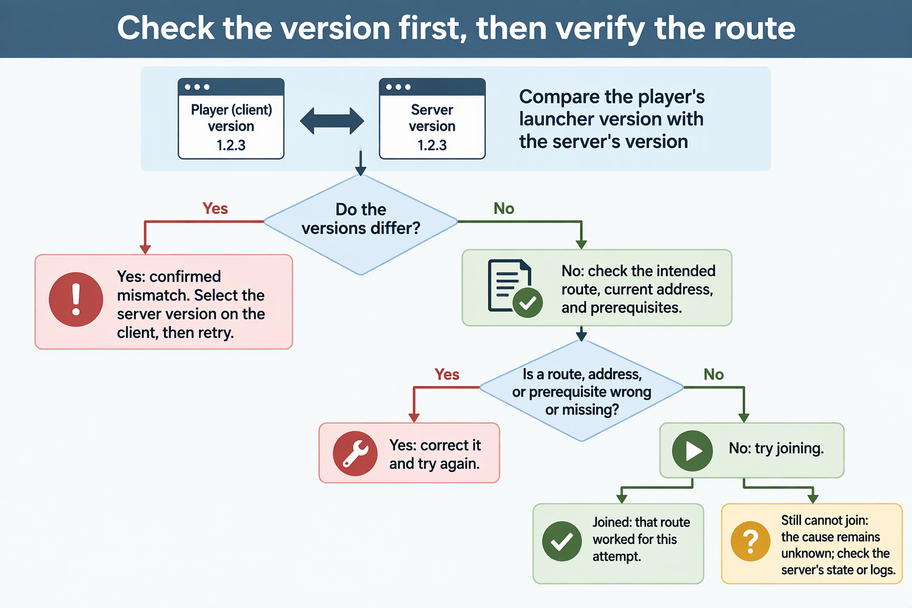
Start by comparing the Minecraft Java version the player launches with the version the server is running. For a standard server without a protocol-translation layer, different required client and server versions indicate a compatibility mismatch that network changes will not fix. If they match, check the network next: confirm the player used the intended LAN or overlay route and that route’s current address.
A version match only clears the first gate. It does not prove the network is at fault. If the route and address also check out and the player still cannot join, the cause is still open.
Check the client and server game versions first
Minecraft states the rule directly: the client version needs to match the server version. Compare the game version in the launcher installation the player opens with the game version the server runs. Don’t assume the newest release is right, as some servers run an older version on purpose.
If the server’s version isn’t shown anywhere, ask the server owner. They gave you the address, so they can also confirm which version the server runs. Write the answer down before you change anything.
If the selected client version differs from the version the owner requires, open Installations in the Minecraft launcher and select or create an installation for that game version. The Olares Minecraft guide also directs players to select the same game version as the server. Launch that installation and try joining again.
Before opening an existing world in a different game version, back it up. The Olares Minecraft guide warns that upgrading can convert world data and downgrading can lose data or prevent startup. Keep older-version play separate from worlds saved by newer versions.
For the standard Olares setup, resolve a version mismatch before changing network settings. If a third-party server advertises support for multiple client versions, follow that server’s supported-version list instead.
If the versions match, verify the route you used
Once versions match, verify whether the player used the intended route and current address. For a world on the same local network, Minecraft’s Java guide notes LAN servers appear in the local scan on the Multiplayer screen. If the server is missing, confirm the player is on the same local network as the host.
For any other server, enter the owner-provided address using Direct Connection or Add Server. The address can look like a website name, such as play.mojang.com, or a string of numbers separated by dots, such as 192.168.0.1, which is called an IP address. Direct Connection connects straight away. Add Server asks for a server name and an address, then saves the server to a list on the Multiplayer page. To connect later, select the server from that list and click Join Server. A typo or an old saved entry sends the player to the wrong place, so check the saved server entry against the address the owner gives you today.
Some hosts use routes with their own rules. If you host on Olares, our Minecraft Java server documentation describes two routes, and each has a different address:
- Overlay gateway (local network): Olares must run on a native Linux host with wired Ethernet. Wi-Fi and WSL are not supported. A super admin turns on the system service in Settings > Network > Overlay gateway, and overlay gateway is then enabled for the Minecraft instance. The player enters the address shown next to Minecraft Java, including the port, through Multiplayer > Add Server. That local IP can change after an app restart or a network change, so always use the address shown at connect time. The documented setup requires Olares 1.12.6 or later.
- VPN (remote): The address uses your Olares domain plus the instance’s Exported port from Settings > Applications > Export ports, and the player’s LarePass VPN must be on. This address is different from the overlay address. In this setup, overlay and VPN can stay on at the same time.
These steps apply only to that Olares setup. They are not general overlay instructions for other hosts.
Here is how to read the results. If the player joins the world, that route worked for that attempt. If you find a stale address, the wrong route, or a missing prerequisite, such as a Wi-Fi host on the overlay route or LarePass VPN turned off, fix it and try again. If the version, route, address, and prerequisites are all correct and the join still fails, these checks have not found the cause. Don’t call it a network problem just because the versions matched. The cause is still unknown, so look at what remains, such as the server’s own state or its logs.
FAQs
Do snapshots or preview versions work with every Java server?
Usually not. Minecraft says players trying snapshot or preview content will likely need to switch back to the latest full release before they can join most servers. To do that, select a released version in your launcher installations. The same Installations steps from the version section apply here, so back up your worlds first.
In the Olares setup, is the Market app version the Minecraft version?
No. Match the client’s game version to the instance’s VERSION setting. The Market package number, such as 0.1.22, is not a game version. For Forge or Fabric instances, the client must also meet the loader and client mod requirements. This rule comes from our Minecraft documentation and does not cover every modded server.
Does a Minecraft instance showing Running prove a player can connect?
No. A Running status does not prove Minecraft has finished initializing or that a player can join. Check the instance console for startup completion and errors, then join with the matching version and current address. Only the successful join confirms that connection attempt.