
Browser Access or a Network Share for Large Video Project Files?

Use browser access to view, download, or upload video project files. For active editing, use a local copy or a network share. The deciding question is simple: can your editing application open the project and its media from that location as a file path?
A browser page shows files, but that alone doesn’t give a desktop editor a folder it can work in. If you edit alone, downloading a local working copy can be enough. If a team edits together, a mounted network share is usually the path the workflow is built around.
Choose by the Path Your Editor Can Actually Open
For the file-based workflows discussed here, the desktop editor needs a local folder or a supported mounted share for project files and media. A web file-listing page alone does not provide that path. Cloud collaboration services, browser editors, and dedicated integrations have their own workflows, so check their documentation separately.
Under the hood, a local folder on an internal or external drive and a mounted network share both appear in Finder or File Explorer as standard drives. A web browser interface does not provide this system-level file access.
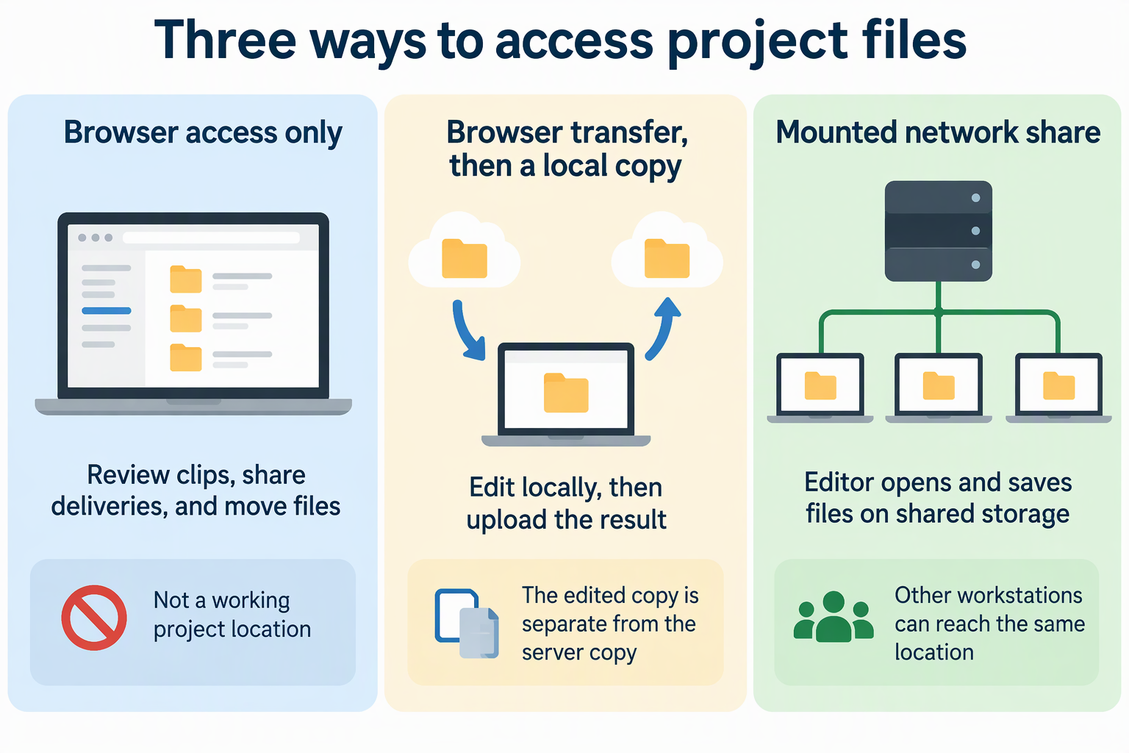
That gives you three practical options:
- Browser access only. This works for reviewing clips, sharing deliveries, and moving files. It is not a working project location.
- Browser transfer, then a local copy. You download the project, edit it on a local drive, and upload the result. This is a real editing workflow. Just remember the copy you edit is separate from the copy on the server.
- Mounted network share. The editor opens and saves files directly on shared storage, so other workstations can reach the same location.
Some file services also offer a desktop sync client, a mount option, or a plugin for an editing app. Those can create a usable path, but judge each one by its own documentation. Seeing your files in a browser doesn’t tell you whether those features exist.
Premiere shows how the choice depends on the workflow. According to Adobe’s Premiere Productions storage guidance, an individual editor can save project files anywhere, including a local disk. A team of editors needs shared storage. So for a solo Premiere editor, a browser download to a local drive is a valid path. For a Productions team, it isn’t enough. This guidance covers Premiere Productions specifically. If you use another editor, check that application’s own storage documentation.
When a Network Share Changes the Workflow
Premiere Productions Teams Need Shared Storage
When several editors work in one Production, every edit system needs access to the same shared locations, not just the main project folder. Adobe calls out scratch disks in particular. Under Adobe’s shared scratch-disk guidance, teams on shared storage should set scratch disk folders to a shared location that all edit systems can see. Media referenced through Motion Graphics Templates or Creative Cloud Libraries is available to every system only when the scratch disk setting points to a shared location.
This affects your planning. A share can mount correctly and open the project, yet some template or library media can still be missing on another workstation if the scratch disks stay local. When you plan the share, list each location the Production uses and confirm that every edit system can reach all of them.
Treat Bandwidth Figures as Scoped Recommendations
The network matters once editing runs over a share. In Adobe’s HD and 4K network recommendations, the company advises a 1 Gbps Ethernet connection for HD workflows and 10 Gbps for 4K shared-network workflows in Premiere and After Effects.
Use these numbers as Adobe’s planning baseline for those two applications and those workflows. They don’t guarantee smooth playback on any particular network, storage system, or project. If your team cuts 4K over a 1 Gbps link, that is below Adobe’s recommendation for 4K. Test the real codec, stream count, storage throughput, and network first. A proxy workflow or local working copy may be a better fit than editing full-resolution media over that link.
Validate With a Project Copy Before Switching
Before you move an active project to a new path, test with a duplicate or a representative project:
- Put the project copy and its media on the location you plan to use, whether that’s a local drive or a mounted share.
- Open the project in your editor from that location, not from a browser download folder.
- Confirm that the media, templates, and library assets all link without offline-media warnings.
- Make a small edit, save, close, and reopen the project. The change should still be there.
- For a team, repeat the open and relink check on each workstation, including the shared scratch disk locations.
If every check passes, that path works for this project in this environment. If media goes offline or the save doesn’t persist, fix the path or the mount before you commit real work. These checks tell you about this setup only, not how other projects will perform.
FAQs
Does shared storage by itself mean teammates can edit the same project at the same time?
No. Shared storage gives everyone access to the files, but the collaboration settings live in the application. For Premiere Productions, Adobe’s project-locking setup guidance tells you to make sure Enable project locking is checked in Preferences > Collaboration, and to enter a user name that others will see. Confirm those settings on each system before the team starts editing.
Should Premiere’s Media Cache live on the network share?
Adobe says no for shared setups. Adobe’s local Media Cache recommendation is to keep Media Cache on local drives in shared environments for better responsiveness, even when projects and media sit on a network share. That recommendation applies to Premiere and After Effects. Adobe notes that Premiere reads cache files, such as peak (PEK) and conform audio (CFA) files, thousands of times per second, so it advises putting them on fast local storage.
How do I connect to a network server from a Mac?
In Finder, choose Go > Connect to Server, type the server’s network address, and click Connect. If asked, enter your user name and password, then select the shared volume or folder. Once it’s mounted, open the project from that volume inside your editor, and run the copy test above to confirm the editor works from it.