
Share a Family Photo Album Without Sharing Your Admin Account


Keep the administrator login to yourself. Give each relative their own account, then share only the album they need. In Immich, a self-hosted photo app, that means creating a separate user for each relative and inviting them to a selected album.
Choose the permission based on what each person will do. Viewer fits relatives who only browse, and Editor fits relatives who add their own photos or videos. Other photo apps use different controls, so the steps below apply to Immich only.
Choose permissions for browsing or contributing
Immich’s documented album permissions let you share an album with users on the same Immich instance. You assign each person either Viewer for read-only browsing or Editor for read-write access. Shared users with Editor permissions can add their own photos and videos to that shared album.
Picture a family reunion album. Your aunt only wants to look through the pictures, so Viewer covers what she needs and nothing more. Your cousin took photos at the same event and wants them in one place, so Editor fits him. Each person gets a role that matches their own task, even though they share the same album.
The difference matters later. A Viewer can browse what is already in the album but cannot change it, so a relative who only wants to look cannot add or rearrange anything by accident. An Editor has read-write access, so their photos and videos appear next to yours in the shared album. Give Editor only to relatives who actually plan to add files. If a browse-only relative later wants to contribute, you can review their role then instead of granting write access to everyone up front.
Skip partner sharing for this job. Immich’s whole-library partner sharing shares your entire library with the users you choose, and they can view and download those assets. That is far more than one album. Good family photo sharing starts with the smallest scope that does the job, which here is the selected album.
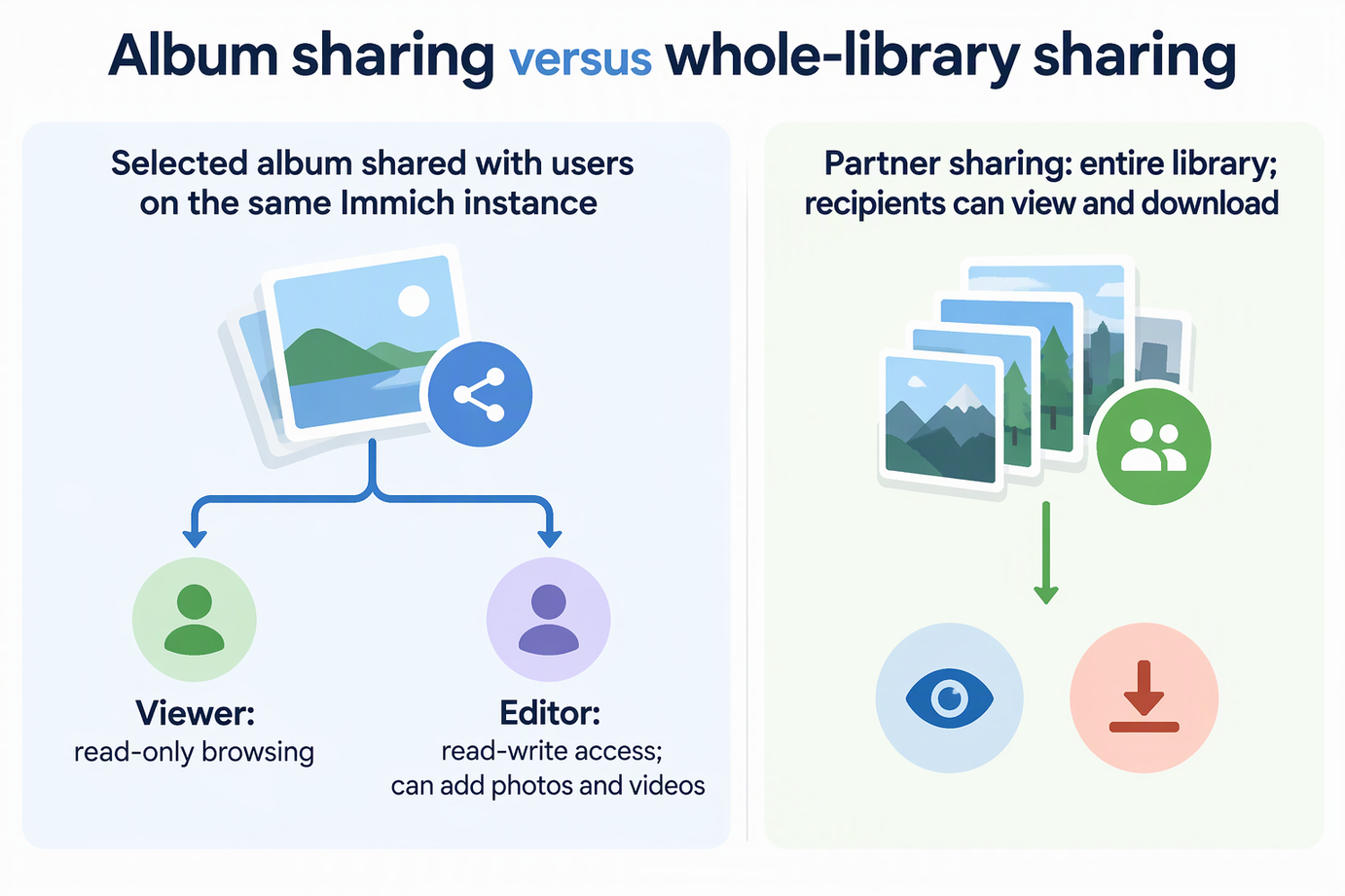
Create separate Immich accounts and share the album
In Immich, the first user to register becomes the admin, and the admin can add other users. Follow these steps while signed in as the admin:
- Go to Administration > Users > Create user and create one account per relative. Immich’s documentation describes these extra accounts as a way for friends or family to use the app.
- Open the album you want to share and click Immich’s album share option, the share icon.
- Select the relatives you want to invite. They must be users on the same Immich instance.
- Give each person Viewer or Editor, then confirm in whatever form the interface shows.
Your relatives now sign in with their own credentials. Your admin password never leaves your hands. Because each relative has their own account, you can choose each person’s album role separately, and one relative’s access does not depend on anyone else’s login. If you run Immich on Olares, Immich is still a third-party app running on the system, so you set up these accounts and album roles inside Immich, not in Olares Files.
Before inviting more relatives, ask one recipient to verify the album in their own session or share their screen. Alternatively, use a dedicated test account. Check that the session shows the intended album and access level, without asking a relative to share their password.
Verify the recipient view and understand access limits
What you see in the recipient’s session is the real test of scope. If a relative can see more than the reunion album, check whether you turned on partner sharing for them by mistake. That is the whole-library route described above.
Plan ahead for how access will end. Immich’s sharing page explains how to share an album, but it does not describe how to remove one recipient from just one album. Check the album’s sharing options in your own instance for that control. Do not use account deletion as a quick way to unshare an album. According to Immich’s account-deletion consequences, deleting a user disables the account right away. By default, it removes that user’s library and all associated data after 7 days. That would also delete any photos your relative uploaded to their own account.
FAQs
Can I share an Immich album with someone who does not have an account?
Yes. Immich supports public links for an album or a group of photos, and these links work for people without an Immich account. Immich’s public album link options include an expiration date, password protection, and settings for which actions are allowed. Anyone can open the link through email, social media, or another channel, so it is not an invitation to one named person. Immich generates the link with a random URL, and that URL works like a secret that is hard for unwanted people to guess. You can create a public link from the share icon on an album or by selecting specific photos or videos. If you share a link, setting an expiration date and a password limits how long it works and who can open it. A recipient can forward both the link and its password. Expiry or revocation ends future access through that link but cannot retract photos already downloaded or captured.
Is an Immich public album link the same as inviting a Viewer?
No. Viewer is a read-only role given to a specific user account on your instance. A public link is not tied to any one person, and its allowed actions are set on the link itself. Immich documents that a public link can even let the recipient upload photos or videos to your account. For known relatives who should only browse, a Viewer invitation keeps access tied to a person you can name.
What happens if I delete a relative’s Immich account to end access?
The account is disabled immediately. Under Immich’s default deletion delay, the user’s library and associated data are removed after 7 days. Admins can change that delay in Administration > Settings > User Settings. The user deletion job runs at midnight to check for users that are ready for deletion, and changes to the delay setting take effect the next time the job runs. If you check “Queue user and assets for immediate deletion,” the user and all of their assets are removed at once. Immich describes this as irreversible within the application. Any recovery from a separate backup is a different process and depends on what that backup captured.