
How to Recover After a Scheduled Automation Misses a Run


Don’t just rerun a missed schedule. First, figure out which data interval the run was supposed to cover and the last input you can confirm was processed. Then check what actually reached the destination, and replay only the work that is confirmed missing.
Two things make this safer. One is a stable event key or an update-existing write. The other, when you don’t have one, is a careful reconciliation before you replay. Together they help you recover missed automation runs without leaving silent gaps or creating duplicate records.
Set the Intended Interval and Last Confirmed Input
Start by separating two facts: the intended interval that was due, and the last confirmed input where verified processing actually stopped. Keeping them distinct prevents confusion between scheduled windows and incomplete work. A run may be due for a full day of data even if execution stopped midway, or cover a window that closed long before detection.
Take the interval from the configured schedule, not from the clock when you start recovering. Scheduler semantics vary. Airflow 3 data intervals are defined by the Dag’s timetable. With the default trigger timetable for a cron string like @daily, the start and end of the interval are the same trigger time. A data-interval timetable instead covers a contiguous window, such as midnight to midnight, and usually runs after that window closes. If you trigger a run manually, its data interval may not match the logical date you supplied. So if you recover by hand, check what interval the run will really process. In Airflow 3, the bare-cron default described here assumes create_cron_data_intervals=False. Confirm your installed version and configuration rather than inferring the window from the cron string alone.
Next, find the last input identifier or checkpoint that your execution records explicitly confirm. That might be a record ID, timestamp, or batch marker that your workflow logs or stores. A scheduler label such as “success” or “failed” doesn’t tell you this boundary. If your records can’t establish it, treat the starting point as unresolved. Dig into the execution evidence before you replay anything.
Compare Execution Evidence with Destination State
A run’s status reflects execution state rather than what actually reached the destination. For the targeted interval, list every expected item and check the destination for observable effects such as records, files, or messages using stable item identifiers. This direct comparison establishes what is truly missing before triggering any replay.
Sort each expected item into one of three groups:
- Present and complete: the matching record or effect exists, and its expected fields or output are correct. A row with the right ID but an incomplete payload still needs reconciliation.
- Missing: you checked and confirmed that no matching effect exists.
- Uncertain: you can’t confirm it either way, for example a message that leaves no record you can query.
Don’t count uncertain items as missing. A failed run can still leave partial effects behind. In n8n’s failed-node retry behavior, results from completed nodes are kept, but the failed node gets its saved input again and processes every item, including items it handled before it failed. n8n advises checking the target app before you retry. That behavior is specific to n8n, but the lesson applies to any tool: a “failed” status doesn’t mean nothing was written.
Choose a Bounded Recovery and Verify the Result
Once you’ve sorted the items, the action follows from their state:
| Destination state | Action |
|---|---|
| Confirmed present | Skip; don’t replay |
| Partial or uncertain | Reconcile before any replay |
| Confirmed missing | Replay only those items, within the interval |
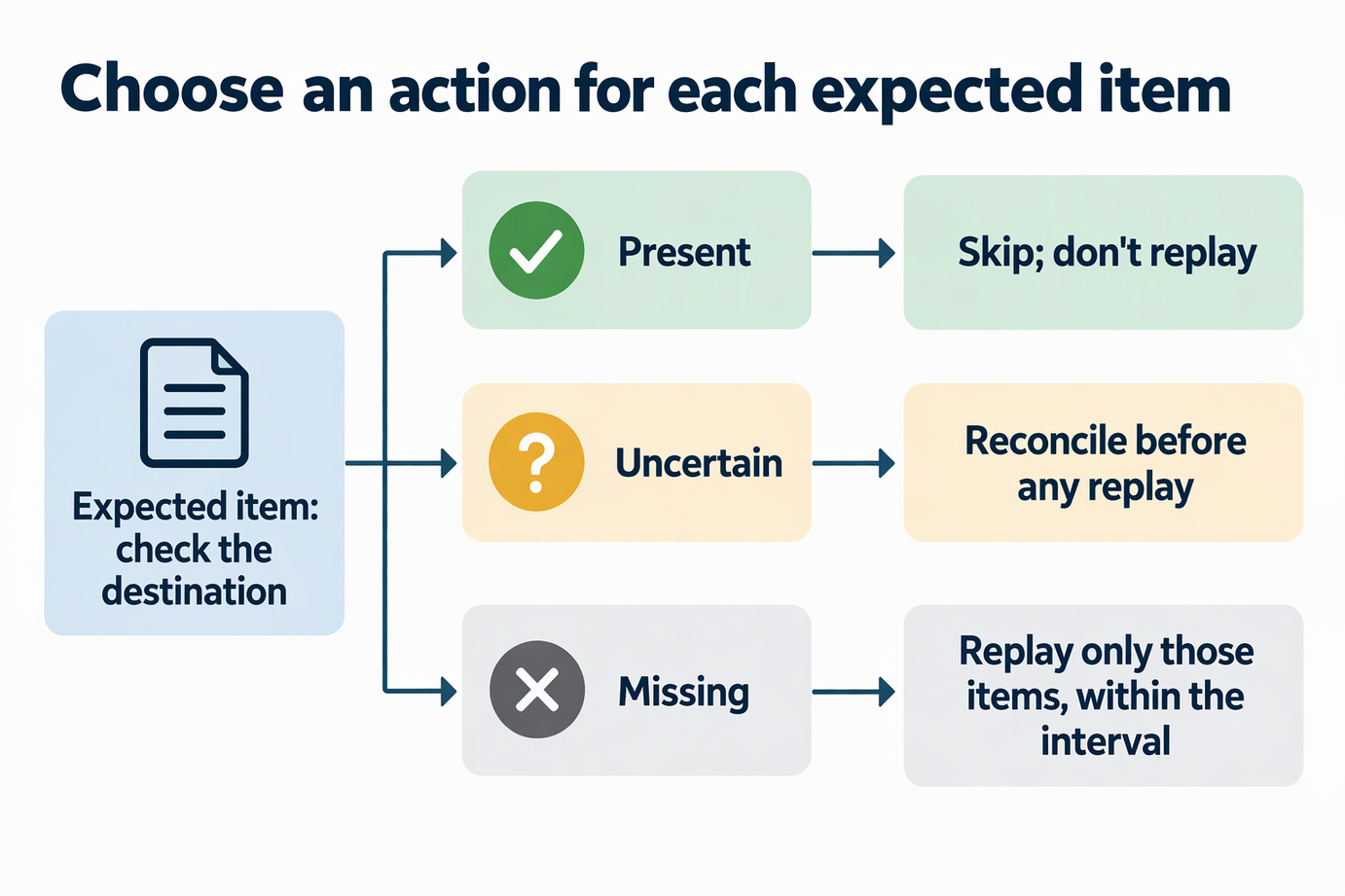
Reconciling means settling each uncertain item before you write anything new. Confirm the effect and its contents in the destination. Repair or remove a partial write only after preserving the evidence and checking the intended result. Do not mark an incomplete item as handled merely to silence the retry. If the write path supports a stable key or an update-existing operation, replay becomes safer, because writing the same item twice updates the record instead of adding a duplicate. Use this only where the specific workflow and destination document that behavior. As an example, n8n’s update-existing guidance names Append or Update Row in the Google Sheets node and Insert or Update in the Postgres node as safer for retries than operations that create new records. That doesn’t make every node idempotent. Messages or other create-only actions can still repeat. A separate “look up, then insert” check can race with another run. Where the destination supports it, enforce a unique business key and use an atomic upsert. Verify the actual node and destination behavior before calling a write idempotent.
Scheduler catch-up tools don’t do this reconciliation for you. Airflow backfill options control which logical-date runs get created. Missing Runs skips a date that already has a run, whatever its state. Missing and Errored Runs reruns failed dates. All Runs reruns completed and failed dates. Airflow won’t create a new run while the latest one is still running or queued. None of these options checks whether destination records exist, so choose the date range from your reconciliation.
After the replay, compare the expected items with the destination again. If every expected item is present exactly once, the recovery is done. If anything is still missing or shows up as a duplicate, stop. Fix the cause and reconcile those specific items before running anything else.
FAQs
What if an n8n execution succeeded but the expected output is missing?
You can’t retry it. Per the n8n successful-execution retry limit, a succeeded execution can’t be retried even when it didn’t do what you expected. One example is an If node that sent every item to the false branch. The alternative is Copy to editor, which pins the saved data in the first node so you can run the workflow again. That run repeats every node after the first, including adding rows or sending messages. Find out exactly which output is missing before you use it.
What if both the original n8n execution and its failed retry offer another retry?
Retry only one of them. Each retry is a new execution, and the n8n retry-attempt warning says retrying both can repeat work for the same data. Fix the cause first so you don’t stack up more failed retries.
In n8n, which workflow version does a retry use after I edit the workflow?
You pick. Retry with original workflow runs the workflow as it was when the execution happened. Retry with currently saved workflow applies your edits. Under n8n’s workflow retry choice, edits affect only nodes that haven’t completed, and completed nodes keep their saved results. Both options load credentials at retry time, so if all you fixed was a credential, the original-workflow option already uses the fix.
Does Airflow’s “Missing Runs” backfill option prove destination records are missing?
No. Airflow Missing Runs behavior depends only on whether a Dag run already exists for a logical date. It never looks at your destination. A date with no run may still have data written by other means, and a date with a run may have incomplete output.