
Why a ComfyUI LoRA May Not Fit Every Checkpoint


A ComfyUI LoRA is not a universal add-on. It is made for a particular base model, and it adjusts parts of that model. A checkpoint from another family may have different parts, and your workflow or loader can change what the LoRA actually connects to.
Check the LoRA’s documented architecture, base model, and loader support before changing prompts. Adapters are not interchangeable across model families unless the implementation explicitly supports that pairing.
Why the base model and workflow matter
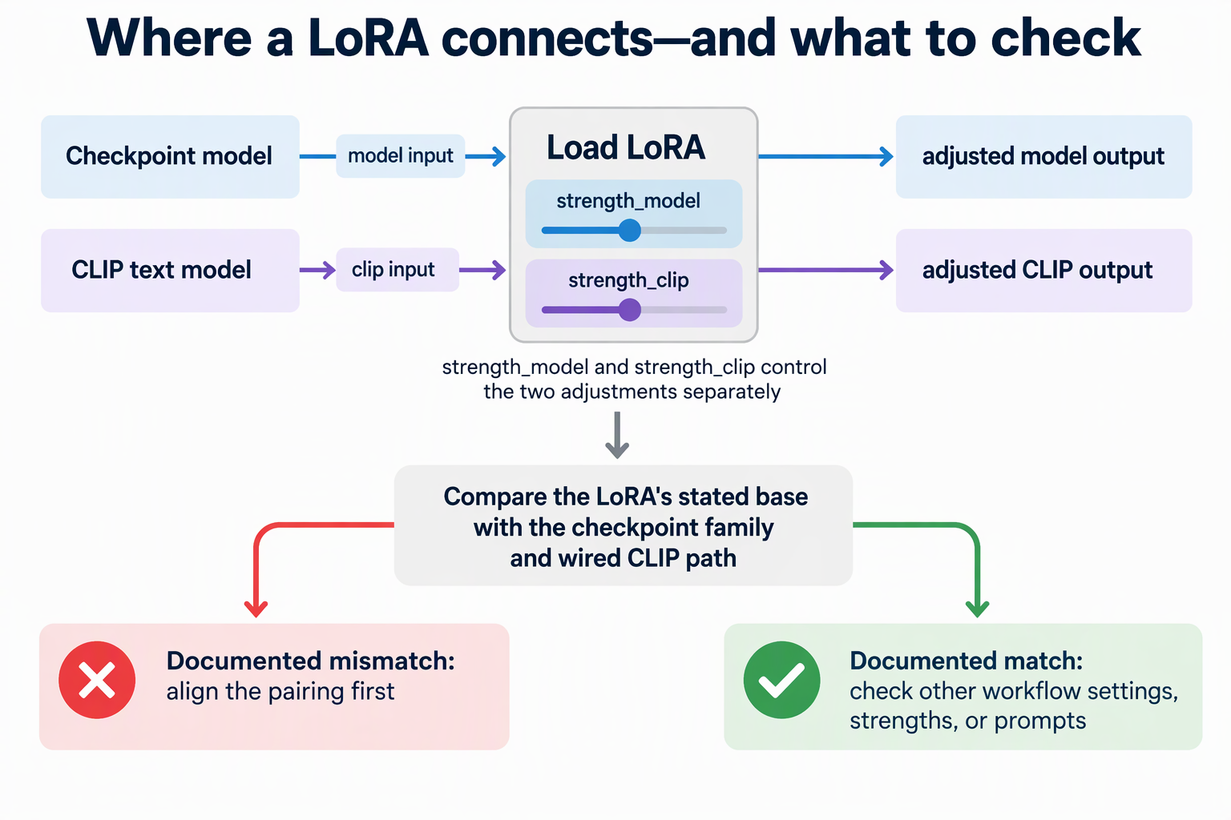
A LoRA works by adjusting the model it is applied to, so the model it was trained against matters. In ComfyUI, the ComfyUI Load LoRA node inputs are model for the base model and clip for the CLIP text model, and the node returns both, with any compatible adapter weights applied according to the strength settings. Separate strength_model and strength_clip settings control how strongly each one is changed.
A LoRA can target the diffusion model, a text encoder, or both. Not every file contains text-encoder weights. ComfyUI also provides a model-only LoRA loader. The matching weights present in the adapter, the connected models, and the nonzero strength settings determine what actually changes.
A family-specific example makes the point clearer. In the Hugging Face Diffusers library, the Diffusers SD and SDXL loader targets are different. The Stable Diffusion loader loads LoRA layers into a UNet and CLIPTextModel. The SDXL loader targets a UNet, CLIPTextModel, and CLIPTextModelWithProjection. That is Diffusers’ API, not a description of how ComfyUI runs internally. Still, it shows that two related families can have different text-encoder components for a LoRA to target.
The workflow is the second variable. The ComfyUI workflow matching guidance says not every checkpoint or weights file works out of the box. For natively supported models, ComfyUI recommends keeping the app up to date and confirming that a matching workflow exists in the template library. Many other models run through community custom nodes, and their paths, loader nodes, and graph layouts can differ from the generic guidance. For those, you follow the project’s own README or docs.
Keep two cases separate. A documented mismatch is a known difference between the LoRA’s stated base and your checkpoint or workflow. An image that looks wrong is only a symptom. Weak style transfer, odd colors, or ignored prompts don’t prove a mismatch by themselves, so check the documented pairing before you treat the output as a diagnosis.
Check the LoRA and checkpoint pairing
Compare what the asset says about its base with your checkpoint and your active workflow. Then fix any documented mismatch before you touch prompts.
- Find the LoRA’s stated base. Start with its model page, model tree, or any metadata it ships with. Note any version or variant it names. For example, the Super Cereal SDXL model record for ostris/super-cereal-sdxl-lora lists stabilityai/stable-diffusion-xl-base-1.0 as its base. It also says a multiplier of 0.9 to 1.1 works well on SDXL base. That note applies to SDXL base only and tells you nothing about how the LoRA behaves on other families.
- Compare it with your checkpoint and workflow. Read the checkpoint’s own documentation to find its family and version. Then confirm the workflow fits. For a natively supported model, look for the template in ComfyUI’s matching workflow and loader guidance. For a custom-node loader, follow that project’s documentation. Also check that the checkpoint and its CLIP path are the ones actually wired into the LoRA node.
- Decide what to do next. If the stated base and your checkpoint family differ, deal with that first. Switch to a checkpoint from the LoRA’s documented family, or find a LoRA made for your checkpoint. If the documentation shows the pairing matches, move on to other workflow settings, strengths, or prompts. A documented match is a useful clue, but it doesn’t confirm the rest of the graph is correct.
If an asset gives no traceable base at all, you can’t confirm the pairing from documentation. Treat its compatibility as unknown and don’t assume it matches.
FAQs
What does a “base model” label on a LoRA page mean?
It names the model the publisher says the adapter was built for. On Hugging Face, the model tree can link the adapter to a specific base record, such as SDXL base 1.0. It’s the best clue you have for pairing, but it doesn’t describe how the LoRA performs on other families.
Why does the Load LoRA node have two strength settings?
The node exposes two controls. strength_model controls the adapter’s effect on diffusion-model weights, and strength_clip controls its effect on compatible text-encoder weights, if the LoRA contains them. The latter changes how the encoder processes text rather than directly scaling the final text embeddings.
Does a custom-node workflow follow the same rules as a native template?
Not necessarily. ComfyUI notes that loaders, paths, and graph layouts from community custom nodes can differ from its generic model guidance. Use that project’s README or docs to see how it loads checkpoints and LoRAs, rather than assuming it matches a built-in template.
If my LoRA and checkpoint match, why might results still look off?
A matching base removes one likely cause. It doesn’t confirm your strength values, prompts, or the rest of your workflow. Check those next, one change at a time, so you can see which adjustment actually changes the output.