
Phone Photo Backup: Decide What Server Deletions Should Mean


It depends on what you want the deletion to do. If you mean to remove a photo for good from a synced library, letting the deletion reach the server copy is the right result. If you only want to free up phone space, pick an action your service describes as removing the device copy only.
If your goal is protection against an accidental delete, you need a separate copy that stays put when the synced library item is gone. A 30-day trash folder helps, but it is a short recovery window, not a backup.
Should deleting a phone photo also delete the server copy?
Only when removing the photo everywhere is your actual goal. A synchronized library treats your phone and the server as one collection. A change on one device spreads to the others, and that includes deletions. That’s handy when you clean up blurry shots on purpose. It’s a problem when you tap the wrong photo.
A separately retained backup does a different job. It protects you only if its own rules keep a copy after the photo leaves the synced library. The word “backup” in an app’s menu doesn’t prove this. Some services use “backup” for a feature that still deletes the server copy when you delete from the app.
So photo backup deletion comes down to two questions. Which copy does your chosen action remove? And does any other copy survive it? Intentional cleanup and accidental-deletion protection lead to different answers:
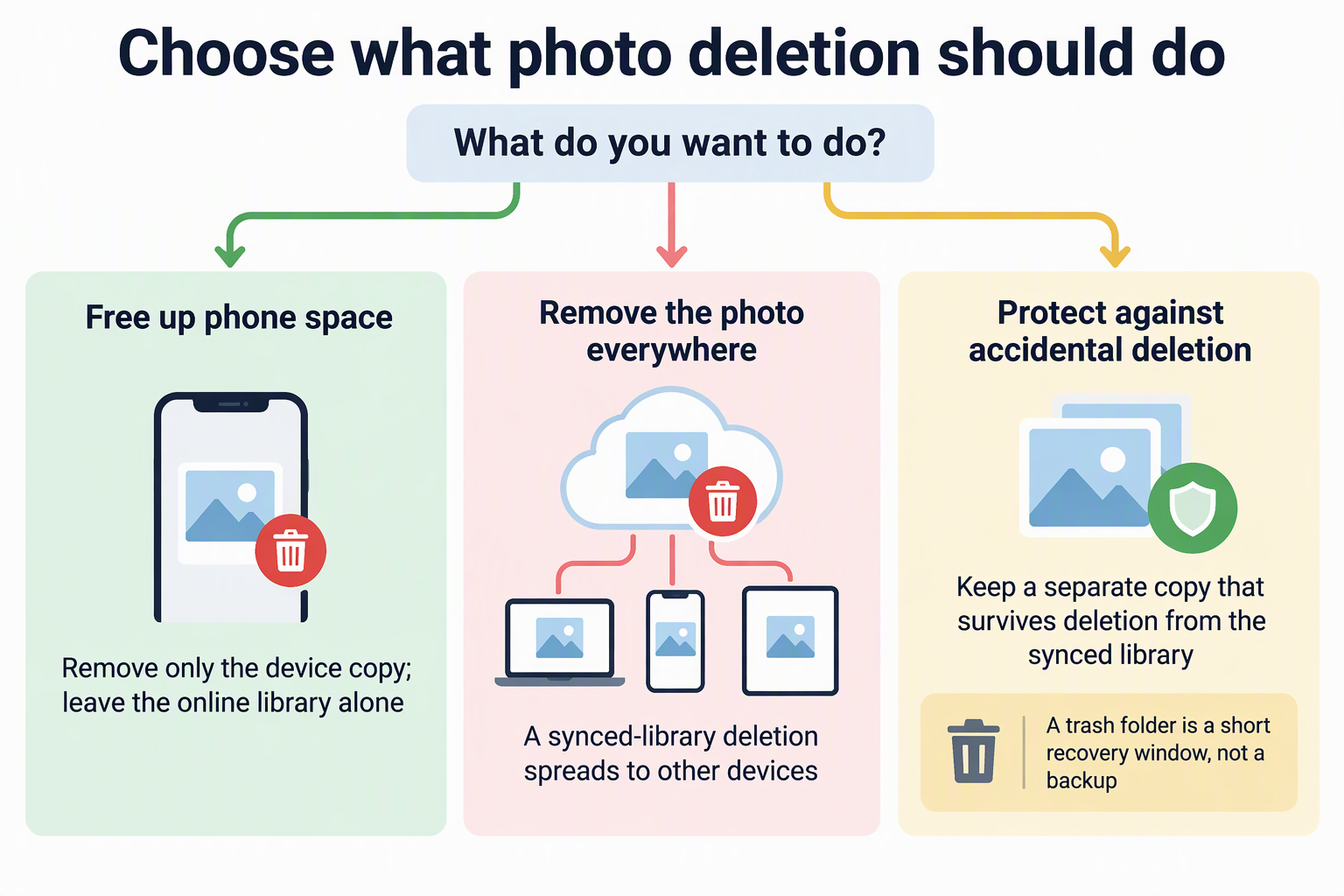
For phone cleanup, delete the device copy only and leave the online library alone. For accidental-deletion protection, don’t count on the synced library or its trash folder alone. Keep a second copy with retention rules you understand.
How the service and deletion action change the outcome
The same “delete” tap can reach very different copies. Two documented examples show how much the service and the button you press matter.
Google Photos on Android: app deletion versus device cleanup
Google’s Android help says deleting a photo in the Google Photos app removes both the Google Photos copy and the copy on your device. If the item was backed up, the deletion also reaches every device with backup turned on. Backed-up items you delete stay in Trash for 30 days. Google also notes that deleted items may stay on a removable memory card.
Google offers separate paths for removing only the phone copy. In the app, you can select a photo, tap More, and choose Delete from device. To clear space in bulk, tap your profile photo or initial, then choose Free up space on this device. Google says items removed this way can still be seen in the Google Photos app and at photos.google.com. You can keep editing, sharing, and managing them there.
The takeaway: in this app, “Delete” and “Delete from device” do different things. Pick the one that matches your goal.
iCloud Photos: synced library, not an iCloud Backup duplicate
Apple says that when you delete photos or videos on one device, they’re deleted everywhere you use iCloud Photos. If the delete was a mistake, you can recover the item from the Recently Deleted folder for 30 days. After that, Apple says it’s gone permanently.
Apple also says iCloud Photos content isn’t duplicated in your iCloud backup, and it advises keeping backup copies of your library. In other words, turning on both features doesn’t give you two independent copies of your photos. If accidental-deletion protection matters to you, that extra copy has to live somewhere outside the synced library.
Before deleting a photo you want to keep, verify the action and recovery path
A quick check now can save you from a deletion you can’t undo. Run through these before you tap delete:
- Name the app and the button. Your phone’s gallery app and your photo service’s app may delete different things. Use the exact action you plan to tap.
- Find out which copy it removes. Does it remove only the device copy, or the item in the shared library and on every synced device?
- Know the recovery window. Look for a trash or Recently Deleted folder and how long items stay there. Note the date it runs out.
- Confirm a separate copy exists. Find the photo in your other backup before deleting, and make sure that copy won’t disappear when the library item does.
If you can’t confirm the last point, don’t delete a photo you want to keep yet. Make the separate copy first.
FAQs
Is a 30-day trash folder the same as a backup?
No. Google Photos Trash and iCloud Recently Deleted both hold items for 30 days, according to each company. After that, the items are deleted permanently. It’s a safety net for quick mistakes, not long-term storage.
Will deleting in Google Photos also remove photos from my memory card?
Not necessarily. Google notes that deleted photos and videos might stay on a removable memory card. To remove them permanently, it points you to your device’s gallery app.
Can I free up iPhone space without deleting from iCloud Photos?
Apple says photos kept in iCloud Photos use both iCloud and device storage. It offers an Optimize Storage setting to save space on your device. That is a different step from deleting, which removes the item everywhere iCloud Photos is turned on.
Does turning on iCloud Backup protect my iCloud Photos library?
Not as a second copy. Apple says iCloud Photos content isn’t duplicated in iCloud Backup, so it recommends keeping separate backup copies of your library.