
How to Make Recurring Business Automations Auditable


A recurring automation is auditable when you can trace one run from its input, through each action it attempted, to the record it was supposed to create or change. A green “succeeded” status is not enough. It tells you the workflow finished, not that the right business record exists with the right data.
To build a useful automation audit trail, decide what each run should change. Give every run an ID that ties its events together. Then check the real target record against what you expected, and sort any gap into a clear outcome with a next step.
Start With the Intended Business Result
Before you look at any status, write down the business change an eligible run should produce, such as one new invoice row, an updated customer field, or a saved report. This expected result is your yardstick. Without it, nothing tells you whether a run did its job.
Next, keep three things apart: the execution status, the evidence about each action, and the target business record. They answer different questions. Status tells you the workflow engine reached the end. Action evidence tells you what each step tried and returned. The target record tells you whether the business outcome actually happened.
Execution tools differ in how much they show. In AWS, for example, the Step Functions execution details page shows an execution ID, status, start and end times, input and output side by side, and an error message when an execution fails. That covers the execution side. It still describes the workflow, not the record in your CRM, spreadsheet, or database.
Capture Enough Context to Reconstruct Each Run
A good run record lets someone open one execution weeks later and explain what it tried and what happened. Consistent fields help a lot here. OpenTelemetry describes logs as timestamped records and recommends timestamped, structured log fields with a stable schema, meaning the same field names, types, and meanings every time, so other tools can parse them reliably.
Use this as a practical template, not a required standard:
- Run or correlation ID. One identifier shared by every event in the run, so the trigger, the actions, and the result can be read together.
- Time and workflow identity. When the run started and ended, plus which workflow and version ran. This matters after you edit the workflow.
- Trigger and input, or a safe reference. What started the run and what data it received. A record ID or file name is often enough. You don’t need to store sensitive full payloads.
- Expected business change. The create or update this input should have caused, or a note that none was due.
- Attempted actions and per-action outcomes. Each step, what it sent, and what it returned.
- Observed result and exceptions. The final output, any error, and which action failed or returned something unexpected.
A shared run ID links events from one execution. OpenTelemetry also distinguishes a trace ID from span IDs and parent relationships, which describe individual operations. Keep a stable business key as well: it identifies the same intended invoice, release, or report across retries and scheduled runs. A new run ID on every retry is not a duplicate-prevention key.
Verify the Target Record Separately
Open the business application itself and look for the record the run was supposed to touch, comparing it directly with the expected change you wrote down. Check whether the record appeared, whether the right fields updated with the right values, and whether it was touched only once.
If the record matches, you have a verified business outcome. If it is missing or wrong, treat the business result as unverified, even when the run shows completed. Then work backward. Find the write action in the run record, read what it sent and what it got back, and compare that response with the target record. A step can return a response the workflow accepts while the record still ends up incomplete, misfiled, or never saved.
Verify the stored result independently of the write action’s success status. You can inspect it in the destination application or read it back through that application’s API, including in a separate verification step within the same automation tool. Compare the returned fields and business key with the expected result. A recorded readback is stronger evidence than a green execution badge alone.
Classify the Run Before You Follow Up
Name the outcome first, because each one points to a different next check. Base the label on both the run record and the target record, not on status alone.
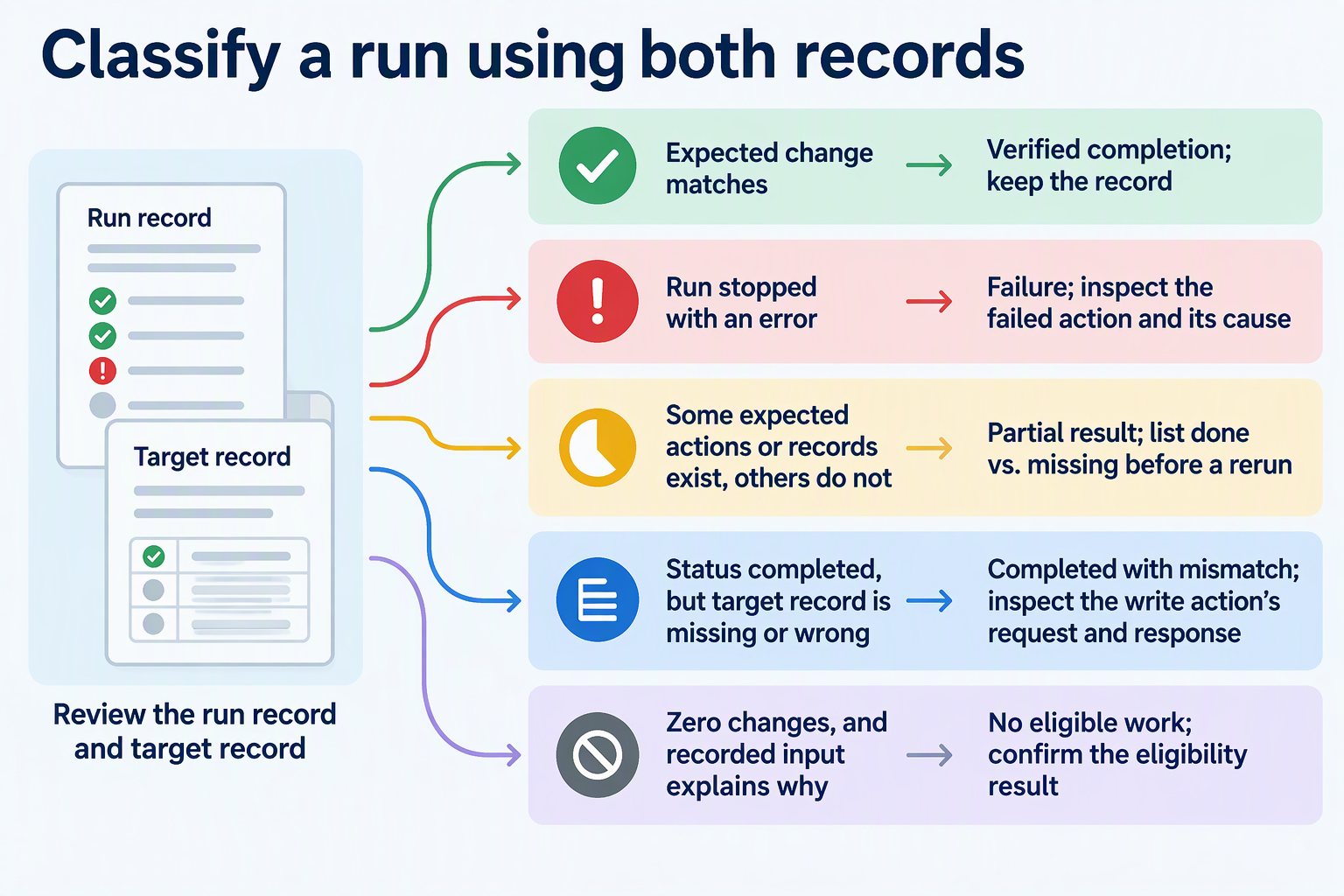
| Outcome | What the evidence shows | Next inspection |
|---|---|---|
| Verified completion | Expected record change found and matches | None; keep the record |
| Failure | Run stopped with an error | Failed action and its cause |
| Partial result | Some expected actions or records exist, others don’t | List done vs. missing before any rerun |
| Completed with mismatch | Status completed, target record missing or wrong | Write action’s request and response |
| No eligible work | Zero changes, and recorded input explains why | Confirm the eligibility result |
For failures, the tool’s error detail is the first stop. In AWS, you can inspect the Step Functions failure cause by choosing Cause or View step details, which highlights the step that caused the error. Other platforms present this differently.
Partial results need the most care. Before retrying, find out which records already exist. A blind rerun could duplicate work that already succeeded. Treat a no-work run as valid only when the recorded input or eligibility check shows nothing qualified. An empty result with no explanation belongs in the mismatch or failure row until you know more. Consistent log fields, as OpenTelemetry recommends, are what make these rows quick to fill in.
FAQs
Is an automation audit trail the same as a compliance audit?
No. The method here is an operational review that helps you explain what a run did. It does not make a workflow meet any regulatory or formal audit standard. If you have compliance duties, check those rules separately.
Should I log the full input data for every run?
Not always. A reference such as a record ID, file name, or message ID is often enough to rebuild what happened. Storing full payloads can expose sensitive customer data, so keep only what you need to explain the run.
How do I keep a scheduled run from creating duplicate records?
Check before you rerun. Use the run ID and the target record to see what already exists. Duplicate handling, such as matching on a unique key or updating instead of inserting, has to be built into the workflow. A schedule alone won’t handle it.
What if my automation tool shows only a success or fail status?
Add your own context. Write the run ID, time, input reference, and each action’s result to a log or table the workflow updates. Then the run record and the target record can be compared even when the tool shows very little.