
Make ComfyUI Images Reproducible by Saving the Generation Recipe


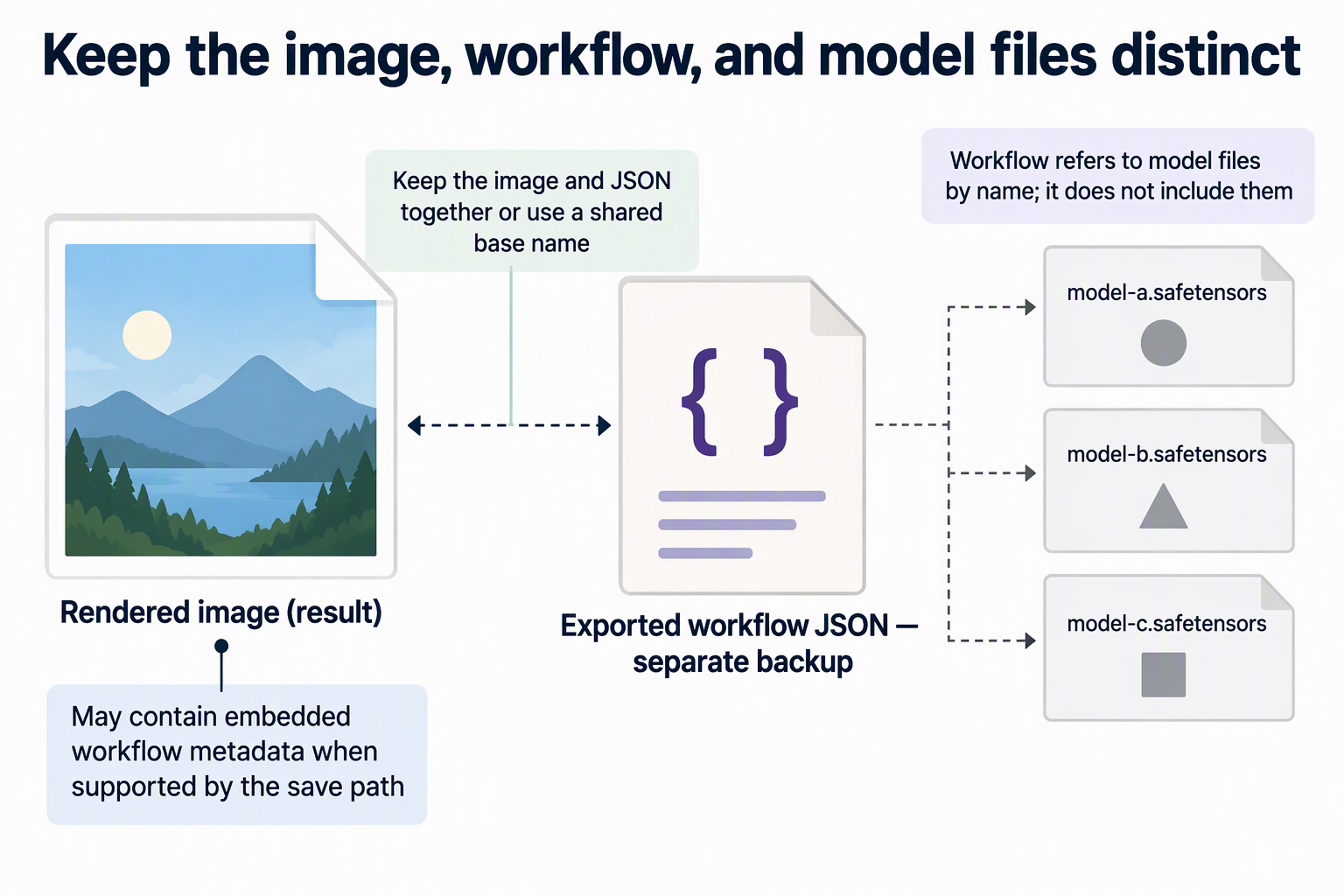
To recreate a ComfyUI image later, keep the output file, a separately exported workflow JSON, and the exact model files together. Also preserve any input images and custom-node dependencies the workflow needs. An image may contain its workflow, but only when the save path includes that metadata; a separate JSON copy is easier to check and archive.
Even with all three saved, think of the record as a way to rebuild the setup, not a promise of a pixel-identical result. The sections below cover what each piece stores, how to reopen it, and where ComfyUI reproducibility has limits.
Save a recoverable workflow, not just the rendered image
The rendered image is the result. The workflow is the recipe that made it. ComfyUI can store that recipe inside the output file, but you shouldn’t count on the image as your only copy.
ComfyUI documentation says built-in output nodes can embed workflow metadata in supported files unless metadata saving is turned off. PNG is one supported format. The workflow is commonly written into PNG text chunks under two JSON fields: workflow, which rebuilds the canvas, and prompt, which holds the inputs used to run the job. A file may also contain only one of these fields rather than both. Exact support depends on the save node and the file-writing path. Three things can leave a file without its recipe:
- ComfyUI was launched with –disable-metadata, or the ComfyUI Desktop setting “Disable saving prompt metadata in files” was on.
- The save node never received workflow information.
- Another app re-encoded the file. Image editors and some upload pipelines can strip or replace metadata.
When the metadata is there, recovery is simple. Images containing workflow JSON can be reopened by dragging them into ComfyUI or by loading them through Workflows > Open (Ctrl+O). If the canvas doesn’t rebuild and ComfyUI treats the file as an ordinary input image instead, the workflow isn’t embedded. In that case your separate backup is the only record left.
To make that backup, export the workflow as JSON with Workflows > Export, then reopen it later with Workflows > Open. ComfyUI does not link this file to a particular image. Keep the two in the same folder or give them a shared base name, such as portrait-042.png and portrait-042.json, so you can match them later.
What should the workflow capture? In ComfyUI’s SD1.5 text-to-image example, the inputs that shape the image include the documented positive and negative prompt inputs, the checkpoint selected in Load Checkpoint, and the KSampler seed parameter. Other workflows can use different nodes, so before you export, check that the values you care about are set in the graph itself.
Record the model asset the workflow actually uses
A saved workflow points to model files by name. It doesn’t contain the files. So record the assets your own workflow selects in its loader nodes, rather than relying on a generic list.
Here’s an example. In the SD1.5 tutorial, the tutorial’s selected SD1.5 checkpoint file is v1-5-pruned-emaonly-fp16.safetensors, kept in ComfyUI/models/checkpoints. The tutorial tells you to confirm it is selected in the Load Checkpoint node and that the selector doesn’t show null. Write down that exact filename and its folder. A similar-sounding file is not the same asset.
For any other workflow, go through each loader node and note the displayed filename and its folder. That might include a checkpoint, a LoRA, a VAE, or something else, depending on the graph. Only record what that workflow actually uses.
A name on record still doesn’t mean the file is on your machine. ComfyUI says the embedded workflow does not include the model files it depends on, or its input assets or custom-node packages. Moving or renaming any of those can stop a recovered workflow from running. If you want to run the recipe again later, keep the referenced files where the workflow expects to find them, or archive copies under their original names.
For a more complete recovery record, save the model download URL and a checksum, plus the ComfyUI and custom-node versions. A filename alone cannot distinguish two different files with the same name. These records help rebuild the environment; they still do not guarantee identical pixels across different hardware or software versions.
Treat the saved recipe as a recovery aid, not a guarantee
Reopening a workflow brings back the setup. It doesn’t guarantee the same image.
Seed handling is one reason. Record the seed used for the image you want to reproduce, then check whether the sampler keeps that seed or changes it between runs. A seed shown on the canvas after generation may already be prepared for the next run. Inspect the original output’s saved workflow when available, and verify the values before rerunning.
Model variants matter too. ComfyUI’s Flux.1 tutorial describes the FP8 file as a quantized version of FP16 and notes that the documented Flux.1 FP8 variant may have lower quality than FP16. Two files that share a model name are not interchangeable, which is why the exact filename belongs in your record.
Because results can still change, compare any rerun with the original image. If something looks different, check the seed and the exact model file first.
FAQs
Can I tell whether a PNG still holds its workflow without opening ComfyUI?
The workflow is stored in PNG text chunks under the field names workflow and prompt, so any tool that reads PNG text metadata can show whether they exist. Inside ComfyUI, the quickest test is to drop the file onto the canvas. If the graph rebuilds, the metadata is there.
Does sharing the image also share my recipe?
Yes, if the file still has its metadata. Copying a file copies what’s embedded in it. Anything that rewrites the file can remove that data, so send the exported JSON along as well when the recipe matters.
Is embedded metadata proof of who made an image?
No. ComfyUI states that embedded metadata is not a digital signature and doesn’t prove who created or changed a file. Treat it as a convenient recipe, not as proof of authorship.
Do video outputs keep workflows too?
ComfyUI’s documentation lists MP4 and WebM as formats where built-in save nodes write workflow metadata into container tags. Animated WebP stores it in EXIF tags. The same save-node and re-encoding conditions apply as with images.