
How to Build an Ebook Library That Survives App Changes

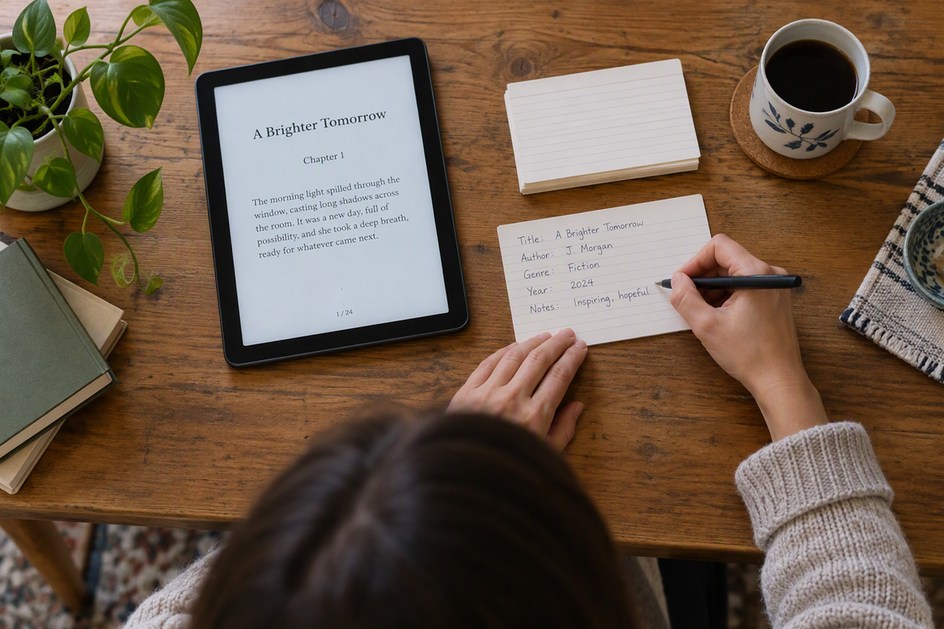
An ebook library that survives app changes is built in two layers. The first layer is the book files plus a simple record of each book: title, author, format, and where it came from. The second layer is reading state, such as your place in the book, highlights, notes, and shelves, which each app manages and which may not move with the files.
Start by listing where each title lives today. Some books are files you control, some can only be reached through a store account, and some are both. That list shows which books you can move freely and which ones need a closer look.
Build a durable layer for ebook files and descriptive metadata
Your durable layer is a folder you control that holds the original files, plus a short record for each book. If you switch apps, this is the part you keep.
Pick one main location for the files, such as a folder on a computer or drive that you already back up. Keep the structure plain so you can find a book without any app. An “Author / Title” folder pattern and readable file names work well. You don’t need a special cataloging system. You just need a layout you’ll still understand in five years.
Next, keep a small record for each book. A spreadsheet or plain text file is enough. Note the title, author, series or edition if it matters, the file format (for example, EPUB or PDF), and the source or account where you got it. Leave out reading progress, highlights, and shelves. Those belong to the reading-state layer, which you’ll check separately.
Protect originals while organizing: rename, convert, and test copies. The calibre manual explains that adding books makes library copies and leaves the original files untouched. Its Save to disk options can export book formats with metadata in a separate OPF file. Check those options when exporting; another reader may not import the OPF metadata.
Check access and file support title by title
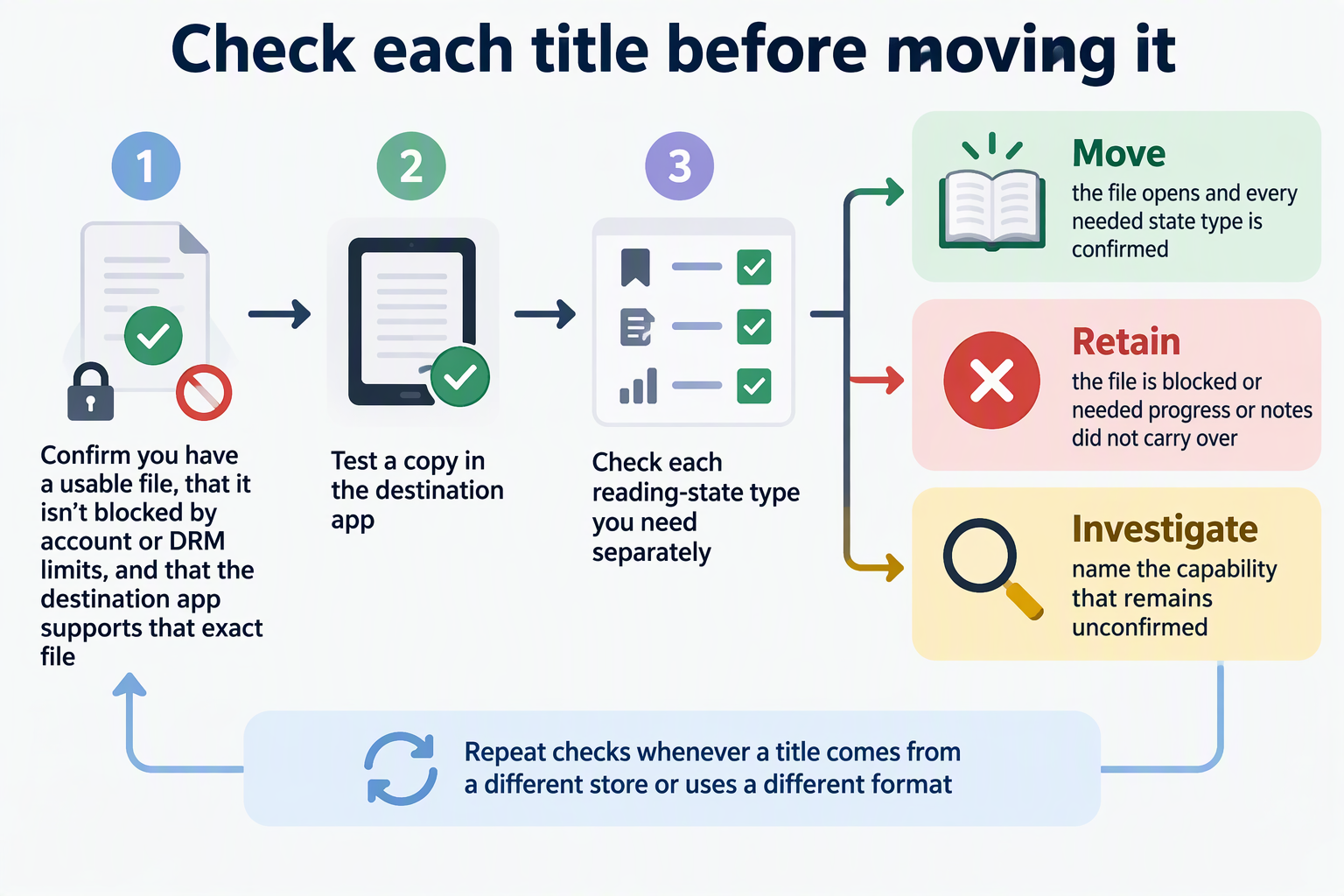
A book can move to a new app only when three things line up. You need a usable file, the file can’t be blocked by account or DRM limits, and the new app has to support that exact file.
DRM stands for Digital Rights Management: restrictions that can tie a book to an account or approved software. For each store title, check whether an export is offered and which readers are authorized to open it. Having an EPUB or PDF on disk does not, by itself, establish that another app can use it. Keep account-only books recorded separately from transferable files.
Then check the destination app. Look for its own documentation on which files it accepts. For example, Google Play Books describes uploading EPUB and PDF files that you can then read on devices signed in to your account. That is a fact about one destination app. It doesn’t mean every EPUB from another store will open there, and it doesn’t mean other apps accept the same files. A “.epub” ending tells you the format, not whether the book is unlocked or supported.
Add the results to your record: source route, actual format, DRM status, and whether the destination documents support for that file.
Treat reading state as a separate migration task
Don’t assume your place in the book, your highlights, or your shelves will follow the file. Check each type of state on its own, using both the old app’s and the new app’s documentation.
Four outcomes are easy to mix up. An export gives you a file of your notes. An import puts that data into the new app. Same-app sync keeps state matched across your own devices in one service. Cross-app sync links two different apps. An exported notes document is a copy you can read. It is not the same as live, editable highlights inside a new reader.
Kobo shows what an export-only path looks like. Kobo’s limited annotation-export option lets you save highlights and notes as PDF, HTML, TXT, or Markdown. It works only for books bought from Kobo or Kobo Plus. It may not work for every book because it depends on author approval, and markups can’t be exported. Kobo keeps the export for 30 days, so download it and store it in your durable folder.
Google Play Books shows same-app sync. It documents bookmarks, highlights, and notes across devices for uploaded EPUB and PDF documents. For PDFs, this works only for files uploaded after January 20, 2026. This keeps state within Google Play Books. It does not bring state in from another app.
BookOrbit documents one real cross-app bridge. With BookOrbit’s two-way progress sync turned on, a Kobo reader shares one progress record with BookOrbit’s web reader and KOReader. Restoring your exact position on Kobo requires the KEPUB file that BookOrbit delivers. BookOrbit accepts Kobo highlights for synced books. Sending highlights back to Kobo needs the right setting and that BookOrbit-delivered KEPUB. BookOrbit documents that eligible collections can sync to Kobo, where they show up as tags.
Run a small migration check before moving the collection
Test a few books before you move everything. Keep the originals where they are, and record file results and state results separately so each title gets a clear next step.
- Pick a small sample that covers each source route and format in your library. Include at least one book with notes or progress you care about.
- Copy the sample files instead of moving them. Your durable folder stays unchanged.
- Open each copy in the new app. Record whether it opens, fails, or is blocked by DRM. Confirm your record still identifies the book.
- Check progress, highlights or notes, and collections one at a time. Mark each one confirmed, not confirmed, or not applicable.
- If you are testing BookOrbit with Kobo, follow a sample BookOrbit-to-Kobo check. Put an accessible book whose primary file is EPUB into a BookOrbit collection with Sync to Kobo turned on. Run a sync on the Kobo, then look for the book and for the collection as a Kobo tag. To test progress, turn on two-way progress sync and compare the position on Kobo with KOReader or the web reader. Test highlights in each direction on its own.
- Give each title one label: move, retain, or investigate.
Move a title when the file opens and every state type you need is confirmed. Retain it in the original app or account when the file is blocked, or when progress or notes you need didn’t carry over. Investigate when one specific capability is still unconfirmed, and name that capability in your record. A clean sample lowers your risk, but it doesn’t prove every book will move. Test again whenever a title comes from a different store or uses a different format.
FAQs
Do I need special software to keep ebook metadata?
No. A spreadsheet or text file with title, author, edition, format, and source covers the basics, and it opens in nearly any program. A library manager like calibre can add structure, but your own record still works if you later stop using that tool.
What should I do with a book I can only open through a store account?
List it in your record anyway. Note the store and account name, and mark it as account-only. That keeps your ebook library complete, and it reminds you to keep that account active if you switch to a new reading app for your other books.
Can I keep highlights if my new app can’t import them?
Yes, as a reference copy. If the old app offers an export, save the file in your durable folder next to the book, with a name that matches the title. You’ll be able to read your notes later, even though they won’t appear as highlights inside the new app.
How often should I update my library record?
Update it each time you add a book, and check it again before you change apps. A record that is current makes the migration check faster, because you already know each title’s source, format, and DRM status.