
How to Tell Whether a Wise Upload or Download Is Complete


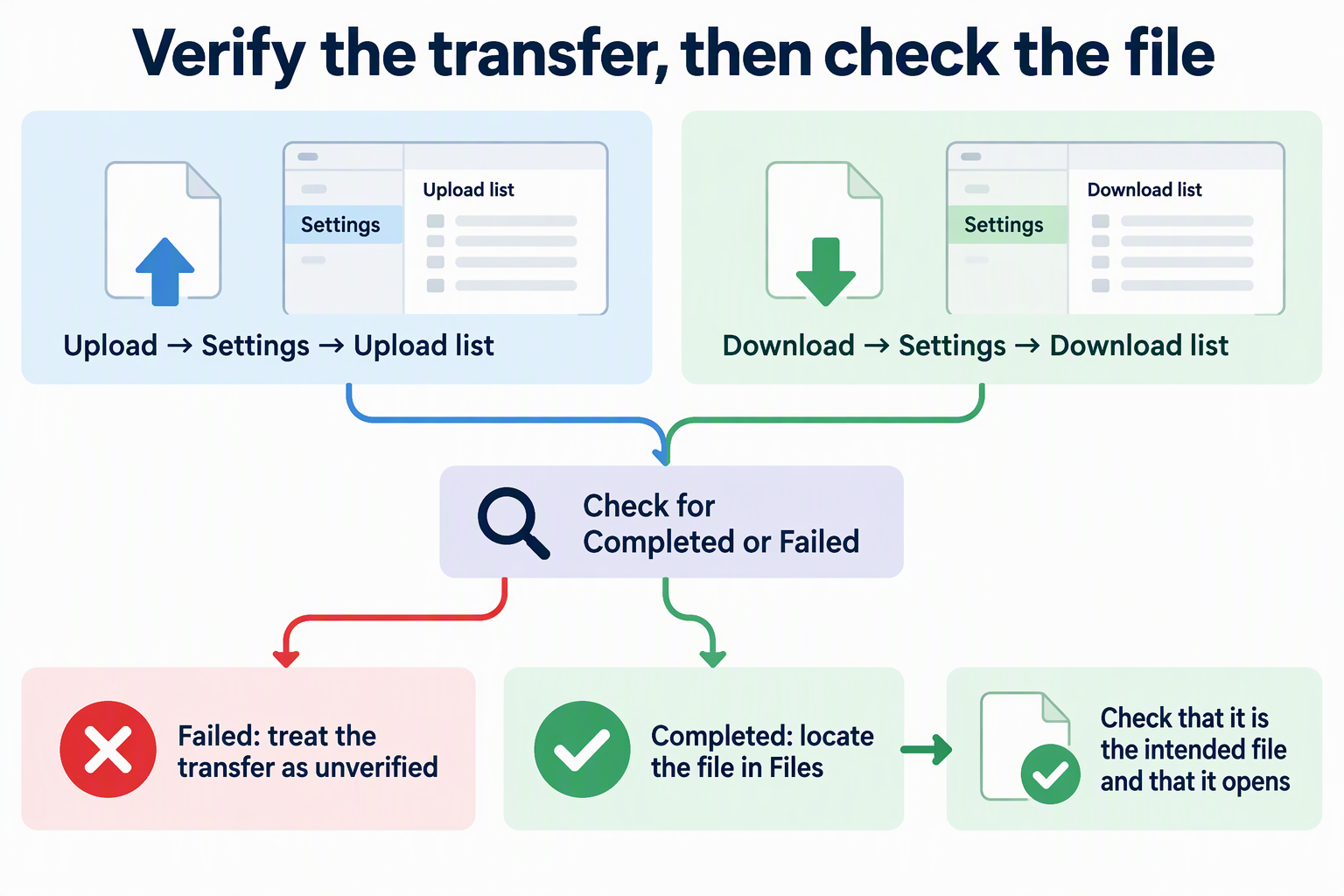
To tell whether a Wise upload or download is complete, open its task list in Settings. Uploads are in the Upload list and downloads are in the Download list. Check whether the task shows Completed or Failed, then use the list to find the file in Files.
Those two checks answer different questions. The status tells you how the transfer task ended, and the location tells you where the file landed. Neither one proves the file is the one you meant or that it opens, so confirm that yourself before you trust a research file.
Check the Wise upload or download task
Wise tracks uploads and downloads in two separate lists, and each one has its own route. Pick the H3 below that matches the direction of your transfer.
For an upload
An upload moves a local file from your computer into Wise. The Wise basics guide covers how to start one. Then check it with this sequence:
- Start the upload. Click the add button in the lower left, choose Upload, and pick one or more files. Choose a target folder and click Confirm. You can also drag and drop. The official examples include PDF, EPUB, audio, and video files.
- Open the task list. Go to Settings → Upload list.
- Read the status. Find your file and see whether it shows Completed or Failed.
- Locate the file. Use the list’s option to find the file in Files. Check that it sits in the target folder you chose in step 1.
Step 4 gives you a useful cross-check. You picked the target folder yourself, so a file that turns up somewhere else, or doesn’t turn up at all, tells you something didn’t go as planned.
For a download
A download pulls a file into Wise from a link. Download tasks start from Add Link, and Wise only offers a download when the link supports it:
- Start the download. Click the add button in the lower left, choose Add Link, and paste the URL. Depending on the address and the service behind it, Wise may show Download file, Save to library, or Subscribe to RSS feed. Pick Download file when you want the file itself.
- Open the task list. Go to Settings → Download list.
- Read the status. Find the task and check for Completed or Failed.
- Locate the file. Use the list’s option to find the downloaded file in Files.
Don’t expect a single fixed folder for every download. Rely on the locate option in the Download list to show you where this particular file went. If you collect web pages with a browser instead, it works a little differently: you save resources to Olares through the LarePass extension’s Collect option, and Wise is where those items are saved and read.
What the status and file location actually verify
A Completed status plus a file you can locate tells you the task finished and where its output went. It doesn’t tell you that output is the file you expected or that it’s usable. That last step is yours to confirm.
When a task is marked Completed
Completed is the task list’s verdict on the transfer job. It’s a good sign, and it’s the signal to move on to the file itself. Still, a finished task and a usable research file are two separate claims.
Here is one way the gap can show up. Say you uploaded three PDFs at once for a literature review, and all three tasks show Completed. That tells you three transfers finished. It doesn’t tell you that you picked the right three files, or that each one is the version you meant to keep. Before you cite or annotate anything, find each file in Files and make sure it’s the document you intended.
The same goes for downloads from links. Wise reads what the link offers at that moment. A finished task means Wise saved what the service delivered, which may not be exactly what you saw in your browser.
When the status or file does not match
If a task shows Failed, the transfer didn’t finish, and you shouldn’t rely on any file tied to it. The same applies when the status says Completed but you can’t find the file, or the file you find isn’t the one you expected. Until you’ve confirmed the right file, treat the transfer as unverified.
For downloads, our Wise documentation lists conditions that affect what Wise can capture from a link:
- Content behind a login may need valid cookies.
- Some audio and video downloads rely on YT-DLP.
- Twitter/X content may need the Twitter/X plugin.
- Not every web page can be captured in full.
These conditions explain why a link might not behave the way you expect. They don’t confirm the cause of any one Failed task. If one of them matches your link, such as a page that needs you to be signed in, that’s the first condition to look at for that download.
Uploads don’t have a matching list of conditions. If an upload fails, the task list tells you it failed but not why, so don’t rely on that file until a Completed task and a file you’ve checked agree.
Keeping these checks separate makes Wise file transfers easier to trust. The status answers “did the job finish?”, Files answers “where is it?”, and your own review answers “is this the right file?”
FAQs
Does a Completed status mean my file is ready to use?
Not by itself. Completed means the transfer task finished. To trust the file for research, find it in Files and confirm it’s the document you meant to transfer. A task status can’t tell you that.
Where does a finished upload end up?
It goes to the target folder you picked when you started the upload. To jump straight to it, use the locate option in Settings → Upload list, which opens the file’s place in Files.
Can I upload more than one file at a time?
Yes. The Upload option lets you pick one or more files, and drag and drop also works. Each file still needs its own check, because one Completed task says nothing about the others.
Why doesn’t Wise offer Download file for every link?
Wise shows the options that fit the address and the service behind it. A link might offer Save to library or Subscribe to RSS feed instead. Content behind a login may need valid cookies, and some media or Twitter/X content relies on YT-DLP or the Twitter/X plugin.
Is opening a feed item the same as saving it?
No. Feeds are a discovery list, and their items can change with the source or disappear when you unsubscribe. To keep an item for later, use Save to library. Library items support reading status, tags, notes, and filters.