
Can You Run AI Completely Offline? What Still Needs an Internet Connection
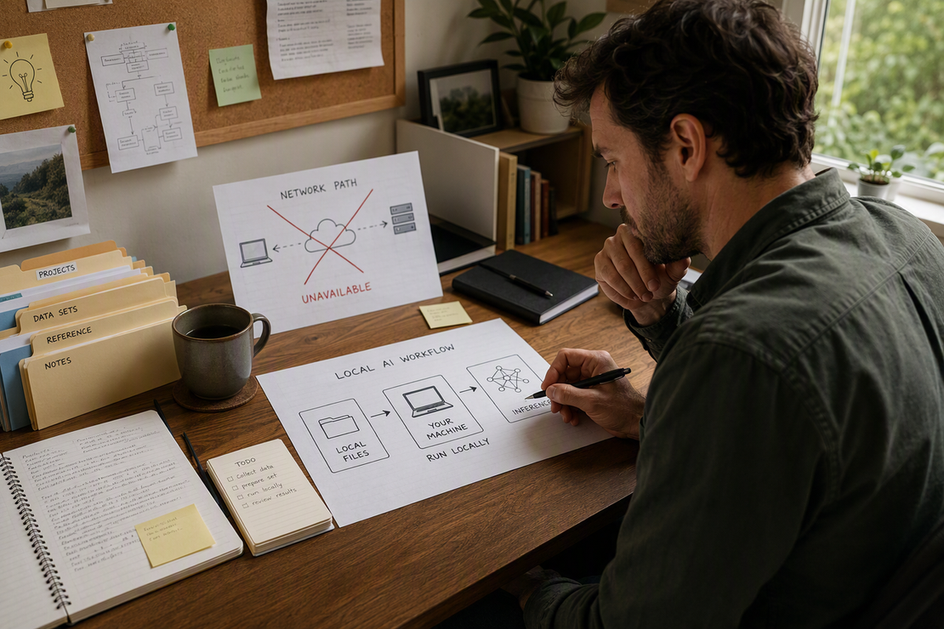
Yes, but only for the parts you have already prepared. A local model can generate answers with no active internet connection once its files and runtime are sitting on your own drive. That is genuinely offline AI. The catch is that most real setups bundle that local inference step together with activation, downloads, updates, sign-in, and a few connected tools, and any of those pieces can still depend on the internet. The practical result is a three-way split: a task is offline-capable, conditionally connected, or cloud-dependent, and the difference usually comes down to whether the exact component you are using is stored on your machine or waiting on a remote server.
What Offline AI Can Actually Do
A model running on your computer is not the same thing as an assistant that can finish every request with no network. The distinction that matters is what "local" actually covers: the model weights, the inference engine that reads them, and the interface you type into.

When those three pieces are already saved locally, the assistant can produce a response without reaching out to a server. Projects such as llama.cpp are built around exactly this pattern: once a model file has been downloaded, the engine loads it from disk and serves each request from the local machine, whether that machine is offline or online. That is the core mechanism behind every offline AI claim you will see.
But a claim of "fully disconnected" only applies to the workflow you actually tested. If your setup also depends on stored chat history synced to a cloud account, a plugin that checks a remote server, or a login step tied to an online identity service, those pieces sit outside the offline path even though the model itself never left your disk. Use three labels to sort any feature you rely on: offline-capable (works with the model and runtime alone), conditionally connected (works locally most of the time but needs the internet for setup, maintenance, or access), and cloud-dependent (cannot finish without a remote server). The next sections map real tasks and setup steps onto those three labels.
Which AI Tasks Keep Working During an Outage
Local response generation, tasks that only touch files already on your disk, and tools installed on your machine can keep working when your internet goes down, as long as you tested them beforehand. Tasks that reach out to a remote server, such as web search or a hosted model API, cannot finish without a connection. The table below sorts common tasks by that condition.
| Task or feature | Offline status | What must already be local | What fails without internet |
|---|---|---|---|
| Generating a response from an installed model | Offline-capable | Model file and runtime already downloaded | Nothing, if both are present |
| Reading and summarizing local files | Offline-capable | Files stored on the same device or local network | Nothing, unless files live in cloud storage |
| Downloading a new model or update | Cloud-dependent | Not applicable; this step needs a remote host | The download or update itself |
| Web search inside an AI chat | Cloud-dependent | Not applicable | The search results and any answer built on them |
| Calling a hosted model through an API | Cloud-dependent | Not applicable | The entire response |
| Remote access from outside your home network | Conditionally connected | A relay, VPN, or identity service for the connection | Access from outside the local network |
| Third-party apps and plugins beside your model | Depends on the app | Check each app's own documentation | Varies; test the specific integration |
Two conditions decide most rows. First, is the file, model, or service already stored where you are running the request, or does it live on a remote host? Second, are you connecting from inside your own network, or from outside it? Local-network access and outside-network remote access are different tests, and a setup that passes one can still fail the other.
What Still Needs Internet During Initial Setup
Most mainstream local AI setups use an internet connection during initial preparation to obtain the runtime, model files, packages, and, where required, complete platform activation. Air-gapped setups can instead prepare and transfer those artifacts through approved removable media or an internal mirror. Neither approach determines whether the finished workflow needs internet to run.
Complete the Connected Steps First
Work through this sequence while connected:
- Activate the platform or account you are using, including any required client or identity step.
- Install the inference runtime and the interface you will type into.
- Download the model file itself, along with any packages or dependencies the runtime needs.
- Save the credentials, API keys, or configuration files the session will need later.
- Confirm the model and any local index or memory files are stored on your own drive, not just referenced from a cloud path.
For Olares, the current setup process requires internet access for installation, package downloads, and activation-related services. Once setup is complete, Olares supports local-only access through .local domains when your device and Olares are on the same LAN. If you plan to run a local model through Olares, this activation step is a one-time online requirement, separate from whether the model itself runs offline afterward. Once your model is downloaded, browsing available options in models in Market is a locating step, not proof that a given model already runs offline; each model still needs its own download and local storage check.
Separate Model Acquisition From Inference
Downloading a model and running it are two different phases. A model visible inside an app is not automatically stored on your device; many interfaces stream a model from a remote repository on first use and only cache it locally afterward. Confirm the file has actually finished downloading to local storage before you plan to rely on it offline.
Run the First Disconnected Test Before the Outage
Before you consider the setup ready, disconnect the internet once on purpose, while keeping your local network active if local-network access matters to you. Send a real request from the interface you intend to use day to day. Note whether the model loads, whether the interface still authenticates, whether your local files are reachable, and whether the response actually completes. This test belongs to setup, not to the day an outage happens.
What May Still Need Internet After Setup
A local AI setup that works offline today can still develop internet dependencies later, through maintenance, identity checks, remote access, or connected tools. Each of these is stack-dependent rather than universal, so check your own setup instead of assuming a label like "local" covers all of them.
Updates, Packages, and Model Retrieval
Software updates, security patches, and model replacements typically arrive from a remote source. A system can stay usable offline for a stretch of time and still be conditionally connected for maintenance, because the update mechanism itself needs a network even though daily inference does not.
Identity and Remote Access
Local authentication, such as a password checked against a file on your own device, is different from an online identity service or a remote access relay. For Olares, LarePass is used for activation and can provide secure remote access through its VPN, while Olares ID serves as the user's identity and login account. Those two requirements sit outside local inference itself: they govern activation and automated remote access, not whether a model already stored locally can generate a response. If your goal is strictly local-network use, plan around the activation step rather than the remote-access mechanism.
Web Search, Cloud APIs, and App Integrations
Running a model locally does not make a web-search tool or a cloud API local. Each integration sends its own request to its own destination, and you need to check that destination for every tool you add. If an integration calls a remote endpoint, it will fail or return nothing during an outage, regardless of how the base model behaves.
How to Audit a Local AI Setup Before an Outage
To audit your local AI setup, pull the internet connection and test your complete daily workflow to see what fails first. That single test separates true offline capability from hidden cloud dependencies.
Run the Prioritized Disconnected Test
- List every component in your workflow: the model file, the inference runtime, the interface, local storage, credentials, and any integrations.
- Note which access route you actually need, local-network only or remote access from outside the network, and test each one separately.
- Disconnect the internet while keeping your local network active if local access matters, then send a real request through your normal interface.
- Record the first component that fails and the specific feature that stops working, rather than stopping at "it didn't work."
- Reconnect the internet and confirm the system returns to its earlier state before you trust the result.
Check the Olares Boundary Separately
Olares OS documentation supports a local-first pattern, with initial activation requiring internet and local-only access available afterward through .local domains, consistent with the Olares OS overview documentation. Applications that run on top of Olares, including local LLM tools listed in its use-case guides, follow their own documented network behavior rather than inheriting the OS-level boundary automatically. If you are running a specific app on Olares, verify that app's connectivity behavior on its own documentation page instead of assuming it matches the OS.
Classify the Result and Verify Recovery
Your test produces one of three outcomes. Offline-capable means the exact workflow you tested completed while disconnected. Conditionally connected means the core response still worked, but a setup, maintenance, identity, access, or integration step did not, so the setup needs a plan for that gap. Cloud-dependent means the feature you tried to use cannot complete without a remote server, so treat it as unavailable during any outage. Whichever result you get, reconnect and confirm the system, credentials, and any synced data return to normal before you consider the audit finished.
Once you classify each workflow, keep offline-capable tools ready for outages and set clear fallback procedures for tasks that require cloud connectivity. If you are configuring a local-first environment on Olares OS, complete your model downloads and verify your .local domain access while online so the workflows you have verified as offline-capable remain usable when the internet connection drops.
References
- llama.cpp Project. Llama.cpp README.
- Olares. Olares FAQs.
- Olares. Olares Documentation Overview.